How to save any web page as a PDF, on any device
 By Nasir Uddin Shamim5 guides
Press Ctrl+P (Cmd+P on Mac), change the destination to "Save as PDF" and click Save. On iPhone, use the Share sheet, tap Options and choose PDF. Both keep the text selectable and the links clickable, unlike a screenshot, which stores pixels only.
Every browser can turn a web page into a PDF, and every browser hides the option somewhere slightly different. These guides cover the desktop print dialog, the iPhone Share sheet, full-page screenshot capture when the layout matters more than the text, and proper archiving for pages you need to still exist in five years. Along the way: which methods keep links clickable, which produce a searchable file, and which quietly hand you a picture of text.
Every guide in this topic
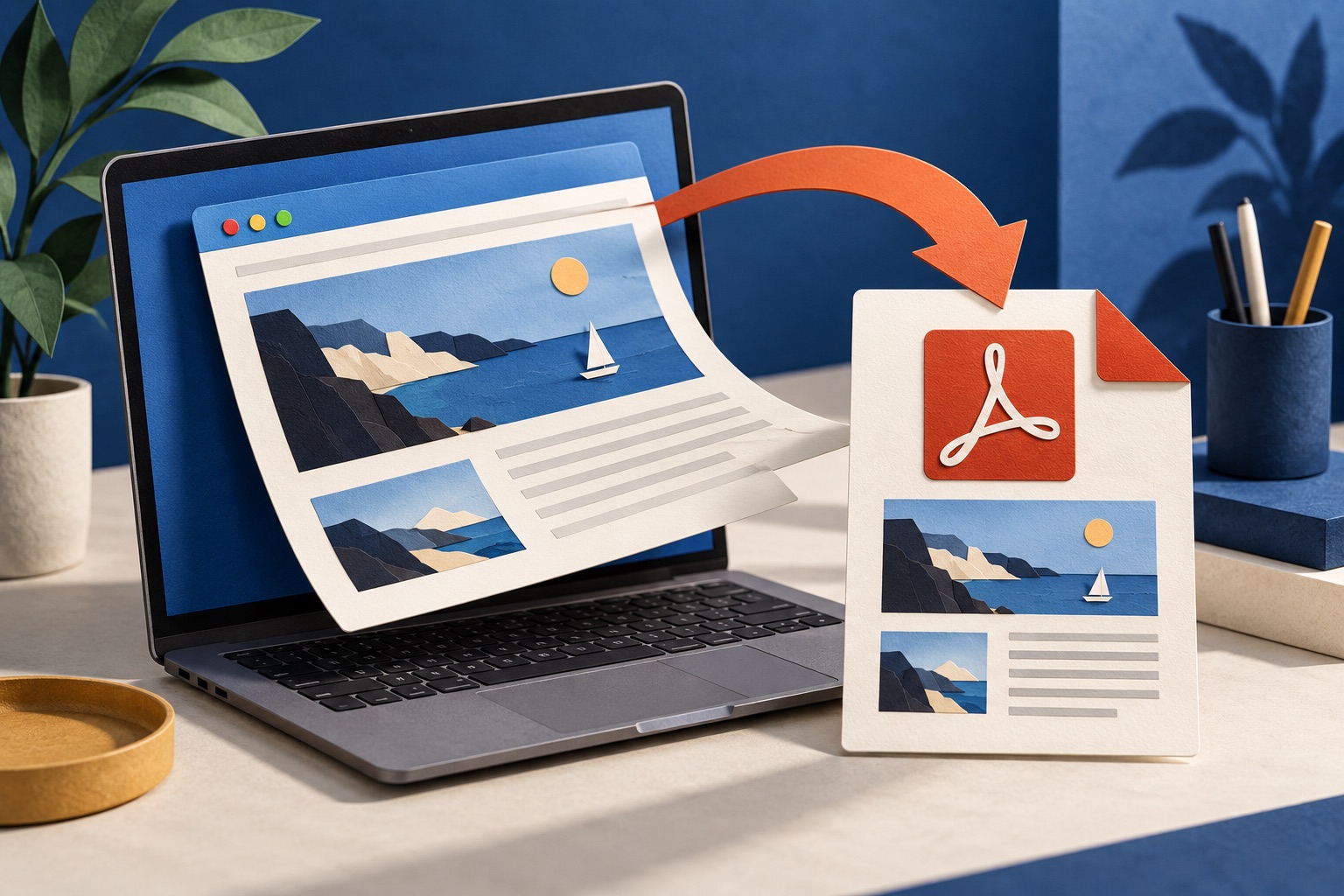
How to save a web page as a PDF in any browser
Press Ctrl+P on Windows or Cmd+P on a Mac, open the Destination list and choose Save as PDF, then click Save. Every desktop browser supports this. The resulting file keeps selectable text and clickable links, and you can limit it to a page range before saving.
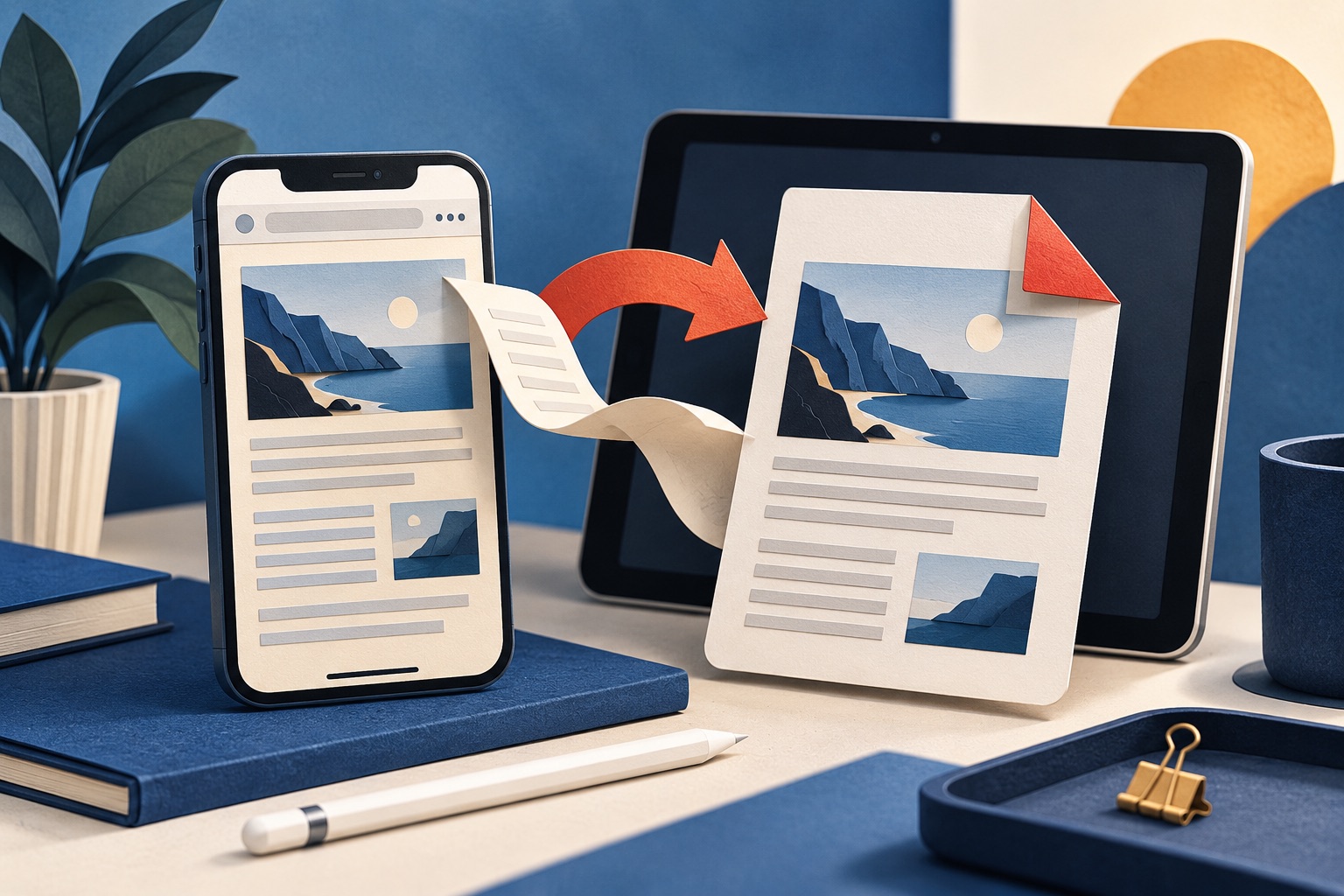
How to save a web page as a PDF on iPhone and iPad
On iPhone and iPad, open the page in Safari, tap the Share button, tap Options under the page title, choose PDF, then tap Save to Files. For a picture-perfect copy instead, take a screenshot, tap the thumbnail, switch to Full Page and save the PDF.
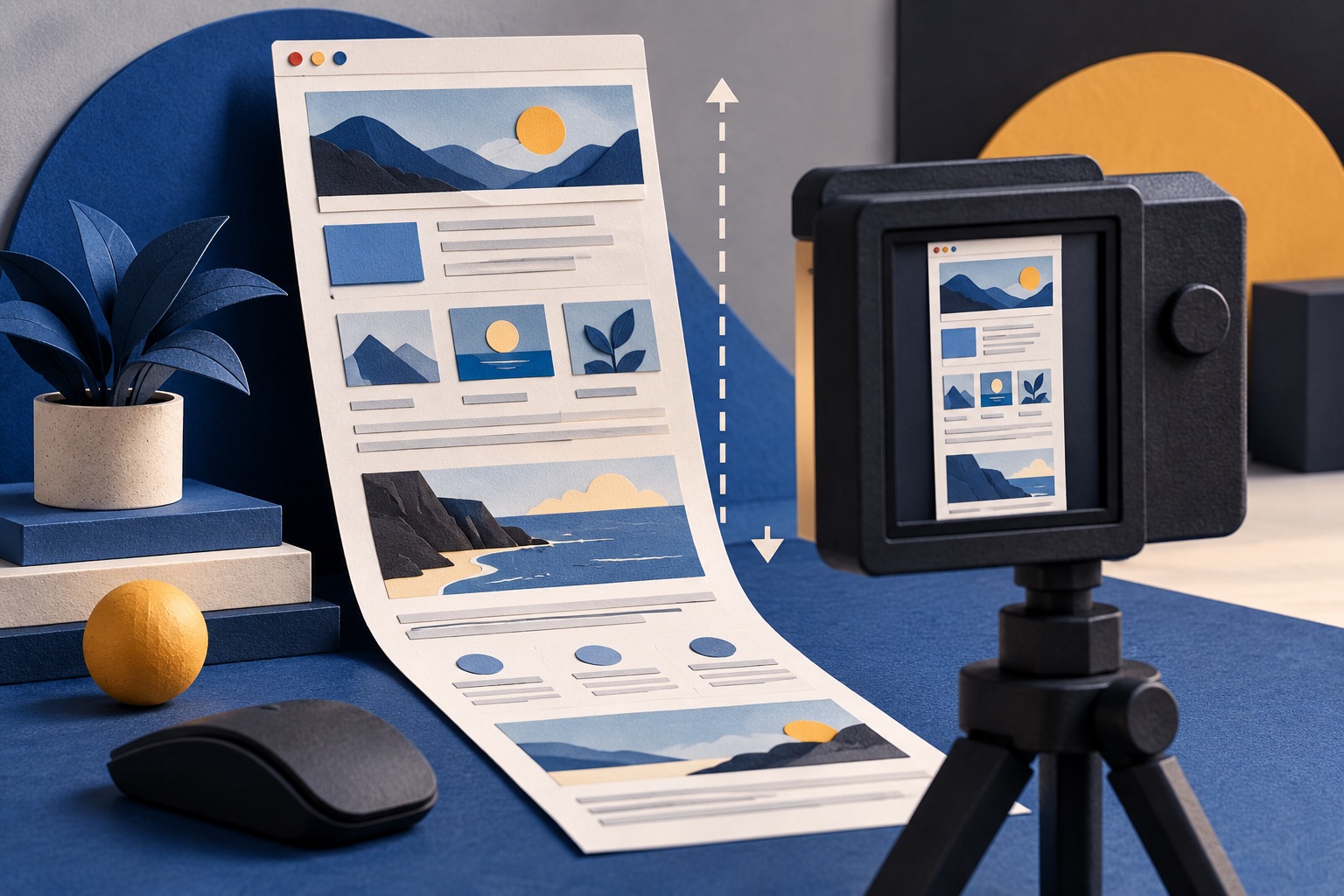
How to take a full-page screenshot of a website
In Chrome, open DevTools with F12, press Ctrl+Shift+P, type screenshot and choose Capture full size screenshot. Firefox and Edge have it built in: right-click the page and pick Take Screenshot, then Save full page. The result is one tall PNG of the entire scrolling page.
How to archive a web page so it still exists later
Archive a web page three ways at once: submit it to the Wayback Machine for a public, third-party-dated copy; save your own PDF for a readable offline record; and keep a full-page screenshot as visual proof. Public archives fail on paywalled or logged-in pages, so the local copy matters.
How to save a dynamic web page as a PDF you can verify
To save a dynamic webpage, wait for the content you need to load, use a printer-friendly view or the browser's Print and Save as PDF option, then inspect every page and test links and text. A PDF is a snapshot, not a complete archive of scripts, comments, account state or future updates on the original site.
Tools for this job
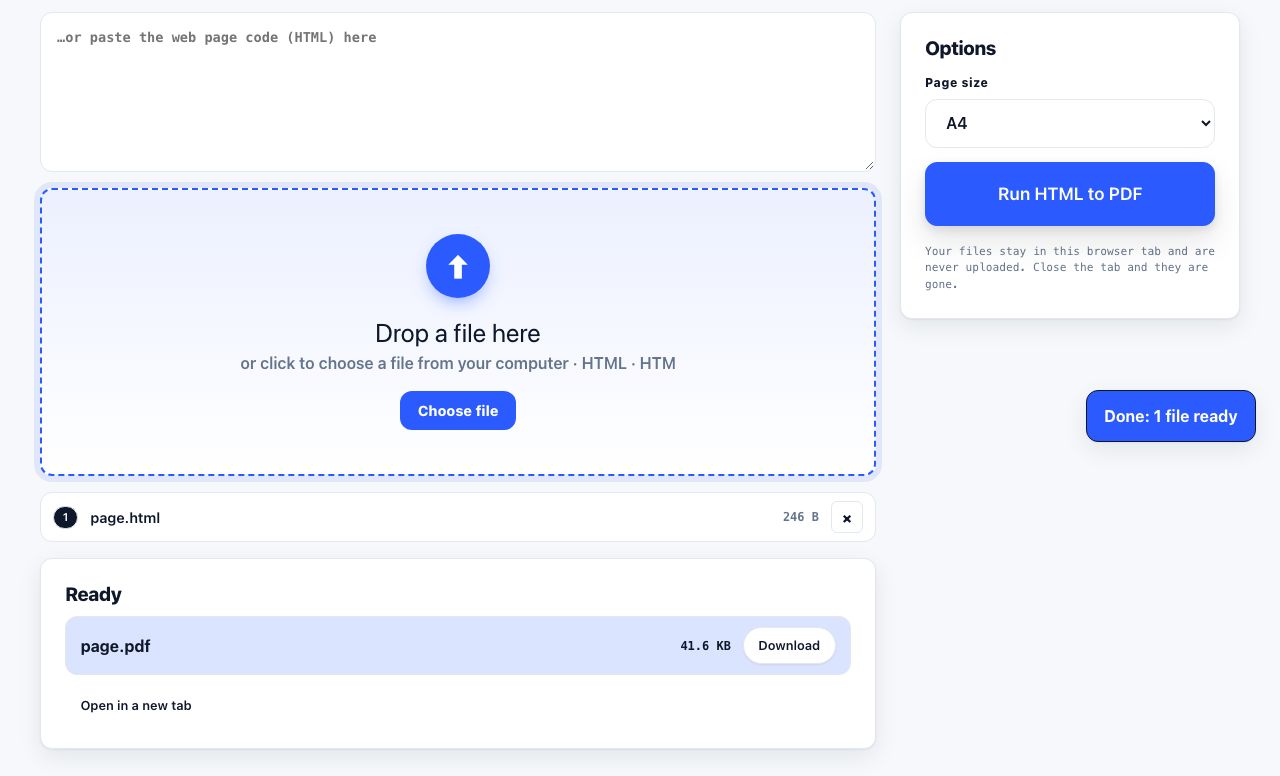
HTML to PDF
Web page file → PDF
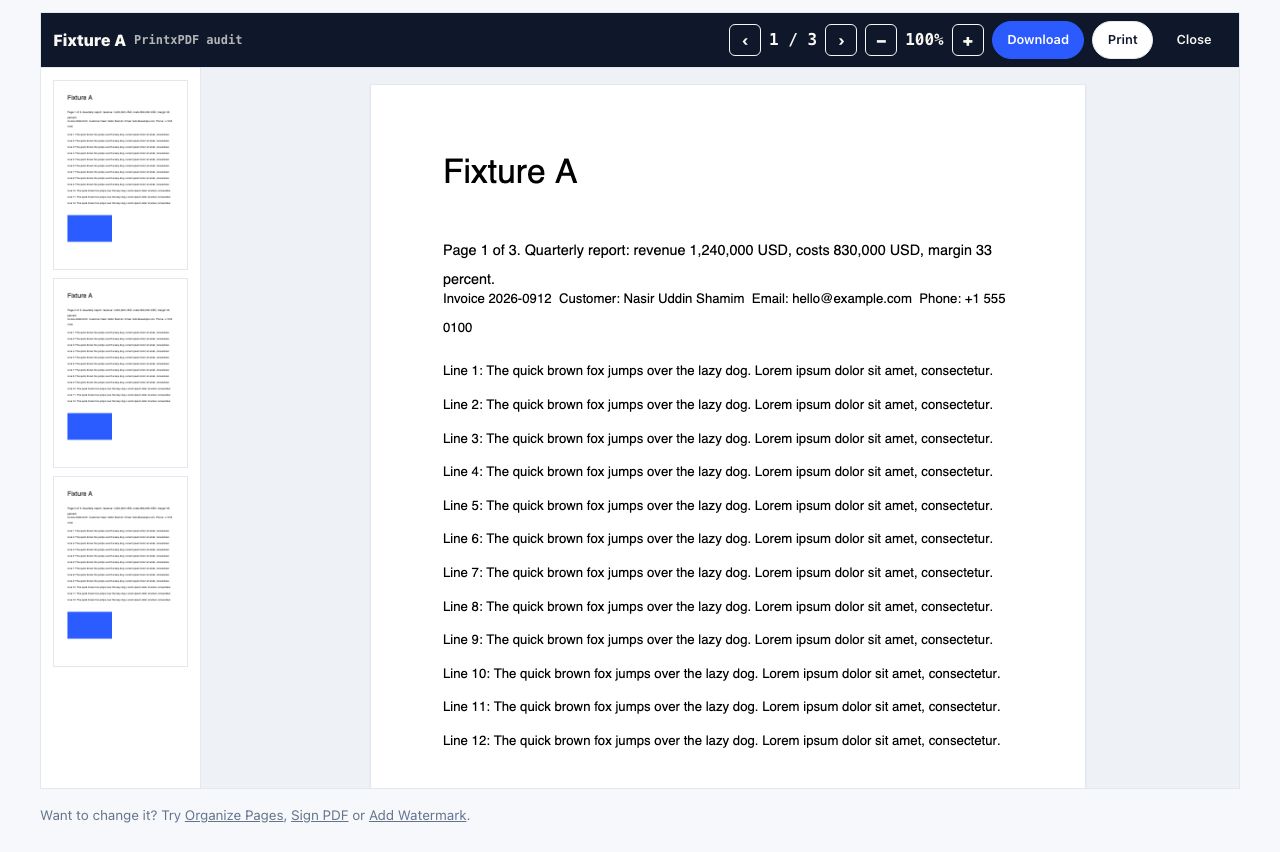
PDF Reader
Open and read a PDF online
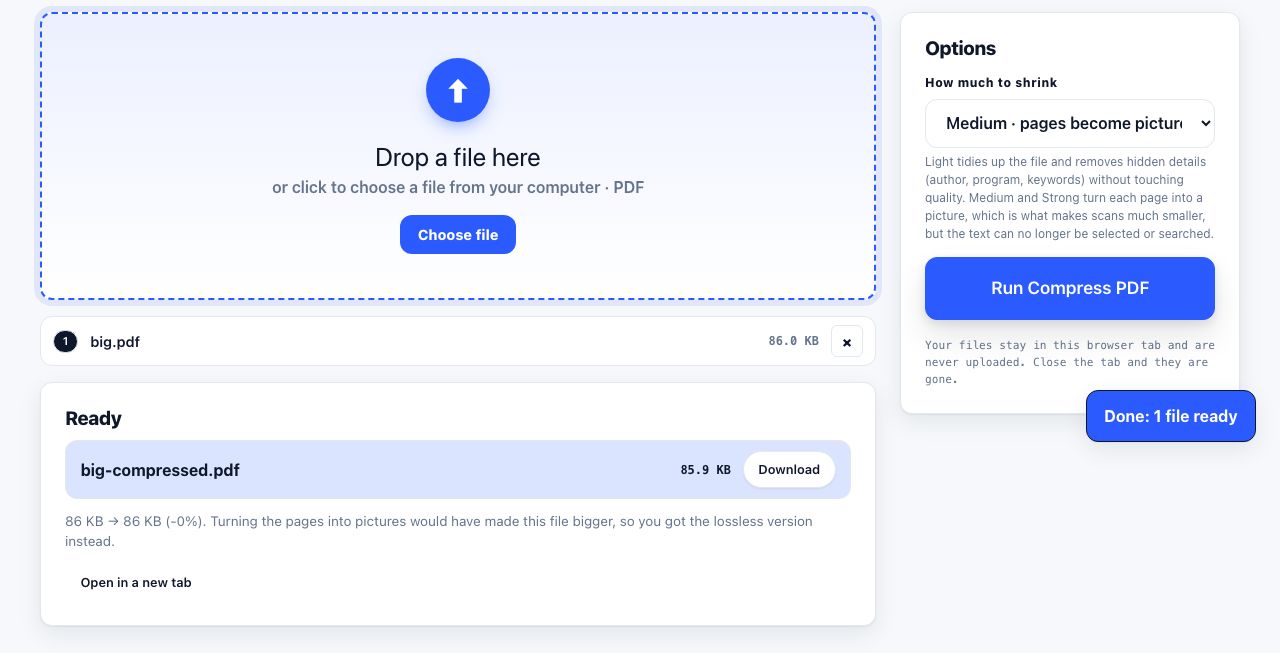
Compress PDF
Shrink the file size
Merge PDF
Combine files into one
See the recommended tools in action
Other topics
Printing web pages
Print any web page without ads, sidebars or menus. Reader mode, print preview, browser settings and a free tool that cleans the page in your browser.
Merging PDF files
Combine PDFs into one file for free. Drag to set the page order, mix in JPG and PNG images, keep bookmarks, and merge without Adobe Acrobat on Windows or Mac.
Splitting and extracting PDF pages
Split a PDF into single pages or custom ranges, extract only the pages you need, delete the rest, and cut a big file down to fit an email attachment limit.
Compressing PDF files
Compare three PDF compression presets, keep text searchable when needed, and learn when to split a large file or use a sharing link.
Converting PDF to other formats
How to get a PDF back into an editable format: Word, Excel, plain text and slides, what each conversion really preserves, and when the answer is to retype.
Converting files to PDF
Turn documents, spreadsheets, web pages and photos into PDFs that look right. Font embedding, print areas, page-break CSS and the DPI that matters in print.