Extract Text from PDF
Extract selectable text from every page of a PDF into a plain TXT file. The tool keeps the reading order as well as it can and runs locally without uploading the document.
Extract selectable text from every page of a PDF into a plain TXT file. The tool keeps the reading order as well as it can and runs locally without uploading the document.
What is Extract Text from PDF?
What is a PDF?
A PDF draws each page from text, pictures and shapes placed at fixed spots. When a PDF was made from a word processor, the text inside is real text: every letter is stored as a letter, and that is what a converter can pull out. A PDF made by a scanner or a camera is only a picture of the page and contains no text to pull out.
What is a TXT file?
A .txt file is plain text: letters and line breaks, nothing else. No fonts, colours, pictures or page sizes, which is exactly why it is so useful. It opens in every text editor, is tiny, easy to search, and simple to paste into a spreadsheet, a note or an AI prompt. This tool saves it in a way that keeps accented and non-English letters intact.
Why convert PDF to text?
- Search and quote without a PDF app. A .txt file can be searched and compared in any text editor. Find every mention of a clause in a 300-page report in seconds.
- Feed documents to other tools. Spreadsheets, translation tools and AI assistants take plain text. Pull the text out once and paste it anywhere.
- Reuse the words, not the layout. When you need the content of a PDF for a new document, plain text gives you clean sentences without the formatting baggage.
- Private, fast, offline. The text is read inside your browser. Nothing is uploaded, there is no waiting line, and it works on a train once the page has loaded.
How to use Extract Text from PDF
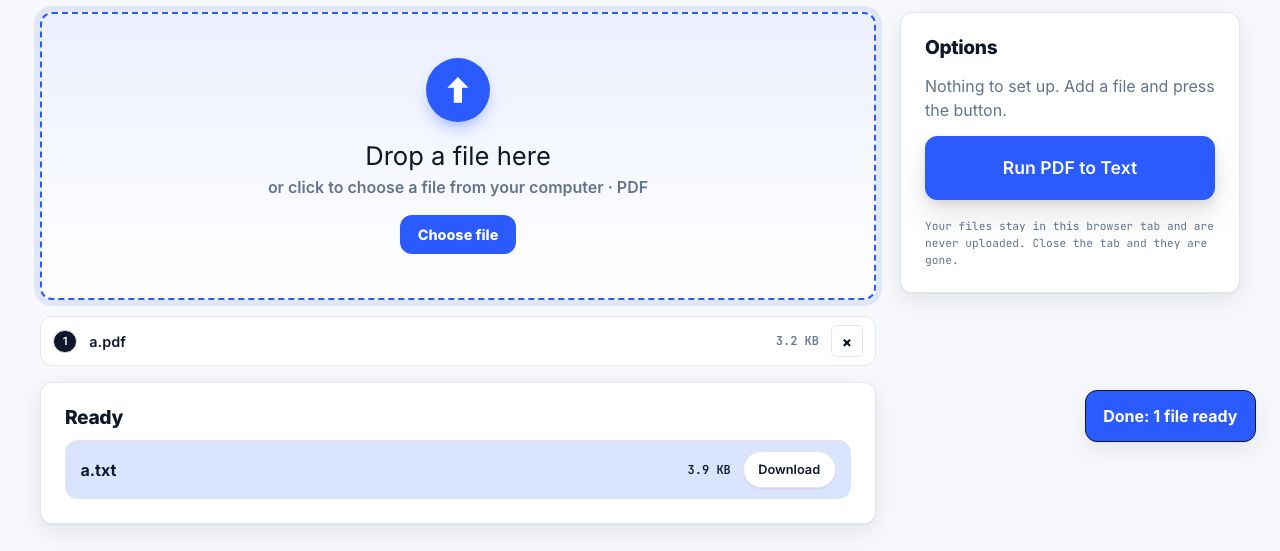
- Open PDF to Text and drop your PDF Drag the file onto the drop zone, or click to choose it. The PDF is read on your own computer.
- Run PDF to Text There are no options. Click Run PDF to Text and the progress bar walks through the pages.
- Download the .txt file The file downloads on its own, named after the PDF. Each page starts with a
--- Page N ---line so you can tell where one page ends and the next begins. - Got an empty file? Run OCR first If the PDF is a scan or a photo, there is no real text to read. Use OCR PDF, which turns a picture of text into real text you can search and copy, then convert the result.
Frequently asked questions
Why is my text file empty or almost empty?
The PDF has no real text in it, which usually means it was scanned or saved as pictures. Run it through OCR PDF first. OCR reads the letters in the picture and turns them into real text; the OCR tool can give you the text directly.
Does PDF to Text keep the formatting?
No, and that is the point of plain text. Bold, fonts, colours and pictures are dropped. Lines are kept in reading order and pages are separated by a marker line. Pages with several columns may mix lines up, because the PDF does not always record which column comes first.
Is my PDF uploaded to a server?
No. The text is read and the file is written inside your browser tab. Contracts, statements and drafts never leave your computer, and nothing is stored after you close the tab.
Can I get the text from a specific page?
The tool always converts the whole document, but every page starts with a --- Page N --- marker, so you can jump straight to the page you need in any text editor. To keep only certain pages, run Extract Pages first.
What about tables, Word or Markdown?
For a Word file use PDF to Word, for a spreadsheet PDF to Excel, and for headings and lists in a plain-text notes format use PDF to Markdown. All three read the text the same way and share the same limits.
Looking for the long version? The guides cover each of these jobs in depth.
Print to paper or save as PDF? How to decide
When to print a web page on paper and when to save it as a PDF instead. Cost, searchability, archiving, legal records and sharing compared side by side.
How to save a dynamic web page as a PDF you can verify
Capture a changing webpage as a PDF, check that text and page breaks survived, and keep a clear record of what the saved copy does not contain.
How to convert a PDF to Word and keep the formatting
Convert a PDF to an editable Word document using Word itself or Google Docs, why the layout breaks, and what to do when the file is a scan with no text layer.
How to convert a PDF table into Excel
Get a table out of a PDF into Excel: Power Query From PDF, copy-paste with Text to Columns, text extraction, and how to spot numbers that came in wrong.