HTML to PDF
Turn a saved web page (an .html file) or pasted web page code into a clean PDF, the same way our web page printer does.
HTML to PDF turns a web page file (.html), or code you paste into the box, into an A4 or Letter PDF in your browser. The page is laid out with the same clean paper styling as the PrintxPDF web page printer, ready to send or print. Nothing is uploaded.
What are HTML and PDF?
HTML: the code behind a web page
HTML is the plain-text code every web page is written in. Simple labels in the code say which part is a heading, a paragraph, a table or a picture, and the browser draws the page from them. A web page has no page size and no page breaks of its own; it just scrolls. Turning it into a document means deciding where each sheet of paper begins and ends.
PDF: fixed pages that print the same everywhere
A PDF is the opposite of a web page: fixed pages, fixed positions, and the same result on every screen and printer. That is why invoices, reports and saved articles end up as PDF. Converting HTML to PDF takes content that flows and commits it to numbered pages of a known size, ready to print, attach or file away.
Why convert HTML to PDF?
- Turn generated code into a document. Invoices, reports and email templates are often produced as HTML. A PDF is what the customer, the accountant and the archive actually want.
- Print with sensible margins. Browser print dialogs add headers, footers and odd scaling. This tool lays the content out on clean A4 or Letter pages with readable margins and nothing extra.
- Paste, do not save. You do not need a file. Paste a piece of HTML straight into the box and run the conversion, handy for snippets from a website editor, an email or a code editor.
- Nothing leaves your browser. The code is cleaned of anything that could run and drawn in a hidden area inside the tab. Internal documents and unpublished drafts are never uploaded.
How to convert HTML to PDF, step by step
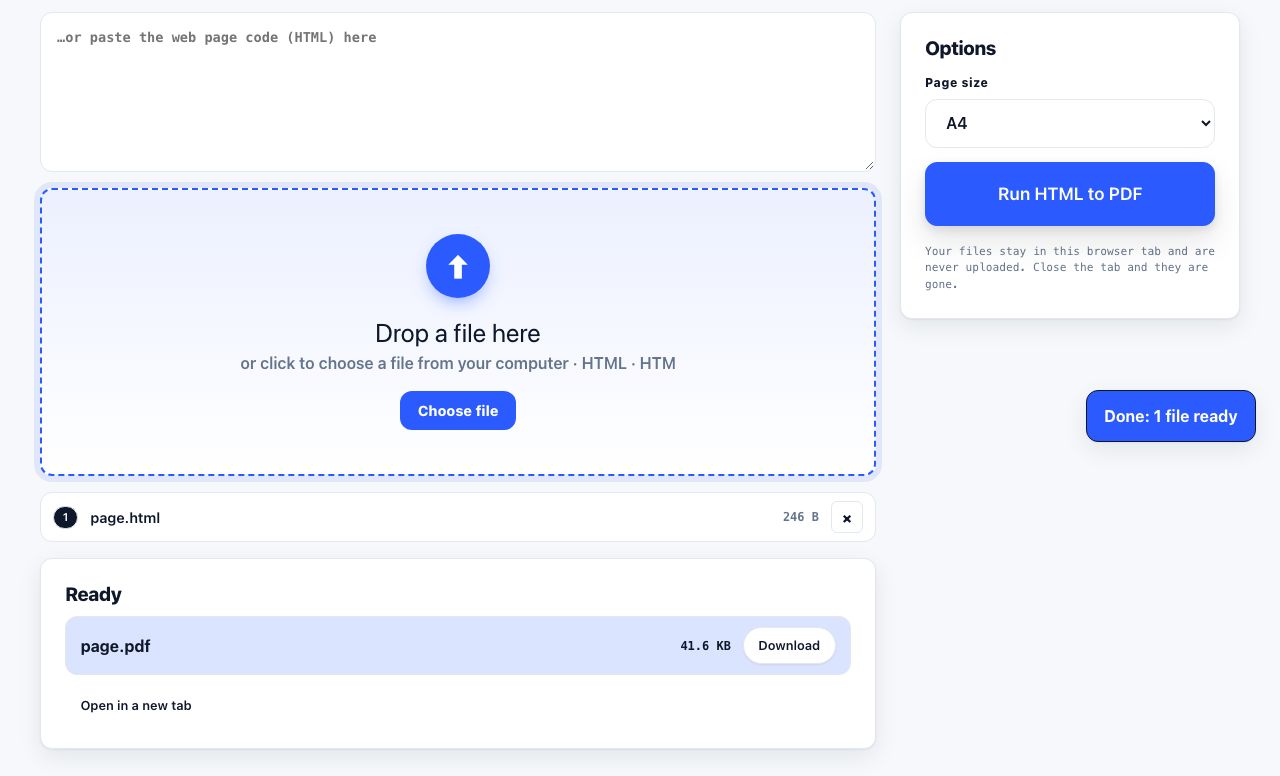
- Open HTML to PDF and add your page Drop an .html or .htm file onto the drop zone, or paste HTML code into the ...or paste HTML here box above it. A file takes priority if you provide both.
- Choose the page size Under Options, set Page size to A4 or Letter. Content flows onto as many pages as it needs.
- Run HTML to PDF Click Run HTML to PDF. The code is cleaned of scripts, style sheets and embedded frames, laid out on paper-sized pages and drawn.
- Download and check The PDF downloads automatically, named after the file (or
document.pdffor pasted code). Use Open in a new tab to check page breaks before sending.
Frequently asked questions
Will my styling be applied?
Styling written directly on an element (the style attribute) is kept. Style sheets, whether inside the file or linked, are removed for safety, and scripts never run. The tool applies its own readable fonts and spacing, so a page keeps its structure (headings, lists, tables, pictures) but not a custom design.
Will pictures in the HTML show up?
Pictures with a full https:// web address load if the site that hosts them allows it. Pictures with a short relative path cannot be found, because there is no website around the file. Pictures embedded directly in the code as data always work.
Can I select text in the resulting PDF?
No. The laid-out page is turned into a picture before it is placed in the PDF, so the text cannot be selected and links cannot be clicked. If you need a searchable copy, run the file through OCR PDF, which turns a picture of text back into real text.
Can I convert a live web page by address?
This tool takes a file or pasted code, not a web address. To save a live web page, open it in your browser, choose Save Page As and save the complete HTML, or copy the page source and paste it into the box.
Is anything uploaded?
No. Cleaning, layout and drawing all happen in your browser tab, with no server involved. There is no account, no queue and no copy of your code anywhere but your own computer.
Looking for the long version? The guides cover each of these jobs in depth.
How to print a web page without ads
Five ways to print a web page without ads, banners or sidebars: printer-friendly tools, Chrome reader mode, print preview, browser extensions and CSS tricks.
How to print only the part of a page you selected
Print just the text you highlighted instead of the whole page. Selection-only printing in Chrome, Firefox, Edge and Safari, plus what to do when it fails.
Webpage won’t print? Fix blank pages, missing images and tiny text
Cut-off text, blank pages, missing images, tiny fonts and wasted sheets. Twelve common web page printing problems with a fix for each, in every major browser.
Why a web page prints cut off and how to fix it
Fix web pages that print with clipped text, blank pages or missing sections. Check scale, margins, page breaks, background images and print styles.