Number PDF Pages
Number every page in a PDF with the position, style, and starting number you choose. Leave a cover page blank if needed and download the result in your browser.
Number every page in a PDF with the position, style, and starting number you choose. Leave a cover page blank if needed and download the result in your browser.
What is Number PDF Pages?
What are page numbers in a PDF?
Page numbers are small pieces of text printed on each page. They let a reader say "see page 14", put a printout back in order and spot a missing sheet. This tool prints them onto the page itself, in a plain standard font, at the spot and size you pick. Because they become part of the page, they show up and print in every PDF app.
What is a page label?
Some PDFs also carry a hidden numbering that a PDF app shows in its page box, such as i, ii, iii for an introduction and then 1, 2, 3 for the main part. These are called page labels. They never appear on the printed page. This tool does not touch them. It prints visible numbers, which is what most people mean when they ask for page numbers.
Why add page numbers to a PDF?
- Point to a page with confidence. "See page 14" only works when page 14 says 14 on it. Numbers make a report, a thesis or a bundle easy to use in a meeting.
- Put a printout back in order. Drop a stack of loose pages and the numbers tell you the order. With the 1 / 12 style, a missing sheet is obvious.
- Finish a combined document. Files joined with Merge PDF arrive with each part's own numbering, or none at all. One pass here gives the whole document one clean sequence.
- Meet submission rules. Courts, journals, tender sites and universities often require numbered pages, usually with the cover left blank. The skip option handles that.
- No upload, no account. The numbers are added in your browser, so a private document never leaves your computer.
How to use Number PDF Pages
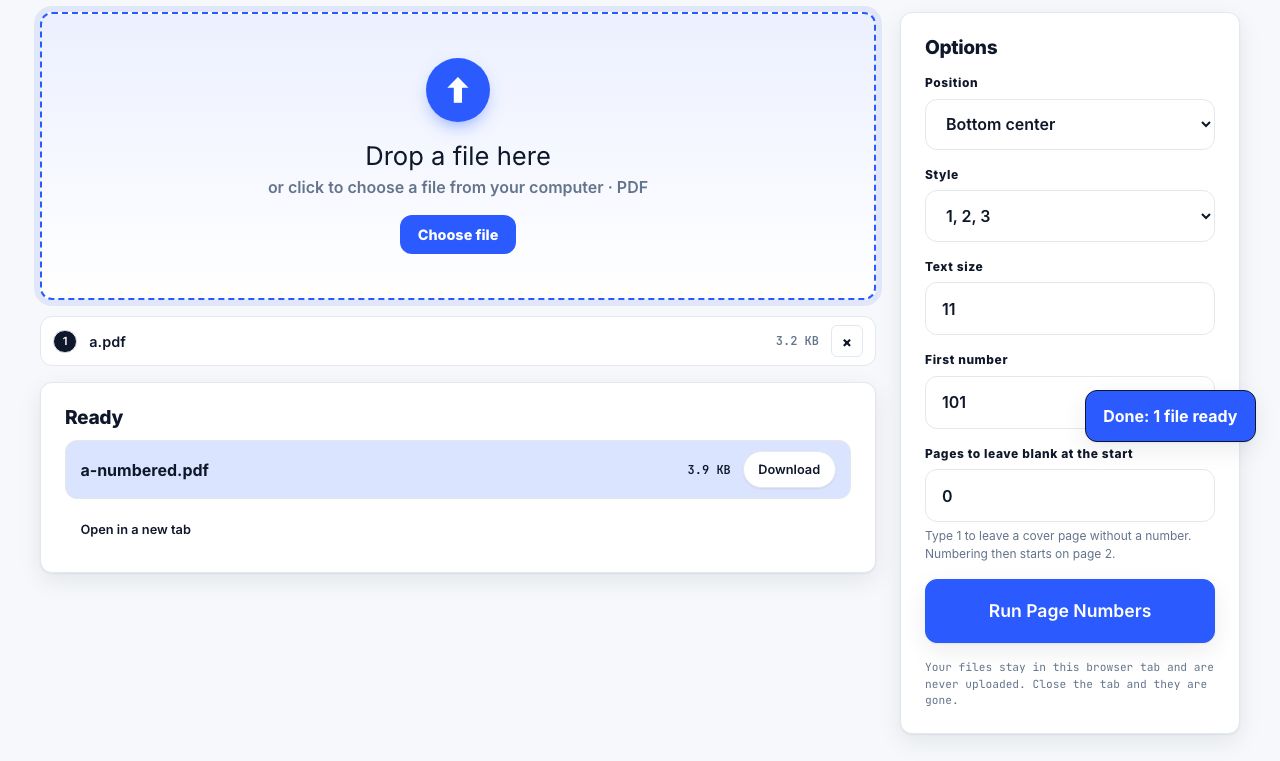
- Open Page Numbers and drop your PDF Drop one file. The options appear on the right.
- Choose the position Bottom center, Bottom right, Bottom left, Top right or Top center. Numbers sit about half an inch in from the edge.
- Choose the style and size Style:
1, 2, 3,1 / 12(this page out of the total) orPage 1. Text size runs from 6 to 36 points; 11 is the default. - Set the first number and skipped pages Start at any number. Set Leave first N pages unnumbered to 1 to keep a cover clean; numbering then begins on page 2 with your start number.
- Click Run Page Numbers The numbered file downloads as
name-numbered.pdf.
Frequently asked questions
How do I skip the cover page?
Set Leave first N pages unnumbered to 1. The cover stays blank and page 2 gets the first number, which is whatever you typed in Start at. Use 2 to skip both a cover and a contents page.
Does the 1 / 12 style count the skipped pages?
No. The total counts only the pages that get a number, adjusted for your start value. So a 13-page file with the cover skipped shows 1 / 12 on its first numbered page and 12 / 12 on the last.
Can I use Roman numerals or a different font?
Not in this tool. Numbers use one plain standard font and one of three ordinary number styles. If an introduction needs i, ii, iii, split the file with Split PDF, number each part, then join them again.
Will the numbers sit on top of an existing footer?
They can, if the original already has text in the corner you choose. Pick a different position or a smaller size and check the first page of the result. Your original file is untouched, so you can run it again.
Does it change the page numbers shown in my PDF app?
No. The page box in your PDF app keeps showing the file's own hidden labels. This tool prints visible numbers onto the pages and leaves everything else alone.
Looking for the long version? The guides cover each of these jobs in depth.
How to convert an Excel spreadsheet to PDF that actually fits
Stop Excel exporting 40 pages of stray columns. Set a print area, fit to one page wide, repeat header rows, control page breaks and export a readable PDF.
How to add page numbers to a PDF
Add page numbers to a PDF in your browser: pick a position and margin, use a "1 of 12" format, set a starting number, and skip a cover page cleanly.
How to add a header or footer to a PDF
Add a company name, date or file reference to every page of a PDF. Margin settings, what belongs in a header or footer, and how to avoid covering text.
How to make a weekly meal plan and shopping list you can print
Build a one-page meal plan and shopping list you will use: a template that fits a fridge door, aisle-grouped lists, and recipes combined into one weekly PDF.