Edit Metadata
Change the hidden details stored inside a PDF, such as its title, author, subject and keywords.
Edit Metadata changes the hidden details saved inside a PDF: its title, author, subject and keywords. The current values load from the file, you change what you need, and the updated PDF downloads. It runs in your browser, so nothing is uploaded, and it is free with no account.
What is PDF metadata?
What is PDF metadata?
Metadata is the hidden details saved inside a file, as opposed to what is printed on its pages: the title a PDF app shows in its window bar, the author, a subject line, keywords, the program that made it and the dates it was created and last changed. Search engines, file managers and document systems read these details to name, sort and find PDFs, so a file with a proper title behaves better everywhere it goes.
Where are these details stored?
In two places. The first is a simple list of details that has been part of PDF from the start, and it is what nearly every PDF app and operating system reads. Newer files may also carry a second, more detailed block used by design and publishing programs. This tool writes the first list. If a file has the second block, it is left as it is, so a few design programs may still show the old values.
Why edit PDF metadata?
- Show a real title, not a file name. Browsers, Google search results and PDF apps with tabs display the saved title.
Q3-final-v7.pdfbecomes "Quarterly Report, Q3 2026". - Get credit, or fix the wrong name. Files exported from shared templates often carry someone else's name as author. Set your own, or your organisation's.
- Make PDFs easy to find. Desktop search, document systems and website search look at the subject and keywords. Good values make the file show up for the words people actually type.
- Tidy before publishing. A PDF going onto a website or into a submission portal should carry a clean, correct title and author. It is the first thing a reviewer's PDF app shows.
- Private, in your browser. The file is read and rewritten on your device. Nothing is uploaded.
How to edit PDF metadata, step by step
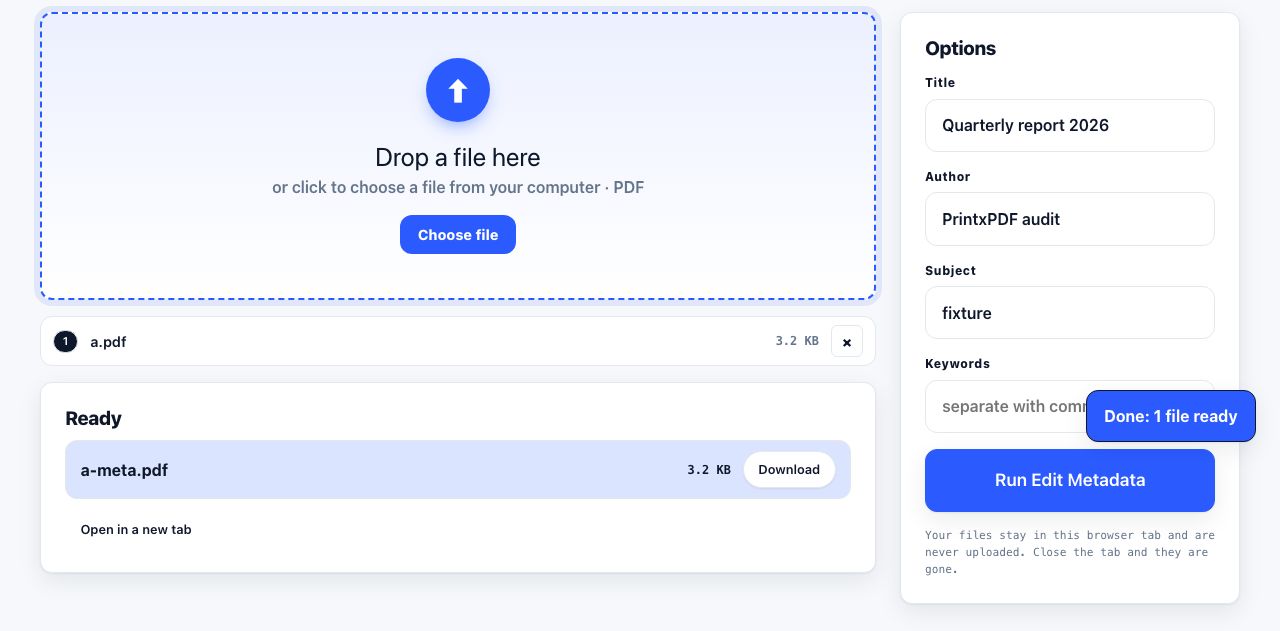
- Open Edit Metadata and drop your PDF The tool reads the file and fills Title, Author, Subject and Keywords with whatever is already saved.
- Change the fields Edit any of the four. Separate keywords with commas. Leave a field empty to clear it.
- Click Run Edit Metadata The "last changed" date is set to now and the file downloads as
name-meta.pdf. - Check the result Open the file in PDF Reader; the top bar shows the new title and author.
Frequently asked questions
Why does my browser tab still show the file name?
Some PDF apps prefer the file name unless the PDF asks them to display the title. Most desktop apps, Google and file managers do use the title. If a design program saved a second, more detailed block of details with the old title, a few programs will read that instead; export again from that program to update it.
Can I edit the creating program or the dates?
Not here. Those details describe the software and history of the file. Running the tool sets the "last changed" date to the current time. To blank every detail including the dates, use Remove Metadata.
Does Google use PDF metadata?
Yes, for the title. Google shows the PDF's saved title as the headline in search results when it is present and sensible. Keywords and subject carry little or no weight in Google rankings, but they help search on your own computer and inside document systems.
Is the file changed in any other way?
No. Pages, text, pictures, links and fillable fields are untouched. The file is saved again with the new details, so the size may shift by a few bytes.
Looking for the long version? The guides cover each of these jobs in depth.
How to save a dynamic web page as a PDF you can verify
Capture a changing webpage as a PDF, check that text and page breaks survived, and keep a clear record of what the saved copy does not contain.
How to extract specific pages from a PDF
Extract pages from a PDF free: select thumbnails or enter a page range, save the pages you need in a new PDF, and leave the original unchanged.
How to remove hidden metadata from a PDF before sharing
Remove PDF author, title, timestamps and document XMP. Learn how to inspect embedded photo EXIF, comments and attachments, which this tool does not remove.
How to compare two PDFs and find what changed
Find what changed between two drafts of a contract. How visual page comparison and text comparison differ, what each one catches, and what both of them miss.