How to save a dynamic web page as a PDF you can verify

To save a dynamic webpage, wait for the content you need to load, use a printer-friendly view or the browser's Print and Save as PDF option, then inspect every page and test links and text. A PDF is a snapshot, not a complete archive of scripts, comments, account state or future updates on the original site.
See the tools in action


Web applications often load text, charts and images after the first screen appears. Saving too soon can produce a PDF with empty panels, missing rows or a loading spinner. Decide what you need to preserve, wait for that content to appear, and treat the saved file as a point-in-time copy rather than proof that the website will remain unchanged.
Choose a capture method that matches the page
For an article, use PrintxPDF's webpage cleaner to remove navigation and distractions before printing. For a dashboard or a page whose layout must stay intact, wait for it to finish loading and use the browser print dialog. A browser's Save as PDF preserves its print stylesheet, which may intentionally omit controls or change colors. Keep the original URL and capture date with the file when provenance matters.
- Load the required stateSign in through the site's normal flow if you are authorized, choose the right date range or filters, and wait for charts and images to finish rendering.
- Check that all needed sections are visibleScroll through the page once if it lazy-loads sections as you move. Expand only the panels you are permitted to preserve. Do not assume content below the fold has loaded.
- Print or clean the pageUse the browser's Print dialog for an exact print view, or use the cleaner when you want the main article without page furniture. The cleaner may not work with private account pages or sites that block automated fetching.
- Inspect page breaks and linksCheck the first, middle and final pages. Confirm that tables fit, text is not cut off, and important links are visible or clickable in the PDF.
- Save context beside the PDFRecord the URL, date, access context and filters that shaped the page. A filename alone does not tell a future reader what the site showed at capture time.
Open the captured PDF and check page order, text and link behavior before relying on it.
PDF Reader →Check the saved copy instead of trusting the preview
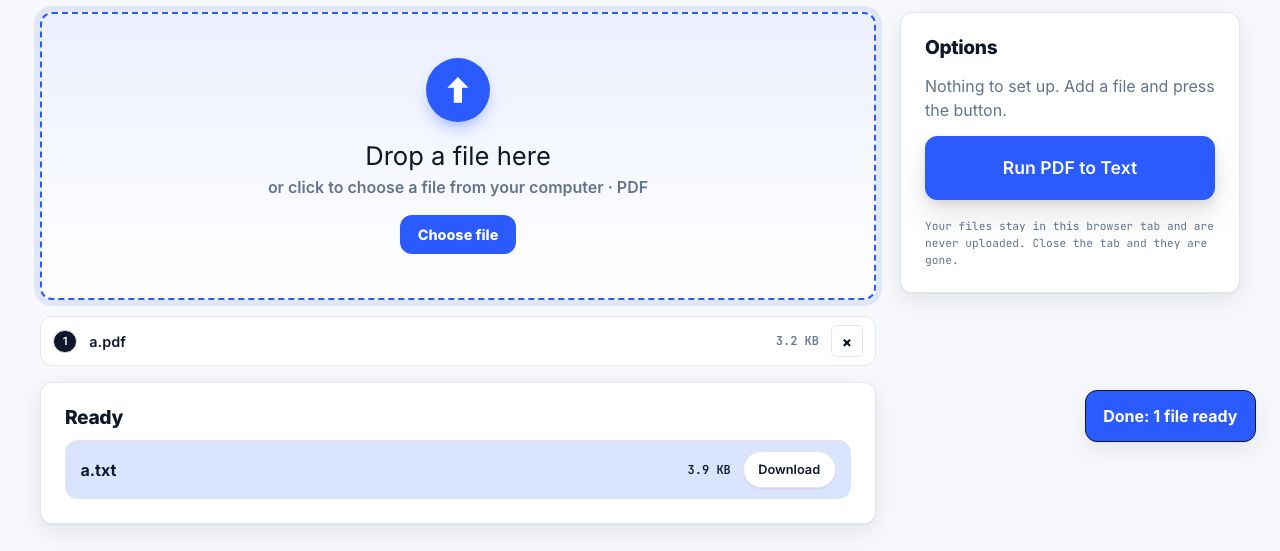
Open the downloaded PDF in PDF Reader. Search for a phrase you can see and select a link to confirm that the text layer and link annotation survived. If you need a plain text record, use PDF to Text, then compare the text with the visible pages. Text extraction can change reading order in columns and tables, so it is a check, not a substitute for the rendered file.
Make the saved file useful for later
If a page has large margins or an unwanted section, crop or remove content only on a working copy. Crop PDF changes the visible page box; it does not erase hidden data. If you annotate the snapshot, retain the uncropped source so the original capture can still be reviewed.
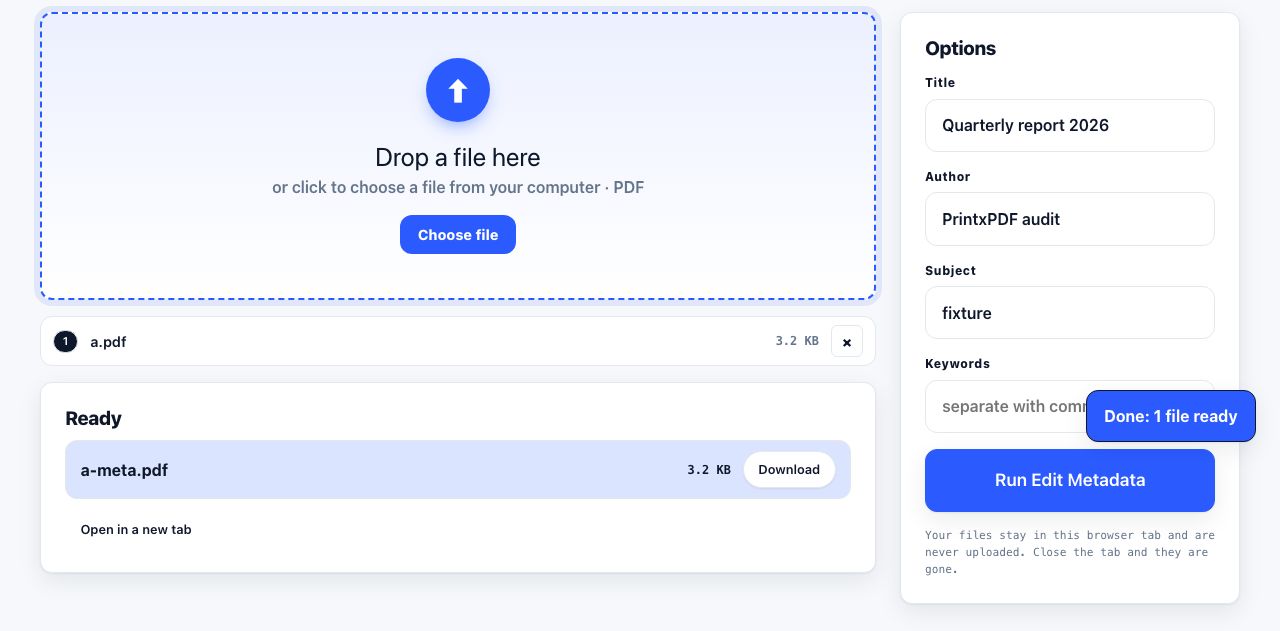
Compare two captures with Compare PDFs when you need to see visible page changes. This is a visual aid, not a full website diff or a way to prove which version was published first. For private document properties on the output, Edit Metadata lets you set clean title information; it does not add evidence that the page capture is authentic.
Account pages, email, medical portals and other private content may include sensitive data. Use the site's approved export feature when available, and follow your organization's rules. Do not paste a logged-in URL into a public cleaner; URL tokens and private paths can grant access or reveal account data.
For a printer-friendly article, see save a clean page from Chrome. For a long-lived public source, consider a recognized web archive and record its citation. A screenshot or PDF can support your notes, but it does not replace permission to republish someone else's material.
Frequently asked questions
Why is my saved webpage PDF missing a chart?
The chart may not have loaded before printing, may be excluded by the print stylesheet, or may require a site export. Wait for it to load, inspect the print preview or use the site's approved download option.
Can I use a public cleaner for a logged-in account page?
Do not submit private URLs or access tokens to an outside service. Use the website's export feature or your browser's local print dialog when your policy permits it.
Does a PDF prove what a web page said?
It records a snapshot but is not a cryptographic proof of publication or authenticity. Keep the source URL, capture date and any required archival record.