How to save a web page as a clean PDF in Chrome

To save only an article from Chrome, open the page in PrintxPDF's cleaner or use the Chrome extension, remove any leftover blocks, then choose Print or Download PDF. Check the preview for cut-off text and page breaks. Chrome's own Save as PDF prints the page layout, which can include ads and navigation.
See the tools in action
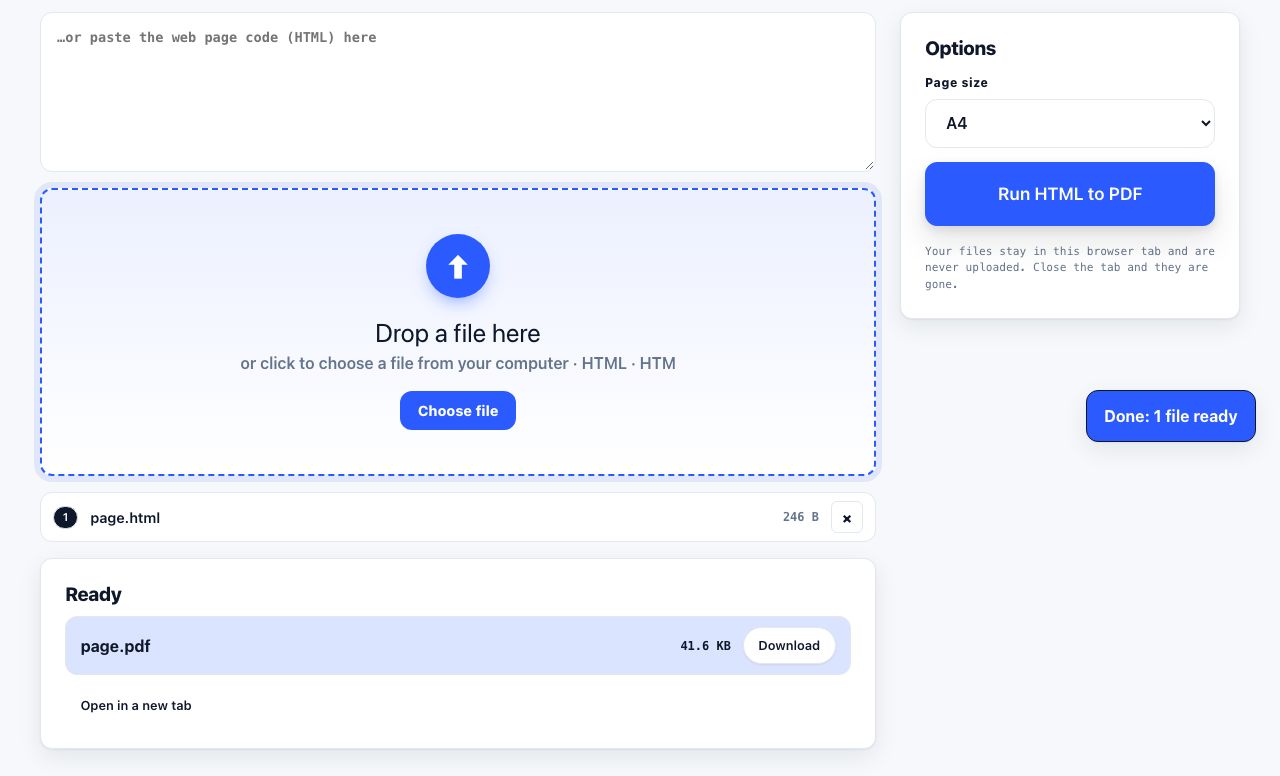
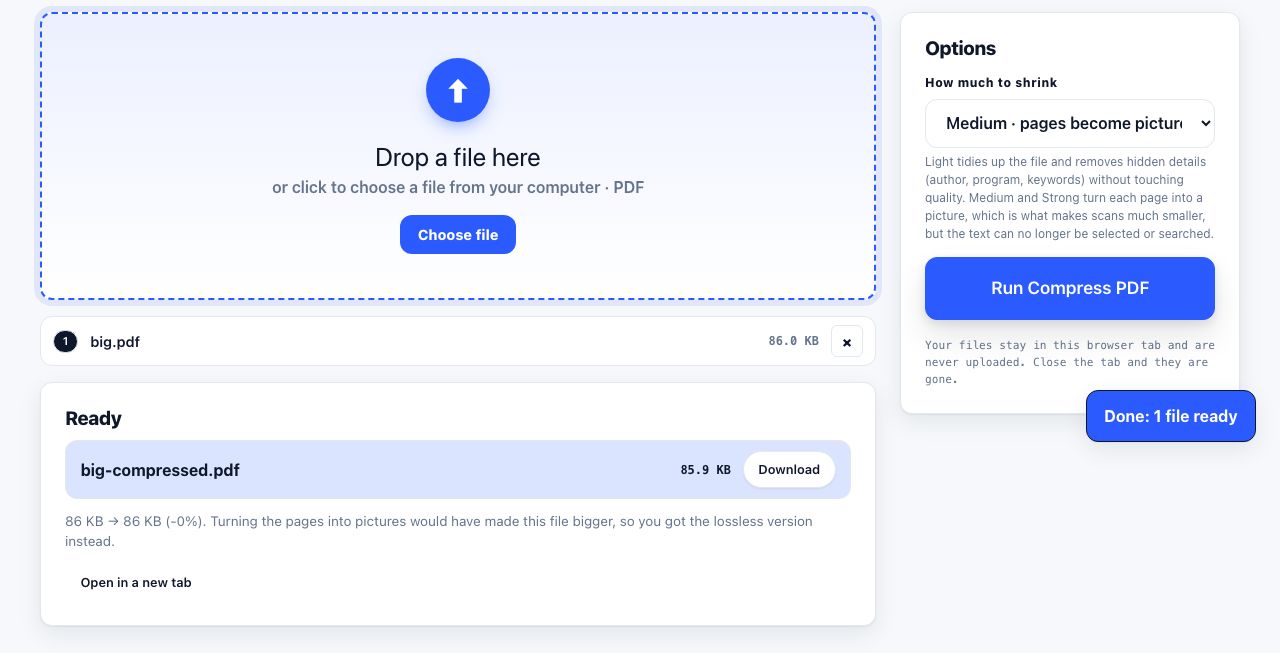
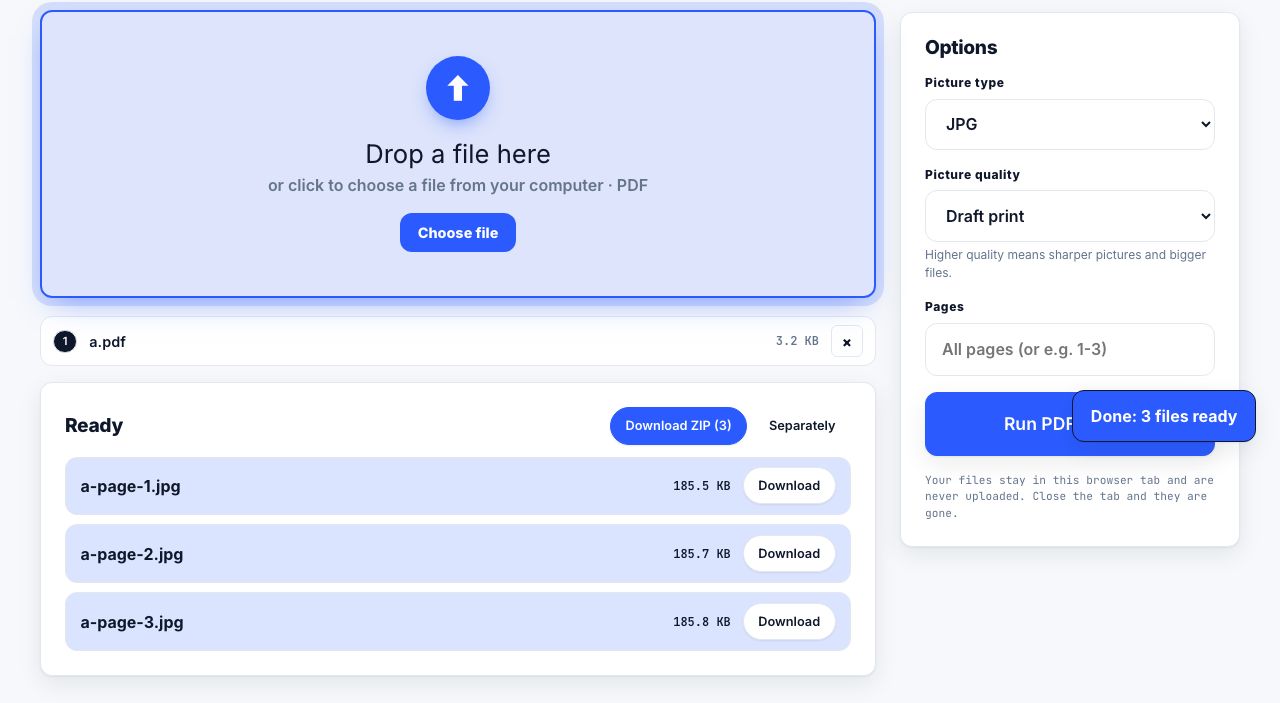
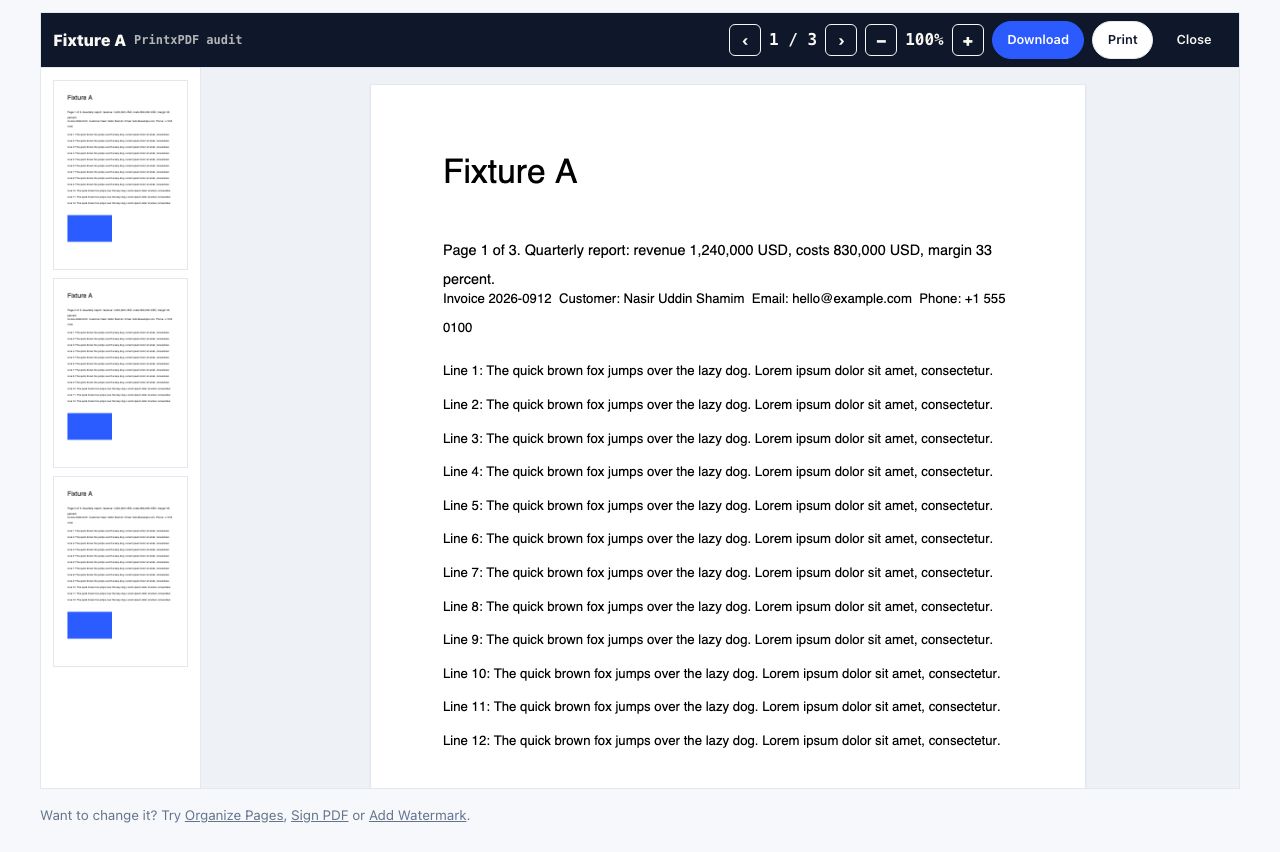
Chrome's built-in Save as PDF is convenient, but it prints the page the publisher designed for scrolling. That can include a large navigation header, sidebars, cookie banners and advertising. A cleaner first removes the clutter, then Chrome or the browser tool handles the PDF output. The Chrome extension opens the same web-page cleaner workflow; it does not silently change the original website.
Use the extension from the page you want to keep
- Open the articleLoad the page fully and make sure the main text and images have appeared. Pages behind a login or account wall may not be readable by an outside fetcher.
- Start PrintxPDFUse the Chrome extension page to open the cleaner for the current web address, or visit the web page cleaner and paste the URL yourself.
- Review the extracted articleThe cleaner tries to identify the main article. Check headings, tables, code samples and captions. Extraction is best effort, so use Paste text or your own copy if a site blocks the fetch or the article is not detected.
- Remove or restyle leftover blocksDelete extra elements, adjust text size and image treatment, and undo any accidental removal. The original page on the publisher's site is unchanged.
- Choose an outputPrint for paper or the system print dialog, or download a PDF. If you need an image output, first save the PDF and use PDF to JPG on selected pages.
Open and inspect the finished PDF in your browser before sharing or printing it.
PDF Reader →Check the print preview instead of trusting the button
In Chrome's print dialog, Destination controls the printer or Save as PDF. Pages lets you omit an unwanted final page; Scale and Margins can help when a heading or table is close to the edge. Turn browser headers and footers off if you do not want the page title, URL or date printed. Check every page thumbnail at the final paper size. A preview is especially important for recipes, technical instructions and tables that may split across pages.
If the result still contains the whole website
A page may resist extraction when it is a dashboard, search result, forum, single-page app or content shown only after signing in. Try a normal browser reading view if the page offers one, or select and paste the article text into the cleaner. Some sites block automated fetches; repeatedly retrying does not bypass their access rules. For text you are permitted to copy, paste text into the cleaner is the reliable fallback.
Keep the output readable and reasonably small
Removing navigation often shortens a printout, but it does not guarantee the fewest pages. Reduce the font only until it remains comfortable to read, and remove decorative images only if they are not part of the explanation. If you later need a smaller attachment, run Compress PDF and compare the output at normal zoom. Compression quality depends on the document; photographs can look softer after image downsampling.
Only save or distribute material you have permission to keep. A clean layout is not a copyright license, and a page fetched by the tool may be processed by a third-party reader service if the primary fetch cannot access it. See the privacy details before cleaning sensitive URLs.
For more control, compare the Chrome extension with other ways to print, then see the practical guide to printing any web page without ads. If the web page is actually a PDF link, use the browser PDF reader directly rather than the article cleaner.
Frequently asked questions
Does Chrome's Save as PDF remove advertisements?
No. It normally prints the webpage's print layout. Clean the page first with the PrintxPDF extension or cleaner, then use the print dialog to save the result.
Why does the cleaner say it could not find article text?
The page may block automated fetching or may not be an article. Use the paste-text option for content you are allowed to copy, or print the page normally.
Can I save the cleaned article as a JPG?
Save it as a PDF first, then convert the PDF pages to JPG. A long article may produce multiple images, one for each page.