Print better from your browser: reader modes, extensions and bookmarklets
 By Nasir Uddin Shamim5 guides
Firefox and Safari have built-in reader modes that produce clean printouts: press F9 in Firefox or Control-Command-R in Safari, then print. Chrome has no print-ready reader mode, so use a bookmarklet, an extension or a web-based cleaner. Bookmarklets need no permissions and work in every browser.
Every browser has a different route to a clean printout. Firefox and Safari ship reader modes that strip a page to text in one keystroke. Chrome does not have a print-ready one, so it needs a bookmarklet, an extension or a web tool. These guides cover the built-in shortcuts first, then what to check before you install anything that can read every page you visit.
Every guide in this topic
Print-friendly options for Google Chrome
Chrome has no print-ready reader mode, so the clean options are a bookmarklet, a Chrome Web Store extension, DevTools, or a web-based cleaner. A bookmarklet is the safest: it is one line of JavaScript in a bookmark, needs no permissions and cannot read pages you do not click it on.
Printing better from Firefox
Press F9 to switch Firefox into Reader View, which strips ads, menus and sidebars, then press Ctrl+P to print the clean layout. Firefox also exposes scale, margins, headers and footers and selection printing in its print modal, so most jobs need no add-on at all.
Printing better from Safari on Mac and iPhone
On a Mac, press Control-Command-R for Safari Reader then Command-P to print the clean layout, or use File then Print Selected Text for one passage. On iPhone, tap Share, then Options at the top of the sheet, and choose Reader PDF to save the article without ads.

Bookmarklet vs browser extension: which should you use?
Use a bookmarklet unless you need something an extension can only do. A bookmarklet is one line of JavaScript stored in a bookmark: it needs no permissions, runs only when you click it, works in every browser, and cannot be sold or updated behind your back. Extensions buy convenience with access.
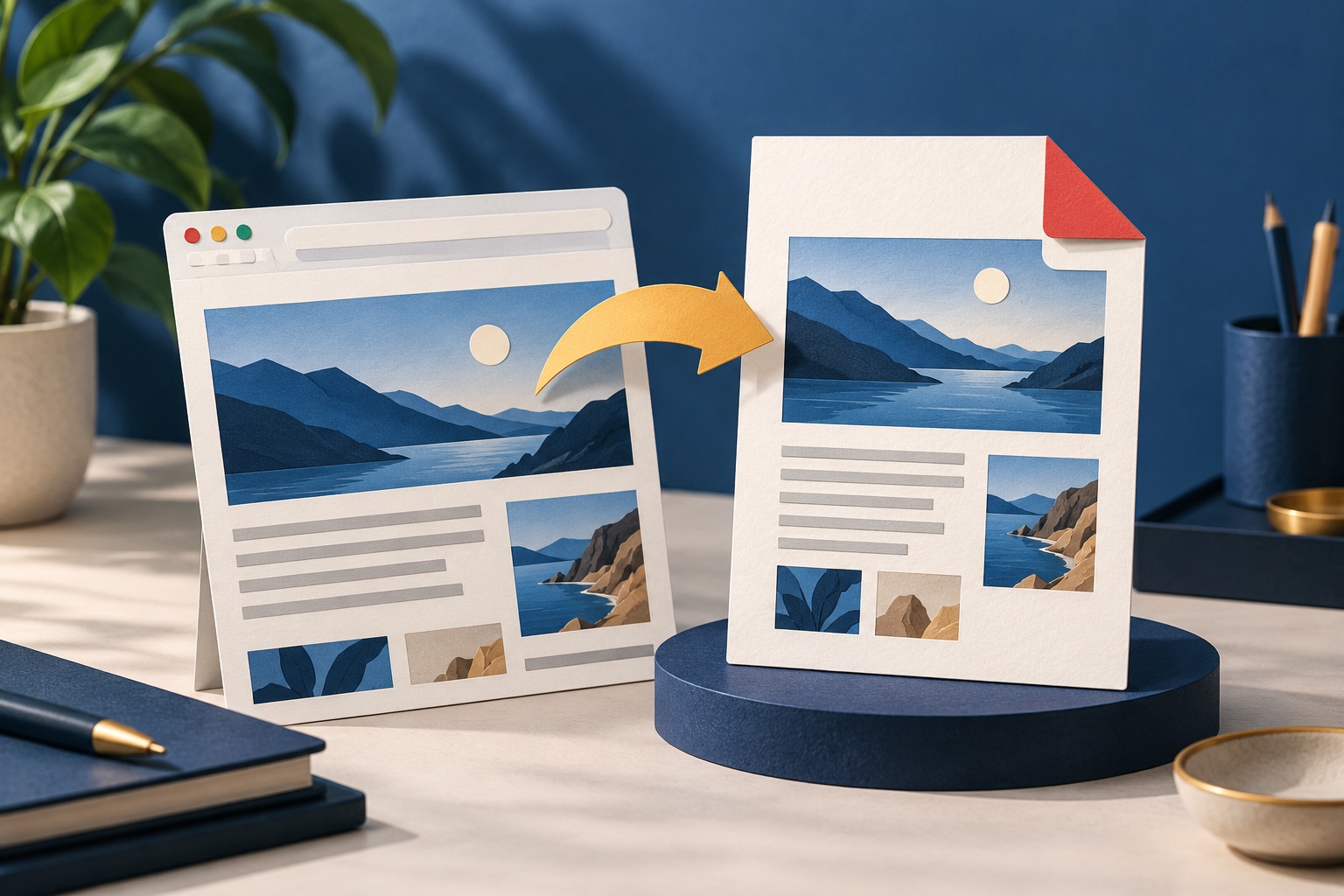
How to save a web page as a clean PDF in Chrome
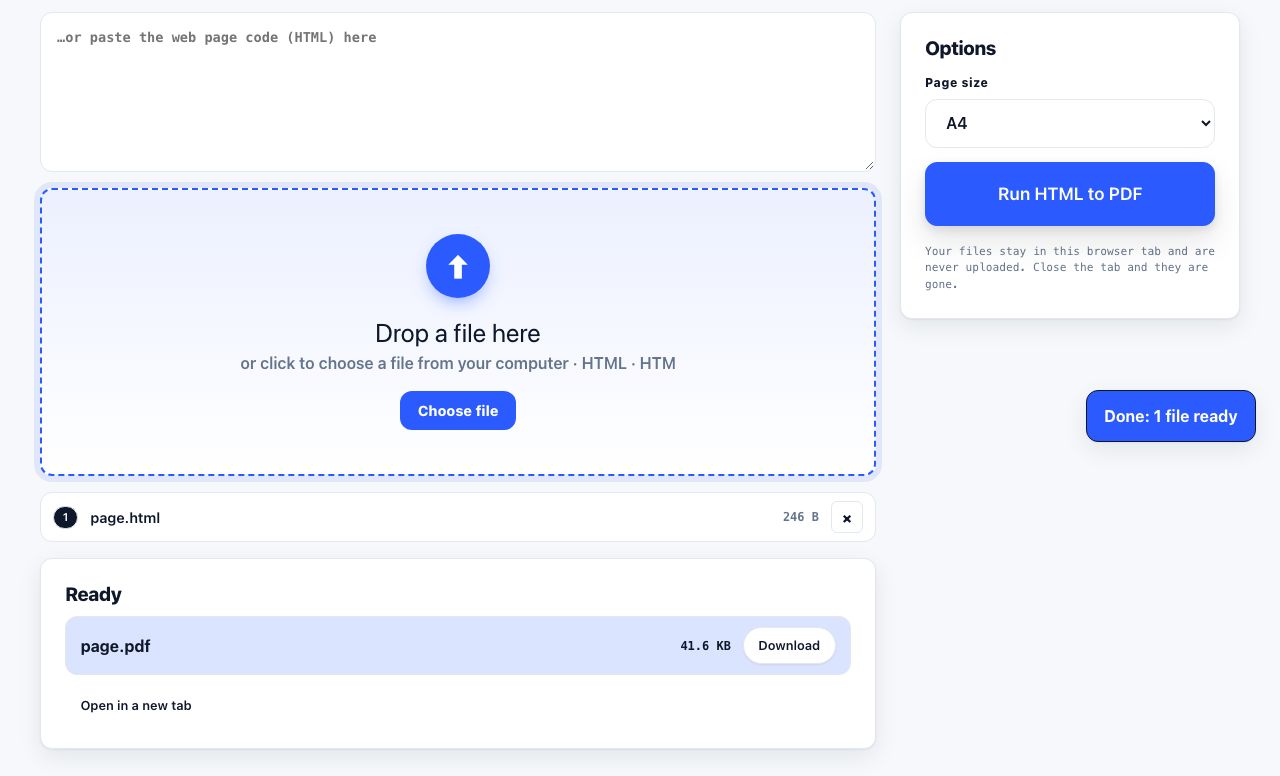
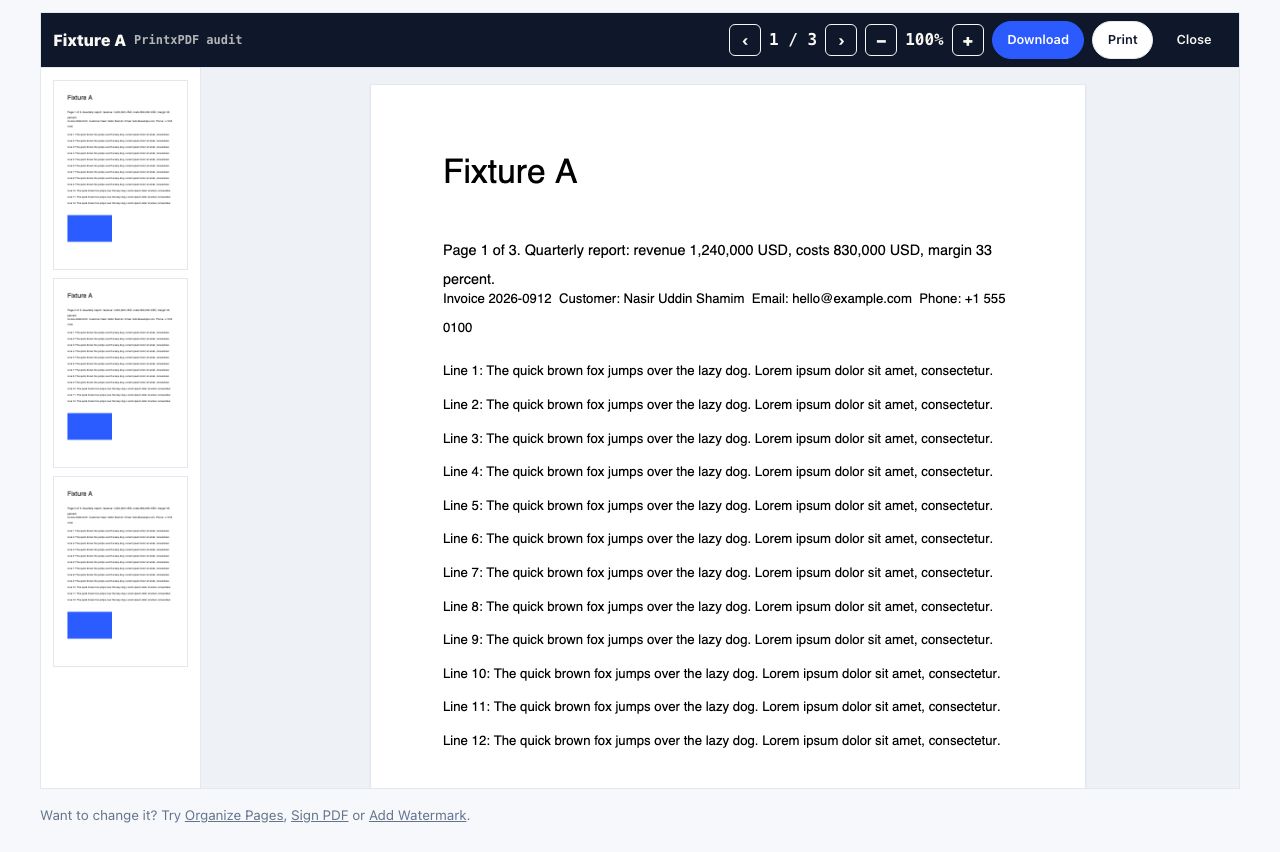
To save only an article from Chrome, open the page in PrintxPDF's cleaner or use the Chrome extension, remove any leftover blocks, then choose Print or Download PDF. Check the preview for cut-off text and page breaks. Chrome's own Save as PDF prints the page layout, which can include ads and navigation.
Tools for this job
See the recommended tools in action
Other topics
Printing web pages
Print any web page without ads, sidebars or menus. Reader mode, print preview, browser settings and a free tool that cleans the page in your browser.
Saving web pages as PDF
Save any web page as a PDF in Chrome, Safari, Firefox, Edge, iPhone or Android. Print-to-PDF, full-page screenshots, and archiving that survives link rot.
Merging PDF files
Combine PDFs into one file for free. Drag to set the page order, mix in JPG and PNG images, keep bookmarks, and merge without Adobe Acrobat on Windows or Mac.
Splitting and extracting PDF pages
Split a PDF into single pages or custom ranges, extract only the pages you need, delete the rest, and cut a big file down to fit an email attachment limit.
Compressing PDF files
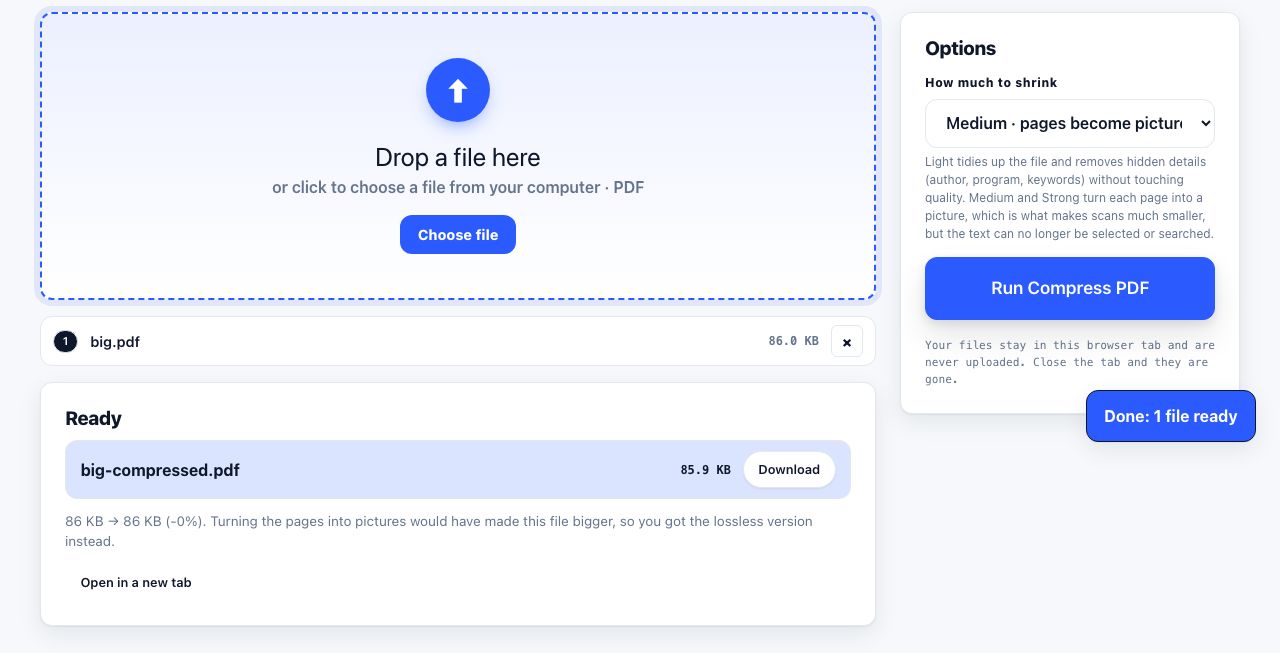
Compare three PDF compression presets, keep text searchable when needed, and learn when to split a large file or use a sharing link.
Converting PDF to other formats
How to get a PDF back into an editable format: Word, Excel, plain text and slides, what each conversion really preserves, and when the answer is to retype.