How to print any web page without ads, menus or wasted paper
 By Nasir Uddin Shamim5 guides
To print a web page without ads, open it in a printer-friendly tool or your browser Reader mode first, then print. This removes navigation, ads and sidebars and typically cuts a nine-page printout to two or three pages while keeping the article text and images intact.
A web page is built for scrolling, not for paper. Hitting Ctrl+P usually gives you the article plus three ad slots, a cookie banner, a newsletter box and a comment wall spread over nine sheets. These guides cover every reliable way to strip that clutter first: Chrome and Safari reader modes, browser print settings, print preview tricks, and a free browser-based cleaner that lets you delete anything left over before you print.
Every guide in this topic
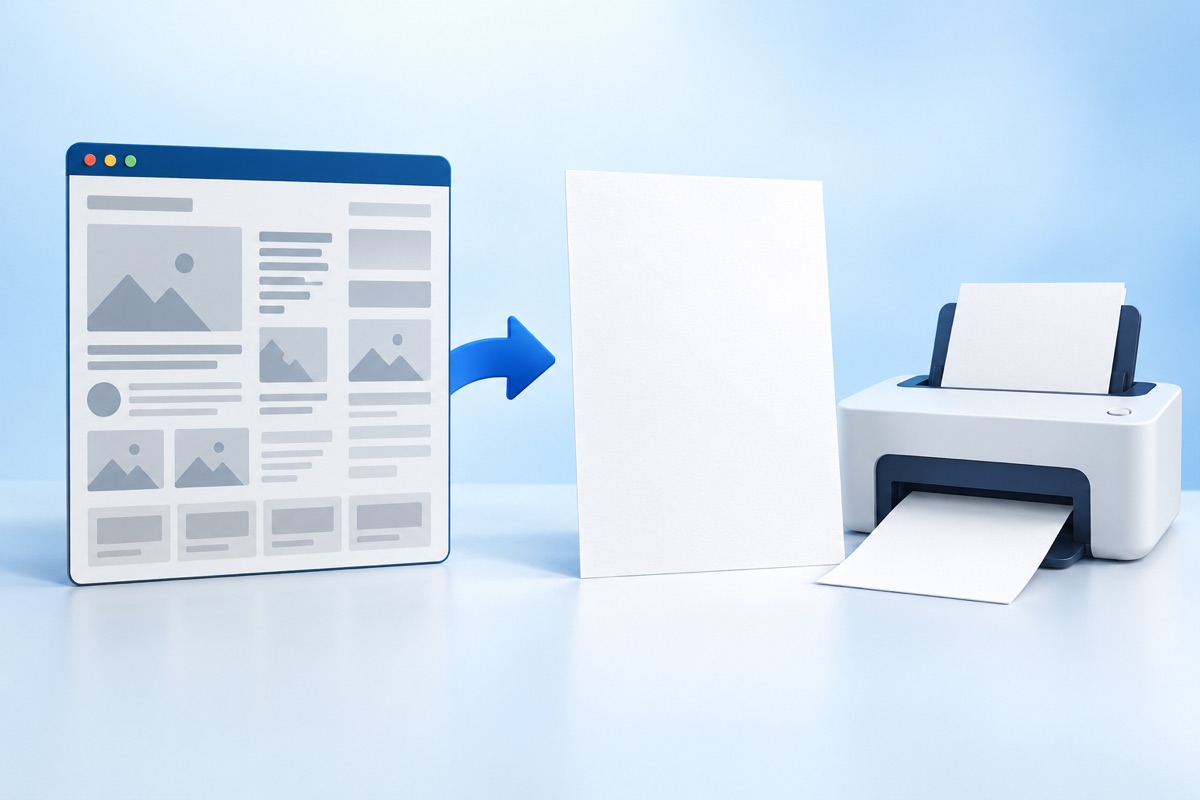
How to print a web page without ads
Paste the page URL into a printer-friendly tool, or turn on your browser Reader mode, then press Ctrl+P. Both strip ads, menus and sidebars before the page reaches your printer, usually reducing a long article from eight or nine sheets to two or three.
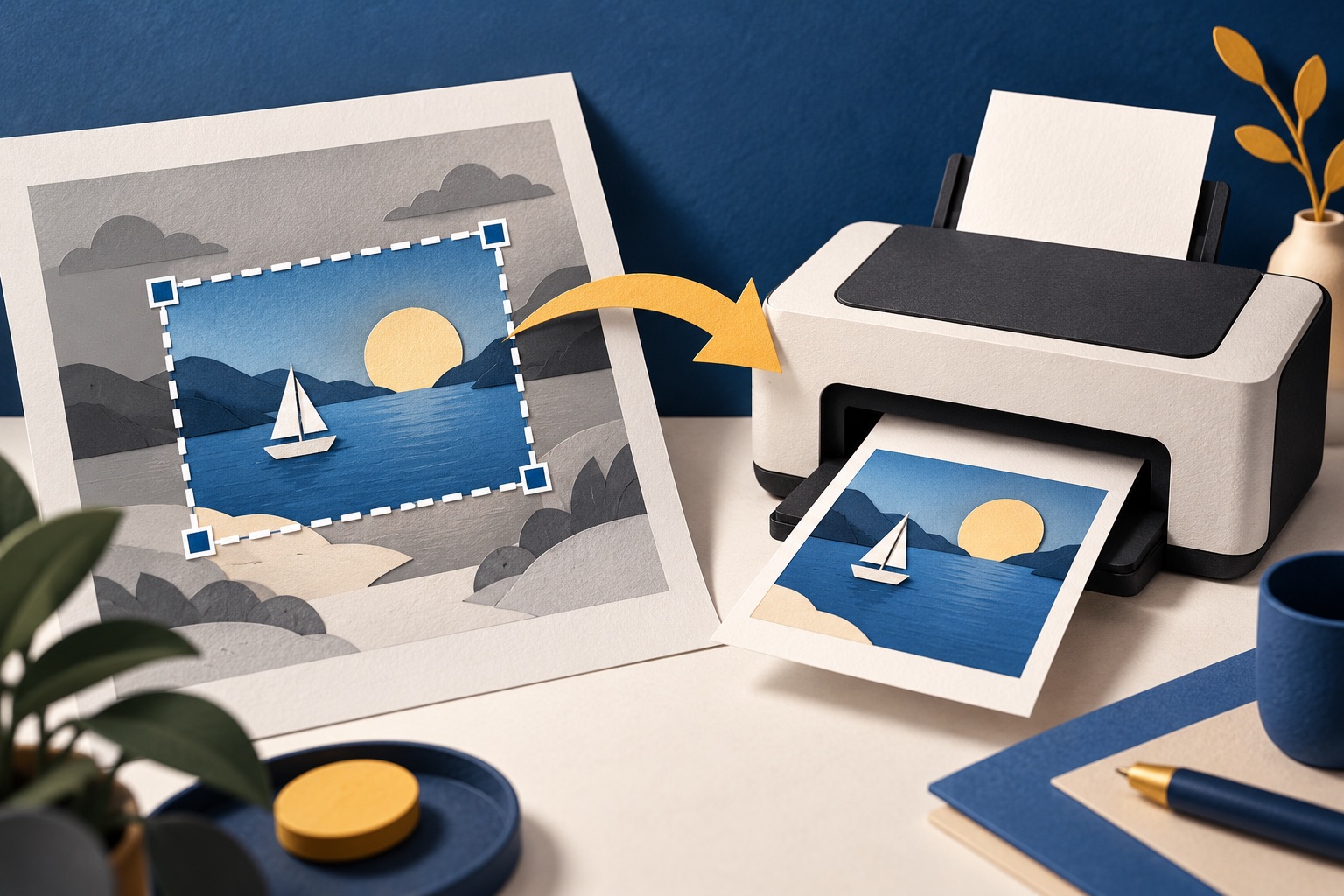
How to print only the part of a page you selected
Highlight the text you want, press Ctrl+P (Cmd+P on Mac), and choose "Selection only" under the pages option in the print dialog. Chrome, Firefox and Edge all support this. Safari uses "Print Selected Text" from the File menu after you select.
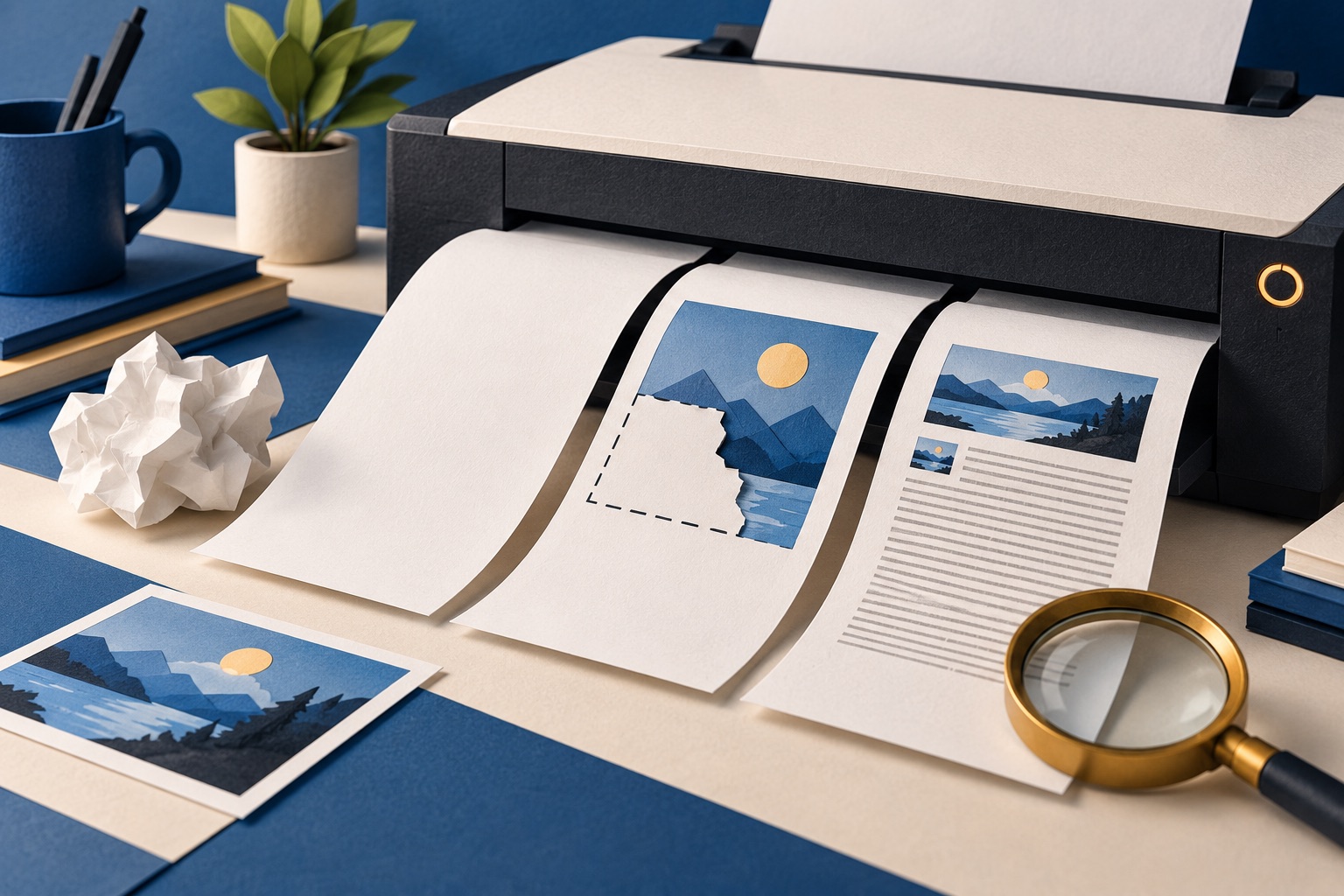
Webpage won’t print? Fix blank pages, missing images and tiny text
Most web page printing problems come from three causes: the page is wider than the paper, background graphics are disabled, or the site has no print stylesheet. Fix them by switching to landscape, lowering the scale to 80 percent, enabling background graphics, or printing through a printer-friendly view.
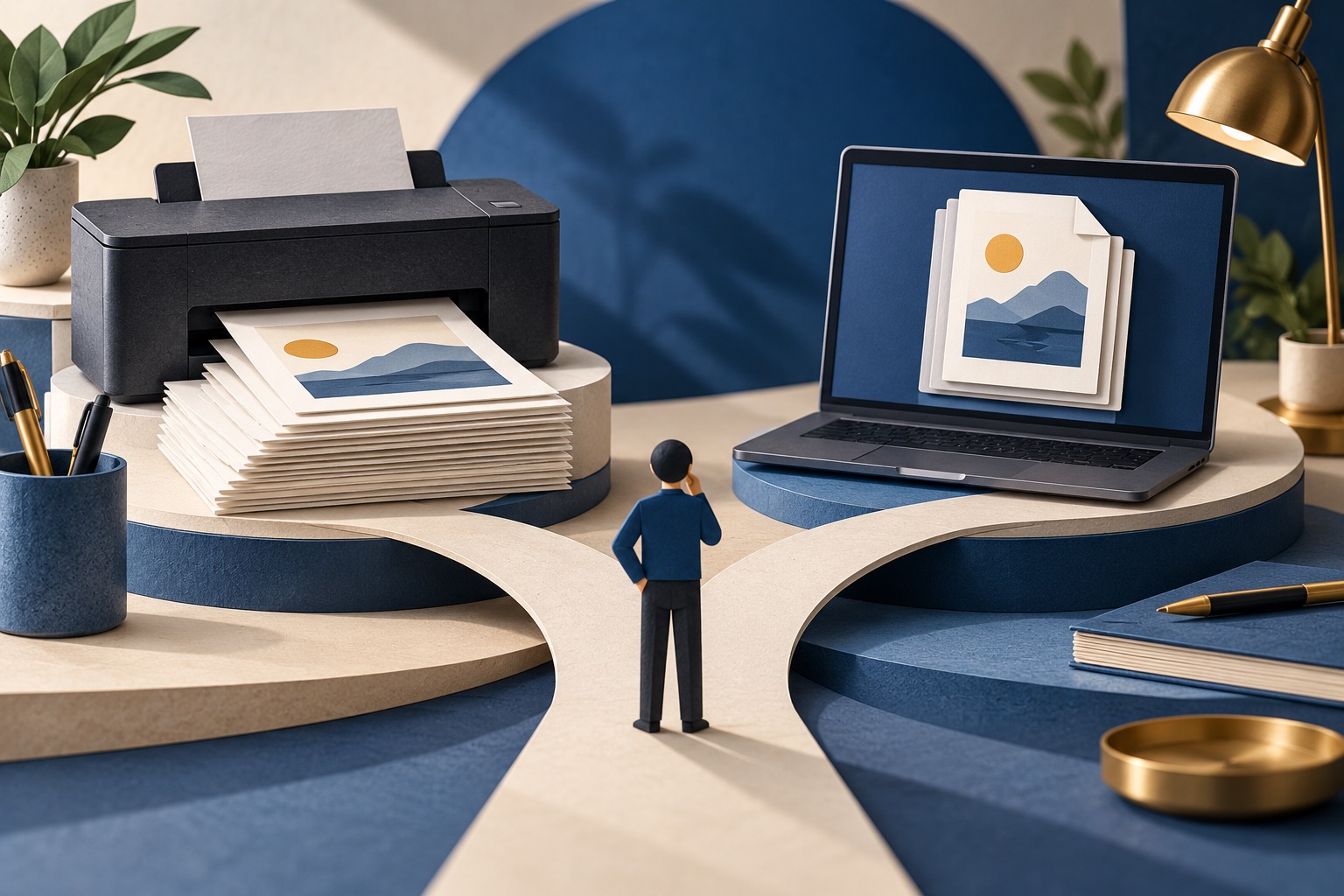
Print to paper or save as PDF? How to decide
Save as PDF when you need to search, share, archive or keep a dated record. Print on paper when you need to annotate by hand, read away from a screen, or produce something for a physical file. A PDF costs nothing, is searchable, and can always be printed later.
Why a web page prints cut off and how to fix it
When a web page prints cut off, open print preview, confirm paper size and orientation, lower scale slightly, and check margins. If the page still clips, simplify the page with a reader or clean-print view, remove unwanted blocks, or save to PDF first and inspect the result. Site print styles can also hide, resize or reposition content.
Tools for this job
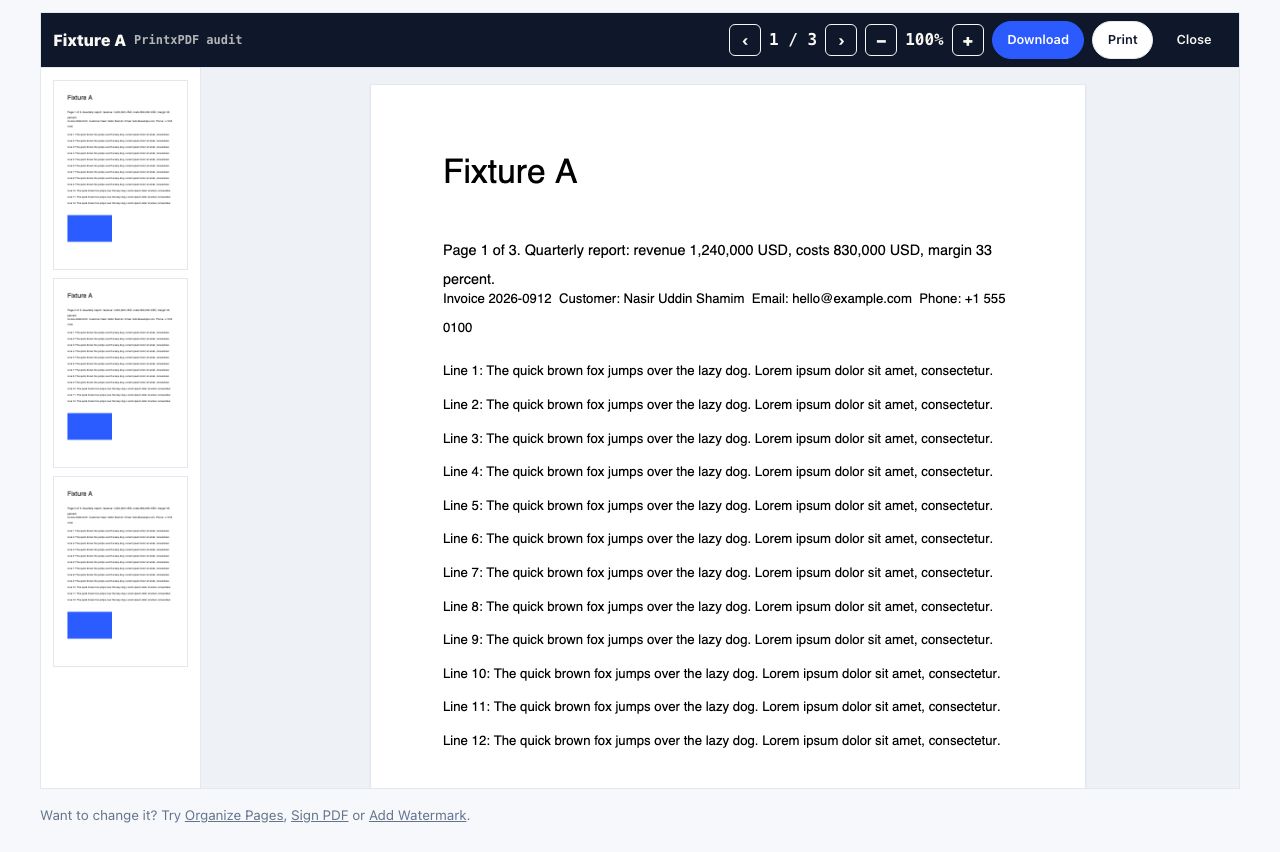
PDF Reader
Open and read a PDF online
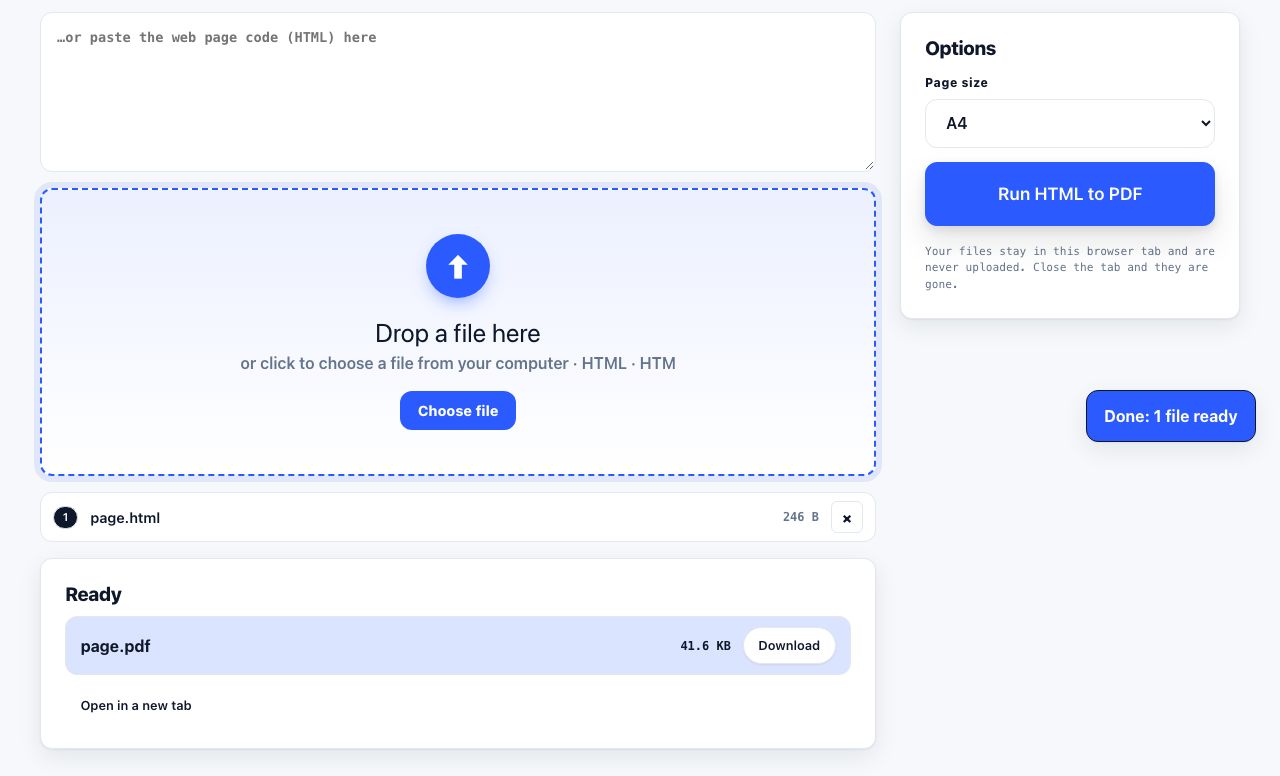
HTML to PDF
Web page file → PDF
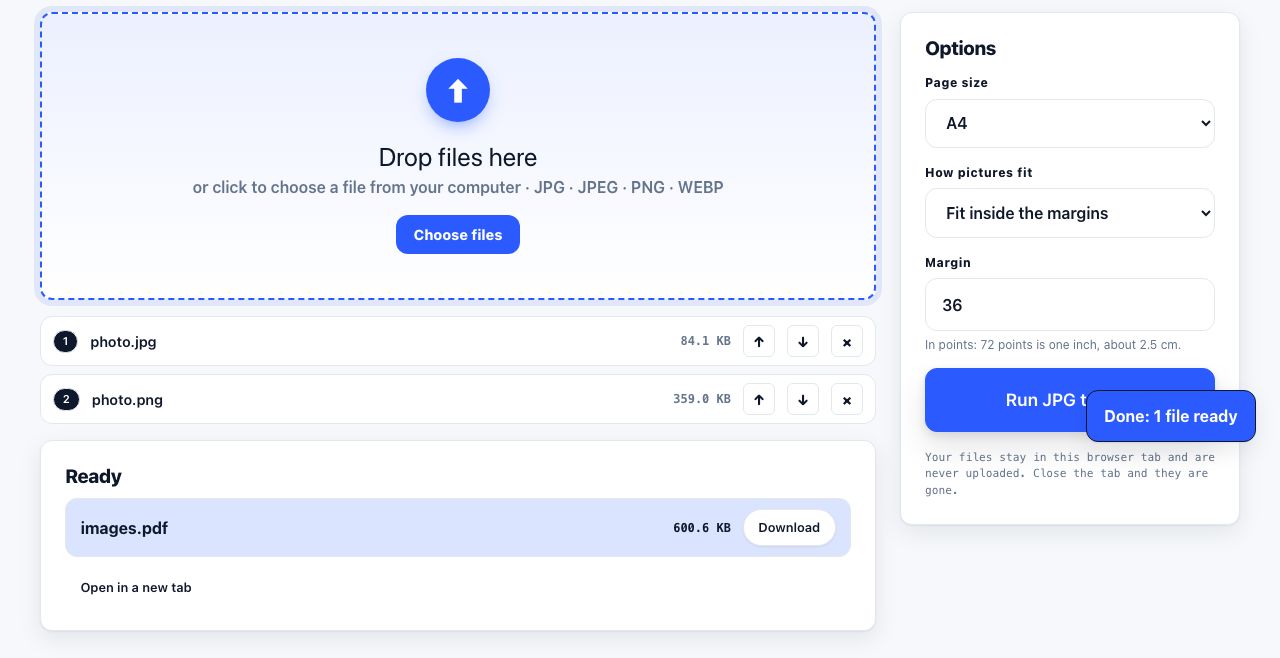
JPG to PDF
Turn pictures into one PDF
See the recommended tools in action
Other topics
Saving web pages as PDF
Save any web page as a PDF in Chrome, Safari, Firefox, Edge, iPhone or Android. Print-to-PDF, full-page screenshots, and archiving that survives link rot.
Merging PDF files
Combine PDFs into one file for free. Drag to set the page order, mix in JPG and PNG images, keep bookmarks, and merge without Adobe Acrobat on Windows or Mac.
Splitting and extracting PDF pages
Split a PDF into single pages or custom ranges, extract only the pages you need, delete the rest, and cut a big file down to fit an email attachment limit.
Compressing PDF files
Compare three PDF compression presets, keep text searchable when needed, and learn when to split a large file or use a sharing link.
Converting PDF to other formats
How to get a PDF back into an editable format: Word, Excel, plain text and slides, what each conversion really preserves, and when the answer is to retype.
Converting files to PDF
Turn documents, spreadsheets, web pages and photos into PDFs that look right. Font embedding, print areas, page-break CSS and the DPI that matters in print.