Converting Word, Excel, HTML and images to PDF
 By Nasir Uddin Shamim5 guides
Every major application exports PDF directly: Word uses File → Save As → PDF, Excel uses Export → Create PDF/XPS after setting a print area, browsers use Ctrl+P with "Save as PDF" as the destination, and images can be combined into a single PDF. The settings that matter are font embedding, scale-to-fit and DPI.
Converting into PDF is the easy direction: the format was designed to freeze a layout so it renders identically everywhere. The failures are all avoidable and all boring, a font that was not embedded, a spreadsheet that spills onto 40 pages, a table cut in half by a page break, a photo at 72 DPI that prints like a mosaic. These guides cover the settings that prevent each one, in Word, Excel, browsers and image tools.
Every guide in this topic

How to convert Word to PDF and keep the fonts
In Word, use File → Save As and pick PDF, or File → Export → Create PDF/XPS. Word embeds every font it can automatically. On macOS choose "Best for electronic distribution and accessibility" rather than printing to PDF, because the print route drops hyperlinks and accessibility tags.
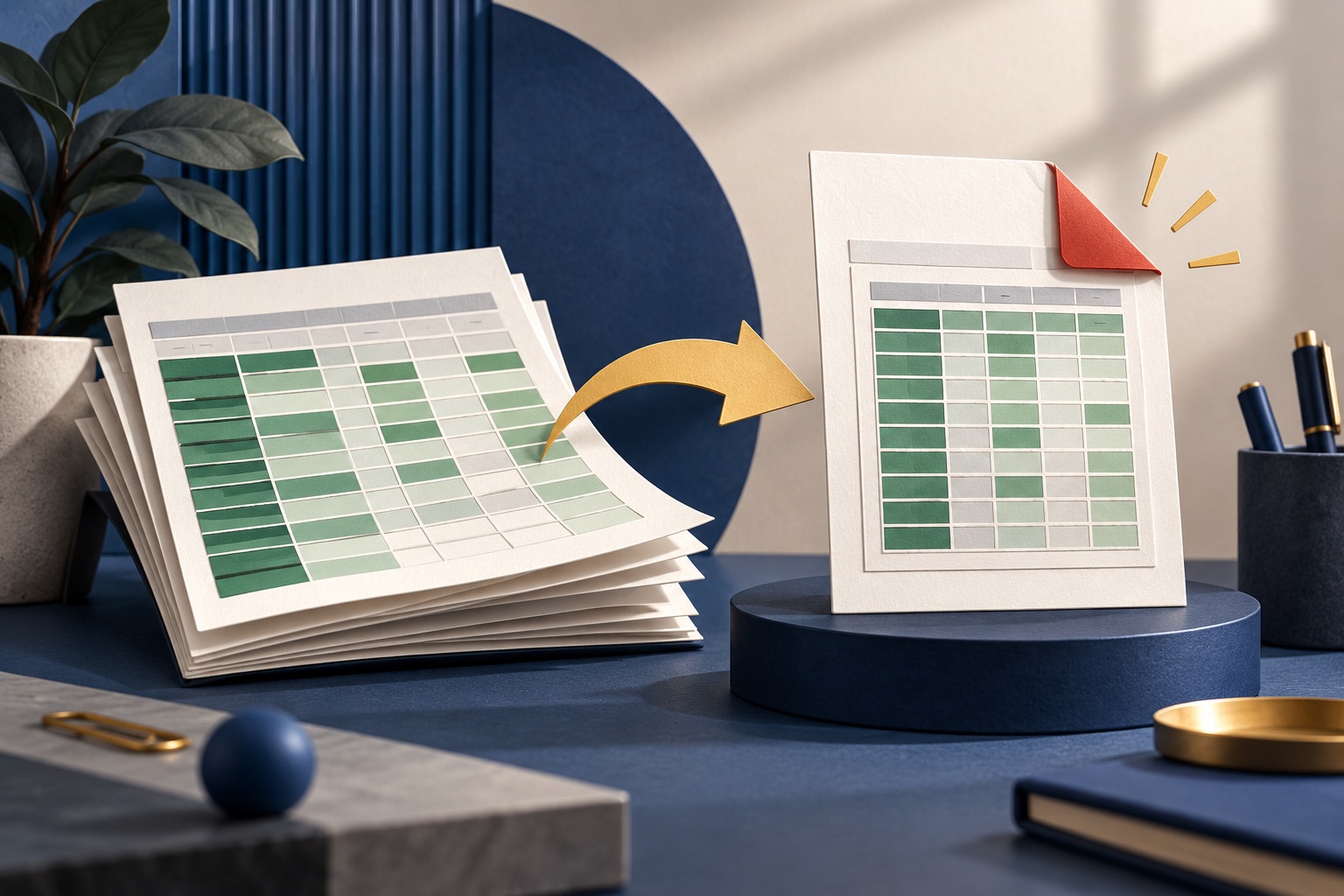
How to convert an Excel spreadsheet to PDF that actually fits
Set a print area, then use Page Layout → Scale to Fit with Width set to 1 page and Height left on Automatic. Add repeating header rows through Print Titles, switch to landscape for wide tables, and export with File → Export → Create PDF/XPS. Never set both Width and Height to 1 page.

How to convert HTML to PDF
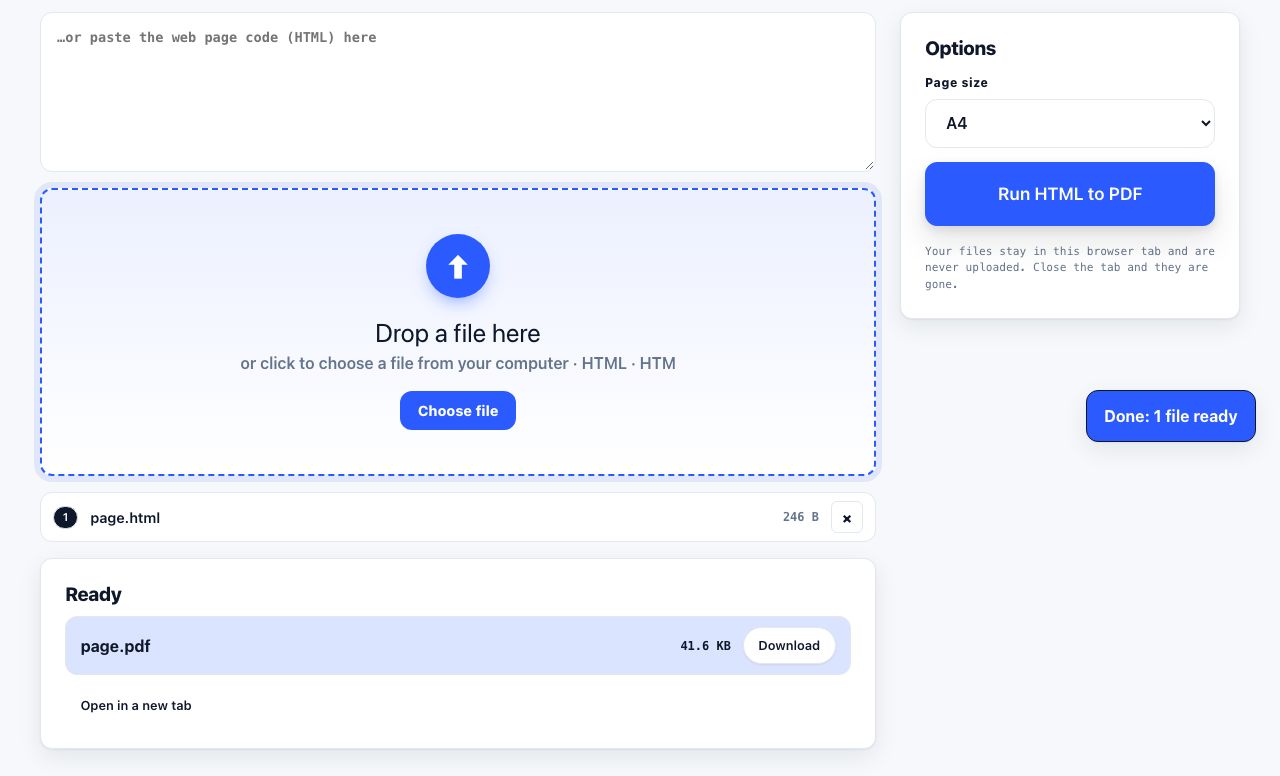
For a one-off, press Ctrl+P and set the destination to "Save as PDF", the browser renders real text and clickable links. For repeatable output, control pagination with @page and break-inside CSS, and drive headless Chrome or Puppeteer so every run produces an identical file.
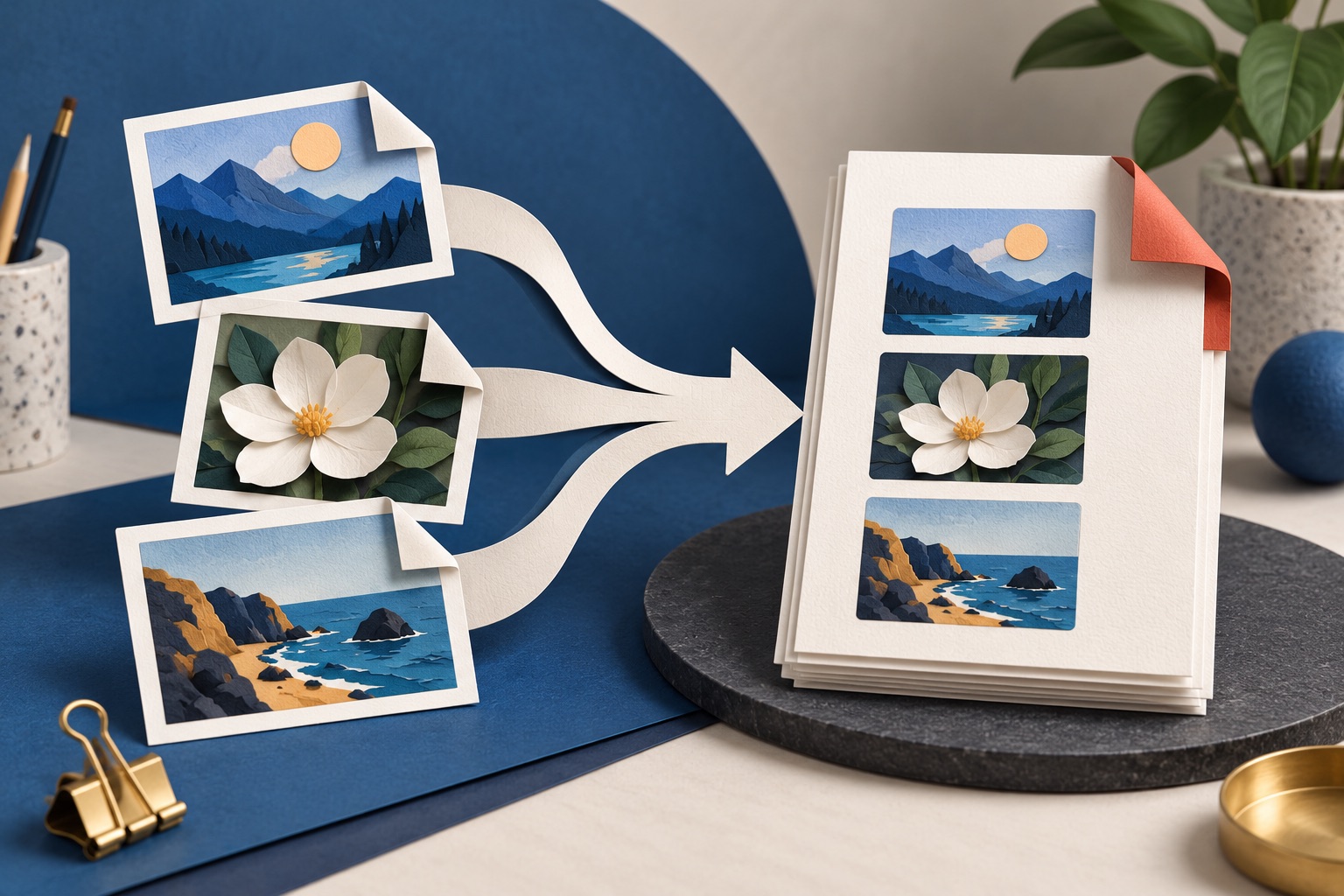
How to combine JPG, PNG and WebP images into one PDF
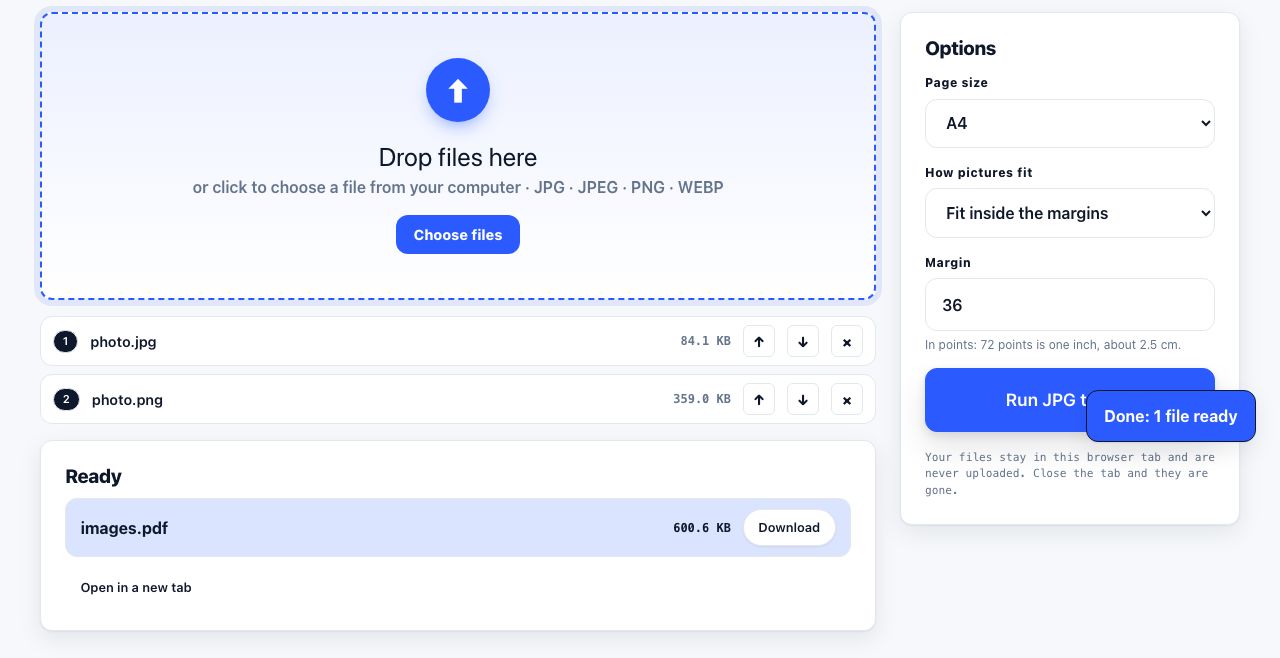
Add JPG, PNG or WebP images to the [JPG to PDF tool](/tools/jpg-to-pdf), reorder them with the on-screen arrows, then choose A4, Letter or Same as image. Each picture becomes its own page. HEIC is not supported by this tool, so convert HEIC to JPG first.

How to convert PNG images to a PDF
To convert PNG images to PDF, add the images to an image-to-PDF tool, put them in the intended page order, select a page size or fit option, then export and inspect the PDF. PNG works well for screenshots and diagrams because it preserves crisp edges. Transparent areas may become a page background, so check the result before sending it.
Tools for this job
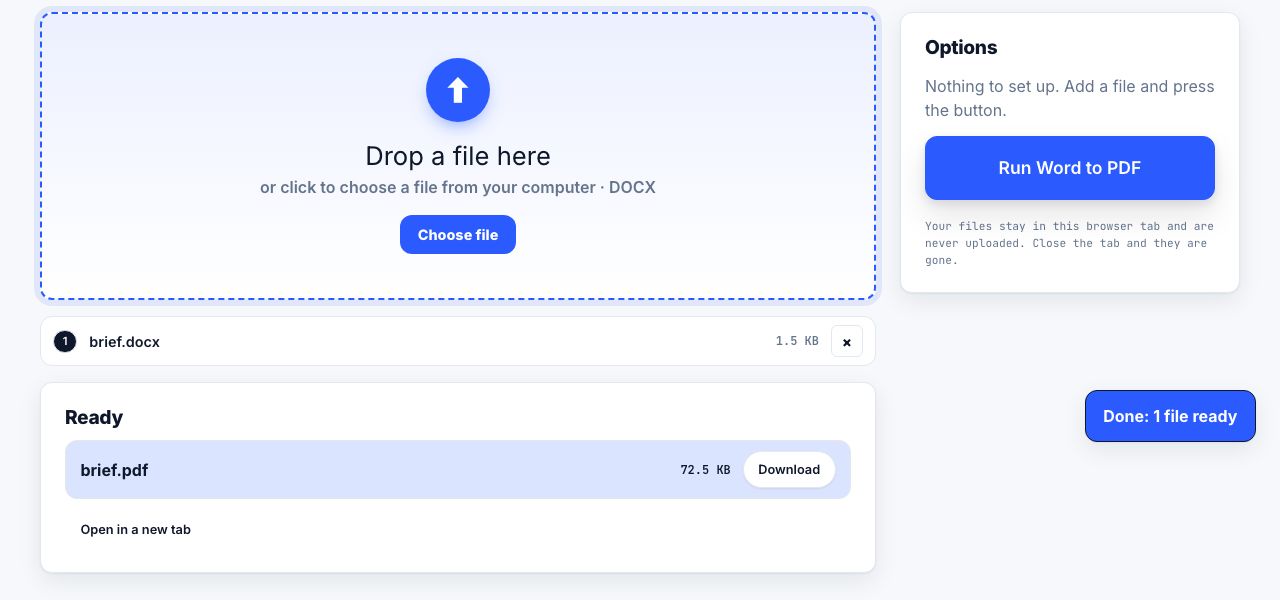
Word to PDF
Word → PDF
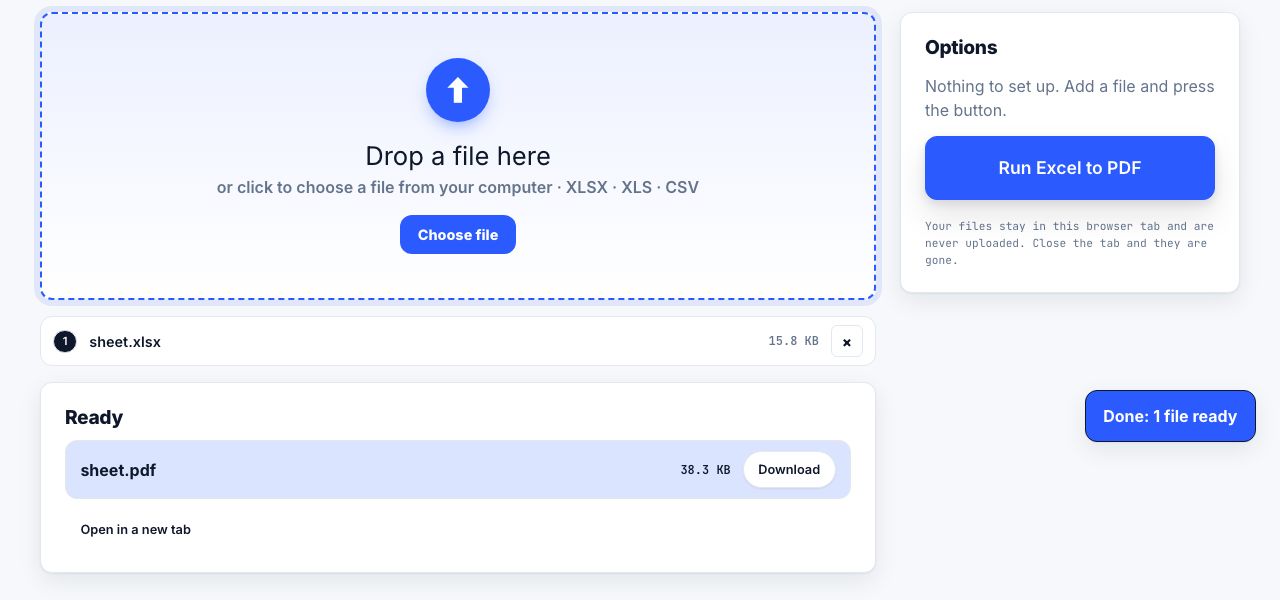
Excel to PDF
Excel → PDF
HTML to PDF
Web page file → PDF
JPG to PDF
Turn pictures into one PDF
See the recommended tools in action
Other topics
Printing web pages
Print any web page without ads, sidebars or menus. Reader mode, print preview, browser settings and a free tool that cleans the page in your browser.
Saving web pages as PDF
Save any web page as a PDF in Chrome, Safari, Firefox, Edge, iPhone or Android. Print-to-PDF, full-page screenshots, and archiving that survives link rot.
Merging PDF files
Combine PDFs into one file for free. Drag to set the page order, mix in JPG and PNG images, keep bookmarks, and merge without Adobe Acrobat on Windows or Mac.
Splitting and extracting PDF pages
Split a PDF into single pages or custom ranges, extract only the pages you need, delete the rest, and cut a big file down to fit an email attachment limit.
Compressing PDF files
Compare three PDF compression presets, keep text searchable when needed, and learn when to split a large file or use a sharing link.
Converting PDF to other formats
How to get a PDF back into an editable format: Word, Excel, plain text and slides, what each conversion really preserves, and when the answer is to retype.