DOCX to PDF Converter
Turn a DOCX Word document into a PDF that is easier to share, print, and open on any device. The conversion runs in your browser and keeps the document on your computer.
Turn a DOCX Word document into a PDF that is easier to share, print, and open on any device. The conversion runs in your browser and keeps the document on your computer.
What is DOCX to PDF Converter?
What is a DOCX file?
DOCX has been the standard Microsoft Word format since Word 2007. A .docx is really a small bundle of files holding the text, styles, numbering and pictures. The page layout is worked out each time the file is opened, which is why the same document can break across pages differently in Word, Google Docs and other word processors.
What is a PDF?
PDF (Portable Document Format) fixes every page. Text, pictures and shapes have set positions, so the file looks identical on a phone, a Mac, a Windows PC and a printer. That fixed layout is what makes PDF the safe choice for anything you send out: nobody needs Word, nobody can accidentally retype a paragraph, and page one stays page one.
Why convert Word to PDF?
- Looks the same everywhere. A .docx lays itself out differently on every machine; a PDF does not. Send a PDF and the other person sees the pages exactly as you did, without needing Word installed.
- Harder to change by accident. PDF apps open in view mode. A CV, quote or letter arrives as a finished document rather than an editable draft.
- Ready for printing and uploads. Job portals, university systems and print shops ask for PDF. This tool gives you an A4 PDF from a .docx in one step.
- Stays on your computer. The document is read and laid out inside the browser tab. Nothing is uploaded, so private drafts and personal letters stay private.
How to use DOCX to PDF Converter
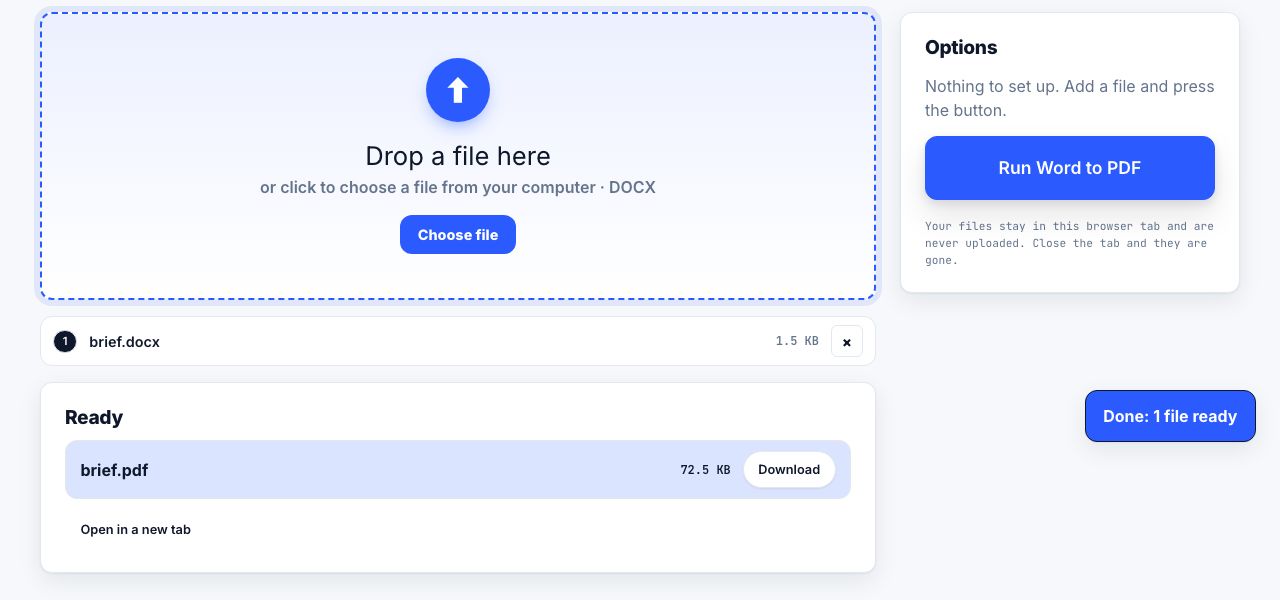
- Open Word to PDF and drop your .docx Drag the file onto the drop zone or click to choose it. Only .docx is accepted; save an older .doc as .docx in Word first.
- Run Word to PDF There are no options to set. Click Run Word to PDF and watch the progress bar: the document is read, then laid out on A4 pages.
- Download and check the pages The PDF downloads automatically and is named after your document. Use Open in a new tab to look through the pages before you send it.
- Need searchable text? Run OCR The pages are stored as pictures. If the PDF must be searchable or you need to copy text from it, run it through OCR PDF afterwards.
Frequently asked questions
Will Word to PDF keep my formatting?
Partly. Headings, paragraphs, bold and italic, lists, tables, pictures and link text are converted; fonts are replaced with a standard set. Custom fonts, multiple columns, text boxes, headers, footers and page numbers are not reproduced, and page breaks may fall in different places than in Word.
Can I select or search text in the PDF?
No. Each page is drawn as a picture, so the text is not selectable and links are not clickable. For a searchable copy, run the result through OCR PDF, which reads the words and adds an invisible, selectable copy of the text.
Does it support .doc, .odt or .rtf files?
Only .docx. Open an older .doc, an .odt or an .rtf in Word, Google Docs or another word processor, choose Save As or Download, pick Word (.docx), and convert that file.
Is my Word document uploaded?
No. The .docx is unpacked and converted by our converter inside your browser, and the PDF is drawn there too. Close the tab and nothing remains. There is no account and no file history.
Why does the file name appear at the top of the PDF?
The converter places the document name as a title on the first page, because .docx files rarely carry a title of their own. Rename the file before converting if you want a different heading, and it will be picked up.
Looking for the long version? The guides cover each of these jobs in depth.
How to convert Word to PDF and keep the fonts
Export a Word document to PDF with fonts embedded, links intact and headings preserved. The Save As options that matter, plus Google Docs and LibreOffice.
How to make a PDF from Word, Excel, PowerPoint or an ebook
Choose the right conversion route for a Word file, spreadsheet, slide deck or ebook, then check fonts, page breaks, worksheets and reading order.