Combine PDF Files
Combine multiple PDF files into one ordered document. Add the files, arrange their order, and download the merged PDF while everything stays in your browser.
Combine multiple PDF files into one ordered document. Add the files, arrange their order, and download the merged PDF while everything stays in your browser.
What is Combine PDF Files?
What happens when PDFs are merged
A merge takes every page of the first file, then every page of the second, and so on, and puts them into one new PDF. The pages are copied whole, with their fonts and pictures, rather than redrawn, which is why the merged file looks exactly like its parts. A merge does not remove duplicates: a font that is stored in three source files is carried three times, so the result can be a little larger than you might expect.
What is carried over and what is not
Anything that belongs to a page travels with it: text, pictures, drawings and the page size. Anything that belongs to the whole document does not. Bookmarks (the clickable outline in the side panel), the hidden details saved inside the file such as title and author, and the fillable form set-up stay behind. So a merged file has no bookmarks, and fillable fields stop working. If the answers in a form must stay visible, run it through Flatten PDF first.
Why merge PDFs in the browser?
- One attachment instead of five. A single file is opened once and read in order. Recipients stop hunting through a thread of separate PDFs, and portals that accept one upload get exactly one.
- The order you choose. Move files up or down in the list before you run, so the cover letter comes first and the appendix last without any second pass.
- No quality loss. Pages are copied, not printed to pictures. Text stays sharp and searchable, and photographs keep their original sharpness.
- Private by design. Contracts, medical records and payroll never leave the tab. The merge runs on your own machine, so there is nothing to delete from a server afterwards.
- Free, no sign-up, no watermark. There is no page cap and no account. The only limit is the memory of your browser tab, which comfortably handles hundreds of pages.
How to use Combine PDF Files
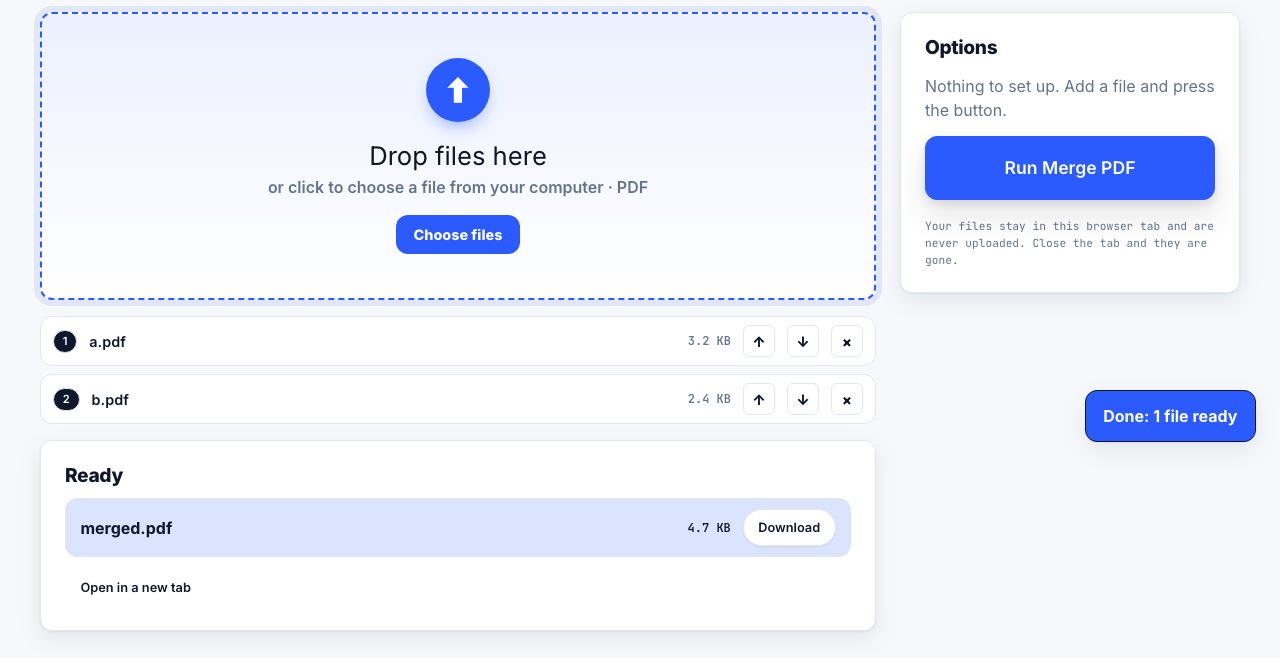
- Open Merge PDF and drop your files. Drag two or more PDFs onto the drop zone, or click it to browse. You can add more at any time; each one joins the list below.
- Put them in order. Use the arrows in the file list to move a file up or down. The merged document follows this list from top to bottom. Remove anything added by mistake with the delete control.
- Click Run Merge PDF. The pages are copied in your browser and the progress bar names each file as it is merged. Nothing is sent anywhere.
- Download merged.pdf. The result downloads automatically and appears in the Ready list, where you can download it again or open it in a new tab. To reorder single pages afterwards, use Organize Pages; to shrink the result, use Compress PDF.
Frequently asked questions
Does merging PDFs reduce quality?
No. Merge PDF copies each page into the new file, including its fonts and pictures, without redrawing anything. Text stays sharp and selectable, and pictures keep the sharpness they already had. The only change you might notice is a slightly larger file, because a font shared by several files is stored more than once.
Can I merge password-protected PDFs?
Not reliably. A password-protected file can be opened for its structure but the page content stays scrambled, so the merged result may show blank pages. Remove the password first with Unlock PDF, then merge. If you need the final file protected again, run it through Protect PDF afterwards.
Is there a limit on how many files or pages I can merge?
There is no fixed cap. The work happens in your browser, so the practical limit is the memory of the tab. Hundreds of pages of ordinary documents merge quickly on a laptop. Very large scanned files, several hundred megabytes together, may be slow on a phone.
Do bookmarks and form fields survive a merge?
Bookmarks belong to the document rather than to a page, so they are not carried into the merged file. Fillable fields keep their look but lose the working part, which means readers may not let you type in them. If the answers matter, flatten each form first with Flatten PDF.
Can I change the page order after merging?
Yes. Open the merged file in Organize Pages, which shows a small preview of every page. Drag pages into a new order, rotate any that are sideways, delete what you do not need, and download the rebuilt document. The merge itself only orders whole files.
Looking for the long version? The guides cover each of these jobs in depth.
How to save a web page as a PDF on iPhone and iPad
Three ways to save a web page as a PDF on iPhone and iPad: the Share sheet Options menu, a Full Page screenshot, and Print preview. Save to Files or Books.
How to archive a web page so it still exists later
Web pages disappear. Archive one properly with the Wayback Machine, a WARC capture, a PDF/A file or a dated screenshot, and know which method proves what.
How to merge PDF files for free
Merge two or more PDFs into one file in your browser. Drag to set the page order, keep bookmarks and links intact, and check the result before downloading.
How to combine PDFs without Adobe Acrobat
Merge PDFs without paying for Acrobat. macOS Preview step by step, why Windows 11 cannot do it, what Google Drive really offers, and free browser tools.