How to merge PDF files for free

Open a browser merge tool, add every PDF you want to combine, drag the files into the order you need, then click Merge and download the single output file. Order is decided by the file list, top to bottom, and pages inside each file keep their own order.
See the tools in action
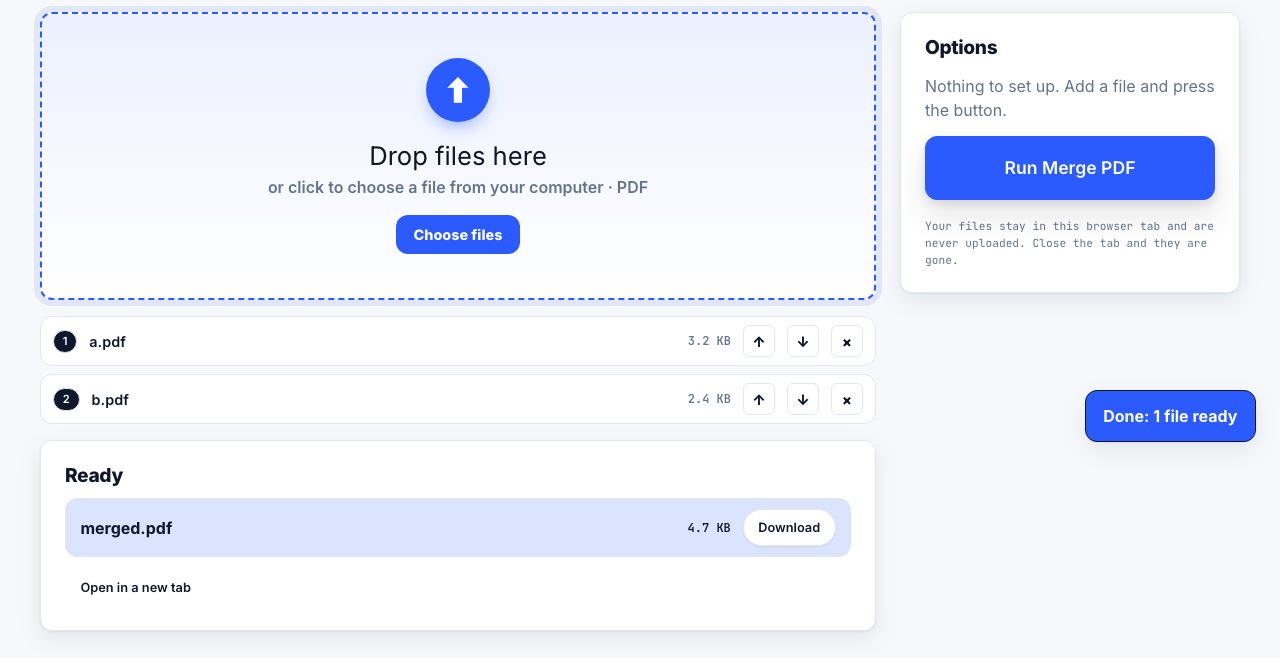
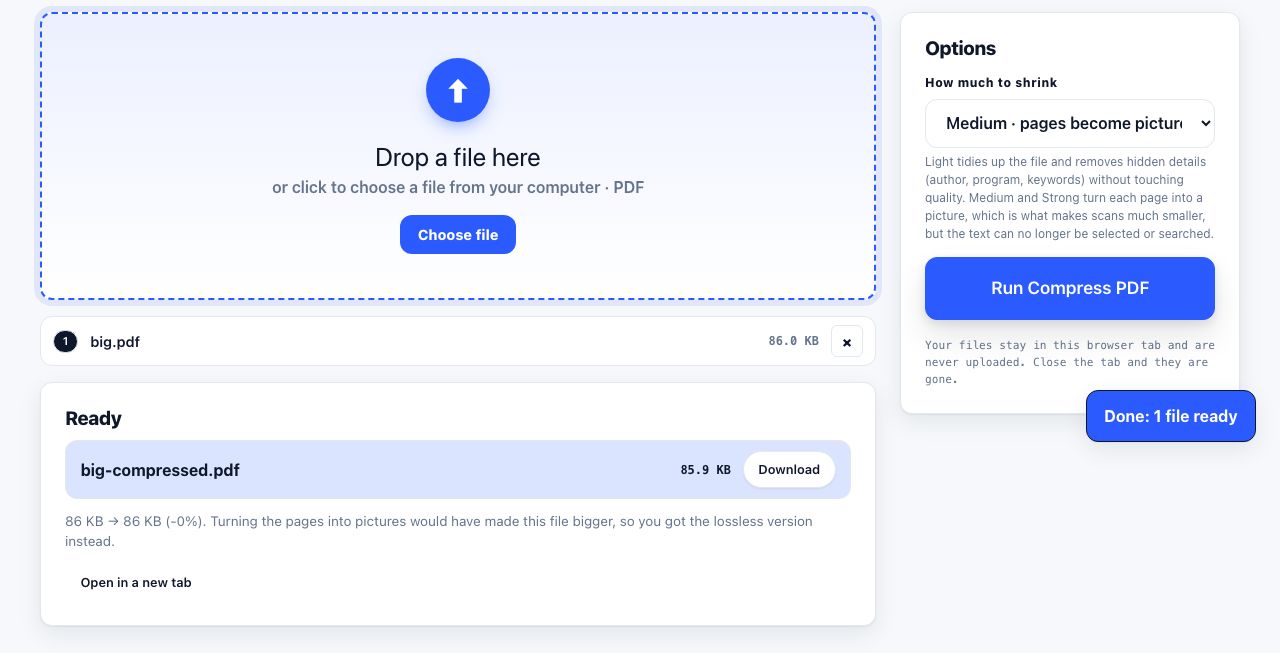
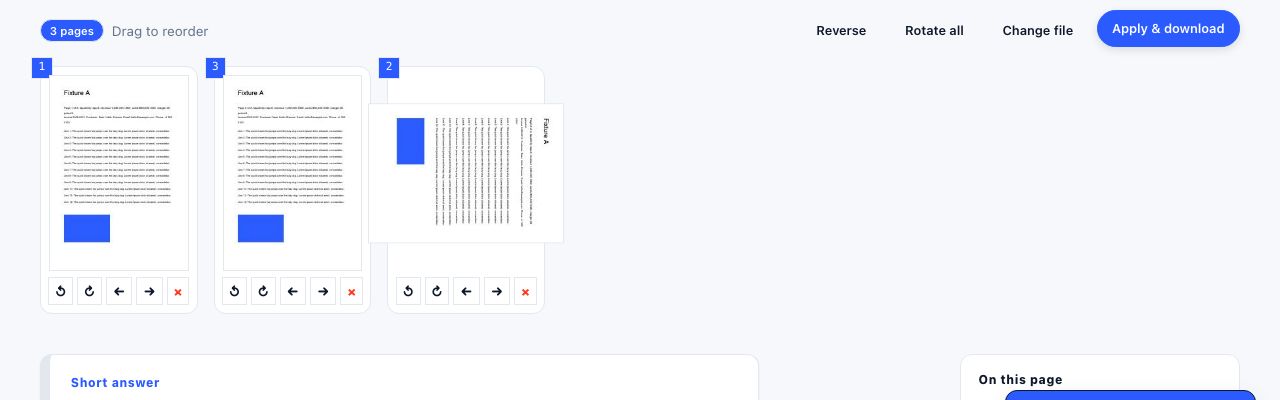
Merging is a structural operation, not a rendering one. A well-built merge tool copies each page object from the source files into a new document and rebuilds the page tree. Nothing is re-drawn, re-compressed or re-typeset, so the text stays crisp and the file size is roughly the sum of the inputs.
The five-step version
- Open the merge toolGo to merge PDF. The files are processed in your browser, so nothing leaves your computer and there is no size cap imposed by an upload.
- Add every file at onceDrag the whole selection in together rather than one at a time. In Finder or File Explorer, click the first file, then Shift-click the last to select a run.
- Set the orderDrag the file cards into position. The first card becomes page 1. Check the page count shown on each card against what you expected, which catches the wrong-version-of-the-file mistake before it becomes a 60-page problem.
- MergeThe combined document is built locally. A 12-file, 200-page merge finishes in a couple of seconds on a normal laptop.
- Check page 1 and the last pageOpen the result in a PDF reader and confirm the first and last pages are what you expect. Those two checks catch almost every ordering error.
Combine any number of PDFs into one document, entirely in your browser.
Merge PDF →Getting the order right the first time
Most merge mistakes are ordering mistakes, and they happen because operating systems sort filenames as text, not as numbers. chapter10.pdf sorts before chapter2.pdf because the character "1" comes before "2".
Zero-pad the numbers and the problem disappears permanently: 01-cover.pdf, 02-summary.pdf, 10-appendix.pdf. Once the filenames sort correctly, dragging the whole batch in gives you the right order with no manual reordering at all.
For a scanned double-sided batch, scan all the odd pages, then all the even pages, and use a merge tool that supports alternate-page interleaving. Without it you get every front page followed by every back page, which is the single most common scanning complaint.
What survives a merge, and what does not
| Feature | After merging | What to do about it |
|---|---|---|
| Text and fonts | Preserved exactly | Nothing. Fonts are copied, subsets get merged. |
| Internal links within one source file | Usually preserved | Check any table of contents links. |
| Bookmarks / outline | Depends on the tool | Better tools nest each file under a parent bookmark; simple ones drop them. |
| Form fields | Preserved, but duplicate names collide | Rename fields first, or flatten the forms before merging. |
| Digital signatures | Invalidated | Merge first, then sign the combined document. |
| Page size and orientation | Preserved per page | A merged file can legitimately mix A4 and Letter pages. |
| Document metadata | Taken from the first file, or blank | Set the title and author afterwards. |
| Attachments and embedded files | Often dropped | Extract them separately before merging. |
| Encryption / password | Cannot be merged while locked | Remove the password first. |
A merge invalidates every existing digital signature in the source files, because signing covers the byte range of the document it was applied to and merging rewrites that. Always merge before you sign, never after.
Mixed page sizes
PDF stores a page size per page, so a merged document can contain A4 (210 × 297 mm), US Letter (216 × 279 mm) and a stray landscape spreadsheet page without any conflict. On screen this is invisible. On paper it is obvious: pages alternate between slightly taller and slightly wider, and a printer set to A4 will scale the Letter pages by about 96 percent.
If the document will be printed, normalise the page size before merging: re-export the odd file from its source application at the size you want, or print each file to PDF with a fixed paper size selected. If the document will only be read on screen, leave it alone.
Why the merged file is bigger than expected
The output is normally close to the sum of the inputs, plus a little. Three things inflate it further:
- Duplicated fonts. Each source file carries its own embedded font subsets. Ten reports built from the same template can end up with ten copies of the same typeface, adding several megabytes.
- Scanned pages. A 300 DPI colour scan is roughly 1 to 3 MB per page before compression. Twenty scanned pages will dominate a merge regardless of what else is in it.
- Images stored at full camera resolution. A 12-megapixel photo placed on a page is still 12 megapixels inside the PDF, even though it displays at postcard size.
Compression fixes all three: it de-duplicates identical objects, downsamples images to a sensible DPI, and re-encodes scans. A 60 MB merged batch of scans usually lands between 5 and 12 MB with no visible change on screen. See reducing PDF file size for email.
Merged file too big to send? Compress it before you attach it.
Compress PDF →When merging fails
| Symptom | Cause | Fix |
|---|---|---|
| Tool refuses one of the files | The PDF is password-protected | Open it, enter the password, and re-save an unprotected copy |
| "Invalid PDF" or a blank page | The file is truncated or malformed | Run it through repair first |
| Pages appear rotated | The source page carries a rotation flag | Fix it after merging with rotate |
| Text looks different in one section | A font was not embedded in that source file | Re-export that file with fonts embedded |
| Merge is very slow | A file contains hundreds of high-resolution images | Compress that file first, then merge |
After the merge
A combined document usually needs two finishing touches. First, page numbers, because the original per-file numbering no longer makes sense across a 90-page compilation. Second, a set of bookmarks so a reader can jump between the original documents. If the merged file is going outside your organisation, also check what the metadata says: it inherits the author name from whichever file was first in the list.
Frequently asked questions
How do I merge PDF files without uploading them anywhere?
Use a merge tool that runs in the browser using WebAssembly rather than a server. The files are read by JavaScript on your own machine, combined locally, and offered back as a download. Nothing is transmitted, which also means there is no upload size limit.
Can I merge PDFs on Windows without extra software?
No. Windows 10 and 11 have no built-in PDF merge. Microsoft Print to PDF is a virtual printer that can only handle one document at a time, and Edge can view PDFs but not combine them. You need either a browser tool or an installed application.
Does merging reduce the quality of a PDF?
No. A proper merge copies page objects without re-rendering anything, so text, vectors and images are byte-identical to the originals. Quality only changes if you also compress the result.
How many PDFs can I merge at once?
A browser tool is limited by available memory rather than a fixed count. Fifty text documents merge without trouble; fifty large scanned files may need to be done in two passes on a machine with less RAM.
Will merging keep the bookmarks from each file?
It depends on the tool. Better implementations create a parent bookmark per source file and nest the original outline underneath. Simpler ones drop the outline entirely, in which case you can add bookmarks to the merged document afterwards.