How to add scanned images to an existing PDF

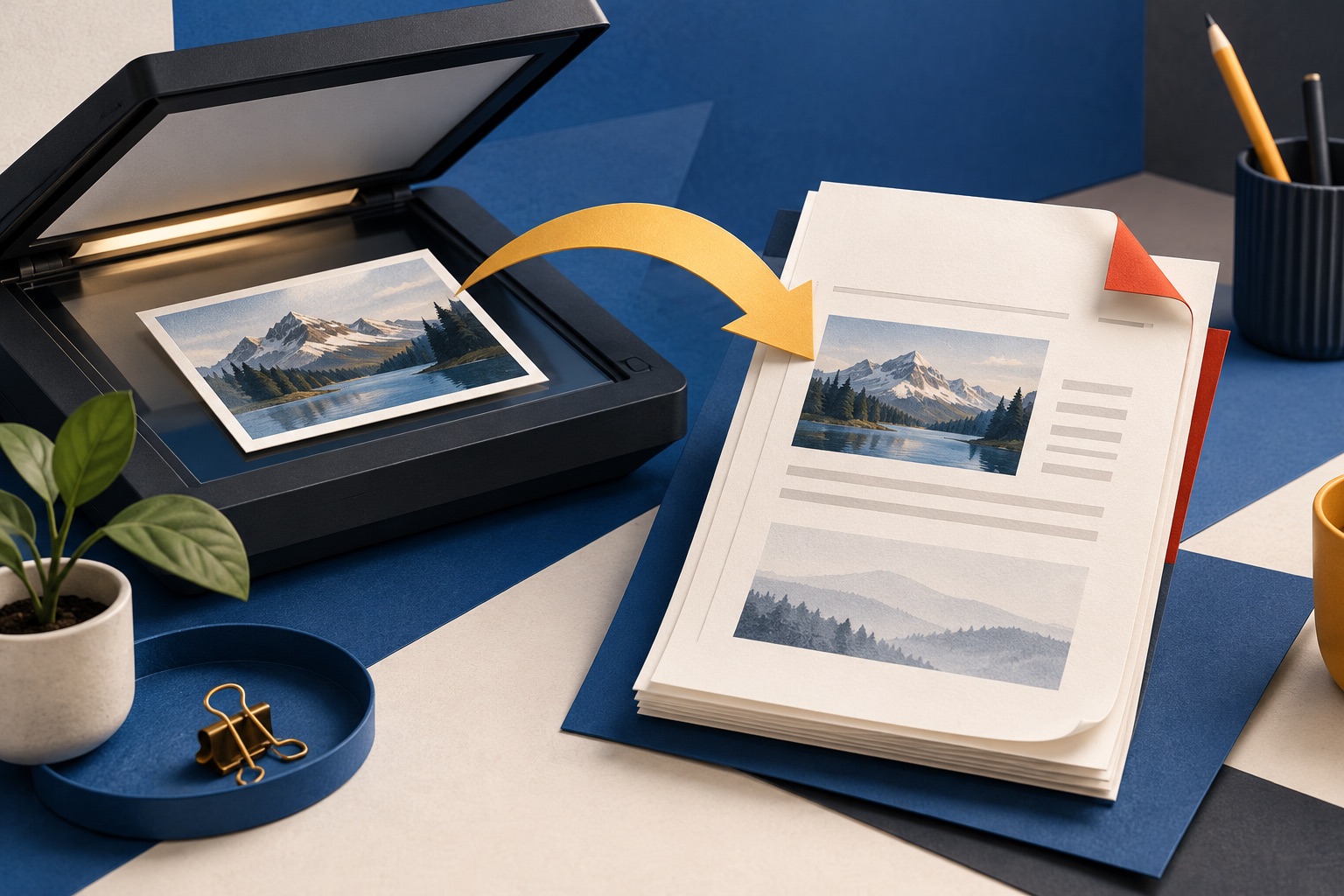
Convert JPG, PNG or WebP images to PDF pages first, then merge that PDF with your existing PDFs. The JPG to PDF tool does not accept HEIC directly, so convert HEIC to JPG first. Once each input is a PDF, arrange the files and download one combined document.
See the tools in action
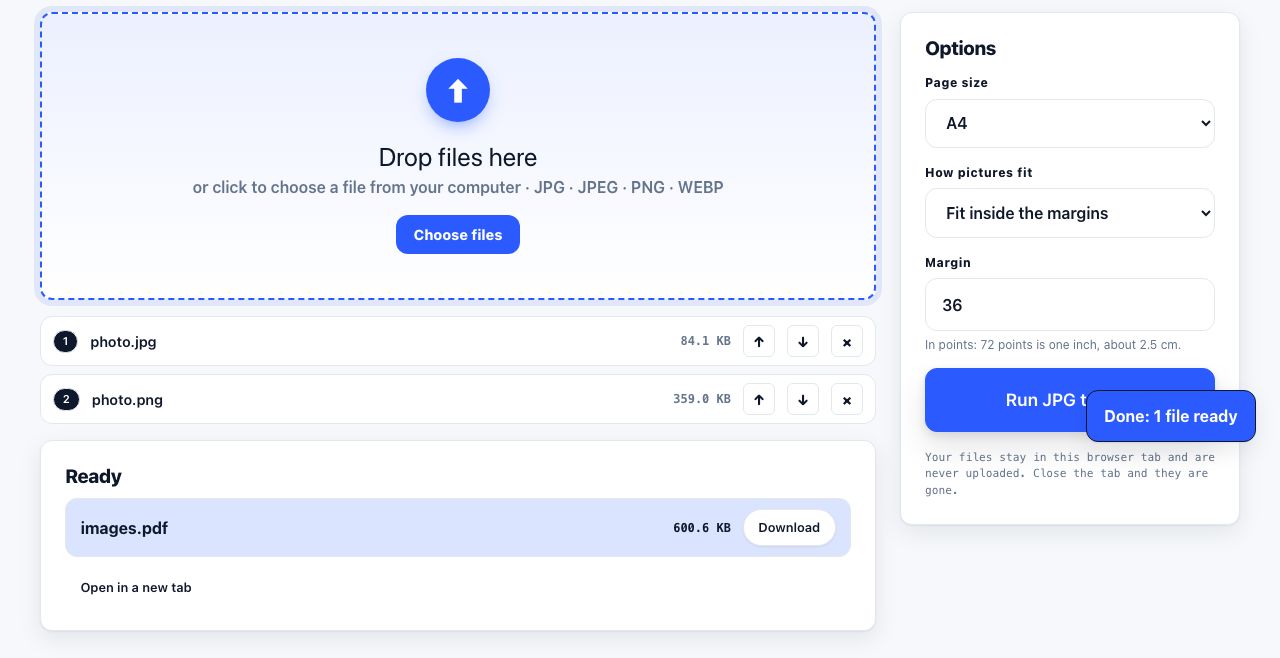
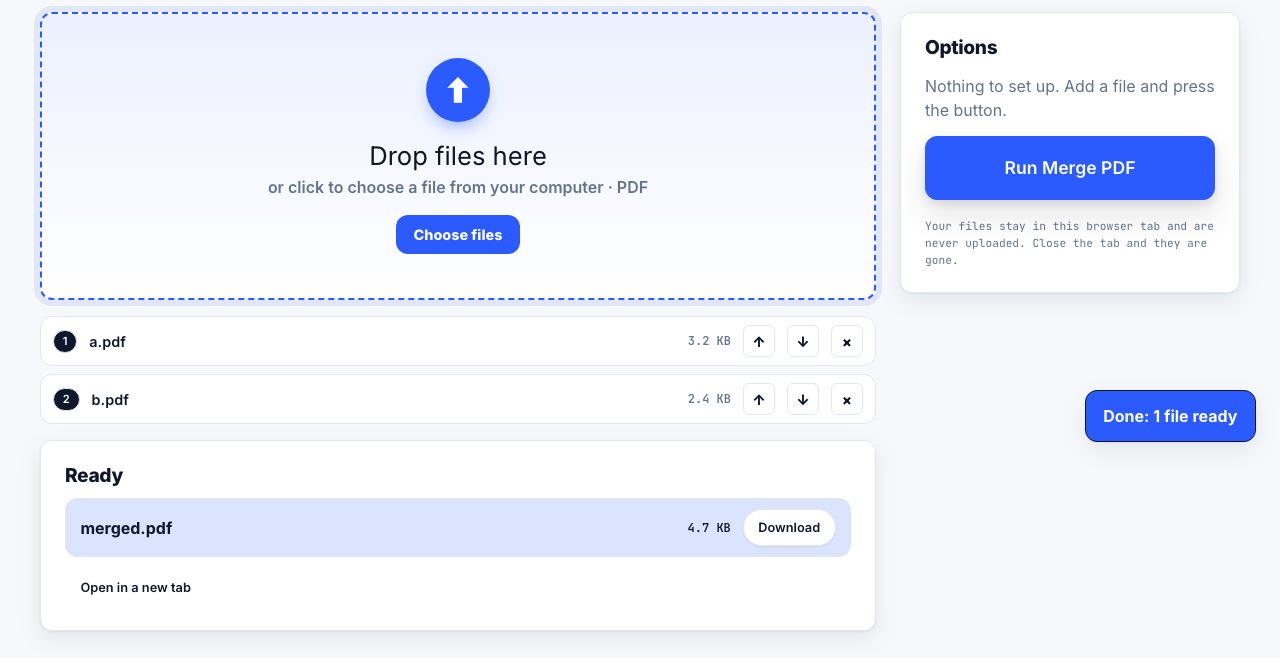
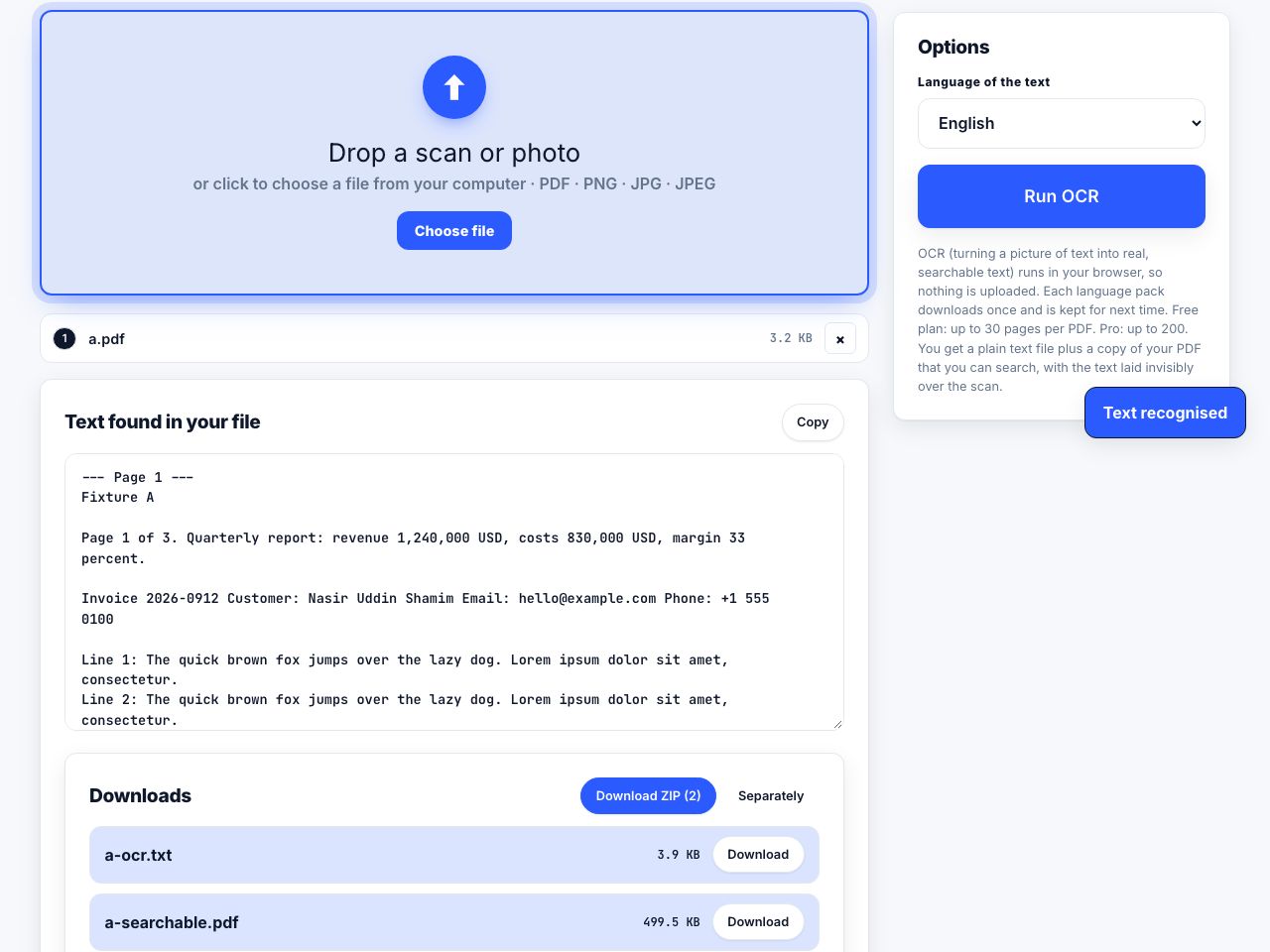
PDF pages hold images perfectly well, but a merge tool works on PDFs, not on a mixed pile of formats. The reliable pattern is two steps: normalise everything to PDF, then combine. Doing it in that order also gives you a chance to fix orientation and page size before anything is locked into a page tree.
Step 1: turn the images into PDF pages
- Gather the images in one folderRename them so they sort in the order you want:
01.jpg,02.jpg, and so on. Zero-padding matters, because10.jpgsorts before2.jpgotherwise. - Open the converterGo to JPG to PDF and drop the whole folder selection in at once.
- Pick a page sizeUnder Page size, choose A4, Letter or Same as image. Then choose Fit inside margins, Fill page or Original size. Fit inside margins keeps the whole picture visible; Fill page can crop its edges.
- Check image orientationThe converter does not offer an EXIF auto-rotate switch. Open the output and check each page; if one is sideways, rotate it with Organize Pages or Rotate PDF.
- ConvertYou get either one PDF per image or a single multi-page PDF, depending on the option chosen. For merging, one multi-page PDF is fewer things to drag.
Convert JPG, PNG and WebP images into PDF pages in your browser. Convert HEIC to JPG first.
JPG to PDF →HEIC: why iPhone photos need a moment
The JPG to PDF tool accepts JPG, PNG and WebP, not HEIC. Convert HEIC images with HEIC to JPG first, then add the resulting JPG files. The conversion changes the image format, so check the converted file before assembling a document.
If you would rather avoid the issue entirely, change the camera setting: Settings → Camera → Formats → Most Compatible makes the iPhone shoot JPEG instead. And if you AirDrop photos to a Mac, macOS converts on the fly, which is why the same photo is sometimes HEIC and sometimes JPEG depending on how it arrived.
Step 2: merge everything
With every input now a PDF, open Merge PDF, add the files in the intended sequence, check the order shown, and run the merge. A typical expense claim might contain a cover letter, receipt pages and a statement. Review the output before sending it.
Getting the resolution right
This is where image-to-PDF goes wrong. An image has pixels; a PDF page has physical dimensions. The relationship between them is DPI, and choosing badly gives you either a blurry printout or a 90 MB file.
| Page | At 150 DPI (screen, draft print) | At 300 DPI (proper print) | At 600 DPI (archival scan) |
|---|---|---|---|
| US Letter, 8.5 × 11 in | 1275 × 1650 px | 2550 × 3300 px | 5100 × 6600 px |
| A4, 210 × 297 mm | 1240 × 1754 px | 2480 × 3508 px | 4960 × 7016 px |
| A5, 148 × 210 mm | 874 × 1240 px | 1748 × 2480 px | 3496 × 4960 px |
| Typical iPhone photo | 4032 × 3024 px, more than enough for any of these |
Image pixel dimensions affect how sharp a page looks when printed. The JPG to PDF tool does not provide a DPI or image-resampling setting, so prepare a smaller copy in an image editor if you need to reduce resolution before conversion. Keep the original, and inspect a test page at the intended print size.
The receipt problem, worked through
The output size depends on the number and dimensions of the source images. Email and workplace upload limits vary, so check the current limit for the account or portal you are using. If the PDF is too large, make a backup and try the options below:
- Resize or convert copies of the source photos in an image editor before making the PDF. This JPG to PDF tool does not offer a DPI or grayscale option, so check that small receipt text remains readable.
- Use the browser's print or image tools only if their output is suitable; compare the result with the original before discarding anything.
- Try Compress PDF on a copy. Medium and Strong turn pages into images, which can reduce size but removes selectable text and may lower detail.
Photograph receipts against a dark surface in even light and crop tightly before converting. A tight crop with high contrast both shrinks the file and dramatically improves OCR accuracy later.
Making the result searchable
A PDF made from photos contains no text, only pictures of text. Ctrl+F finds nothing, and neither will your accounting software or your operating system search index. Running OCR adds an invisible text layer under the image: the page looks identical, but the amounts, dates and vendor names become searchable and copyable. For a receipts archive this is the difference between a folder you use and a folder you forget.
Add a searchable text layer to a PDF built from photos or scans.
OCR PDF →| Job | Sequence |
|---|---|
| Expense claim from phone photos | Check/crop copies → JPG to PDF → merge → OCR if searchable text is needed → compare compression on a copy |
| Signed contract, scan mixed with the original | Scan signature pages → images to PDF → merge with the original → do not compress |
| Portfolio of design work | PNG to PDF, fit to image, full resolution → merge → do not compress |
| Passport and ID for an application | Photos to PDF at Letter or A4 → merge → check nothing is cropped at the edges |
| A book or manual you photographed | Images to PDF → merge → OCR → add page numbers |
A note on quality loss
Placing a JPEG into a PDF is lossless: the original JPEG bytes are embedded as-is, so the page is exactly as good as the file you started with. Quality is only lost if you downsample during conversion or compress afterwards, both of which are choices you control. PNG behaves differently, since PDF re-encodes it, but the result is still visually identical for screenshots and diagrams.
Frequently asked questions
How do I combine photos and a PDF into one file?
Convert the photos into PDF pages first with an image-to-PDF tool, then merge the resulting PDF with your existing one. Merge tools only accept PDFs, so the conversion step is what makes the combination possible.
Can I merge HEIC photos from my iPhone into a PDF?
Not directly with PrintxPDF's JPG to PDF tool, which accepts JPG, PNG and WebP. Convert HEIC to JPG with HEIC to JPG, then create PDF pages and merge them. On iPhone, Most Compatible camera format saves future photos as JPEG.
What resolution should I use for images in a PDF?
Use 150 DPI for documents that will only be read on screen and 300 DPI for anything that will be printed. For US Letter that means 1275 by 1650 pixels and 2550 by 3300 pixels respectively. Higher adds size without adding visible detail.
Why is my photo sideways in the PDF?
The JPG to PDF tool does not expose an EXIF auto-rotate setting. Check the output and rotate a sideways page with Organize Pages or Rotate PDF.
How do I scan several pages into a single PDF?
Most scanner software has a multi-page or batch mode that outputs one PDF. If yours produces one file per page, convert or collect them and merge the results, which also lets you drop the blank reverse sides.