Flatten PDF
Turn filled-in form boxes into fixed text so the answers can no longer be changed. A good last step before you send or file a form.
Flatten PDF bakes the filled-in answers of a form into the page so they cannot be changed, and every viewer shows them the same way. Drop the file, click Run Flatten PDF, and the flattened copy downloads. It runs in your browser, free, with nothing uploaded.
What does flattening a PDF mean?
Flattening: the answers become part of the page
A fillable PDF keeps each box you type in as a separate live object floating over the page. Flattening draws what is in the box onto the page itself and removes the live box. What was a text field becomes plain printed text. The result looks identical but behaves like a sheet of paper: nothing can be clicked, changed or cleared by accident.
Fillable fields: why they look different in every app
Fillable fields are the text boxes, tick boxes, dropdowns and signature spaces in a form. The PDF file only stores what is in them; each viewer app draws them on the fly. That is why a freshly filled form sometimes looks different in another app, or shows empty boxes in a viewer that does not understand forms. Flattening removes that dependence on the viewer by turning the fields into ordinary page content.
Why flatten a PDF?
- Lock the answers. A completed application, timesheet or consent form should not be editable by the next person who opens it. Flattening freezes what was entered.
- Look the same everywhere. Browser viewers, phone apps and printers handle live fields differently. Flattened content is ordinary page content and looks identical everywhere.
- Print and archive reliably. Archives, the long-term PDF/A format and many submission portals want documents with no live parts. Flatten first, then convert with PDF to PDF/A.
- Stop answers going missing. Some viewers drop what was typed into a form when they save or export. Flattened text cannot be lost that way.
- Private and free. The file is processed in your browser. Nothing is uploaded and no account is needed.
How to flatten a PDF, step by step
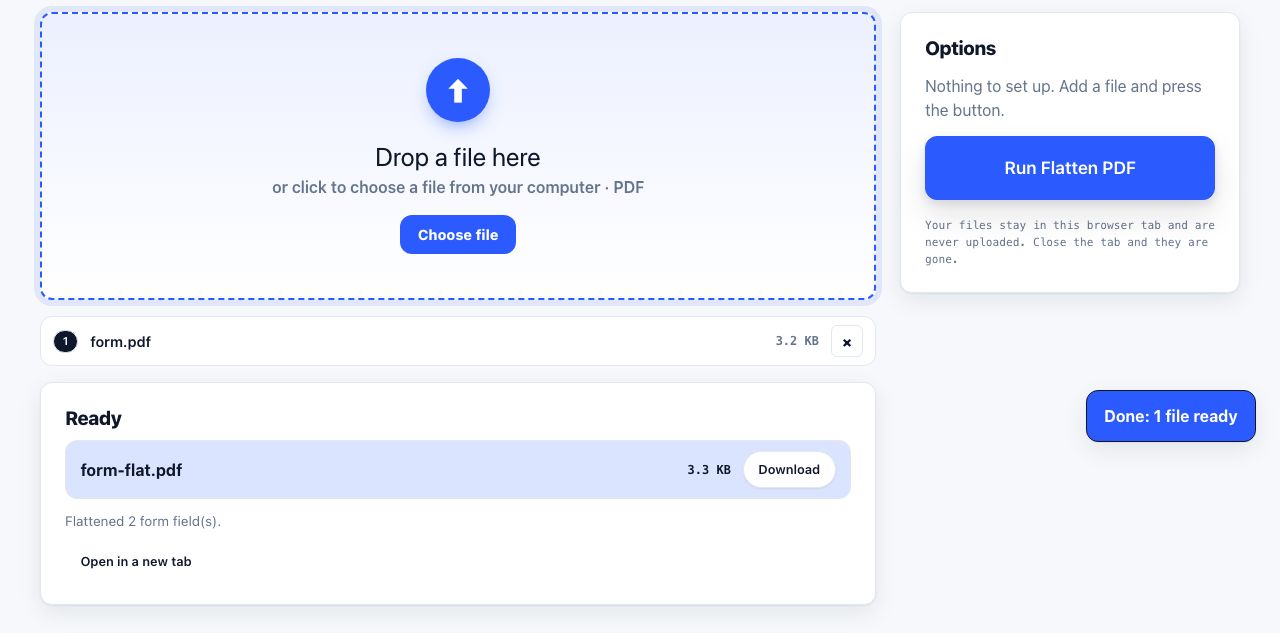
- Open Flatten PDF and drop your file Drop the filled form or any PDF with fillable fields.
- Click Run Flatten PDF The tool finds every fillable field, draws what is in it onto the page and removes the field.
- Download the result The file arrives as
name-flat.pdfwith a note saying how many fields were flattened. If none were found, the file is simply saved again. - Check it Open the copy in PDF Reader and confirm the entries are visible and no longer clickable.
Frequently asked questions
Can I unflatten a PDF?
No. Flattening is one-way: the fields are gone and only their drawn appearance remains. Keep the fillable original if you may need to change answers later, and flatten a copy for sending.
Does flattening stop people editing the PDF?
It removes the fillable fields, so answers cannot be typed over. It is not a password or a lock; a PDF editor can still change what is on the page. To stop people opening or editing the file, add a password with Protect PDF after flattening.
Does it flatten comments and highlights too?
This tool flattens fillable fields only. Sticky notes, highlights and other markup are left as they are. If you need those baked in too, print the file to PDF from a desktop viewer, which draws them into the page.
What about digitally signed forms?
Flattening changes the file, so a certificate-based digital signature already on it will show as invalid afterwards. Fill and flatten first, then sign. A drawn signature from Sign PDF is unaffected because it is already part of the page.
It says no form fields were found, but my form has fields
The form is probably an older kind of form some government sites use, which stores its fields in a different way this tool cannot read. Print it to PDF from a desktop viewer such as Adobe Acrobat to get a flat copy.
Looking for the long version? The guides cover each of these jobs in depth.
Why is my PDF file so large? 8 reasons
Eight things that make a PDF huge: scanned pages, unsubsetted fonts, duplicated images, incremental saves, uncropped photos, form fields and colour profiles.
How to sign a PDF without printing it
Sign a PDF on screen in under a minute. Draw, type or upload your signature, place it on the line, add the date, then flatten the file so it cannot be moved.
Are electronic signatures legally binding?
What the ESIGN Act, UETA and eIDAS actually say about electronic signatures, which documents are excluded, and what makes a signature hold up if challenged.
How to fill in and sign a PDF form
Fill in a PDF form on screen, whether it has real fields or is a flat scan. How to tell which kind you have, type on either, and flatten so nothing changes.