How to fill in and sign a PDF form


First find out which kind of form you have. If clicking a blank produces a text cursor, it is an interactive AcroForm: type into the fields and tab between them. If nothing happens, it is a flat scan, so add free text boxes on top instead. Flatten the file afterwards either way.
See the tools in action
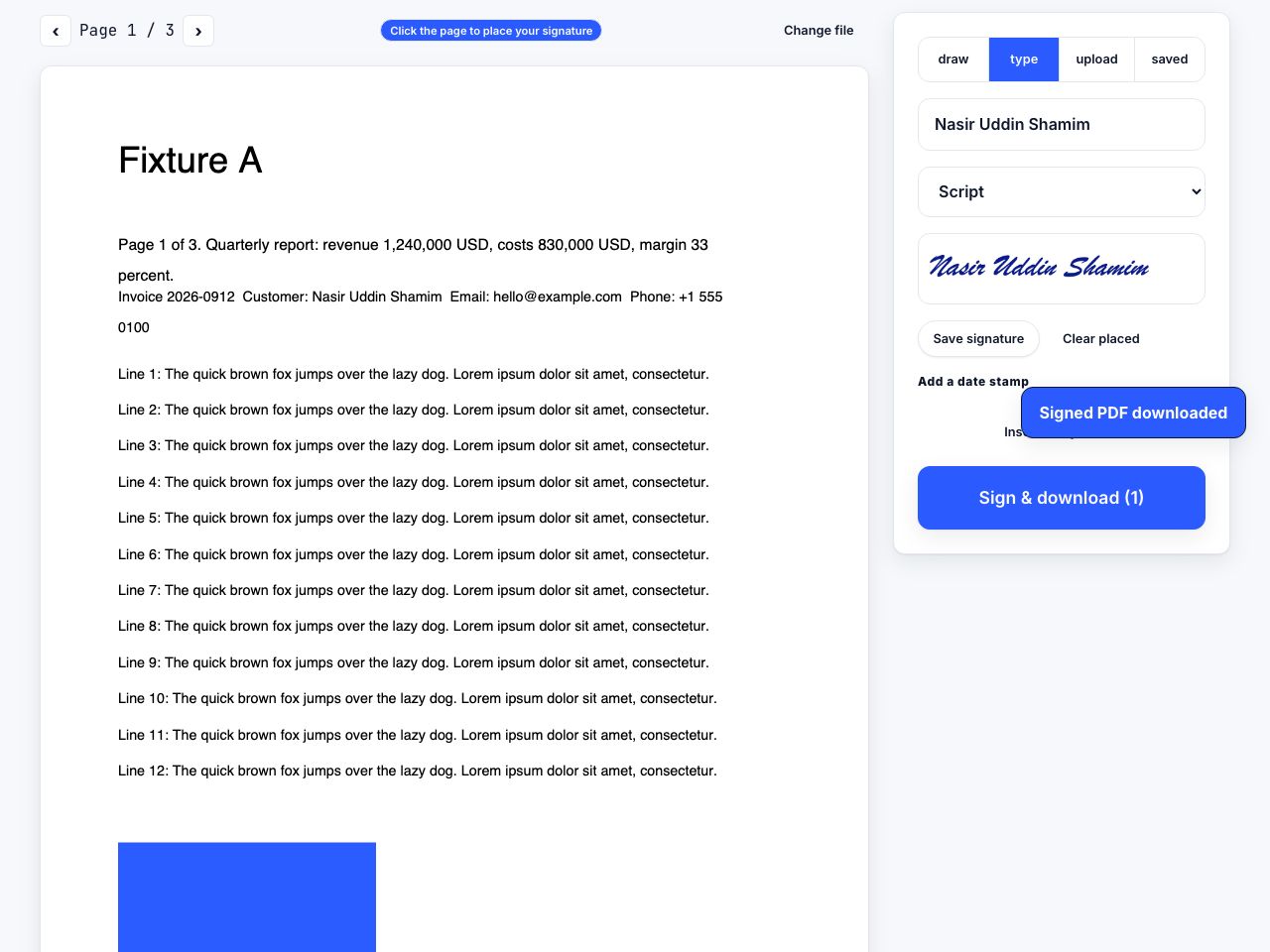
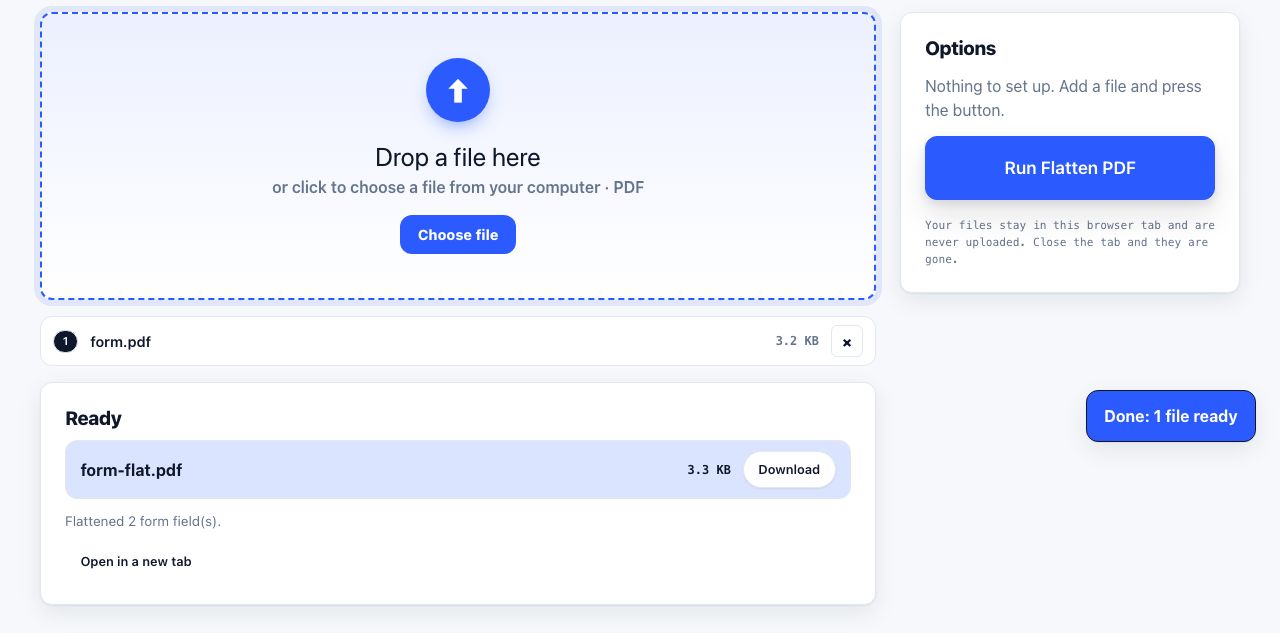
Two documents can look identical and behave completely differently. One has real form fields built into it and fills in like a web form. The other is a photograph of a piece of paper with no interactivity at all. Everything about the workflow depends on which one you were sent.
Work out which kind you have
Open the file and click on a blank where an answer should go.
- A blinking text cursor appears and you can type: it is an interactive AcroForm. Pressing Tab jumps to the next field, which is the quickest confirmation.
- Nothing happens and the pointer stays an arrow: it is a flat page. Either it was scanned, or it was exported to PDF without the fields.
- A banner appears saying the document requires Adobe Acrobat: it is an XFA form, built in LiveCycle Designer. Browsers and most viewers cannot render these.
In Adobe Acrobat there is a definitive check: More → Form Options → Highlight Existing Fields, which paints every fillable field pale blue. If nothing turns blue, there are no fields to find.
| Interactive form (AcroForm) | Flat page or scan | |
|---|---|---|
| Clicking a blank | Gives a text cursor | Does nothing |
| Tab key | Moves between fields | Does nothing |
| How to fill it | Type directly into the field | Place free text boxes on top |
| Alignment | Automatic, inside the field | Manual, you position each box |
| Checkboxes | Click to tick | Type an X, or draw one |
| Searchable text | Yes | Only after OCR |
| Can be reset or refilled | Yes, until flattened | Not applicable |
Filling an interactive form
- Open it in a real PDF viewerUse the browser PDF reader or a desktop viewer. Some previewers, inline mail attachments in particular, render the page but ignore the form layer entirely.
- Tab through every field firstBefore typing anything, press Tab repeatedly to see how many fields exist and where they are. Forms routinely hide fields in the margins or on a second page.
- Fill in the text fieldsType normally. If text disappears as you type, the field has a character limit or a fixed font size set by the author and your answer is too long for the box.
- Handle checkboxes and radio buttonsClick a checkbox to toggle it. Radio buttons in one group are mutually exclusive, selecting one clears the rest, which is intended behaviour, not a bug.
- Add the signatureIf there is a dedicated signature field, click it. If not, place a signature image on the line as described in how to sign a PDF.
- Flatten before sendingExport with Flatten enabled so the answers become part of the page instead of remaining editable form values.
Fill in the blanks, drop your signature on the line, then flatten and download.
Sign PDF →Typing on a flat PDF
When there are no fields, you are placing text on top of an image. It works fine; it just needs a little care to avoid looking obviously pasted on.
- Zoom to about 150 percent so you can position boxes precisely against the printed rules.
- Add a text box and drag it over the blank. Set the baseline of the text to sit on the printed line, not above it.
- Match the size roughly to the form. Most printed forms use 9 to 11 pt, so a text box at 10 pt looks right.
- Use a plain sans-serif face. Trying to match a scanned form’s typeface almost always looks worse than a neutral one.
- For checkboxes, type a capital X or place a small tick image. Do not try to draw one freehand.
- Work down the page in order so you do not miss a blank, then zoom out and check the whole sheet before exporting.
If the scan is crooked, straighten it before you start. Text boxes aligned to a rotated form look wrong at every zoom level, and the same deskewing improves OCR, see getting better OCR results.
Common problems
| Symptom | Cause | Fix |
|---|---|---|
| Fields visible in Acrobat, invisible in a browser | XFA form | Open in Acrobat, or ask the sender for an AcroForm or flat version |
| Typing replaces text instead of inserting | Overtype mode, or a fixed-length field | Click into the field, press End, then type |
| Text shrinks as you type | Auto-size font on a small field | Expected behaviour. Abbreviate, or use a text box beside the field |
| Answers vanish when reopened | Viewer saved a copy without form data | Use Save As from a real PDF viewer, and flatten |
| Recipient sees an empty form | They opened it in a viewer that ignores form values | Flatten before sending. This solves it permanently |
| Cannot type at all, but text is selectable | Flat PDF made from a text document | Use text boxes on top |
Flattening, and why every form needs it
Form values live in a separate layer from the page. Until you flatten, they are data attached to fields, which means three things can go wrong: another viewer may not render them, the recipient can edit them, and a printer may print the blank form instead of your answers. Flattening writes the values into the page content and removes the fields, ending all three problems at once.
Run the flatten tool on the finished file if your form filler does not offer it directly. Keep an unflattened copy for yourself in case you need to revise an answer, because the operation cannot be undone.
A flattened form is still not the same as a locked document. Flattening stops casual editing of fields and annotations; it does not prevent someone from editing the page content in a full PDF editor. For genuine tamper evidence you need a certificate-based digital signature, see are electronic signatures legally binding.
Before you send it back
Check the page count, confirm every page that needed initials has them, and open the exported file fresh to see what the recipient will see. If the form was a scan and the recipient may need to search it, running OCR first is a courtesy that costs nothing.
Frequently asked questions
How do I type on a PDF that has no form fields?
Add free text boxes on top of the page. Zoom to about 150 percent, drop a box over each blank, set it to roughly 10 pt, and align the text baseline to the printed rule. Flatten when you are finished.
Why can I not fill in this PDF form in my browser?
It is most likely an XFA form built in Adobe LiveCycle Designer, which only Adobe Acrobat renders properly. Open it in Acrobat, or ask the sender for a standard AcroForm or a flat version you can type over.
Why does the recipient see my form as blank?
The form values were saved in the field layer and their viewer ignored it. Flatten the document before sending, which merges your answers into the page so every viewer and printer shows them.
How do I stop someone editing my answers?
Flatten the file. That converts field values into page content and removes the fields, so the answers cannot be retyped in any ordinary viewer. It cannot be undone, so keep an unflattened copy.
Can I fill in a PDF form on a phone?
Yes. Interactive forms work in most mobile PDF viewers, and browser-based tools handle both interactive and flat forms. Adding text boxes to a flat scan is fiddly on a small screen but perfectly possible.