How to create a clean signature image with a transparent background

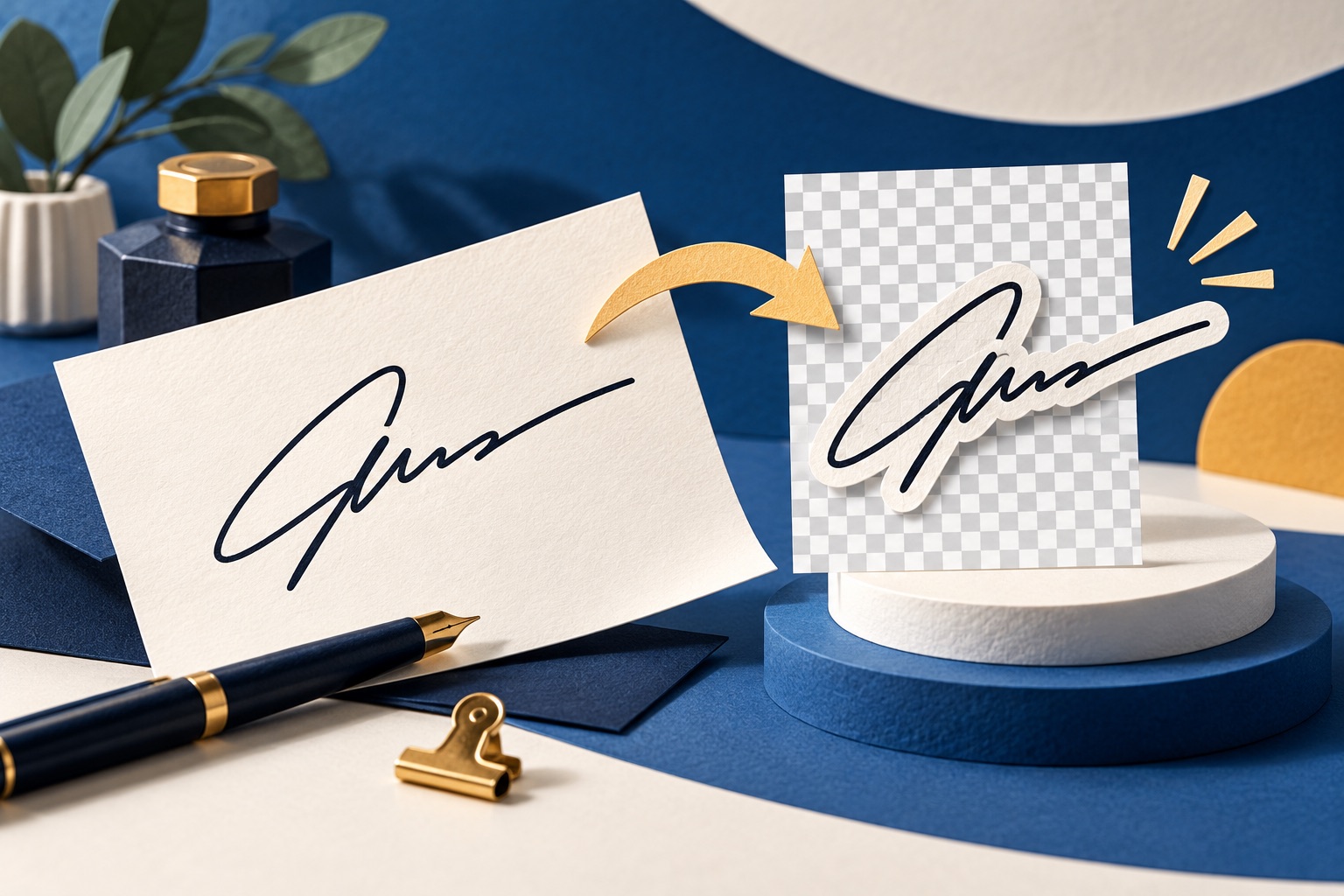
Sign a sheet of unlined white paper with a black pen, photograph it in flat daylight, crop tight, raise the contrast until the paper is pure white, then delete the white to alpha and export as PNG-24. Aim for around 1000 px wide so it stays sharp when printed.
See the tools in action
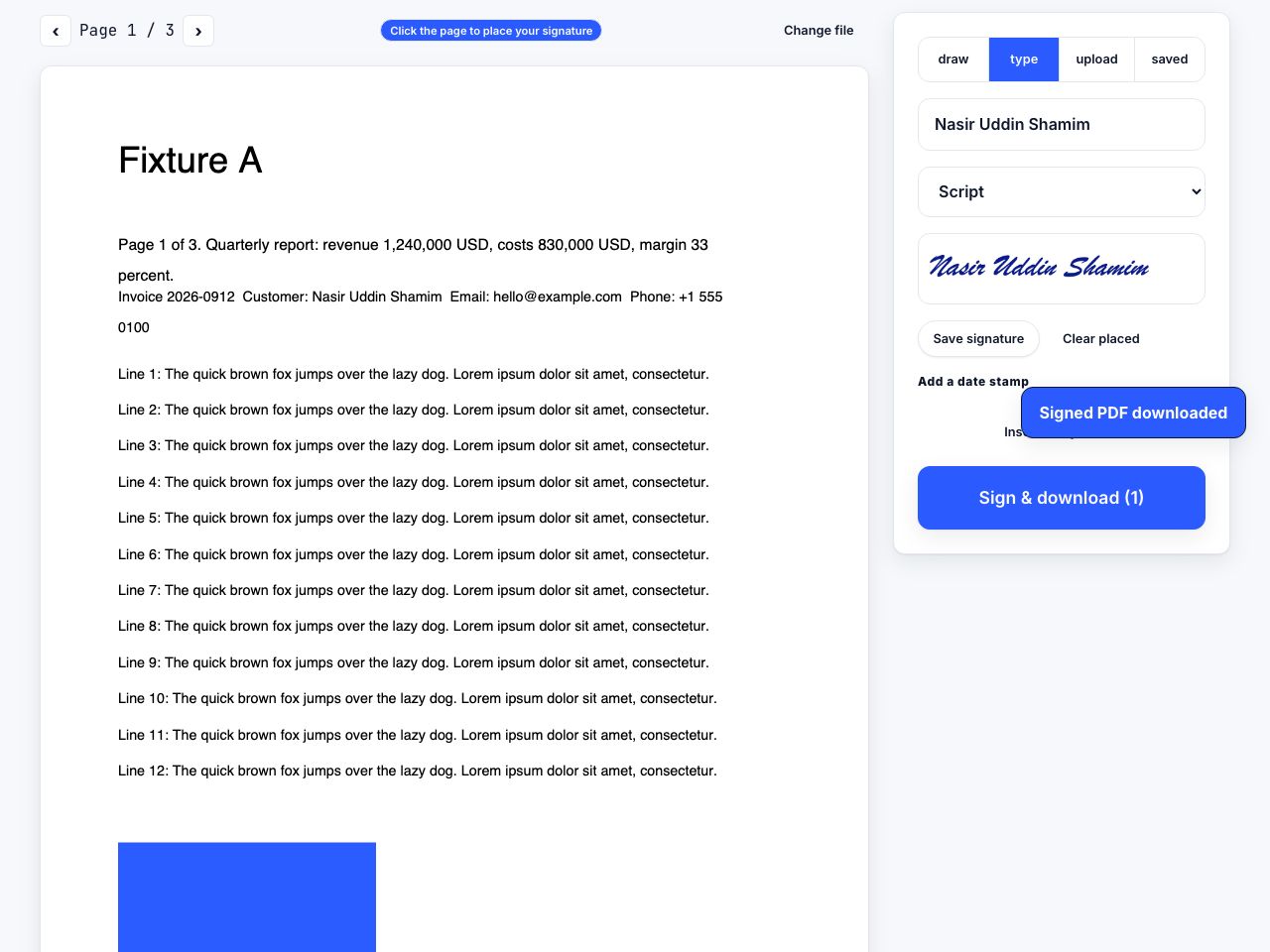
A signature image done properly takes five minutes once, and then works in every PDF you ever sign. Done badly it produces the thing everyone recognises immediately: a grey rectangle sitting on top of the form, edges visible, slightly the wrong shade of white.
Capture: paper beats a mouse
Drawing with a mouse never looks right. Sign on paper and photograph it, or capture directly on a touchscreen with a stylus. The paper route gives the best result because it is literally your handwriting at its natural speed.
- Use the right pen and paperPlain unlined white paper and a black gel or felt-tip pen, around 0.7 mm. Ballpoint lines are thin and grey, which threshold badly. Blue ink also works but converts less cleanly.
- Sign it several timesSign four or five times across the sheet. You will pick the best one, and you almost never like the first.
- Photograph it flatDaylight near a window, no flash, no direct sun. Hold the phone parallel to the paper, not at an angle, and let your body shadow fall away from the page. Tap to focus on the ink.
- Crop tightCrop to the signature plus a small margin. Everything you leave in is background you will have to remove later.
- Raise the contrast until the paper disappearsIn any photo editor, push contrast and pull the white point down until the paper is pure white and the ink is solid black. In Photoshop or GIMP, Levels with the white input slider moved left does this precisely.
- Delete the white to transparencyGIMP: Colors → Color to Alpha, target white. Photoshop: Select → Color Range, pick the white, then delete on an unlocked layer. Preview on macOS: the Instant Alpha tool in Markup.
- Export as PNGSave as PNG-24 with alpha. Never JPG, which has no transparency and will reintroduce a white box.
Do not save the finished signature as a JPG. JPEG has no alpha channel, so the transparency is discarded and the file comes back with a solid white rectangle around your signature, plus compression halos along every stroke.
How big should it be?
Size it for the worst case, which is printing. A signature occupies roughly 2 to 3 inches on a printed form, and print wants 300 pixels per inch, so 900 to 1000 pixels wide is the target. Storing it larger costs nothing meaningful and lets you scale down cleanly; storing it at 200 px means it will look soft the first time someone prints the contract.
| Use | Width in pixels | Notes |
|---|---|---|
| Screen-only PDF, email signature | 400 - 600 | Small file, fine on a display |
| General purpose, recommended | 900 - 1200 | Prints at 300 DPI across 3 to 4 inches |
| Large-format or archival | 1800+ | Overkill for most documents |
| Too small | Under 300 | Visibly pixelated as soon as it is printed |
The same 300 DPI logic applies to everything else you put on a page, see what resolution you need for printing if you want the arithmetic.
Capture methods compared
| Method | What you need | Quality |
|---|---|---|
| Phone photo of paper | Paper, black pen, daylight | Best. Real handwriting, full resolution. |
| Flatbed scanner at 600 DPI | A scanner | Excellent and evenly lit, but slower. |
| Preview on macOS, camera mode | A Mac with a webcam | Very good. Holds the paper up to the camera and cuts it out for you. |
| Preview on macOS, trackpad mode | A Mac | Decent with practice. Signing on glass is awkward. |
| iPad or iPhone with Apple Pencil | An Apple Pencil | Very good, and pressure sensitivity helps. |
| Mouse in a signing tool | Nothing | Poor. Recognisably drawn with a mouse. |
macOS Preview will do the whole capture and cut-out in one step: Tools → Annotate → Signature → Create Signature → Camera, then hold the signed paper up to the webcam. It removes the background automatically and stores the result for reuse across Preview and Mail.
Checking the result
Open the finished PNG in a viewer that shows a checkerboard behind transparency, then check three things: the background is genuinely transparent rather than white, the strokes are solid black rather than dark grey, and the edges are smooth rather than jagged. Jagged edges usually mean the file was saved as PNG-8, which supports only a single fully transparent colour instead of a real alpha channel.
The real test is to place it on a document with a coloured or shaded background. Any leftover halo shows up immediately there, and nowhere else.
Upload your finished PNG once and reuse it on every document you sign.
Sign PDF →Storing it safely
A signature PNG is a reusable copy of your signature. Anyone with the file can place it on any document. Keep it in an encrypted folder or a password manager rather than a shared drive, do not email it to anyone, and do not post a signed document publicly at full resolution, a signature is easy to extract from a published PDF, as extracting images from a PDF shows.
For the same reason, flatten documents before sending them. A flattened signature is much harder to lift cleanly than an annotation object sitting in its own layer.
Frequently asked questions
How do I remove the white background from a signature?
Raise the contrast until the paper is pure white, then delete white to alpha: Color to Alpha in GIMP, Select → Color Range in Photoshop, or Instant Alpha in macOS Preview. Save the result as PNG-24.
What size should a signature image be?
Around 900 to 1200 pixels wide. That prints cleanly at 300 DPI across three or four inches. Below 300 pixels the signature looks pixelated as soon as the document is printed.
Can I use a JPG for my signature?
Not if you want a transparent background. JPEG has no alpha channel, so the signature arrives inside a white box, and JPEG compression adds visible halos along the strokes. Always use PNG.
What pen should I use for a signature I am going to scan?
A black gel or felt-tip pen around 0.7 mm on unlined white paper. Thick, solid strokes survive thresholding. Ballpoint lines are too thin and grey, and often break up when you push the contrast.
Is it safe to keep a signature image on my computer?
Treat it like a credential. Anyone holding the file can apply it to any document, so store it encrypted, avoid shared drives and email attachments, and flatten documents before sending so the signature cannot easily be lifted back out.