Organize Pages
See every page as a small preview. Drag pages into a new order, rotate any page and delete the ones you do not need.
Organize Pages shows every page of a PDF as a preview so you can drag pages into a new order, rotate any page, and delete the ones you do not need, then download the rebuilt file. Everything happens in your browser: nothing is uploaded, no sign-up, and it is free.
What does organizing PDF pages mean?
Reordering, rotating and deleting in one pass
Organizing a PDF means changing which pages it contains and in what order, without touching what is printed on them. This tool draws a small preview of each page in your browser, lets you arrange those previews, and then builds a new file by copying the pages in the order you left them. Text, pictures and drawings come across untouched, so a rearranged file looks exactly like the source, page for page.
How page rotation is stored
Every PDF page carries a small note saying which way up it should be shown: 0, 90, 180 or 270 degrees. Every viewer and printer obeys it. Rotating here changes that note rather than redrawing the page, so nothing is lost and the change is permanent: it is saved in the file, unlike the temporary rotation in a reader's View menu, and it survives printing and conversion.
Why organize PDF pages in the browser?
- See before you commit. Previews show every page at once, so an out-of-order scan or a stray blank page is obvious before you download anything.
- Fix scans in one go. A two-sided scan that came out reversed, a wide page lying on its side and a blank back page are all handled in the same grid, with one download at the end.
- No quality loss. Pages are copied, not redrawn. Rotation is a note on the page, so even a sharp scan keeps every dot it had.
- Private for confidential files. Previews are drawn on your machine and the rebuilt PDF is written there too. Nothing is uploaded, so nothing needs deleting from a server.
- Free with no page cap. There is no account and no limit on pages beyond the memory of your browser tab.
How to organize PDF pages, step by step
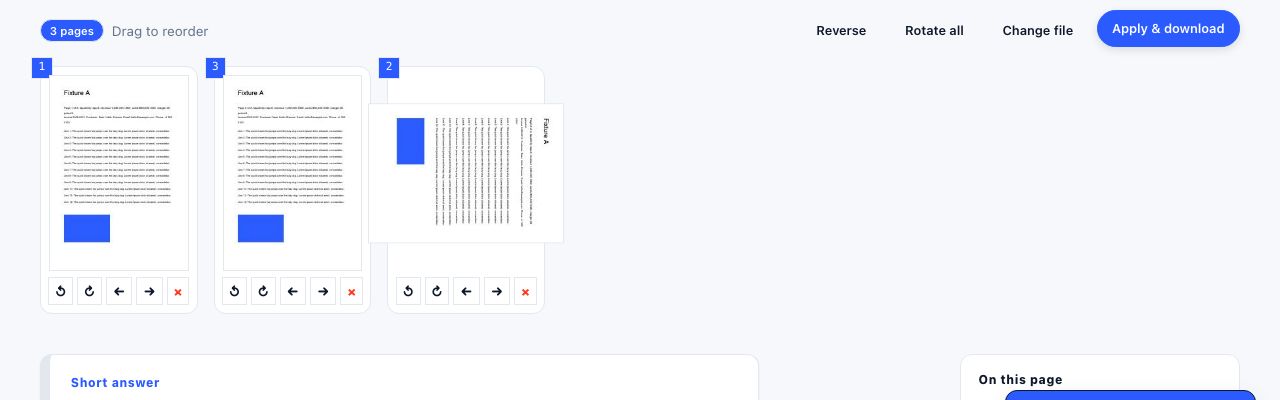
- Open Organize Pages and drop your PDF. Drag one file onto the drop zone. Small previews (thumbnails) appear page by page; a badge shows the page count and a Rendering badge disappears when every preview is ready.
- Drag pages into order. Pick up any preview and drop it where it belongs, or use the Move left and Move right arrows under a page. Reverse flips the order of the whole document, which fixes a back-to-front scan in one click.
- Rotate what is sideways. Each preview has Rotate left and Rotate right buttons that turn that page by 90 degrees; the preview turns with it. Rotate all turns every page 90 degrees clockwise at once.
- Delete pages you do not need. Click the × on a preview to drop that page. It vanishes from the grid and will not be in the result. The original file on your disk is never changed.
- Click Apply & download. The pages are copied into a new file in the order shown, with the rotations applied, and it downloads as
name-organized.pdf. Change file starts again with a different PDF.
Frequently asked questions
Does reordering or rotating pages change the quality?
No. Reordering copies the pages into a new file with their fonts and pictures intact, and rotation is stored as a note on the page that viewers obey as they draw it. Nothing is turned into a picture, so text stays selectable and scans stay sharp.
Can I undo a deletion in the grid?
Not inside the grid itself. The quickest recovery is Change file: drop the same PDF again and the full set of pages comes back, because the original on your disk is untouched. Only Apply & download writes anything, and it writes a new file rather than overwriting the source.
Can I organize pages from two different PDFs together?
Not in one step. Combine the files first with Merge PDF, then open the merged file here to mix, rotate or delete individual pages. Doing it in that order keeps both steps free of quality loss.
Why do the previews take a moment to appear?
Each page is drawn in your browser at a small size so you can see it. Ordinary text pages appear almost instantly; large colour scans take longer because every dot has to be unpacked first. Wait for the Rendering badge to clear before applying, so the grid shows every page.
Do bookmarks survive?
No. Bookmarks belong to the whole document rather than to a page, and the rebuilt file is a fresh document that receives only the pages. Page content, links drawn on a page and page sizes all come across. If bookmarks matter, keep the original and organize a copy.
Looking for the long version? The guides cover each of these jobs in depth.
How to merge PDF files for free
Merge two or more PDFs into one file in your browser. Drag to set the page order, keep bookmarks and links intact, and check the result before downloading.
How to combine PDFs without Adobe Acrobat
Merge PDFs without paying for Acrobat. macOS Preview step by step, why Windows 11 cannot do it, what Google Drive really offers, and free browser tools.
How to reorder, rotate and delete PDF pages
Fix a PDF whose pages are out of order, sideways or unwanted. Drag thumbnails to reorder, rotate in 90 degree steps, remove pages and save the result.
How to combine PDF files in a custom page order
Build one PDF packet from several files, rearrange pages, remove extras and check the final order before you share or print it.