How to combine PDF files in a custom page order

To combine PDFs in a custom order, list the files in the sequence you want, merge them, then inspect the page thumbnails and move, rotate, extract or delete pages as needed. Save a new copy, check page count and orientation, and open the output before sending it. Keep the originals until the packet is verified.
See the tools in action
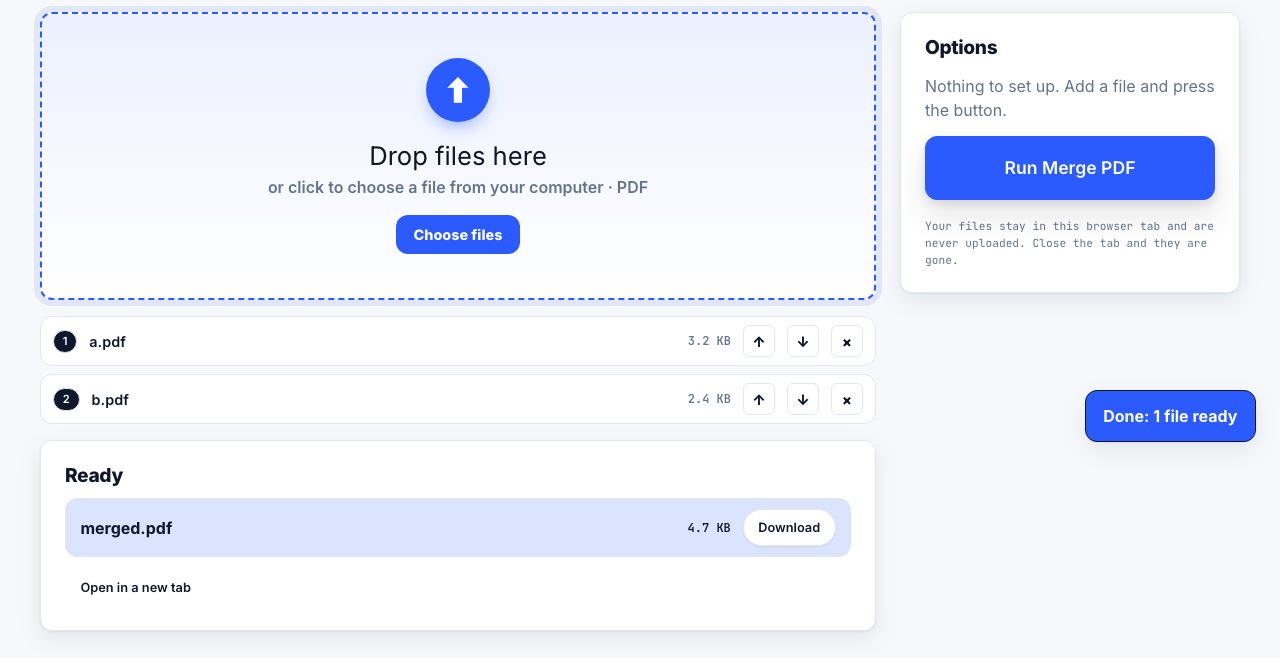
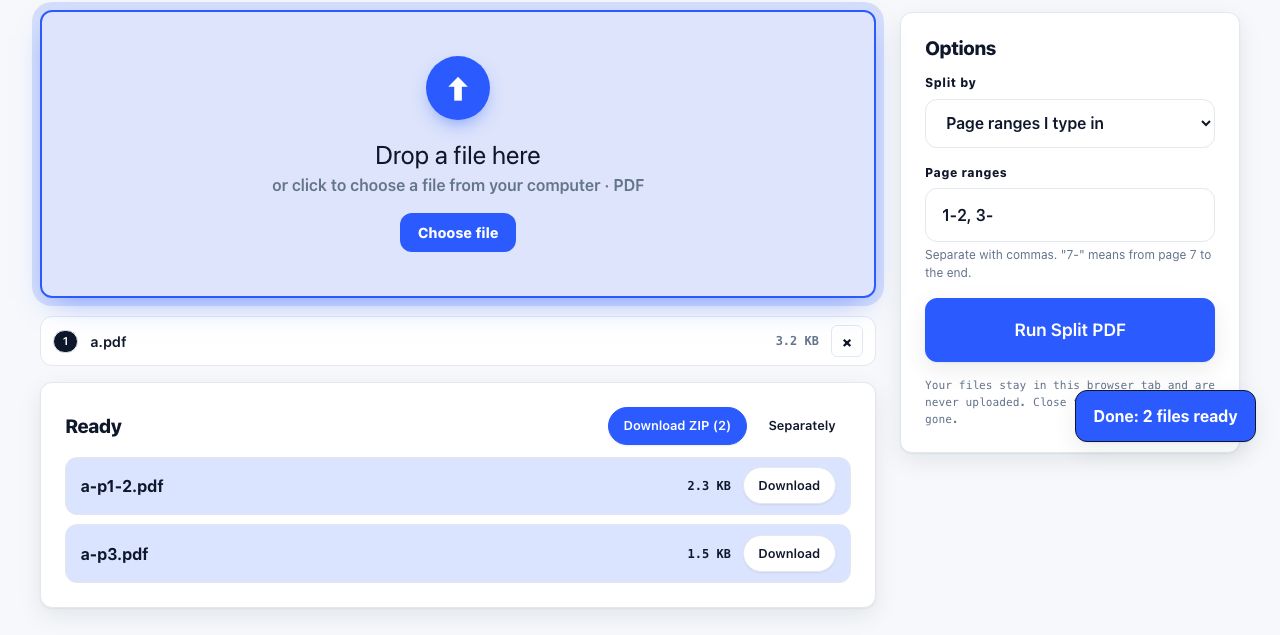
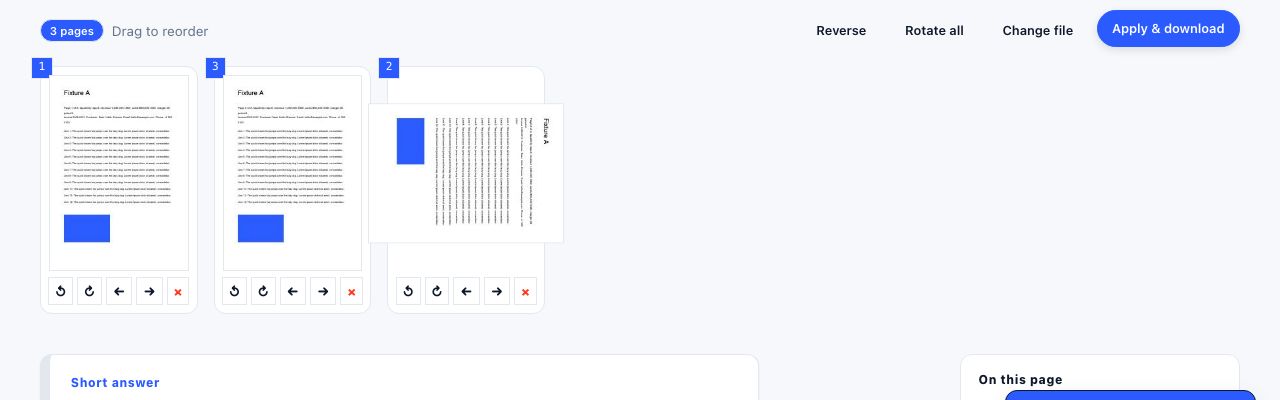
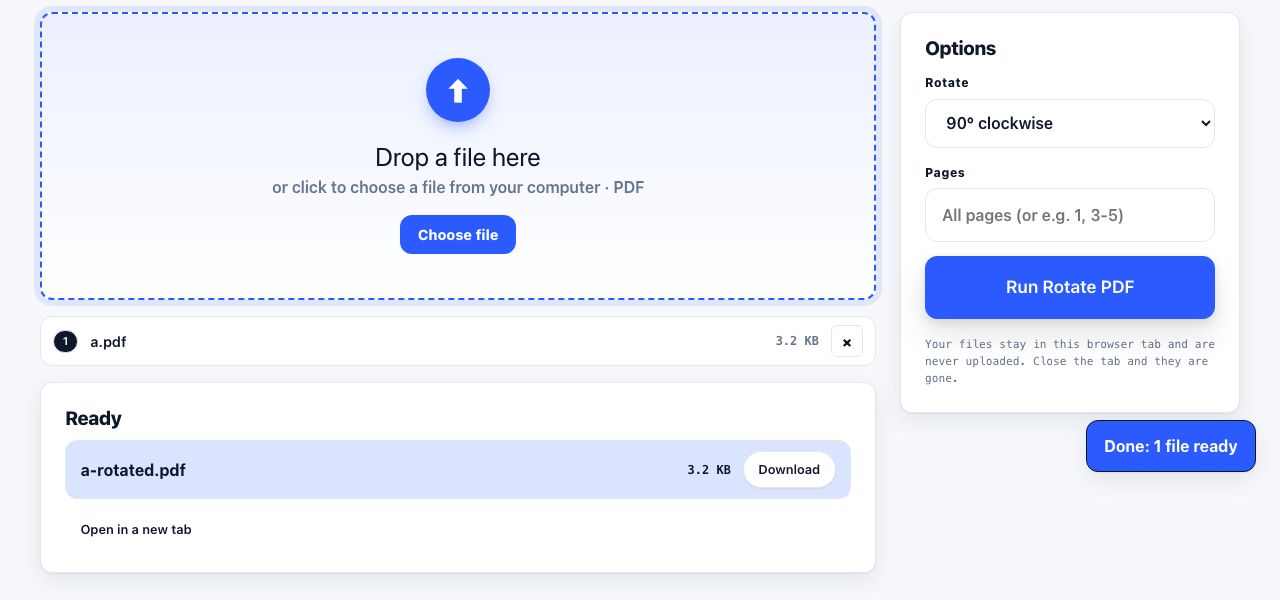
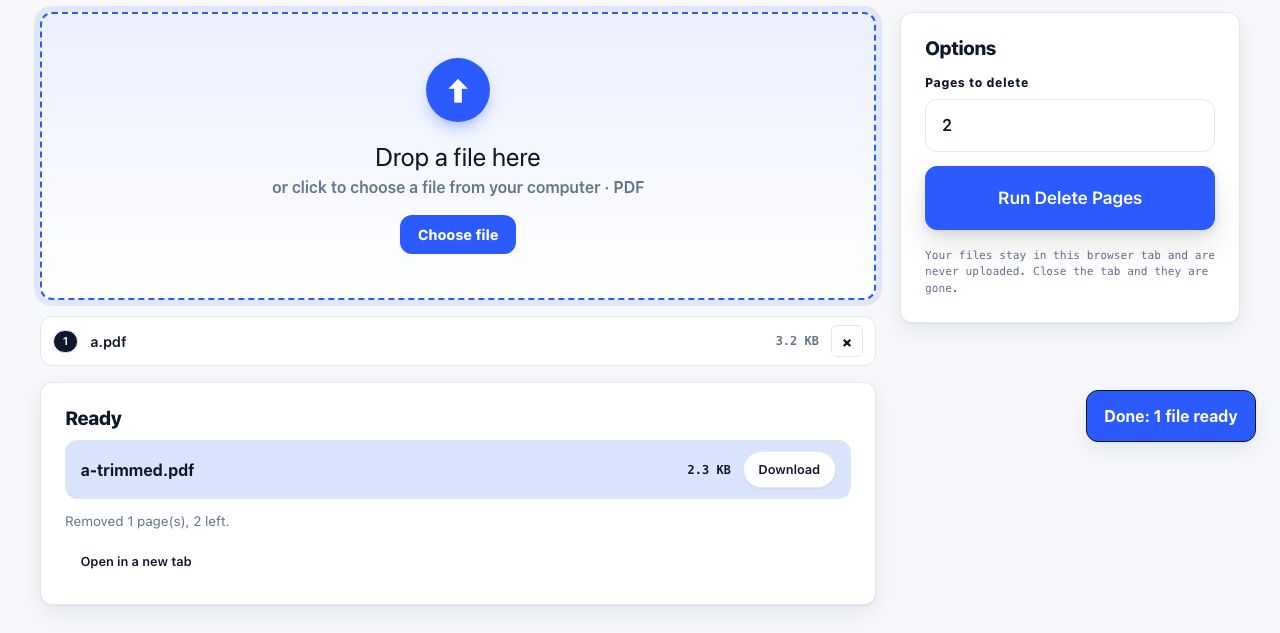
A packet assembled from separate scans or forms often needs more than a merge. A cover may belong first, a signature page last, and one blank scan may need to go. Plan the sequence before editing, then check it page by page. The tools below work locally in your browser, so the PDFs are not uploaded.
Plan the order before you combine files
Rename copies with simple prefixes such as 01-cover, 02-form and 03-attachment, or write the intended order on a checklist. Filenames help you keep track, but do not prove that the contents are correct. Open each source and identify its page count, orientation and any password or digital signature that could be affected by saving a new file.
- Add the source PDFsOpen Merge PDF, add the files and arrange the file order before running the merge. The first input starts the output unless you move it.
- Inspect the merged sequenceCheck thumbnails and scroll through the output, not only the first and last pages. Look for duplicated covers, reversed scans, blank pages and landscape pages mixed into a portrait packet.
- Reorder individual pagesFor page-level changes, use Organize Pages and drag pages into the intended order. Rotate sideways scans with Rotate PDF.
- Remove or separate pagesUse Delete Pages for unwanted pages, Extract Pages to keep a selected range in a separate file, or Split PDF to divide the packet into groups.
- Save and verify a new copyConfirm the page count and order, then open the final PDF in a reader. Keep original files until the recipient has the right document and your retention policy allows cleanup.
Combine several PDFs in the sequence you choose, then verify the result.
Merge PDF →Merge, organize, extract or split?
| Need | Use | Result |
|---|---|---|
| Append entire PDFs | Merge PDF | One file with all pages in input order. |
| Move a few pages around | Organize Pages | One file with the same pages in a new order. |
| Keep selected pages only | Extract Pages | A new PDF containing the chosen pages. |
| Remove pages from the source copy | Delete Pages | A new PDF without the specified pages. |
| Divide into multiple files | Split PDF | Several outputs based on page ranges or split settings. |
Check details that a file list cannot show
A successful merge only tells you that a file was produced. It does not tell you whether page numbers are sequential, a form still works, bookmarks point to the right place, or a digital signature remains valid. Inspect page labels, visible numbering and form fields. A signature that was valid in a source can be invalidated by merging or saving, so retain the original signed PDF when its status matters.
If the packet combines scans, make text searchable with OCR on a copy, then verify names and amounts against the images. If the file is too large to email, compress it only after checking the intended quality. Keep a readable source because image-heavy documents may become softer after compression.
Page removal is not the same as redaction. Deleting a page removes that page from the output, but it does not remove sensitive content that appears on another page or in comments, attachments or metadata. Use redaction and metadata tools for those separate risks.
For a narrower task, see extract pages from a PDF, delete PDF pages, and combine PDF files. A repeatable packet checklist prevents the common error: sending a technically valid PDF with the wrong order.
Frequently asked questions
Can I rearrange pages after merging PDFs?
Yes. Create the merged copy, then use a page organizer to drag pages into the final sequence and save another copy.
Does merging PDFs reduce their size?
No. The output usually contains the content from every input. Use a separate compression step if the result is too large, then check image quality.
Will a digital signature survive a merge?
A merge changes the document and can invalidate or alter signature status. Preserve the original signed files and verify signatures with the appropriate reader.