PDF Reader
Open any PDF right in your browser. Flip pages, zoom in and jump around with page previews. Nothing to install.
PDF Reader opens any PDF in your browser with small page previews down the side, next and previous buttons, zoom, print and download. There is nothing to install and nothing is uploaded: the pages are drawn on your own device. It is free and needs no account.
What is an online PDF reader?
What is an online PDF reader?
An online PDF reader is a viewer that runs as a web page instead of a program you install. This one loads the file into your browser, draws each page on screen and lists small previews of every page down the side so you can jump around. It does not edit, sign or convert. It exists to open, read and print a file quickly on any computer, including one where you cannot install software.
What is a PDF?
A PDF is a file made to look the same on every screen and printer. Each page carries its own text, fonts and pictures in fixed positions, so what the author laid out is exactly what you see. That is why PDF is the format for contracts, invoices, forms and anything that must print the same way everywhere.
Why read a PDF in the browser?
- No install, no account. Open a file on a work laptop, a library computer or a phone without hunting for an app. If the browser is there, the reader is there.
- The file stays on your device. Pages are drawn on your own computer, so a bank statement or contract is never uploaded to be shown. Close the tab and it is gone.
- See the whole document at a glance. The page previews down the side show the shape of the file: how long it is, where the tables are, which pages are blank. Click one to jump straight there.
- Check before you send. Open the PDF you just merged, signed or shrunk and confirm the pages, the order and the title are what you meant. Then download or print from the same bar.
How to open a PDF online, step by step
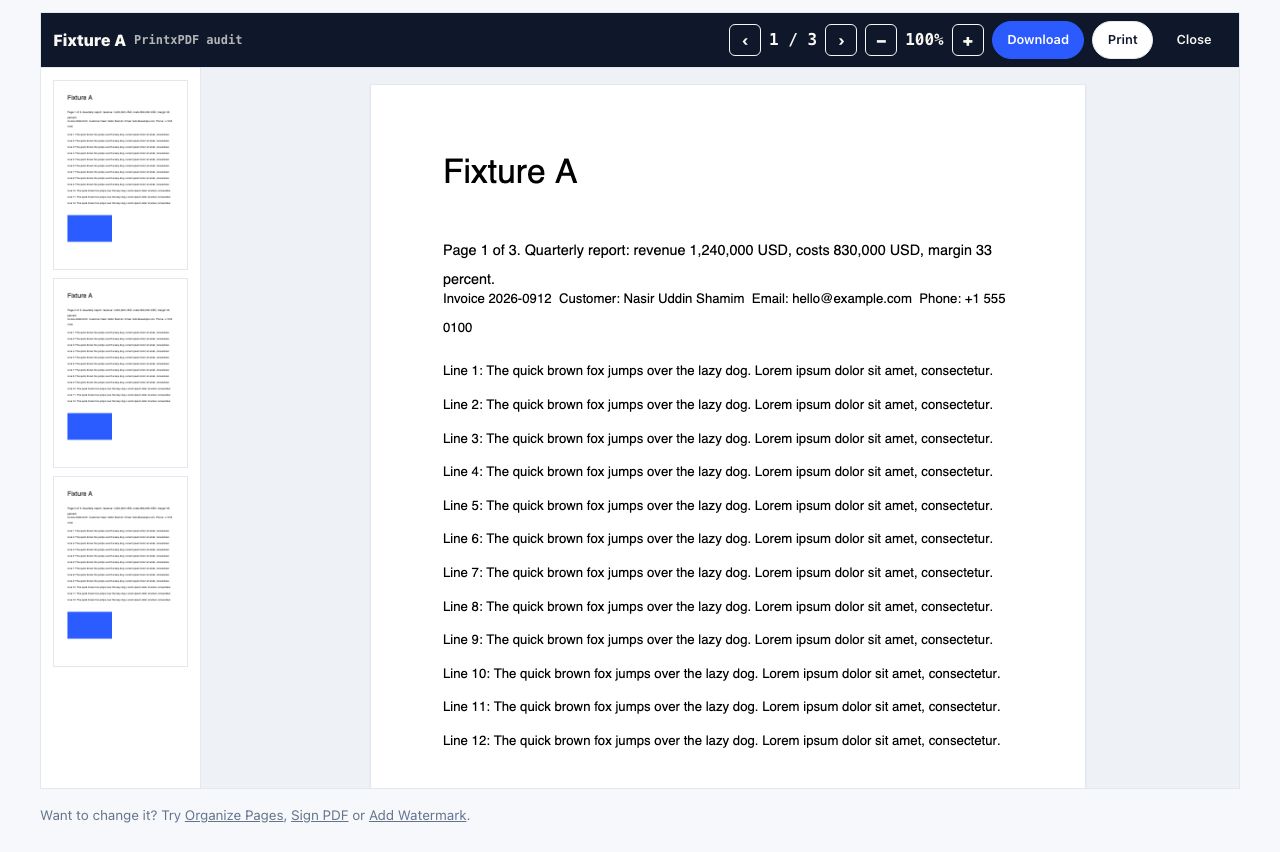
- Open PDF Reader and drop your file Drop a PDF onto the page or click to choose one. The page previews appear first, then the pages.
- Move through the pages Click any page preview, or use the arrows in the top bar. The counter shows the current page and the total.
- Zoom in or out Use the minus and plus buttons. The percentage between them shows the current zoom, from about 40% to 250%.
- Print, download or close Print opens the file in a new tab so you can use your browser's print window. Download saves it unchanged. Close clears it from the reader.
Frequently asked questions
Does the PDF reader upload my file?
No. The file is read from your computer into your browser and drawn page by page on your own device. Nothing is sent anywhere, nothing is stored, and closing the tab removes it completely.
Can I edit or sign the PDF here?
The reader is for viewing only. To make changes, use Organize Pages to reorder or rotate, Sign PDF to add a signature, Edit PDF to add text and pictures, or Add Watermark. Each opens from the same kind of drop zone.
Can I open a password-protected PDF?
A PDF that asks for a password before it opens cannot be shown until that password is removed. Run it through Unlock PDF first, then open the unlocked copy. Files that only block printing or copying open normally.
Does it work on a phone?
Yes. The reader is a web page, so it works in Safari and Chrome on a phone. The page previews, arrows and zoom respond to touch, and Print opens the file in a new tab you can share or print from.
Looking for the long version? The guides cover each of these jobs in depth.
How to print a web page without ads
Five ways to print a web page without ads, banners or sidebars: printer-friendly tools, Chrome reader mode, print preview, browser extensions and CSS tricks.
How to print only the part of a page you selected
Print just the text you highlighted instead of the whole page. Selection-only printing in Chrome, Firefox, Edge and Safari, plus what to do when it fails.
Webpage won’t print? Fix blank pages, missing images and tiny text
Cut-off text, blank pages, missing images, tiny fonts and wasted sheets. Twelve common web page printing problems with a fix for each, in every major browser.
Why a web page prints cut off and how to fix it
Fix web pages that print with clipped text, blank pages or missing sections. Check scale, margins, page breaks, background images and print styles.