Why a web page prints cut off and how to fix it

When a web page prints cut off, open print preview, confirm paper size and orientation, lower scale slightly, and check margins. If the page still clips, simplify the page with a reader or clean-print view, remove unwanted blocks, or save to PDF first and inspect the result. Site print styles can also hide, resize or reposition content.
See the tools in action
A page that looks fine on screen can print badly because a browser has to map a flexible layout onto fixed sheets of paper. Wide tables, sticky sidebars, cookie banners and site-specific print CSS can all push content outside the printable area.
Check these settings first
- Open print previewUse the browser’s print dialog and wait for the preview to finish rendering before changing settings.
- Match paper and orientationChoose the actual paper size, such as A4 or Letter. Use landscape only when the content is genuinely wider than a portrait sheet.
- Reduce scale a littleIf the right edge is clipped, try a modestly smaller scale or fit-to-page option. Very small scaling can make text unreadable, so inspect the preview.
- Set margins and headersTry default or minimum margins and disable browser headers and footers if they consume space. Do not reduce margins below what the printer can physically print.
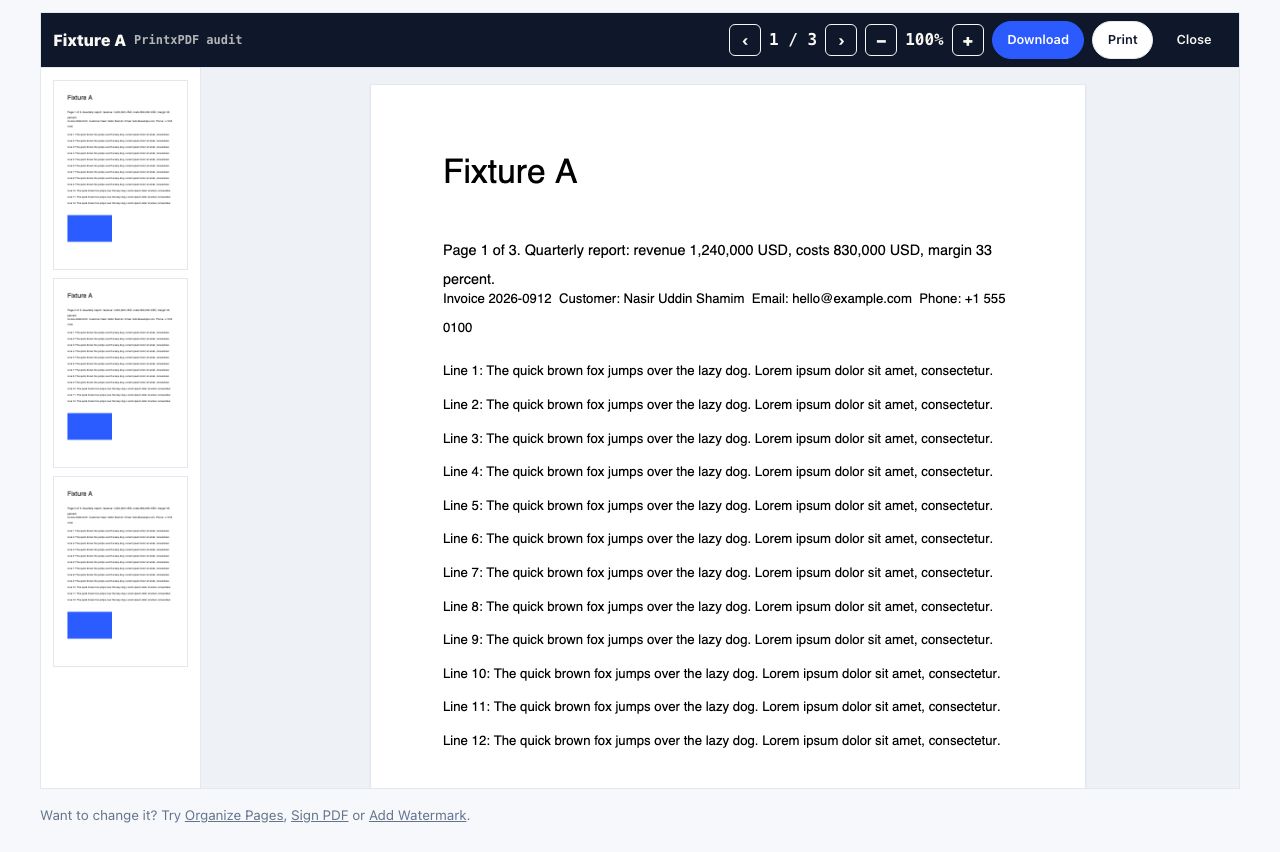
- Save a PDF previewChoose Save as PDF and review page breaks, blank pages and clipped sections before sending it to a physical printer.
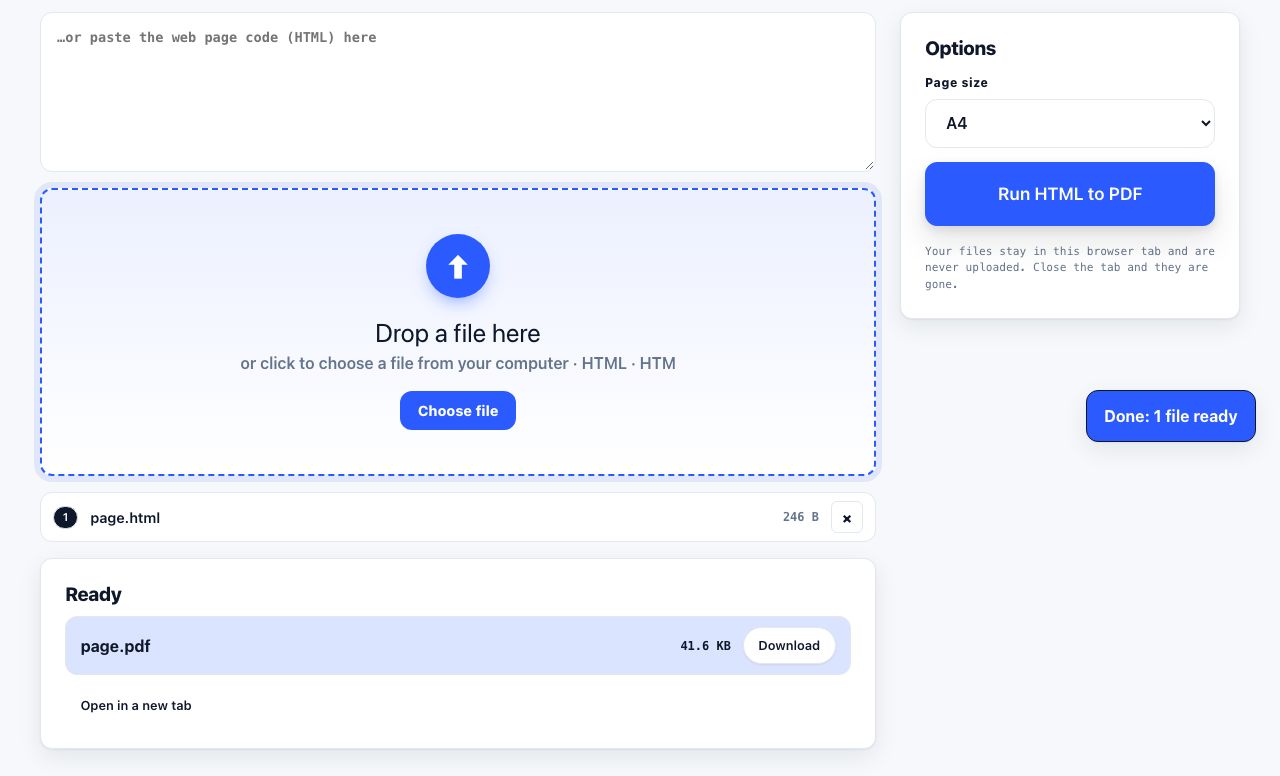
Create a PDF copy of a web page and inspect the pages before printing.
HTML to PDF →When print preview still looks wrong
- A table wider than the paper may need landscape orientation or a smaller scale.
- Content loaded only after scrolling may not appear until the page has finished loading.
- Background colours and images can be disabled by default in browser print dialogs.
- Some sites intentionally use print CSS that hides navigation or changes layout.
- A page with fixed-position elements may repeat or overlap those elements on every sheet.
Make a cleaner copy before printing
If advertisements, menus or sticky overlays are taking space, a reader or clean-print view can produce a simpler page. Check the result carefully because extraction can omit text from unusual layouts or pages behind login, and some sites block automated fetching. For those pages, browser print preview remains the more reliable fallback.
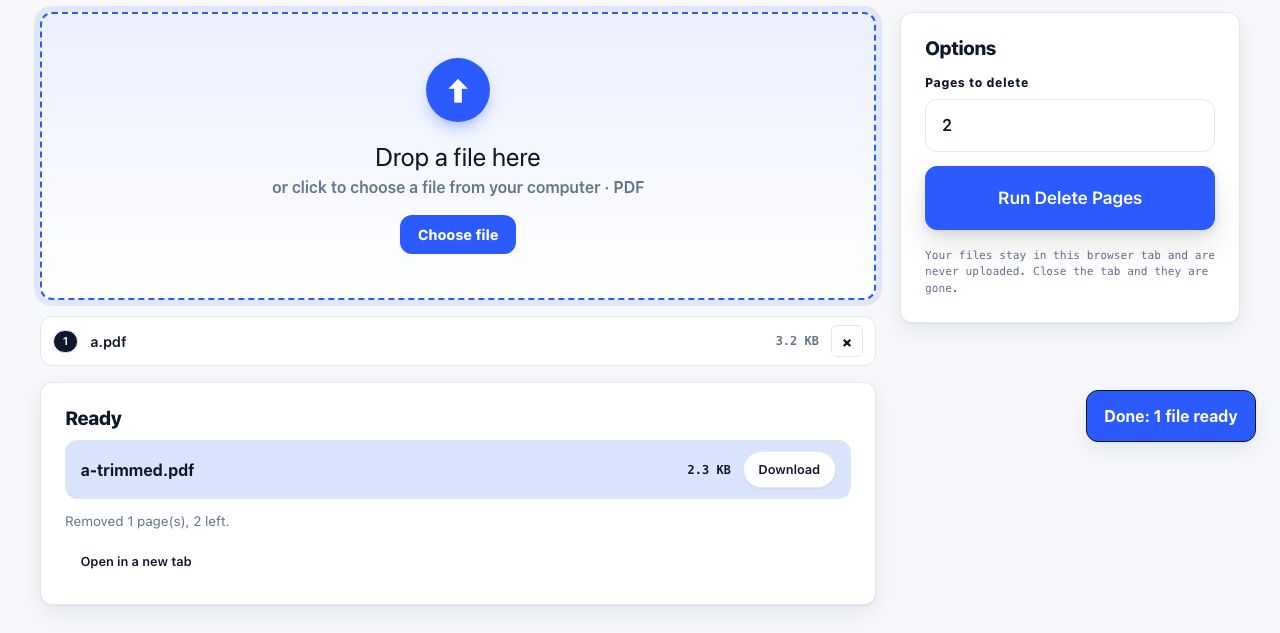
For more troubleshooting, see common web page printing problems and how to print a page without ads. A saved PDF also makes it easier to remove pages you do not need before printing.
The browser preview helps separate a layout problem from a printer problem. If the saved PDF already has clipped text, adjust page scale, orientation, margins or the site content before printing. If the PDF looks correct but paper output is clipped, check the printer driver paper size, tray setting and non-printable margins. A4 and Letter differ in both dimensions, so a mismatch can shift a page even when the preview seems close. For a long article, remove repeated navigation and sidebars before printing, then inspect the first and last page plus every page where a table crosses a break.
Frequently asked questions
Why is the right side of a web page cut off when I print?
The page may be wider than the selected paper or printable area. Try landscape orientation, reduce the scale slightly, or use a reader view that removes wide navigation and sidebars.
Why are parts of the web page missing from print preview?
The site may hide elements with print-specific CSS, lazy-load content that has not loaded yet, or require background graphics to be enabled. Scroll through the page, wait for images, then review print settings.
How do I stop a web page from printing blank pages?
Check the preview for page breaks and very tall fixed elements. Try default scale, disable headers and footers, and save to PDF to confirm whether the blank pages originate in the browser layout or printer driver.
Can I print a webpage without ads?
A reader or clean-print view can remove many ads and navigation elements, but no extraction method works on every site. Review the cleaned copy and use the browser’s print dialog when the site blocks fetching.