Split PDF
Break a PDF into page ranges, single pages, or every few pages. Download the pieces one by one or all together in one ZIP file.
Split PDF breaks one PDF into several smaller files: by custom page ranges, every N pages, or one file per page. It runs in your browser, so the document is never uploaded. Download the pieces separately or as one ZIP folder, free and without an account.
What does splitting a PDF do?
How a PDF split works
Each output is a brand-new PDF that contains copies of the chosen pages from the source. The pages travel with their fonts, pictures and drawings, so nothing is redrawn and quality is unchanged. The original file is not changed. Output files are named after the source with the page span added, so report.pdf split at pages 1 to 3 becomes report-p1-3.pdf.
What a page range is
A range is written as a start and an end page joined by a hyphen, counting the first page in the file as 1: 1-3 is pages one to three, 5 is a single page and 7- runs from page seven to the end. Separate ranges with commas and each one becomes its own file. Pages you leave out of every range are simply not included in any output.
Why split a PDF in the browser?
- Send only the relevant part. Share one chapter of a report or one statement from a yearly bundle instead of the whole document, which keeps the reader focused and the attachment small.
- Stay under attachment limits. Most mail services cap attachments at around 20 to 25 MB. Splitting a large scan into halves gets it through without lowering picture quality.
- Nothing is redrawn. Pages are copied, not turned into pictures, so the split files look and search exactly like the original.
- Private for sensitive documents. Bank statements, payslips and contracts stay in the tab. There is no upload, no account and nothing left on a server.
- All the pieces in one download. A split into forty single pages does not mean forty clicks. Download ZIP collects every output into one folder.
How to split a PDF, step by step
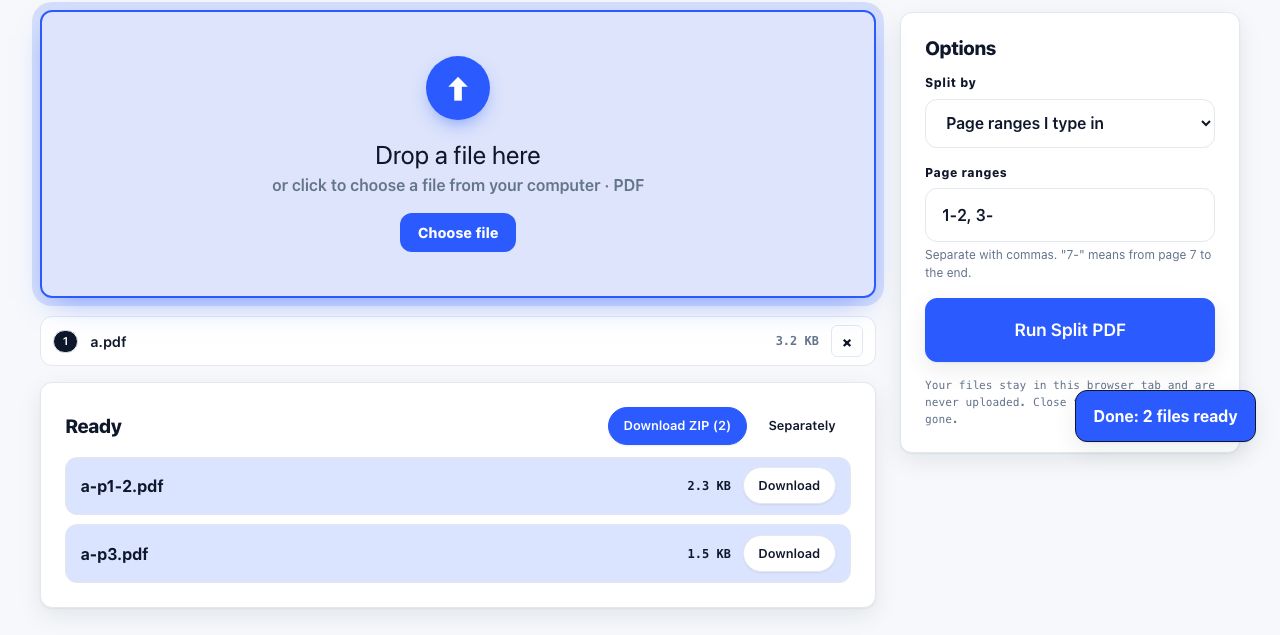
- Open Split PDF and drop your file. Drag one PDF onto the drop zone or click to browse. The options panel appears on the right.
- Choose how to split. Under Split by, pick Custom ranges for exact page spans, Every N pages for equal chunks, or Every page to get one file per page.
- Type the ranges or the chunk size. For Custom ranges, enter something like
1-3, 4-6, 7-in the Ranges field;7-means page seven to the end. For Every N pages, set N pages per file, for example 2 for double-page spreads. - Click Run Split PDF. The pieces are built in your browser and the progress bar counts them. A range that matches no page is skipped, and you are told if no range was valid.
- Download the parts. Every output appears in the Ready list. Use Download ZIP to get all of them in one folder, or download each file on its own. Names carry the page span, such as
invoice-p4-6.pdf.
Frequently asked questions
Can I split a PDF into individual pages?
Yes. Choose Every page under Split by and run. Each page becomes its own PDF, named with its page number, and Download ZIP collects them all in one folder. For a document of a few hundred pages this takes a few seconds in a desktop browser.
Does splitting a PDF reduce quality?
No. Every page is copied into the new file together with its fonts and pictures. Nothing is turned into a picture or recompressed, so text stays selectable and pictures keep their detail. The only things that do not carry over are extras that belong to the whole file rather than to a page, such as bookmarks.
Can I pull out just one section instead of splitting everything?
Yes. Enter a single range such as 12-18 under Custom ranges and you get one file with those pages. If you want several scattered pages in one output rather than one file per range, use Extract Pages instead, which accepts a list like 1, 4, 9-10.
What happens to pages I do not include in any range?
They are left out of every output. The original file on your disk is untouched, so nothing is lost; run the tool again with a different range if you need those pages. If you would rather remove pages than keep them, Delete Pages works the other way round.
Is there a file size limit?
There is no fixed limit because the work happens in your browser rather than on a server. The practical ceiling is the memory available to the tab. Files of a few hundred megabytes split fine on a laptop; on a phone, very large scans can be slow.
Looking for the long version? The guides cover each of these jobs in depth.
How to combine PDFs without Adobe Acrobat
Merge PDFs without paying for Acrobat. macOS Preview step by step, why Windows 11 cannot do it, what Google Drive really offers, and free browser tools.
How to combine PDF files in a custom page order
Build one PDF packet from several files, rearrange pages, remove extras and check the final order before you share or print it.
How to split a PDF into separate pages or ranges
Split a PDF into single pages, custom ranges like 1-3,5,8- or fixed chunks of every N pages. The range syntax explained, plus how the output files are named.
How to split a large PDF to get under an email size limit
Compare compression, chapter-based splitting and sharing links when a PDF is too large to email. Learn how message encoding affects attachment size.