Rotate PDF
Turn every page in a PDF by 90, 180 or 270 degrees, or only the pages you pick.
Rotate PDF turns every page, or only the pages you list, by 90 degrees clockwise, 180 degrees, or 90 degrees counter-clockwise. The turn is saved as a setting on the page, so nothing is redrawn and quality is unchanged. It runs free in your browser with no upload.
What does rotating a PDF do?
How rotation is saved in a PDF
Every PDF page carries a small setting that says how far it should be turned: 0, 90, 180 or 270 degrees. PDF apps and printers read it and turn the page before drawing it, so the content underneath is never touched. This tool adds your angle to whatever the page already has: a page stored at 90 degrees rotated by another 90 becomes 180. Because only a setting changes, nothing is lost and the file size barely moves.
Saved rotation versus the View menu
Most PDF apps offer a rotate command under View, but that only turns the page on screen for now and is forgotten the moment the file is closed. A rotation written into the file is respected by every PDF app, by print dialogs and by converters, which is what you want when a scanned page arrived lying on its side and needs to stay upright wherever it goes.
Why rotate a PDF in the browser?
- Fix sideways scans for good. A page scanned in landscape stays upright for everyone who opens the file, not just for you while the window is open.
- Wide tables read the right way. Rotate only the wide pages, say pages 3 to 5, and leave the upright pages alone, so a report prints without anyone turning the paper.
- No quality loss. Only the page setting changes. A scan keeps every pixel, and typed text stays sharp and selectable.
- Private and free. The file is read and rewritten inside the tab. There is no upload, no account and no watermark.
How to rotate a PDF, step by step
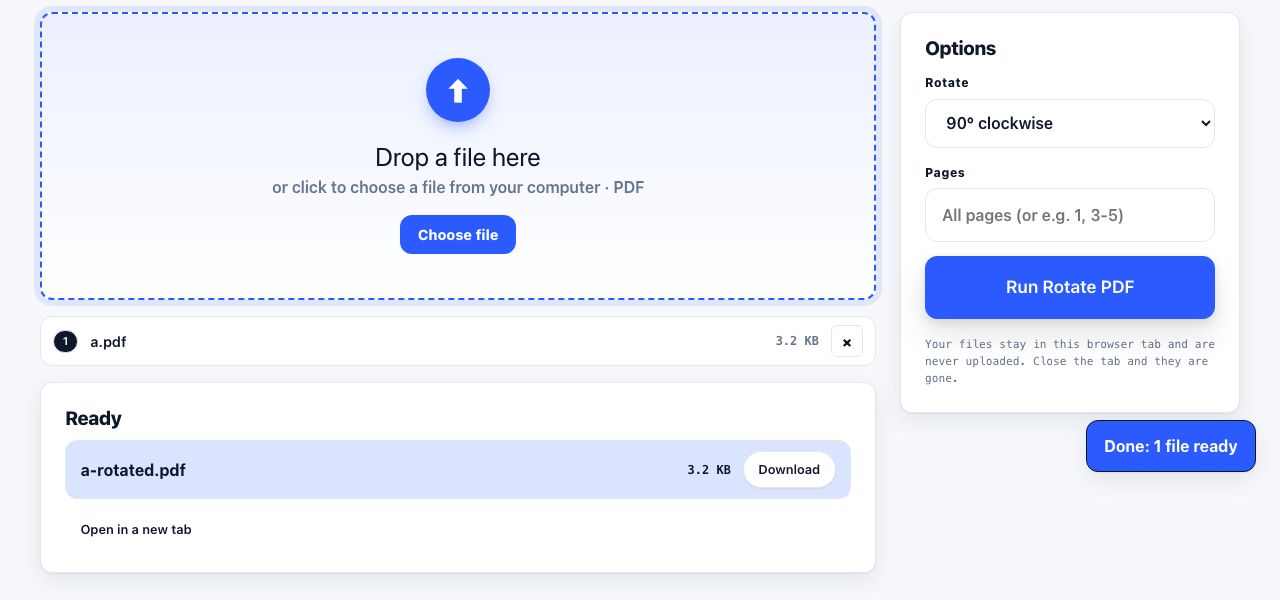
- Open Rotate PDF and drop your file. Drag one PDF onto the drop zone or click to browse. The options appear on the right.
- Pick the angle. Under Rotate, choose 90° clockwise, 180° or 90° counter-clockwise. Clockwise is the usual fix for a page whose top ended up on the left.
- Choose the pages. Leave Pages blank to rotate every page, or type a list such as
1, 3-5to rotate only those. Page numbers count from the first page in the file. - Click Run Rotate PDF and download. The rotated file downloads as
name-rotated.pdfand appears in the Ready list. To rotate pages one at a time while looking at them, use Organize Pages.
Frequently asked questions
Is rotating a PDF this way permanent?
Yes. The rotation is written into the page settings of the downloaded file, so every PDF app, print dialog and converter shows the page the new way up. Your original file is not changed, and running the tool again with the opposite angle turns the page back.
Does rotating a PDF reduce quality?
No. Nothing is redrawn or recompressed. The page content is exactly what it was; only a rotation value of 90, 180 or 270 degrees is stored alongside it. Text stays selectable and pictures keep their detail.
Can I rotate just one page?
Yes. Type its number in the Pages field, for example 4, and only that page turns. Ranges such as 2-3, 7- also work, where 7- means page seven to the end. To rotate several pages by different amounts, Organize Pages gives each page its own buttons.
Can I rotate by an angle other than 90 degrees?
No. The PDF format only allows a page to be rotated in quarter turns, so 90, 180 and 270 are the possible values. Straightening a scan that is a few degrees off is a different job: scan it again, or crop it after rotating with Crop PDF.
Why does the page still print sideways?
Check the print dialog. Many printer settings have an auto-rotate or fit-to-page option that turns wide pages to fill the sheet, overriding the file. Turn that off, or set the paper orientation to match. The PDF itself is stored correctly, which you can confirm in PDF Reader.
Looking for the long version? The guides cover each of these jobs in depth.
How to reorder, rotate and delete PDF pages
Fix a PDF whose pages are out of order, sideways or unwanted. Drag thumbnails to reorder, rotate in 90 degree steps, remove pages and save the result.
How to combine PDF files in a custom page order
Build one PDF packet from several files, rearrange pages, remove extras and check the final order before you share or print it.