Compress PDF
Make a PDF smaller so it is easier to email and share. Choose a light pass that keeps your text as text, or a stronger one that turns pages into pictures for the smallest file.
Compress PDF makes a PDF smaller in your browser. Light tidies the file without losing anything, so you can still search and copy the text. Medium and Strong turn every page into a photo, which shrinks scans a lot but the text can no longer be selected. Free, no upload.
What is PDF compression?
Light: smaller with nothing lost
Compression means packing a file to take up less space. Light repacks the inner structure of the PDF more tightly and removes a couple of hidden details saved inside the file, such as the name of the program that made it. The pages themselves are untouched, so text stays selectable and pictures keep every dot. Savings depend on how the file was made: a messy PDF can lose a good share of its size, while a file of scanned photos barely changes, because photos are already packed tight.
Medium and Strong: pages become pictures
Medium and Strong draw each page as a photo in your browser and save that photo on a page of the same size. Medium draws at about 100 dots per inch (a measure of sharpness) with 72 percent photo quality; Strong at 72 dots per inch and 55 percent. This is what shrinks a scanned document dramatically, but the page is now a picture: text can no longer be selected, searched or copied, and links, fillable fields and bookmarks are gone. Keep the original if you may need them.
Why compress a PDF in the browser?
- Get under attachment limits. Most email services cap attachments around 20 to 25 MB. A 40 MB scan at Medium usually lands well under that.
- Faster uploads to portals. Application portals and document systems often reject large files or time out. A smaller PDF uploads in a fraction of the time.
- You see the trade-off. The result note shows the size before and after and warns when text has become a picture, so you can choose Light for a contract and Strong for a photo bundle.
- Private for financial and medical files. Bank statements and scans are shrunk inside the tab. Nothing is uploaded and nothing is stored.
- Free, no account, no watermark. There is no daily quota and no sign-up. The only limit is the memory of your browser tab.
How to compress a PDF, step by step
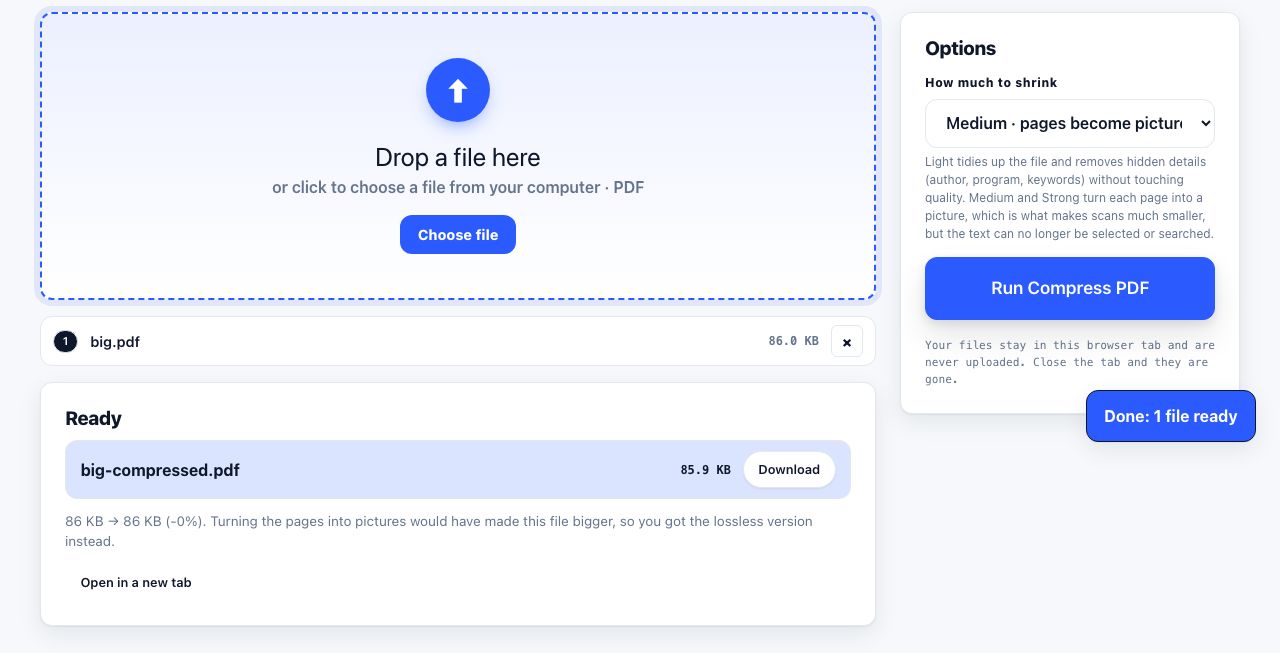
- Open Compress PDF and drop your file. Drag one PDF onto the drop zone or click to browse. The Compression option appears on the right.
- Pick a compression level. Choose Light · lossless, keeps text (lossless means nothing is lost) for documents you still need to search, Medium · pages become images for scans, or Strong · smallest, lower quality when size matters more than sharpness. Start with Light; it never makes anything worse.
- Click Run Compress PDF. Light finishes almost at once. Medium and Strong redraw every page, and the progress bar counts them, so a long scan takes a moment.
- Read the size note and download. The Ready list shows the size before and after, for example
2400 KB → 610 KB (-75%). If Light barely moved a scanned file, run again with Medium. The output downloads asname-compressed.pdf.
Frequently asked questions
Why did Light barely reduce my PDF?
Because the size is in the pictures, and they are already packed tight. Light only tidies the file structure and removes a few hidden details, which helps messy files but does nothing for scanned photos. For those, Medium redraws the pages at a lower sharpness, which is where the big savings come from.
Will I still be able to select and search text?
With Light, yes: the text is untouched. With Medium and Strong, no: each page becomes a photo and the words in it are just dots. If you need both a small file and searchable text, compress with Light, and if it is a scan, run the result through OCR PDF to turn the picture of text back into real text.
How much smaller will my PDF get?
It depends on what is inside. A text-only document from a modern word processor may shrink 5 to 20 percent with Light. A sharp colour scan can drop by 70 to 90 percent at Medium and more at Strong. The result note always shows the exact before and after so you can decide whether to keep it.
Does compressing remove anything besides picture detail?
Light removes two hidden details saved inside the file (the creating program and the keywords), but keeps the title, author, links, bookmarks and fillable fields. Medium and Strong rebuild the file from page photos, so links, bookmarks, fillable fields, notes and the selectable text are all dropped. To remove hidden details only, use Remove Metadata.
Is it safe to compress a confidential PDF here?
Yes. Every level runs in your browser. The file is never sent to a server, there is no account, and closing the tab throws everything away. That makes it suitable for statements, medical records and contracts.
Looking for the long version? The guides cover each of these jobs in depth.
Print to paper or save as PDF? How to decide
When to print a web page on paper and when to save it as a PDF instead. Cost, searchability, archiving, legal records and sharing compared side by side.
How to save a web page as a PDF in any browser
Save a web page as a PDF in Chrome, Safari, Firefox and Edge. The shortcut, Microsoft Print to PDF, page ranges, and how to keep the links clickable.
How to save a web page as a PDF on iPhone and iPad
Three ways to save a web page as a PDF on iPhone and iPad: the Share sheet Options menu, a Full Page screenshot, and Print preview. Save to Files or Books.
How to merge PDF files for free
Merge two or more PDFs into one file in your browser. Drag to set the page order, keep bookmarks and links intact, and check the result before downloading.