How to save a web page as a PDF in any browser

Press Ctrl+P on Windows or Cmd+P on a Mac, open the Destination list and choose Save as PDF, then click Save. Every desktop browser supports this. The resulting file keeps selectable text and clickable links, and you can limit it to a page range before saving.
See the tools in action
There is no "Save as PDF" item in any browser File menu, which is why this question gets asked so often. The feature lives inside the print dialog, disguised as a printer. You never send anything to a printer; the browser renders the page to a file instead.
The shortcut that works in every desktop browser
- Scroll to the bottom of the page firstModern sites lazy-load images, meaning a photo is only fetched once you scroll near it. Anything you never scrolled past will be a blank box in the PDF. One quick End key press fixes it.
- Press Ctrl+P or Cmd+PUse the keyboard, not the right-click menu. On a few sites the right-click Print item is intercepted by the page and prints the wrong frame.
- Change the destinationAt the top of the dialog, open Destination (Chrome, Edge) or Printer (Firefox) and pick Save as PDF or Save to PDF.
- Set the page rangeLook at the preview. If your content is on sheets 2 to 4 of a nine-sheet monster, type
2-4in the Pages box rather than saving all nine. - Open More settingsTurn Headers and footers off to drop the browser-added title, URL, date and page number. Leave Background graphics off unless you specifically want the coloured blocks.
- Click SaveChoose a folder and a filename. The file is written locally; nothing is uploaded anywhere.
| Browser | Menu label | Extras worth knowing |
|---|---|---|
| Google Chrome | Destination → Save as PDF | Keeps links clickable and text selectable. "Print using system dialog" gives you the OS printer sheet instead. |
| Microsoft Edge | Printer → Save as PDF | Also offers Microsoft Print to PDF as a separate, worse option. Pick the Edge one. |
| Mozilla Firefox | Destination → Save to PDF | Firefox remembers the choice for the rest of the session. |
| Safari (macOS) | PDF ▾ button, bottom-left of the print sheet → Save as PDF | Also has File → Export as PDF, which produces one continuous unpaginated page. |
| Opera, Brave, Vivaldi | Destination → Save as PDF | Identical to Chrome; they share the same print engine. |
Windows: Save as PDF is not the same as Microsoft Print to PDF
Windows 10 and 11 ship a virtual printer called Microsoft Print to PDF, and it shows up in the same dropdown as the browser’s own option. They are not interchangeable.
| Chrome/Edge "Save as PDF" | Microsoft Print to PDF | |
|---|---|---|
| Text stays selectable | Yes | Yes |
| Hyperlinks stay clickable | Yes | No, links become plain text |
| Typical file size, 2,000-word article | Around 120-300 KB | Often 2-4x larger |
| Available in every app | No, browser only | Yes, any Windows app with a Print command |
| Respects the browser print preview | Yes | Approximately |
Use Microsoft Print to PDF when you need a PDF from an app that has no PDF export of its own. For web pages, the browser option is better on every measure that matters.
Safari has two routes and they produce different files
Cmd+P → PDF ▾ → Save as PDF paginates the page into Letter or A4 sheets, exactly like printing. File → Export as PDF produces a single page as tall as the whole document, with no page breaks at all. The second is excellent for keeping a layout intact and terrible for printing later, because most printers will shrink that one enormous page to fit a single sheet.
Before you save, use Safari Reader (⌃⌘R) or Firefox Reader View (F9). The PDF then contains the article and nothing else, typically two pages instead of nine. See printing a web page without ads for the full set of cleanup methods.
Save the page you want, not the page the site hands you
A PDF made from a raw web page inherits every problem the printed version would have: ad slots, a cookie banner frozen mid-page, a "related stories" grid, and a newsletter box. The fix is to clean first and save second.
- Paste the URL into the web page printer.
- Click any block you do not want to remove it. Drag to sweep several at once, Ctrl+Z to undo.
- Set text size and image size in the Style menu.
- Press Download PDF, or Print and choose Save as PDF for a smaller, fully searchable file.
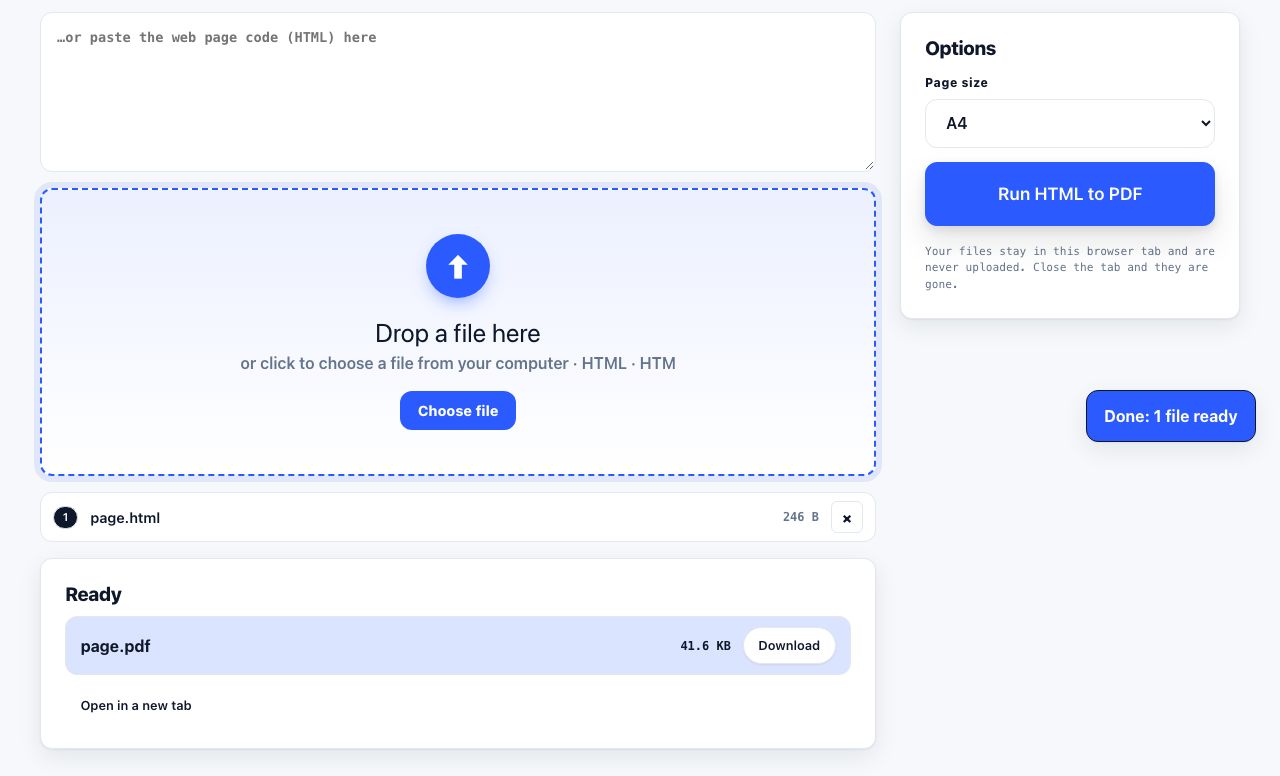
Already have a saved .html file or some HTML you wrote yourself? Convert it straight to PDF in the browser.
HTML to PDF →Phones and tablets
On iPhone and iPad the route is the Share sheet, not a print dialog: see saving a web page as a PDF on iPhone. On Android, Chrome uses the same print flow as the desktop: tap ⋮ → Share → Print, then choose Save as PDF as the printer. The file lands in your Downloads folder and appears in the Files app.
When a PDF is the wrong output
- You need the visual layout preserved exactly, including a sticky header or an interactive chart. Take a full-page screenshot instead.
- You need third-party proof of what the page said. A self-made PDF proves nothing on its own. Archive the page properly.
- You need to edit the text afterwards. Copy it into a document, or convert the PDF to Word later.
- The page is behind a login you cannot keep. Print-to-PDF works while you are signed in, so save it before the session expires.
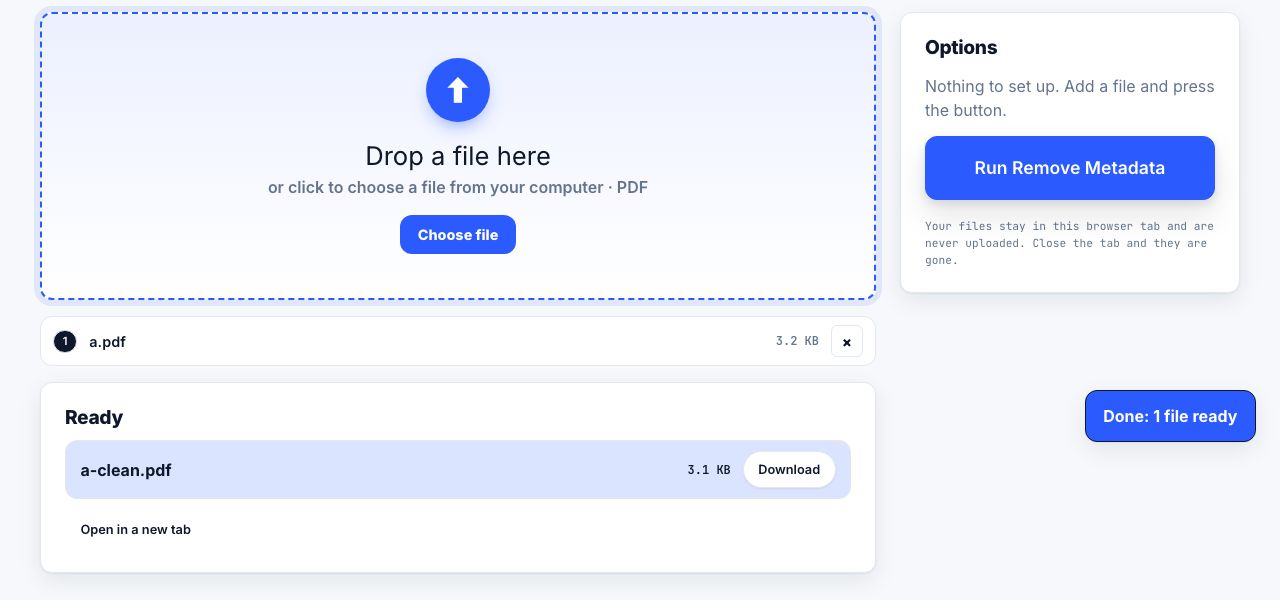
A PDF saved from a page carries the page metadata plus your own: author name from your OS user account, creation timestamp, and sometimes the local file path. Strip it before sending anything sensitive, using remove metadata.
Keeping the file small
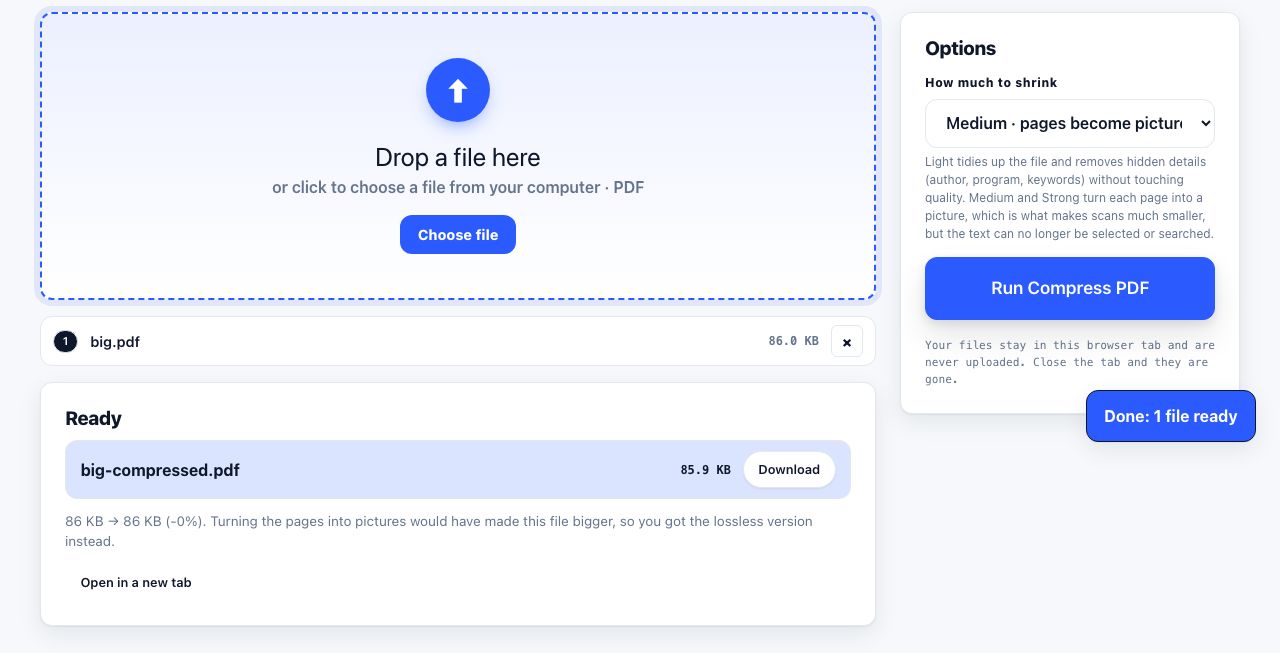
A text-heavy article saves at 100 to 300 KB. A photo essay or a product page full of hero images can reach 15 MB, which is enough to bounce off an email attachment limit. Two levers: turn images off in a cleaner before saving, or run the finished PDF through compression. A 15 MB image-heavy page usually lands between 1 and 3 MB after compression with no visible loss on screen.
Saved a PDF that turned out to be 20 MB? Compress it without uploading it anywhere.
Compress PDF →Frequently asked questions
Why is "Save as PDF" missing from my print dialog?
You are probably looking at the operating system print sheet rather than the browser one. In Chrome, click "Print using system dialog" to switch between them; the browser dialog is the one with the Destination dropdown. On Windows, check that the Microsoft Print to PDF feature has not been turned off in Windows Features.
Does saving a web page as a PDF keep the links working?
Yes, when you use the browser built-in Save as PDF in Chrome, Edge, Firefox or Safari. Links become clickable annotations in the file. Microsoft Print to PDF and image-based exports both lose them.
How do I save a web page as a PDF without the ads?
Turn on Reader mode before pressing Ctrl+P, or paste the URL into a printer-friendly tool and delete the remaining blocks by hand. Either approach usually cuts a nine-page save to two or three pages.
Can I save a whole website as a PDF, not just one page?
Not in one click. The print dialog handles the current page only. For a multi-page save, save each page separately and then merge the PDFs into a single document, which also lets you set the chapter order.
Is the saved PDF searchable?
Yes. Print-to-PDF writes real text, so Ctrl+F works inside the file and search indexes on your computer can read it. A screenshot saved as a PDF is an image and needs OCR before it becomes searchable.