How to take a full-page screenshot of a website

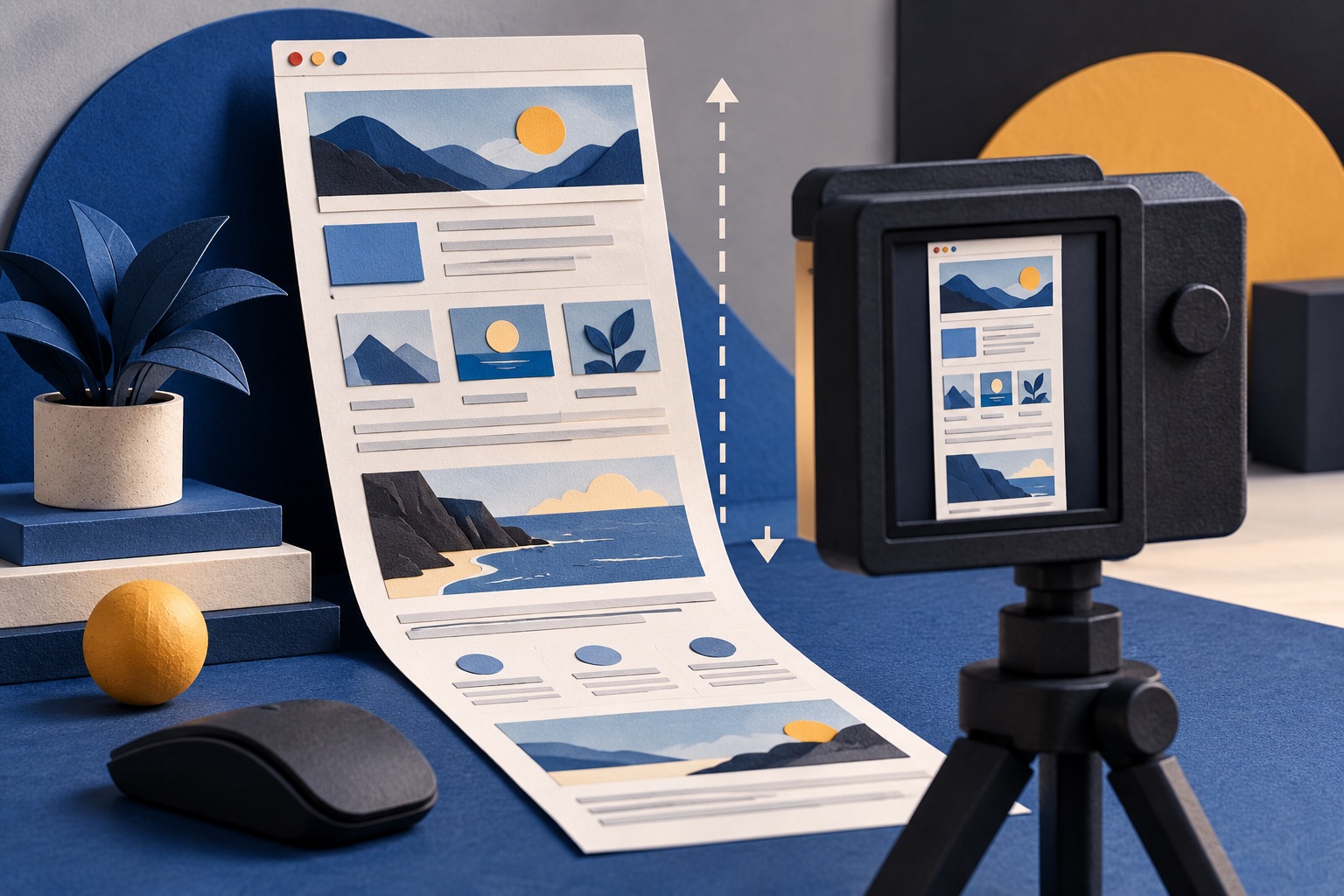
In Chrome, open DevTools with F12, press Ctrl+Shift+P, type screenshot and choose Capture full size screenshot. Firefox and Edge have it built in: right-click the page and pick Take Screenshot, then Save full page. The result is one tall PNG of the entire scrolling page.
See the tools in action
The screenshot key on your keyboard captures the screen, which is the wrong unit. A web page is usually four to ten screens tall. Every major browser can capture the whole thing in one image, but only Firefox and Edge put the feature somewhere you would find by accident.
Chrome: the DevTools command menu
- Scroll to the bottom of the pageLazy-loaded images below the fold have not been fetched yet and will capture as blank space. Press End, wait a second, then press Home.
- Open DevToolsPress F12, or Ctrl+Shift+I on Windows, or Cmd+Option+I on macOS.
- Open the command menuPress Ctrl+Shift+P (Cmd+Shift+P on macOS). A search box appears at the top of DevTools.
- Type screenshotFour options appear. Choose Capture full size screenshot. The others capture the visible area, a selected element, or a region you drag.
- Find the fileChrome writes a PNG straight to your Downloads folder, named after the page. There is no save dialog.
Before capturing, use Ctrl+Shift+M in DevTools to switch to device mode and set an explicit width such as 1280 or 1440. The capture then has a predictable width instead of following your window size, which matters if you are producing several screenshots for the same document.
Firefox: right-click, no DevTools needed
Firefox has the best implementation of the three. Right-click anywhere on the page that is not a link or an image, choose Take Screenshot, then click Save full page in the top-right. A preview appears with Copy and Download buttons. You can also hover any element to capture just that block, which Firefox highlights with a dotted outline.
Microsoft Edge: Web capture
Press Ctrl+Shift+S, or use ⋯ → Screenshot. Choose Capture full page. Edge then opens the capture in its own markup view where you can draw on it, copy it, or save it. Edge writes to Downloads as a JPEG by default rather than a PNG, which is worth knowing if you care about text sharpness.
Safari: Web Inspector
Safari needs the developer menu turned on: Safari → Settings → Advanced → Show features for web developers. Then press Cmd+Option+I, open the Elements tab, right-click the <html> node at the very top of the tree and choose Capture Screenshot. That captures the entire document. Right-clicking any other node captures just that element, which is a fast way to grab a single card or table.
| Browser | How | Format | Notes |
|---|---|---|---|
| Google Chrome | F12 → Ctrl+Shift+P → "Capture full size screenshot" | PNG | No save dialog, goes straight to Downloads |
| Mozilla Firefox | Right-click → Take Screenshot → Save full page | PNG | Also captures a single hovered element |
| Microsoft Edge | Ctrl+Shift+S → Capture full page | JPEG | Opens a markup editor before saving |
| Safari | Web Inspector → Elements → right-click <html> → Capture Screenshot | PNG | Requires the developer menu |
| iPhone / iPad | Screenshot → tap thumbnail → Full Page tab | Cannot be saved as an image, only as PDF | |
| Android | Screenshot → "Capture more" or "Scroll" | PNG | Depends on the manufacturer skin |
What goes wrong on tall pages
- Sticky headers repeat. A navigation bar with
position: fixedis painted at each viewport position in some capture implementations, so it appears five times down the image. Delete the element in DevTools first, or scroll the page so the header un-sticks. - Blank rectangles. Lazy-loaded images that never entered the viewport. Always scroll to the bottom before capturing.
- Truncation on very long pages. Browsers cap the capture at a maximum texture height, historically 16,384 pixels. An infinite-scroll feed will be cut off. Capture in two passes, or use the print-to-PDF route instead.
- Animations frozen mid-frame. Carousels and skeleton loaders capture in whatever state they happen to be in.
- Cookie banners and chat bubbles. They are part of the page. Dismiss them, or remove the node in DevTools before capturing.
PNG or PDF? They are not interchangeable
| Full-page PNG | Print-to-PDF | |
|---|---|---|
| Typical file size | 3-8 MB | 120-300 KB |
| Text searchable with Ctrl+F | No, pixels only | Yes |
| Links clickable | No | Yes |
| Layout preserved exactly | Yes, pixel for pixel | No, it reflows to paper width |
| Prints well | Poorly, one huge image scaled to a sheet | Yes, proper page breaks |
| Good for | Bug reports, design reviews, visual proof | Reading, archiving, sharing, printing |
If you need both properties, capture the PNG and also save the page as a PDF. Together they cost under 10 MB and cover every later use.
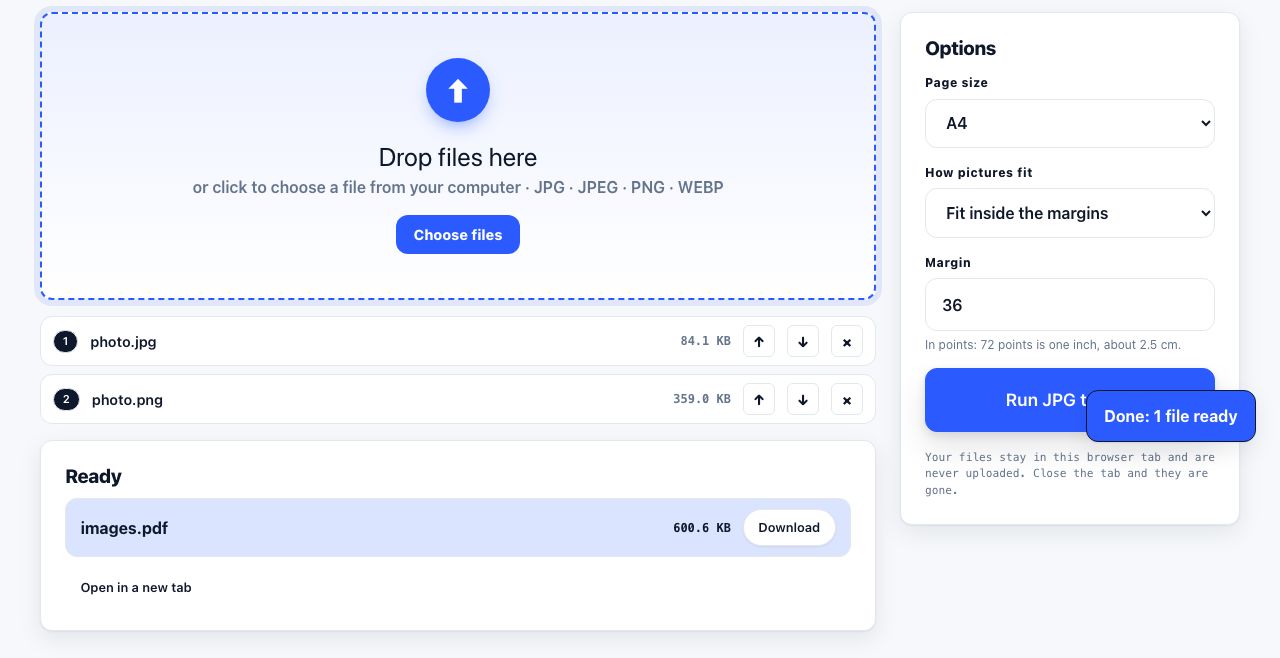
Turn your PNG or JPG captures into PDF pages, then combine them into one document.
JPG to PDF →Making a screenshot searchable
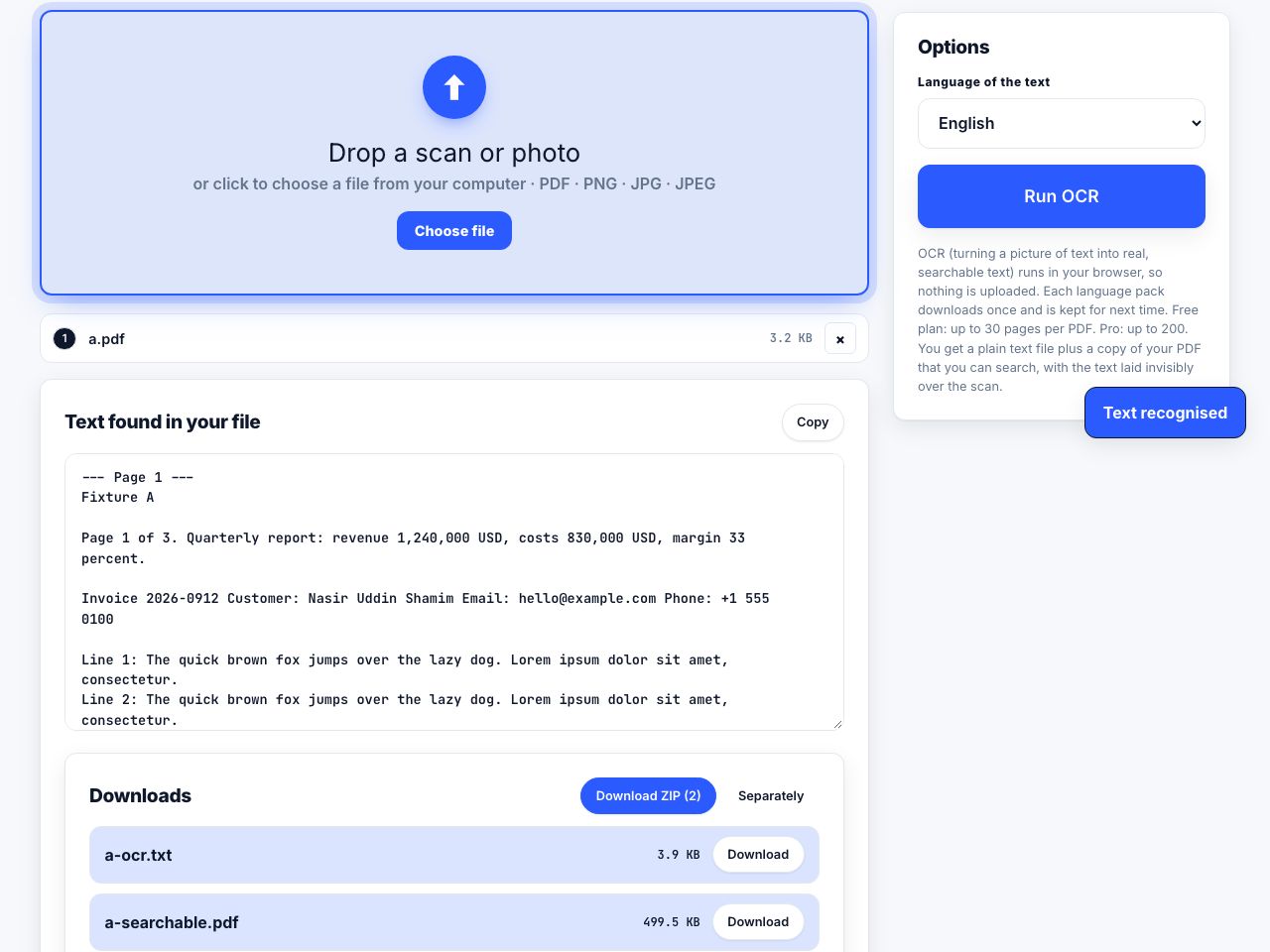
A screenshot is an image, so nothing inside it can be found by search. Running it through OCR adds an invisible text layer underneath the pixels: the image looks identical, but Ctrl+F now works and the text can be copied. This is worth doing for anything you file away, because a folder of screenshots you cannot search is a folder you will never use again.
Add a searchable text layer to screenshots and scans without changing how they look.
OCR PDF →Screenshots as evidence
A screenshot shows what you saw; it does not show when you saw it, and it is trivially editable. For a listing price, a policy change or a deleted post, pair the image with an independent capture from a third-party archive so the date does not depend on your word. That is covered in archiving a web page.
Frequently asked questions
How do I take a scrolling screenshot in Chrome without an extension?
Open DevTools with F12, press Ctrl+Shift+P, type "screenshot" and select Capture full size screenshot. Chrome saves a PNG of the entire page to your Downloads folder. No extension is needed and this has been built in since Chrome 59.
Why is my full-page screenshot cut off at the bottom?
Either the page loads more content as you scroll, so the browser measured the document before the rest arrived, or the page exceeds the maximum capture height of roughly 16,384 pixels. Scroll to the very bottom first, then capture; if it is still truncated, save as a PDF instead.
Why does the navigation bar appear several times in my screenshot?
It uses fixed positioning, so it is painted at every scroll offset the capture stitches together. Open DevTools, select the header element, press Delete, then take the screenshot.
Can I take a full-page screenshot on a phone?
On iPhone, take a screenshot, tap the thumbnail and switch to the Full Page tab, then save as PDF. On Android, take a screenshot and tap "Capture more" or "Scroll", though the exact label depends on the manufacturer.
Is a screenshot or a PDF better for saving a receipt?
A PDF. It is roughly twenty times smaller, the order number is searchable, and it prints properly. Take a screenshot as well only if the visual layout itself is what you need to prove.