How to save a web page as a PDF on iPhone and iPad

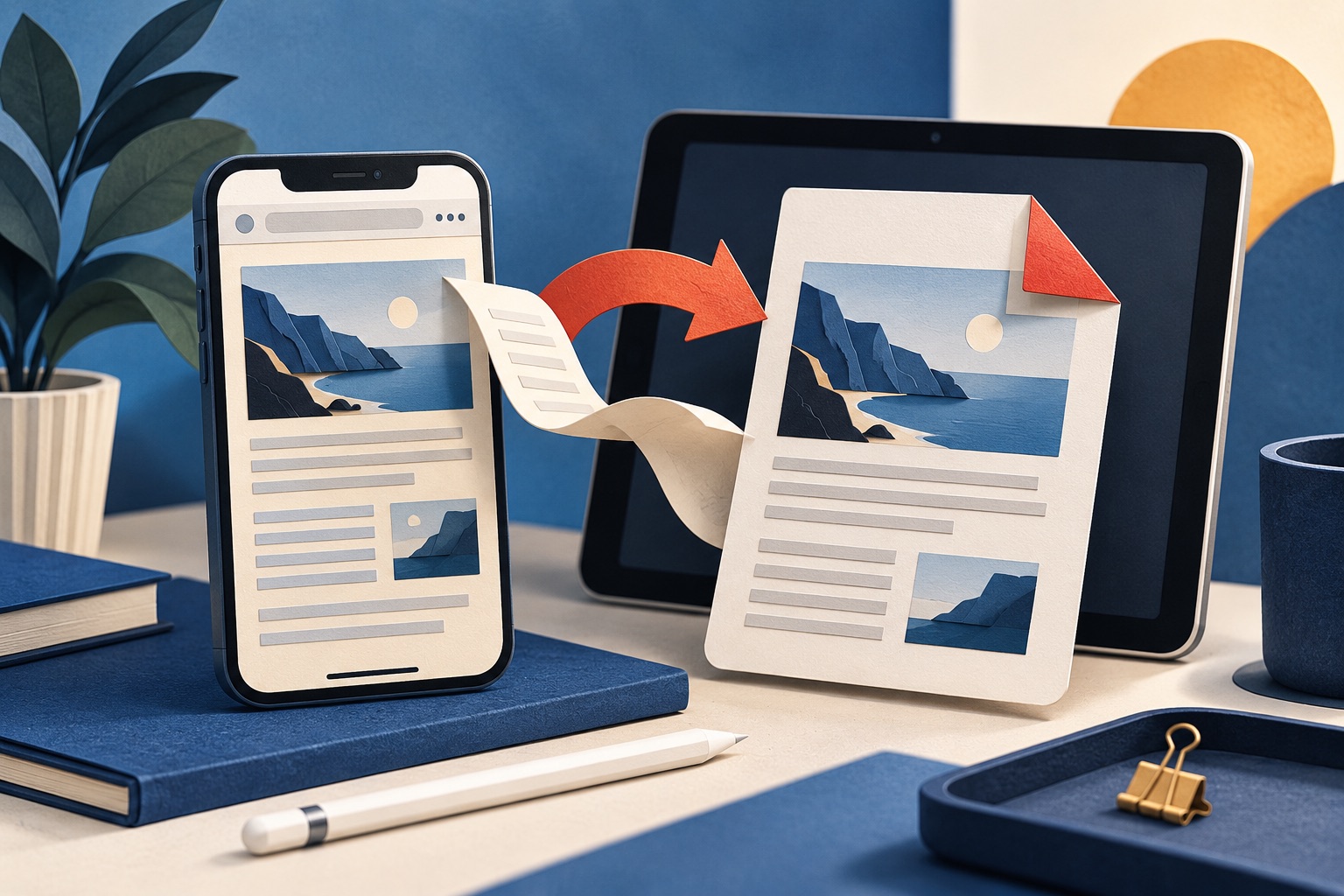
On iPhone and iPad, open the page in Safari, tap the Share button, tap Options under the page title, choose PDF, then tap Save to Files. For a picture-perfect copy instead, take a screenshot, tap the thumbnail, switch to Full Page and save the PDF.
See the tools in action
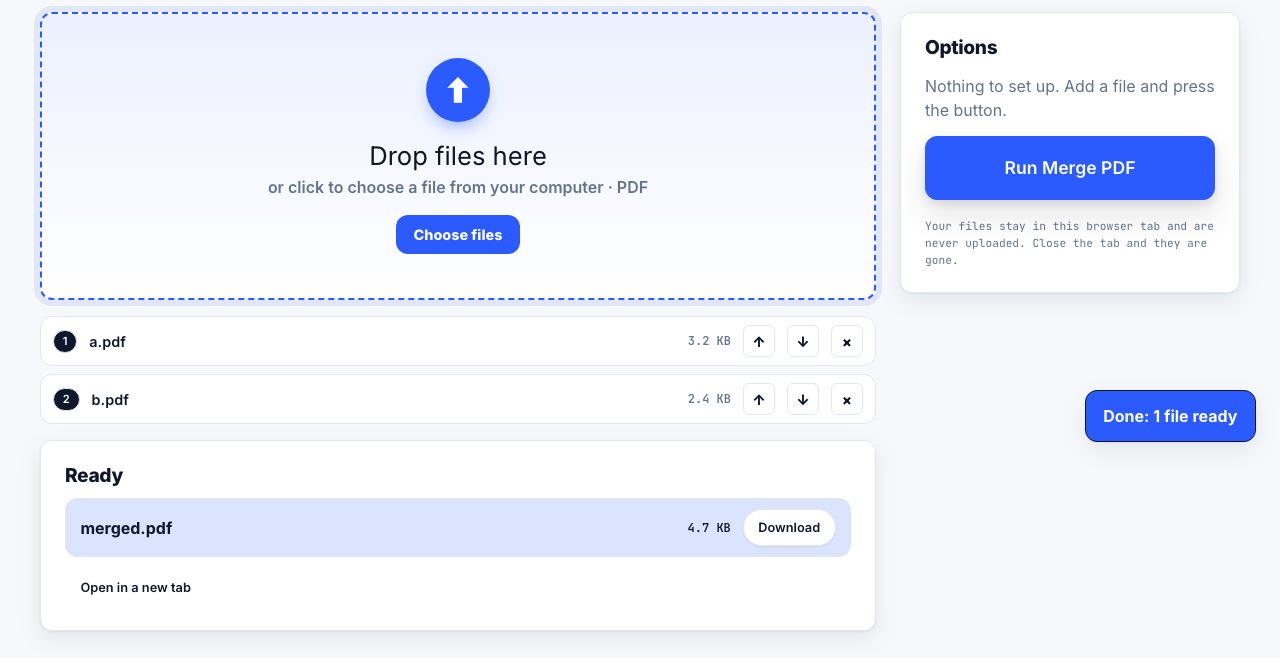
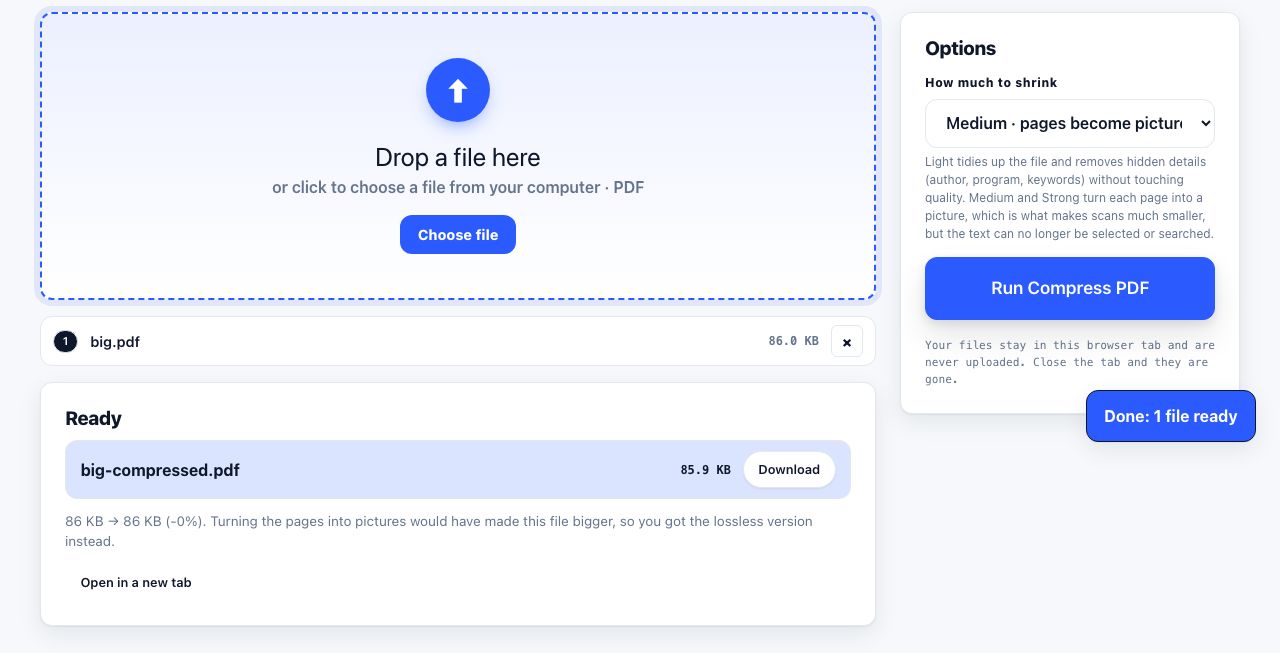
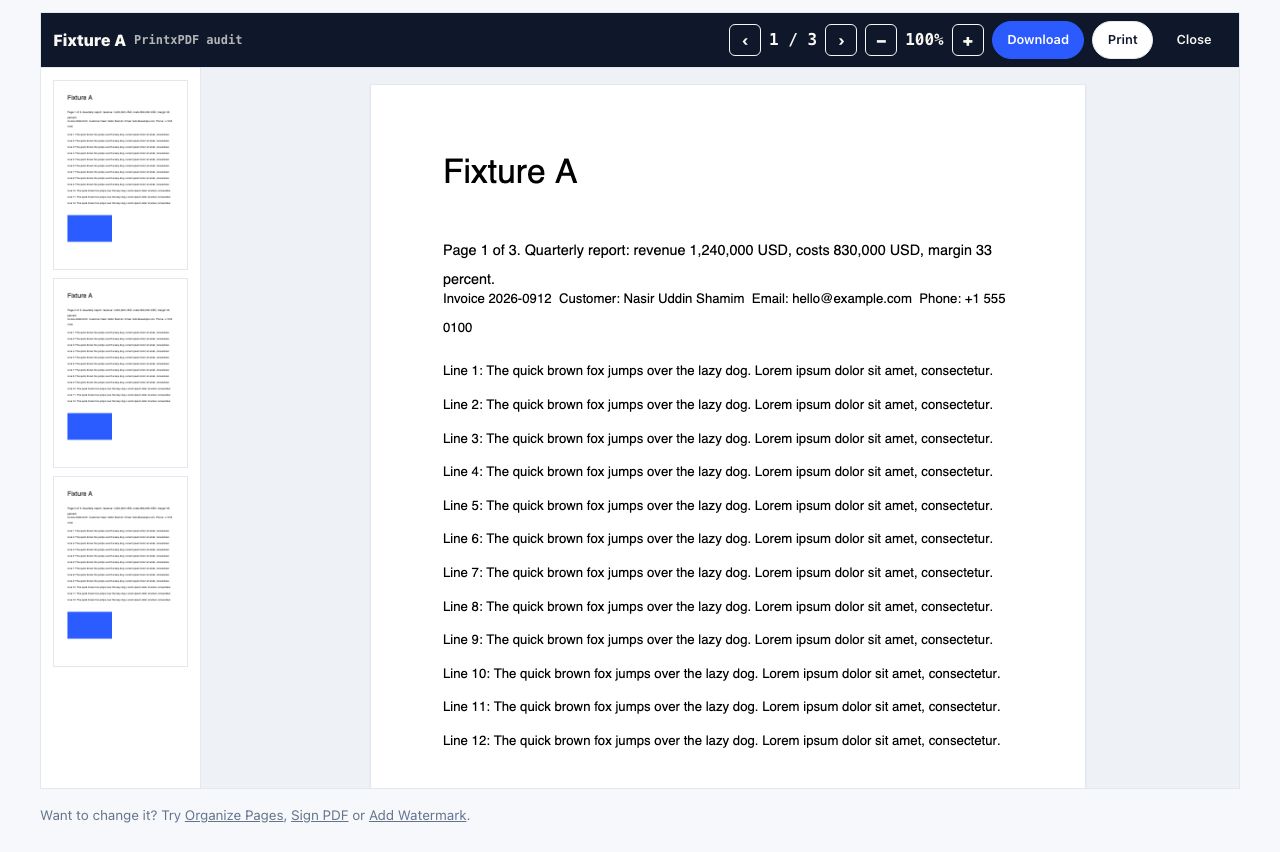
iOS gives you three different PDFs from the same web page, and they are genuinely different files. One is the article text reflowed for reading, one is the page exactly as it renders, and one is a paginated print job. Picking the wrong one is why people end up with a PDF full of ads or a PDF missing half the page.
Method 1: Share sheet → Options → PDF (best for text)
- Open the page in SafariThis route is Safari-only. Chrome and Firefox on iOS do not expose it.
- Tap the Share buttonThe square with an upward arrow, at the bottom of the screen on iPhone and in the toolbar on iPad.
- Tap OptionsIt sits directly under the page title and site name at the top of the Share sheet, showing the current setting, usually Automatic. It is easy to miss because it looks like a label rather than a button.
- Choose PDFFour choices appear: Automatic, Reader PDF, PDF and Web Archive. PDF captures the page as rendered. Reader PDF captures the stripped-down article and is the one you usually want.
- Tap Done, then Save to FilesPick iCloud Drive or On My iPhone, rename the file, and tap Save.
Reader PDF is only offered when Safari can see an article on the page. If the option is greyed out, the page is a dashboard, a form or a JavaScript app, and only the plain PDF option is available.
Method 2: Full Page screenshot (best for layout)
This is the most reliable option and almost nobody knows it exists. It captures the entire scrolling page, not just what is on screen, and hands you a real PDF. The desktop equivalents are covered in taking a full-page screenshot.
- Take a normal screenshotPress Side button + Volume Up on Face ID devices, or Home + Side button on Touch ID devices.
- Tap the thumbnailIt appears in the bottom-left corner for about five seconds. Tap it before it disappears.
- Switch to Full PageTwo tabs sit at the top of the editor: Screen and Full Page. Tap Full Page. A scrollable strip on the right shows the whole document.
- Crop or mark upDrag the handles on the right-hand strip to trim the top and bottom. Use the pen, highlighter and text tools to annotate before saving.
- SaveTap Done → Save PDF to Files. Full Page captures can only be saved as PDF, never to Photos, which is why the option reads the way it does.
Full Page works in Safari, Mail, Notes, Files, Pages and Maps. It does not work in most third-party apps, which fall back to the visible screen only.
Method 3: Print preview pinch (the old trick)
Before iOS 13 added the Options menu, everyone used this: Share → Print, then pinch outwards on the page preview thumbnail. The preview expands into a full PDF viewer, and the Share button in the corner lets you save it. It still works, and it is the only way to get a paginated PDF on iOS, with real Letter or A4 page breaks, which matters if someone will print the file later.
| You want… | Method | Result |
|---|---|---|
| A clean, readable article | Share → Options → Reader PDF | Text only, links kept, small file, no ads |
| The page exactly as it looks | Full Page screenshot | Pixel-accurate, one tall page, no selectable text |
| Something you will print on paper | Share → Print → pinch out | Proper page breaks at Letter or A4 |
| A copy that works offline forever | Share → Options → Web Archive | .webarchive file, Safari only, keeps images and CSS |
| To annotate before saving | Full Page screenshot → Markup | Handwriting, highlights and text boxes baked in |
Where the file actually goes
Save to Files offers iCloud Drive, which syncs to your Mac where the desktop print dialog gives you more control, and On My iPhone (stays on the device, survives no backup unless you back the device up). If you tap the Books icon in the Share sheet instead, the PDF is imported into Apple Books, where it gets a reading position, bookmarks and highlights, and syncs across your devices. Books is the better home for long documents you will read; Files is the better home for receipts and records.
Saving to Books makes the file harder to email later. You have to open it in Books, tap Share, then Save to Files. If you might need to send it, save to Files first and add it to Books afterwards.
Chrome, Firefox and Edge on iOS
Every iOS browser uses Apple’s WebKit engine, but only Safari gets the Options → PDF menu. In Chrome for iOS, tap ⋯ → Print, then use the same pinch-out trick. Firefox and Edge behave the same way. The Full Page screenshot method is Safari-only, so for anything important it is worth opening the link in Safari first.
Saved five pages of a long article separately? Merge them into one document in your browser.
Merge PDF →Cleaning the page before you save
The mobile equivalent of a printer-friendly view is Safari Reader: tap the ☰ page menu at the left of the address bar and choose Show Reader. Save from inside Reader and the PDF contains the article, headings and photos, with no navigation and no ad slots. If Reader is unavailable, the web page printer works in mobile Safari too, and lets you delete blocks by tapping them. If the result is still heavy, run it through compress PDF before emailing it.
Frequently asked questions
Why can I not find Options in the Share sheet?
Options only appears in Safari, and only for web pages. It sits directly under the page title at the very top of the sheet, above the row of app icons, and reads "Options >" with the current mode next to it. If you are sharing from another app, it will not be there.
How do I save a web page as a PDF on iPad?
Exactly as on iPhone. The Share button is in the top toolbar instead of the bottom bar, and the Full Page screenshot thumbnail appears in the bottom-left after pressing the top button and Volume Up together, or Command+Shift+3 with a keyboard attached.
Can I save a web page as a PDF without Safari?
Yes, using Share → Print and pinching out on the preview, which works in Chrome, Firefox and Edge for iOS. You lose the Reader PDF and Full Page options, both of which are Safari features.
Does the iPhone PDF keep the links clickable?
The Share sheet PDF and Reader PDF keep links as clickable annotations. The Full Page screenshot does not, because it is an image wrapped in a PDF container.
How do I make the saved PDF smaller?
Use Reader PDF rather than the plain PDF, which drops the heavy hero images and ad creatives. If it is still large, run the file through a compressor before emailing it.