How to reduce a PDF file size for email

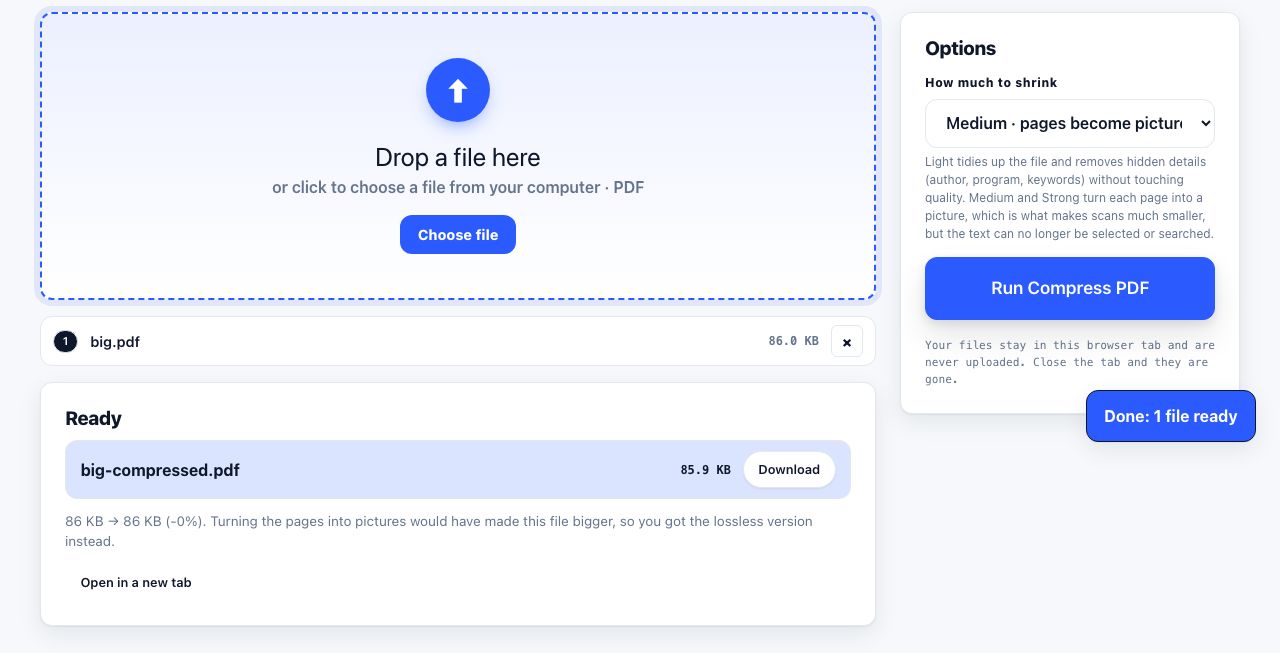
Check your mail provider's current limit first. PrintxPDF offers Light compression, which keeps text selectable, and Medium or Strong, which turn pages into images. The tool has no custom DPI or grayscale controls; split the file or use an approved sharing link if compression is not enough.
See the tools in action
An email bounce may only say "message too large." Limits depend on the sender, recipient and account type, so check the provider's current help page before changing a document. Here are common published limits and safer next steps.
Attachment limits by service
| Service | Stated limit | Larger files |
|---|---|---|
| Personal Gmail | 25 MB total attachments | Gmail can replace oversize attachments with a Google Drive link |
| Outlook.com | 20 MB email size limit | Share through OneDrive or another approved service |
| Microsoft 365 / Exchange Online | Set by organization policy | Check with the administrator or use an approved file-sharing link |
| iCloud Mail | 20 MB; Mail Drop supports messages up to 5 GB | Mail Drop links are available for up to 30 days |
| Yahoo Mail | 25 MB total attached files | Use a file-sharing link if the recipient can access it |
| Proton Mail | 25 MB outgoing attachments | Share using Proton Drive or another service |
| Work or school mail | Varies by administrator and recipient system | Check both organizations' rules before sending |
Email encoding can add roughly one-third to an attachment's transmitted size, but providers do not all describe or enforce their limits the same way. Leave room for the message and check the sender's interface and the recipient's rules rather than relying on a universal safe-size calculation.
The recipient may have a lower limit than the sender, especially at work or school. If you cannot confirm it, a sharing link with the right access permissions is often more reliable than a large attachment.
Get the file under the limit
- Check the actual sizeRight-click the file → Properties on Windows, or Get Info on macOS. Use the size in MB, not the "size on disk".
- Try Light compression firstOpen Compress PDF and choose Light. It keeps the text selectable and avoids converting pages to images, though the file-size reduction depends on the PDF. Keep the original.
- Decide whether image-only pages are acceptableThe tool's Medium and Strong options turn each page into an image. They do not offer a custom DPI setting, and the resulting text may no longer be searchable or selectable. Test a copy and inspect fine print before using either level.
- Use a separate image workflow only if neededCompress PDF does not include a grayscale or per-image resolution control. If the scan is still too large, adjust a copy with your scanner or image software, or split the document instead.
- Re-check and sendConfirm the new size, open the file once to make sure it still reads properly, then attach it.
Compare Light, Medium and Strong on a copy. Medium and Strong convert pages to images, so inspect text and detail before sharing.
Compress PDF →Split it instead
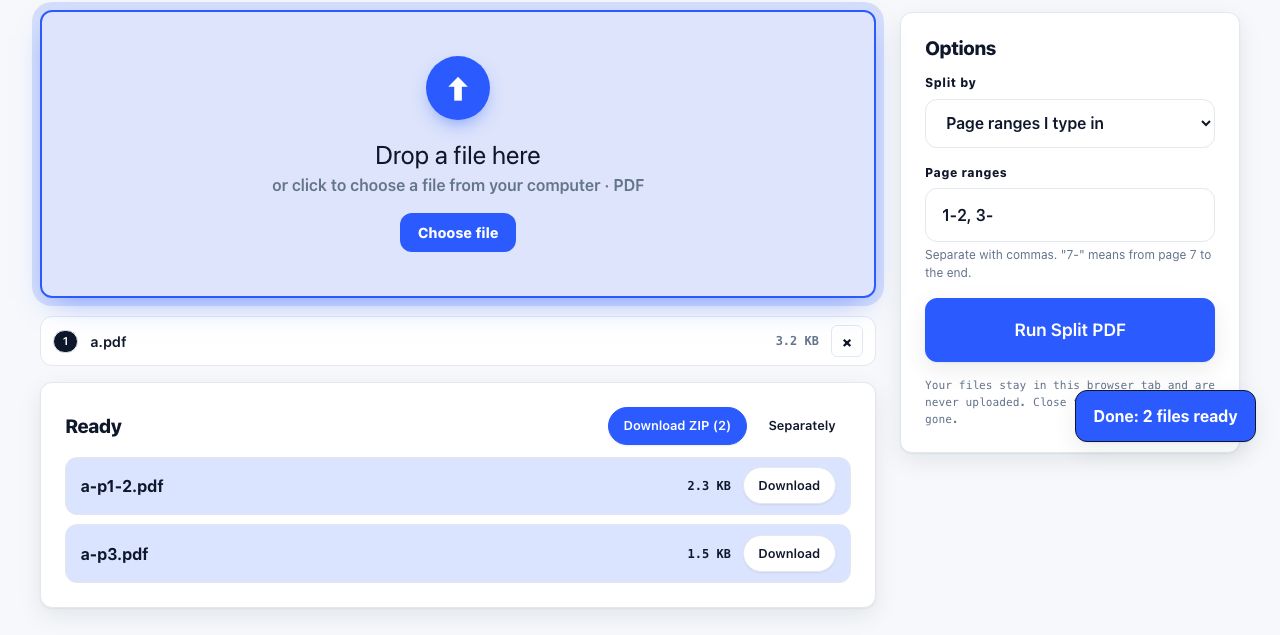
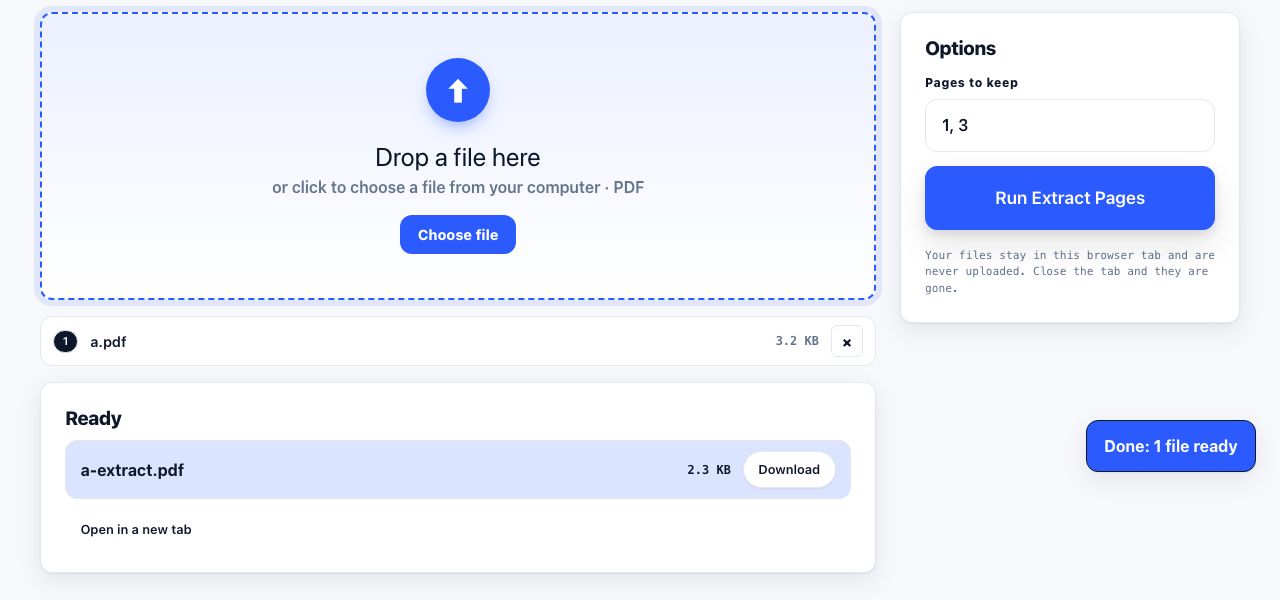
A large report may not shrink enough without losing detail. Splitting is an alternative: send chapters separately or share only the requested pages. Use Extract Pages for a specific range, or Split PDF for separate files. See splitting a large PDF for email.
Send a link instead of a file
- Google Drive, in Gmail, use the Drive button or accept Gmail's prompt for an oversize attachment. Choose the narrowest sharing permission that lets the intended recipient open the file.
- OneDrive, in Outlook, Insert → Link → Browse this computer, then choose "Upload and share". Recipients outside your tenant may need the link set to "Anyone".
- iCloud Mail Drop, Apple Mail can offer this when a message exceeds the provider limit. Apple allows Mail Drop messages up to 5 GB; links can be downloaded for up to 30 days.
- For other services, use a file-sharing option approved for the recipient and check its current size, expiry and access rules.
A shared link also fixes the version problem. If you find a mistake after sending, you replace the file at the link. An attachment sits in the recipient inbox forever in its wrong version.
Before you send anything
A PDF carries the author name, the software that made it, and often the full path of the folder it was saved in. If the file is going outside your organisation, strip the metadata first. It takes a few seconds and costs nothing in file size.
If the file is a scan, adjust resolution or colour in the scanner settings before creating the PDF. Choose settings that keep small text readable, and save a new copy rather than overwriting the original. See why your PDF is so large for other causes.
Frequently asked questions
What is the maximum PDF size I can email?
Limits vary by service and account type. Personal Gmail and Yahoo Mail publish a 25 MB outgoing limit, Outlook.com publishes a 20 MB email limit, and iCloud Mail allows 20 MB or up to 5 GB through Mail Drop. Work and school administrators may set different limits. Check current provider guidance and leave room for message overhead.
Why does my 20 MB PDF fail to send on a 25 MB limit?
Email encoding can add roughly one-third to an attachment's transmitted size, but providers handle their published limits differently. The recipient's account may also have a lower cap. Check both sides or send a permitted sharing link.
How do I email a PDF that is 100 MB?
Use a sharing service approved by the recipient, such as Google Drive, OneDrive or Dropbox, and set access for the intended person. If attachments are required, ask the recipient for a per-message limit and split the PDF into files that leave room below that limit.
Does zipping a PDF make it smaller?
Usually very little, because many PDF contents are already compressed. ZIP is more useful for bundling several files than shrinking one PDF. Compare the archive size before sending it.
What DPI should I use for a PDF I am emailing?
There is no single DPI target for every document. Choose scan resolution based on the smallest text, print size and whether OCR is needed. PrintxPDF's compressor does not expose a DPI setting.