JPG to PDF
Combine JPG, PNG and WebP pictures into one tidy PDF. Great for scans, receipts and photo sets.
JPG to PDF puts one or more JPG, PNG or WebP pictures into a single PDF, built in your browser. Choose A4, Letter or a page the same size as each picture, decide how it fits, set a margin, and download one clean file. Nothing is uploaded.
What are JPG, PNG, WebP and PDF?
JPG: the photo format from cameras and phones
JPG is the format cameras and phones save photos in. It keeps files small by dropping tiny details your eye does not notice. A PDF can hold a JPG exactly as it is, so this tool places your photo inside the PDF untouched: no second round of squeezing, and no loss of quality beyond what the camera already applied when it took the picture.
PNG and WebP: screenshots and web pictures
PNG stores every pixel exactly, which makes it ideal for screenshots and graphics with flat colour and sharp text. WebP is a newer web format from Google that can be either small or exact. A PDF holds PNG directly. WebP, GIF and BMP pictures are read in your browser and saved again as an exact PNG before they go in, so no detail is lost in the step.
PDF: one file, many pages
A PDF is a page format with a fixed layout. Every viewer, phone and printer draws a PDF page the same way, which is why it is the usual choice for receipts, forms, scans and portfolios. A PDF can hold many pages in one file, so a folder of photos becomes a single attachment that opens in the right order.
Why convert JPG to PDF?
- Send many images as one attachment. Receipts, ID scans, whiteboard photos and a multi-page contract become one file that opens in the right order, instead of a dozen loose images in an email or chat.
- Print on real paper sizes. A4 and Letter pages with a margin print cleanly on any office printer. A wide photo turns the page sideways automatically, so nothing is squashed.
- No loss of image quality. JPG and PNG files go into the PDF exactly as they are. The PDF holds the very pixels you gave it, so a sharp scan stays sharp.
- Private by design. The PDF is assembled in your browser. Photos of passports, invoices and medical letters never leave your computer.
How to convert JPG to PDF, step by step
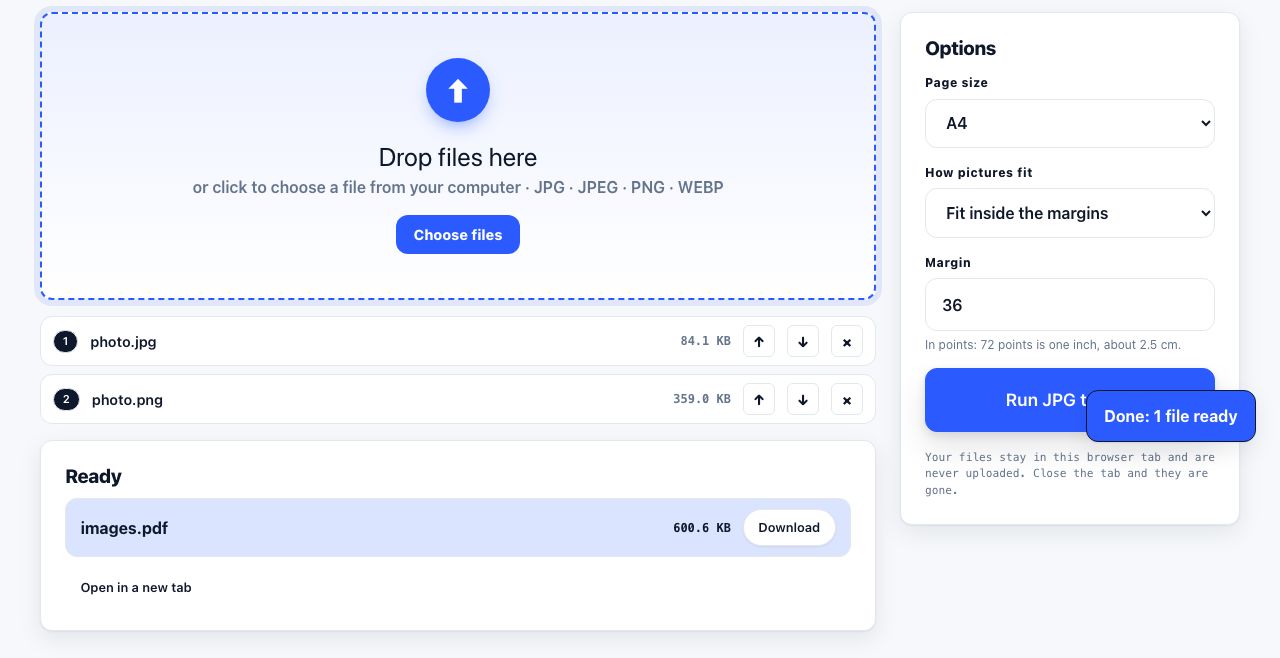
- Open JPG to PDF and drop your images Drag one or many JPG, PNG or WebP files onto the drop zone. Use the arrows in the file list to put them in the order you want the pages to appear.
- Pick a page size Under Options, set Page size to A4, Letter, or Same as image to make each page exactly the size of its picture plus the margin.
- Choose how the image fits Fit inside margins shrinks the picture to fit with nothing cropped. Fill page enlarges it to cover the page, cropping what spills over. Original size keeps the picture at its real size and only shrinks one that would not fit.
- Set the margin The margin is measured in points, a printer's unit; 36 pt is half an inch. Enter 0 for a page with no border.
- Run JPG to PDF and download Click Run JPG to PDF. The file
images.pdfdownloads on its own, and you can open it in a new tab to check the page order.
Frequently asked questions
Does JPG to PDF reduce the quality of my photos?
No. JPG and PNG files go into the PDF exactly as they are, so the pixels are identical to the originals. WebP, GIF and BMP pictures are read and stored as an exact PNG, which also keeps every pixel.
Can I put several images on one page?
Not with this tool: each image becomes its own page. If you need several pictures side by side on one page, combine them in an image editor first and then convert that single combined picture.
Can I change the order of the pages?
Yes. After dropping the files, use the move arrows in the file list to reorder them before you run the conversion. The PDF follows that order exactly. You can also remove a file from the list.
What page size should I use for phone photos?
Choose Same as image if the PDF is only for screens; each page will match the photo. Choose A4 or Letter with Fit inside margins if anyone will print it, since a phone photo is taller and narrower than a sheet of paper.
Is there a limit on the number of images?
There is no fixed limit. Because the PDF is built in your browser, the practical ceiling is memory: a few hundred phone photos is fine on a laptop, while thousands of large scans may be slow. Nothing is uploaded, so there is no monthly quota.
Looking for the long version? The guides cover each of these jobs in depth.
How to take a full-page screenshot of a website
Capture an entire scrolling web page as one image. Chrome DevTools, Firefox and Edge built-in capture, Safari Web Inspector, and when a PDF beats a PNG.
How to add scanned images to an existing PDF
Convert supported images into PDF pages, then merge them with an existing document. Set page size, check rotation and review the final order before sharing.
How to combine JPG, PNG and WebP images into one PDF
Put JPG, PNG or WebP images in order, choose A4, Letter or image-sized pages, and make one PDF. Check the result before sharing.
How to convert PNG images to a PDF
Turn PNG screenshots, scans or graphics into a PDF. Arrange image order, choose a page size, preserve sharp text and check transparency before sharing.