How to combine JPG, PNG and WebP images into one PDF

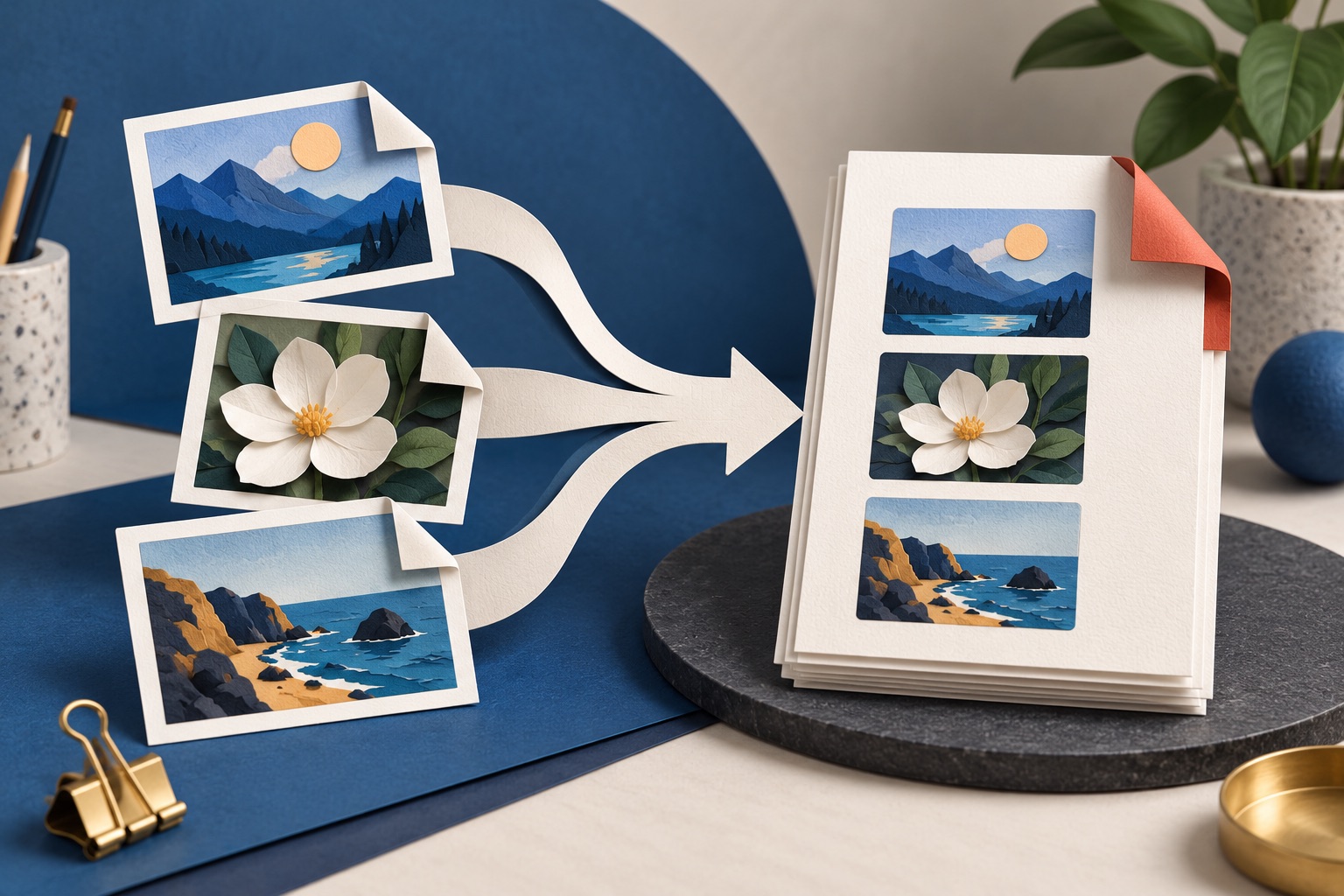
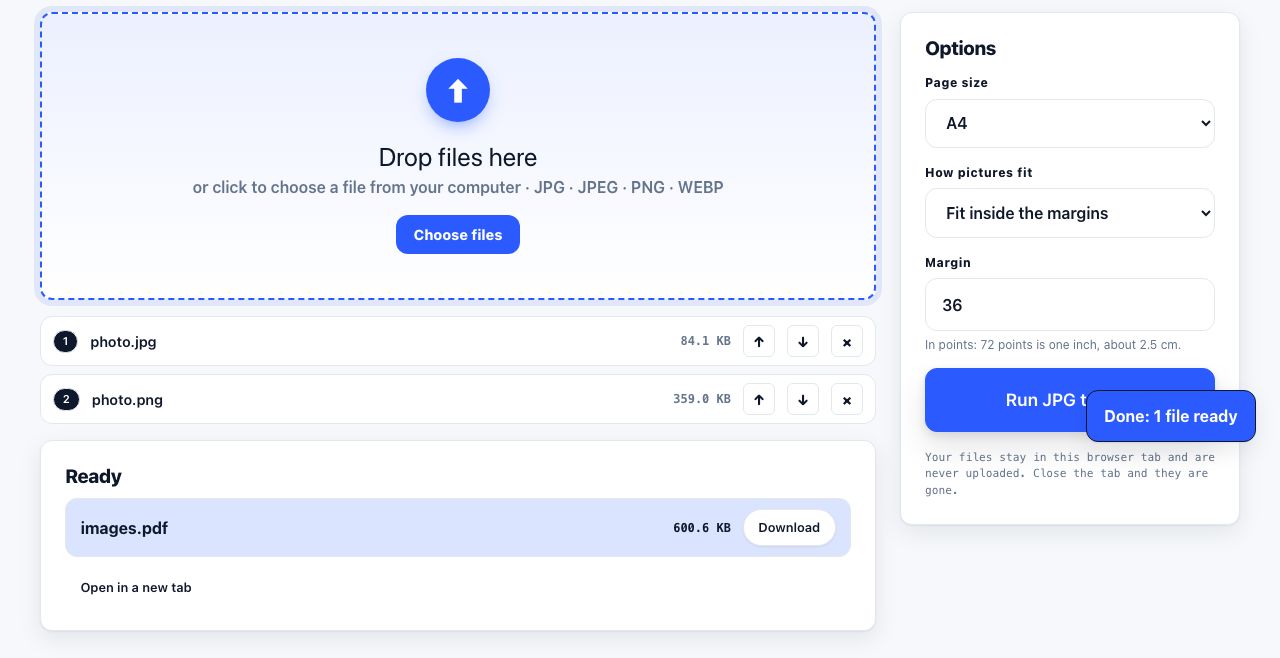
Add JPG, PNG or WebP images to the [JPG to PDF tool](/tools/jpg-to-pdf), reorder them with the on-screen arrows, then choose A4, Letter or Same as image. Each picture becomes its own page. HEIC is not supported by this tool, so convert HEIC to JPG first.
See the tools in action
Photographing receipts, scanning a signed contract page by page, assembling a portfolio, they all end the same way: a folder of images that somebody wants as one file. Four decisions determine whether the result is usable.
Decision 1: page size
| Purpose | Page size | Fit mode |
|---|---|---|
| Scanned documents, contracts | A4 or US Letter | Fit image to page, keep aspect ratio |
| Receipts and small slips | A4 or Letter | One image per page; combine images into a layout elsewhere to tile |
| Photo album or portfolio | Match the image aspect ratio | Page size follows the image |
| Mixed sizes from different sources | A4 for everything | Fit, so pages stay consistent |
| Presentation handout | A4 or Letter | Check the fit; use a landscape page layout elsewhere if needed |
A4 is 210 × 297 mm; US Letter is 8.5 × 11 inches (216 × 279 mm). They are close but not identical, so a Letter-sized PDF printed on A4 gets a slightly different margin. Pick the one your recipient uses. For documents, one image per page with the aspect ratio preserved is almost always right, stretching a photo to fill A4 distorts it.
Decision 2: DPI
DPI in this context means: how many of your image pixels land in one printed inch. It is arithmetic, not a setting you can wish for.
| Target | DPI | Pixels for a full A4 page | Typical result |
|---|---|---|---|
| Professional print | 300 | 2480 × 3508 | Sharp at any reading distance |
| Office printing | 200 | 1654 × 2339 | Good for text and diagrams |
| Screen reading, email | 150 | 1240 × 1754 | Crisp on screen, acceptable on paper |
| Web preview only | 72 | 595 × 842 | Visibly soft when printed |
The tool places image pixels into a PDF page; it cannot add detail that the source image does not contain. A large phone photo usually has enough pixels for a printed page, while a small screenshot may look soft when enlarged. If print sharpness matters, inspect the source image dimensions and make a test print rather than relying on a DPI setting this tool does not provide.
Decision 3: order
File browsers can sort page1.jpg through page10.jpg as 1, 10, 2, 3. Zero-padding names (page01, page02) helps when selecting files, but still confirm the sequence inside the tool. Use its move arrows to set the final page order.
Decision 4: file format
- JPEG, the right choice for photographs and camera scans. Already compressed, so the PDF stays small.
- PNG, right for screenshots, diagrams and anything with sharp text or flat colour. Lossless, so it produces a larger PDF; a full-page PNG screenshot can be several megabytes.
- HEIC, common on iPhones, is not accepted by this JPG to PDF tool. Convert it with HEIC to JPG, then add the resulting JPG files. To make future iPhone photos more widely compatible, choose Settings → Camera → Formats → Most Compatible.
- TIFF, sometimes produced by office scanners, is not accepted by this tool. Convert it to JPG or PNG first. A multi-page TIFF needs a converter that preserves each frame, or an export from the scanner software.
- WebP is accepted by this tool. AVIF is not listed as a supported input format, so convert it to JPG or PNG first.
Doing it
- Gather and renamePut every image in one folder and zero-pad the names so they sort in reading order.
- Open the converterGo to the JPG to PDF tool and add your JPG, PNG or WebP files. The PDF is built in your browser. HEIC and AVIF need conversion to a supported format first.
- Check and fix the orderUse the move arrows beside each file to set its position, then confirm the displayed order before generating the PDF.
- Set the page size and fitUnder Page size, choose A4, Letter or Same as image, then choose how the image fits. There is no separate DPI or auto-orientation control, so check the page size and fit before downloading.
- Generate and checkOpen the PDF and page through it. Look for upside-down pages, which come from phone photos whose EXIF rotation was ignored.
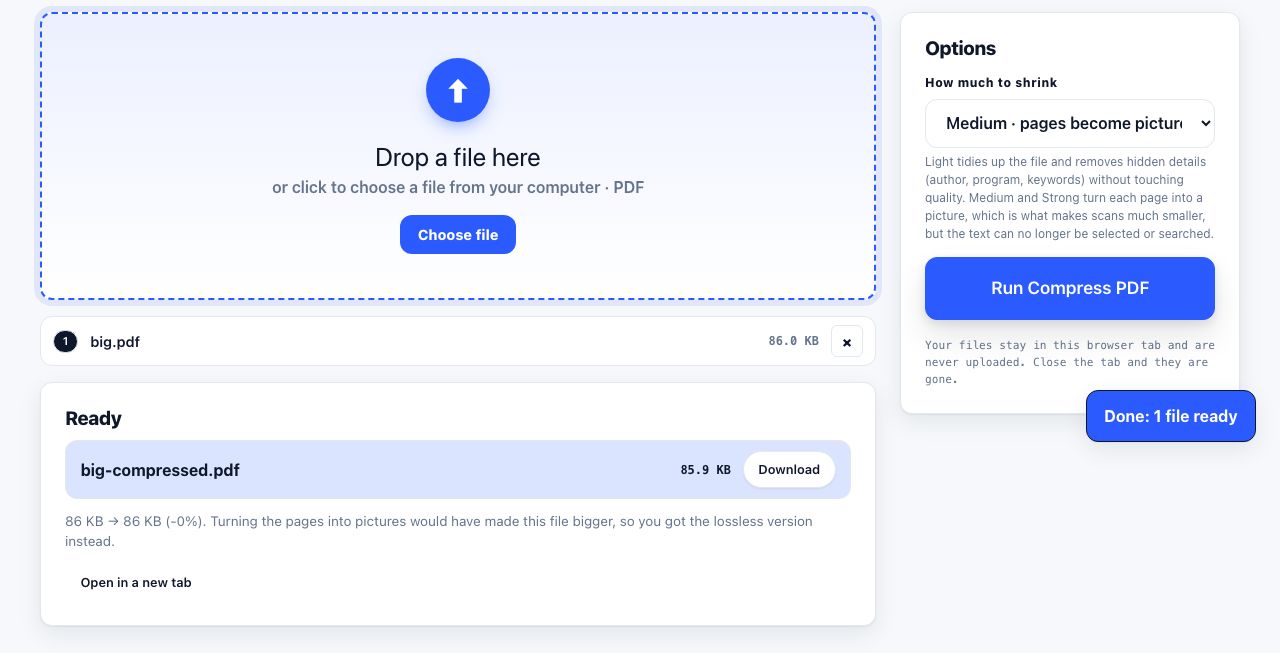
- Compress if it is going by emailIf the finished file is too large, try the PDF compressor. Its Medium and Strong settings turn pages into images, so compare legibility and keep your original. See ways to reduce a PDF for email.
Combine JPG, PNG and WebP images into a PDF, with controls for page size, image fit, margins and order. HEIC files need conversion first.
JPG to PDF →Built-in alternatives
- macOS, select the images in Finder, right-click → Quick Actions → Create PDF. Selection order determines page order, so click them in sequence. Preview also lets you drag pages around afterwards in the sidebar.
- Windows, select the images, right-click → Print, choose Microsoft Print to PDF as the printer and Full page photo as the layout, then Print. Tick "Fit picture to frame" off if you do not want cropping.
- iPhone, in Photos, select the images → Share → Print, then pinch outwards on the print preview. It turns into a PDF you can share or save to Files. It is undiscoverable and it works.
- Android, Google Drive → + → Scan uses the camera, auto-crops, deskews and saves straight to a multi-page PDF.
Photographing documents well
- Shoot straight down, not at an angle. Perspective distortion is hard to fix and wrecks any later OCR.
- Use even, indirect light. Direct light creates a hotspot; a window on one side creates a gradient across the page.
- Put the page on a dark surface so the edge-detection in scanning apps can find it.
- Fill the frame with the page, and do not use digital zoom, move the phone closer instead.
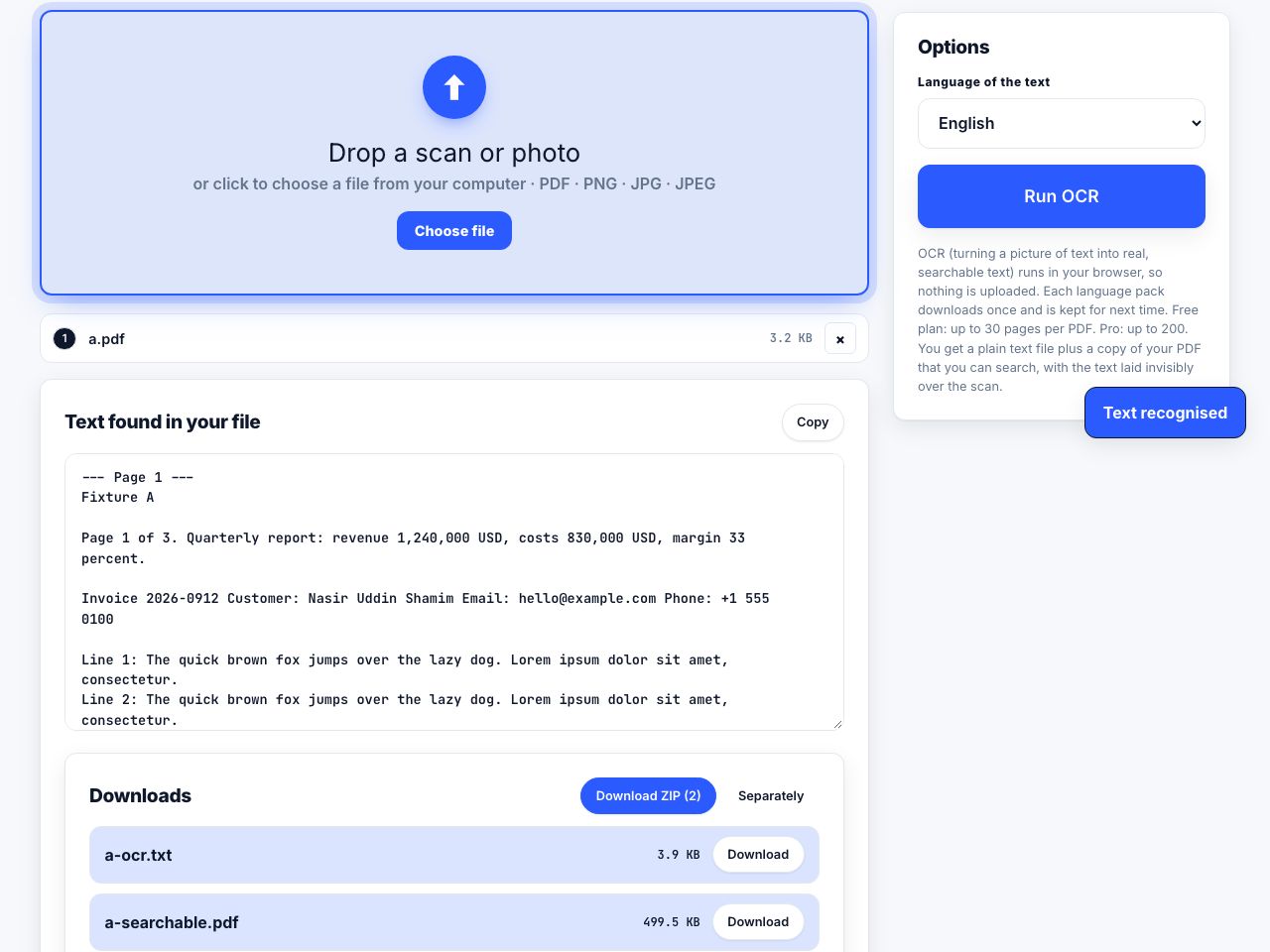
- For anything you will need to search later, run OCR on the finished PDF. Details in how to OCR a scanned PDF.
A photo carries EXIF metadata: GPS coordinates, the device model, the exact capture time. Those fields can travel into the PDF. Before sending photographed documents to anyone, remove the metadata.
Frequently asked questions
How do I combine multiple JPG files into one PDF?
Add the JPG files to the JPG to PDF tool, use the move arrows to set their order, choose A4, Letter or Same as image, and run it. Each image becomes a separate page. On macOS, Finder also offers Quick Actions → Create PDF; on Windows, use Print → Microsoft Print to PDF.
Why can I not upload HEIC photos?
The JPG to PDF tool accepts JPG, PNG and WebP, not HEIC. Convert HEIC photos with HEIC to JPG first, or change the iPhone camera format to Most Compatible for future photos.
What resolution do I need for a PDF I will print?
300 DPI, which means about 2480 × 3508 pixels for a full A4 page. A phone photo at 4032 × 3024 exceeds that comfortably. A 1440-pixel-wide screenshot only reaches about 110 DPI on A4 and will look soft on paper.
Why are my PDF pages in the wrong order?
Alphabetical sorting puts page10 before page2. Rename the files with zero padding, page01, page02 and so on, and they will sort correctly everywhere. Most tools also let you drag the thumbnails into order before generating.
How do I make a scanned PDF searchable?
Combine the images into a PDF first, then run OCR on the result. OCR reads the characters in each image and writes an invisible text layer over them, so Ctrl+F and copy-paste start working while the pages still look identical.