How to OCR a scanned PDF so you can search it

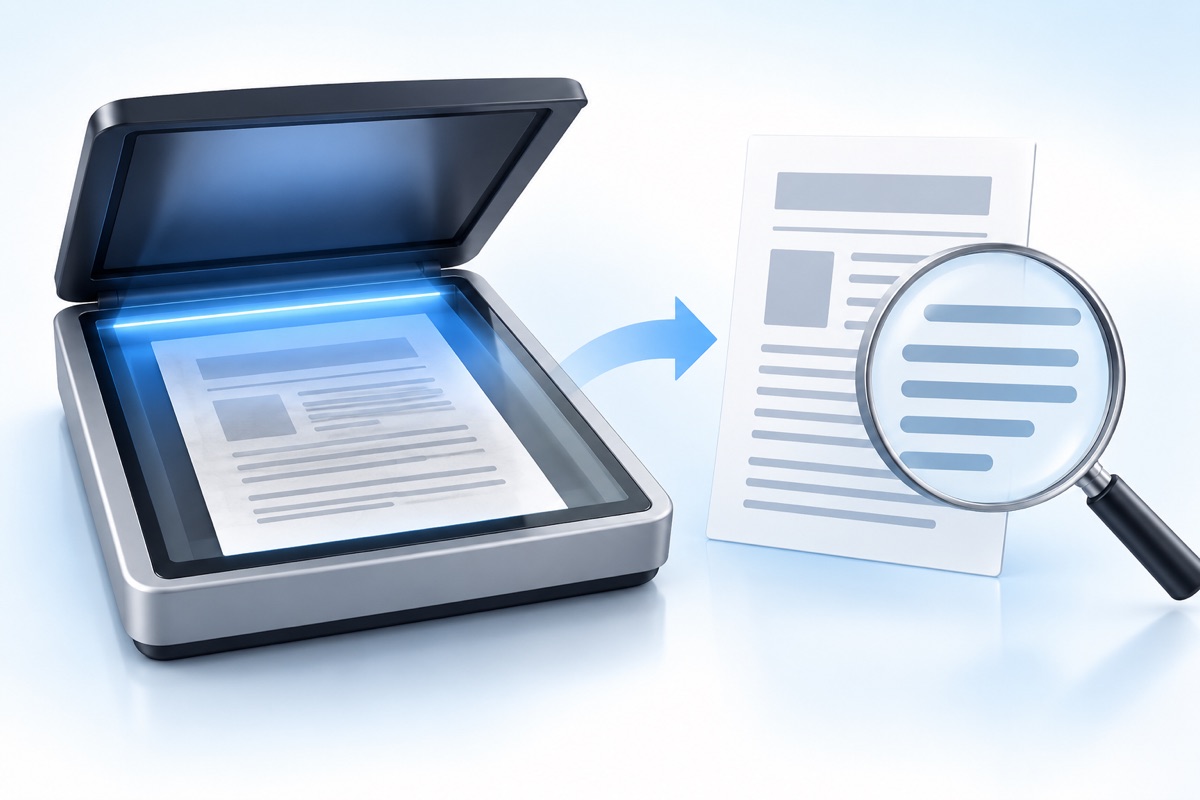
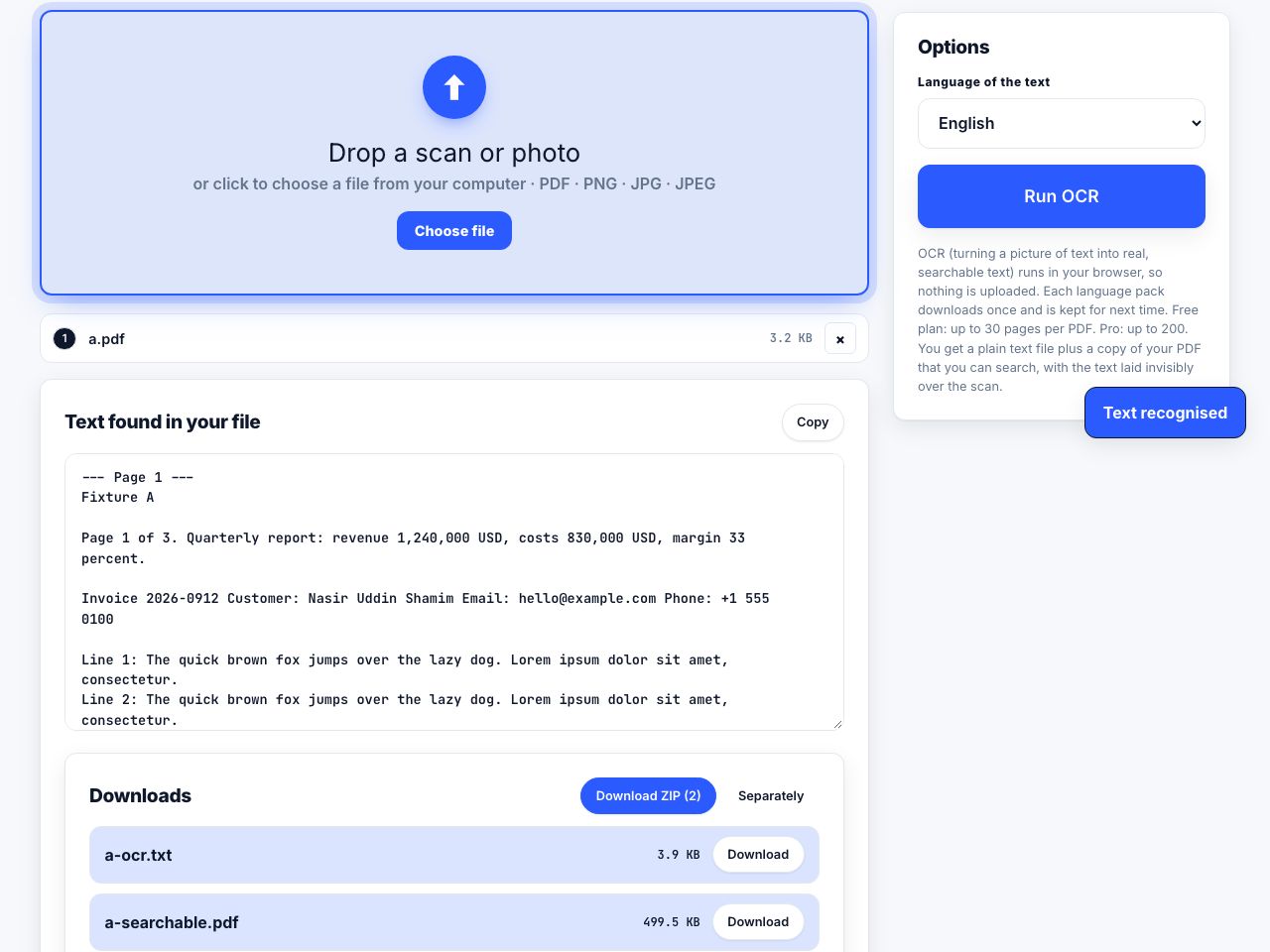
Run the PDF through an OCR tool, choose the language of the document, and export. The tool reads each page image, recognises the characters, and writes them back as an invisible text layer positioned over the picture. The page looks unchanged but becomes searchable, selectable and copyable.
See the tools in action
You scan a twelve-page contract, open it, press Ctrl+F to find the termination clause, and get nothing. The document is not broken, it simply does not contain any text. It contains twelve photographs of text, and the difference is total as far as software is concerned.
What OCR actually adds
Optical character recognition looks at the pixels, segments them into blocks, lines, words and characters, and classifies each shape against a trained model. The output is a stream of Unicode characters, each with a bounding box saying where on the page it came from.
A good OCR tool then does something clever with that: it writes the recognised text back into the PDF in invisible rendering mode, positioned exactly over the matching pixels in the scan. Visually nothing changes, because the text is drawn with no ink. But Ctrl+F now finds words, selecting a paragraph highlights it in the right place, and copy-paste works. This is why the result is called a searchable PDF rather than a converted one, the original image is still there, untouched.
This is also why OCR is non-destructive. If the recognition gets a word wrong, the picture of the page is still correct; only the hidden text is wrong. You can always re-run OCR with better settings without losing anything.
Run it in your browser
- Open the fileDrop the scanned PDF onto the OCR tool. Recognition runs locally in your browser, which matters because scans are usually the most sensitive documents anyone owns.
- Choose the languagePick the language the document is written in. This is the single biggest lever on accuracy, the recogniser uses the language model to resolve ambiguous shapes. Select two languages only if the document genuinely mixes them.
- Let it download the language packEach language is a separate trained data file of roughly 2 to 15 MB, fetched once and then cached. The first run on a new language is slower for this reason.
- Wait for the pagesBudget a few seconds per page on a modern laptop. PDFs are capped at the first 30 pages in the browser, so split anything longer with Split PDF and run the parts one at a time.
- Check a page before you trust itOpen the result and search for a word you know appears on page one. If it is not found, the language, resolution or orientation is wrong, see how to get better OCR results.
- DownloadExport the searchable PDF. Keep the original scan as well until you have confirmed the new file is good.
Make a scanned PDF searchable in your browser. No upload, no account, over 100 languages.
OCR PDF →Language packs
The open-source engine behind most free OCR is Tesseract, originally built at HP, developed by Google for over a decade, and now community-maintained. Since version 4 it uses an LSTM neural network rather than the old character-classifier approach, which roughly halved the error rate on ordinary print. It ships trained data for more than 100 languages.
| Language | Code | Notes |
|---|---|---|
| English | eng | The default. Best-trained model. |
| German | deu | Handles compound words well. |
| French | fra | Watch accented capitals on low-resolution scans. |
| Spanish / Portuguese | spa / por | Very reliable on clean print. |
| Russian | rus | Cyrillic. Do not combine with Latin scripts unnecessarily. |
| Arabic | ara | Right-to-left and cursive; expect lower accuracy. |
| Bengali / Hindi | ben / hin | Indic scripts need higher resolution, 400 DPI is safer. |
| Chinese, Japanese, Korean | chi_sim, chi_tra, jpn, kor | Large models. Vertical text needs the vertical variants. |
Adding extra languages does not make recognition safer, it makes it worse. Every additional language widens the set of candidate characters, so a Latin document processed as eng+rus will start producing Cyrillic lookalikes. Select only the languages actually present.
What accuracy to expect
| Source | Typical accuracy | What that feels like |
|---|---|---|
| Digital print scanned at 300 DPI, clean | 98 - 99.5% | A handful of errors in a long document |
| Office scan at 200 DPI | 95 - 98% | Search mostly works, proper nouns suffer |
| Photocopy of a photocopy | 85 - 95% | Usable for searching, not for quoting |
| Phone photo, uneven light | 80 - 95% | Depends almost entirely on the lighting |
| Fax, dot matrix, small type | 70 - 90% | Expect to correct it by hand |
| Neat handwriting | 50 - 80% | Specialist handwriting models only |
| Cursive handwriting | Near zero with Tesseract | Not what the engine is built for |
Note that 98 percent character accuracy still means roughly one error every two lines. That is fine for finding a document in an archive and not fine for a legal quotation, so proofread anything you intend to rely on.
On the command line
For bulk work, OCRmyPDF wraps Tesseract and handles the PDF plumbing, including deskewing and rotation.
# Add a searchable layer, straighten crooked pages, fix upside-down scans
ocrmypdf --language eng --deskew --rotate-pages --optimize 1 scan.pdf searchable.pdf

# A German and English document, skipping pages that already have text
ocrmypdf -l deu+eng --skip-text report.pdf out.pdf

# Check the result: this should print real words, not nothing
pdftotext searchable.pdf - | head -40
File size and what to do about it
OCR adds only the text layer, which is tiny, usually a few kilobytes per page. Files still grow when a tool re-encodes the page images on the way out, sometimes doubling the size. If that happens, run the result through the compressor, which re-encodes the scan images without touching the text layer you just created.
What to do with the text once you have it
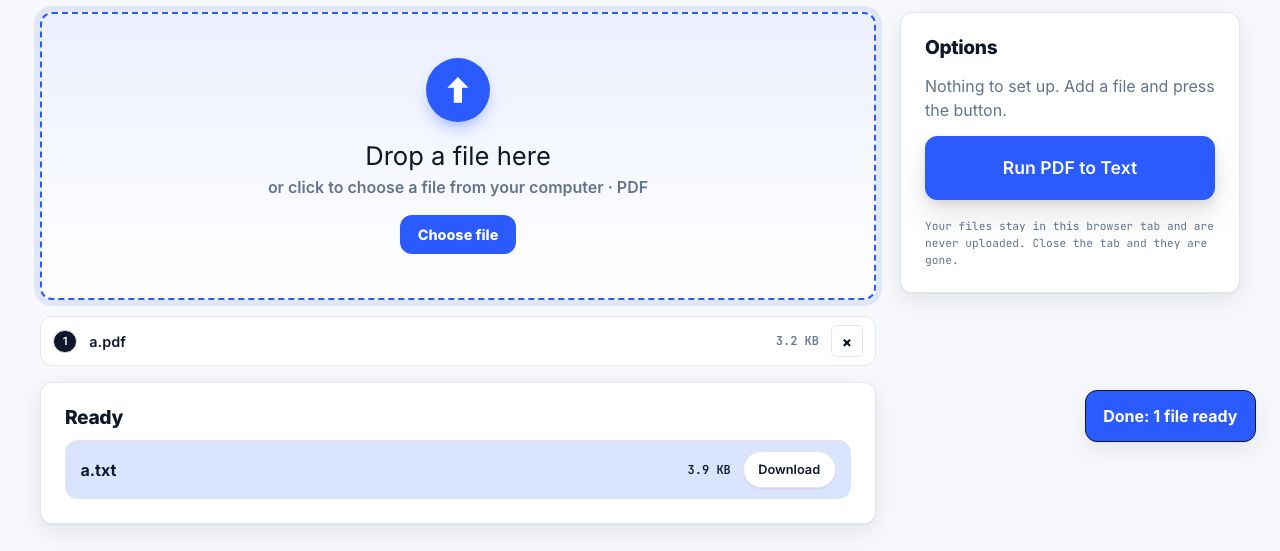
A searchable PDF is the usual goal, but the recognised text can also be exported on its own. Use PDF to text for a plain file you can grep or feed to another program, or PDF to Word when you need to edit the document rather than read it. If you are not sure whether a given file needs OCR at all, test whether it is searchable first.
Frequently asked questions
Does OCR change how my scanned PDF looks?
No. The recognised text is written in an invisible rendering mode positioned over the original image, so the page appears exactly as before. Only searching, selecting and copying behave differently.
How accurate is OCR?
Around 98 to 99.5 percent character accuracy on clean 300 DPI print, dropping to 85 to 95 percent on photocopies and phone photos. Even 98 percent means about one error every two lines, so proofread anything you plan to quote.
Can OCR read handwriting?
Tesseract is built for printed type and performs poorly on handwriting, especially cursive. Neat block capitals sometimes work. For handwritten archives you need a dedicated handwriting recognition service rather than a general OCR engine.
Which language should I select for OCR?
Only the language actually in the document. Adding extra languages widens the candidate character set and lowers accuracy. Select two only when the pages genuinely mix scripts, such as a bilingual contract.
Is browser-based OCR safe for confidential documents?
Browser OCR runs the recognition engine locally as WebAssembly, so the file never leaves your machine. That is a meaningful difference from server-based services, where the scan is uploaded and processed remotely.