How to get better OCR results from bad scans


Scan at 300 DPI, straighten the page to within half a degree, raise the contrast until the paper is white and the ink black, process one column at a time, and select only the language actually present. Input quality dominates every engine setting you can change afterwards.
See the tools in action
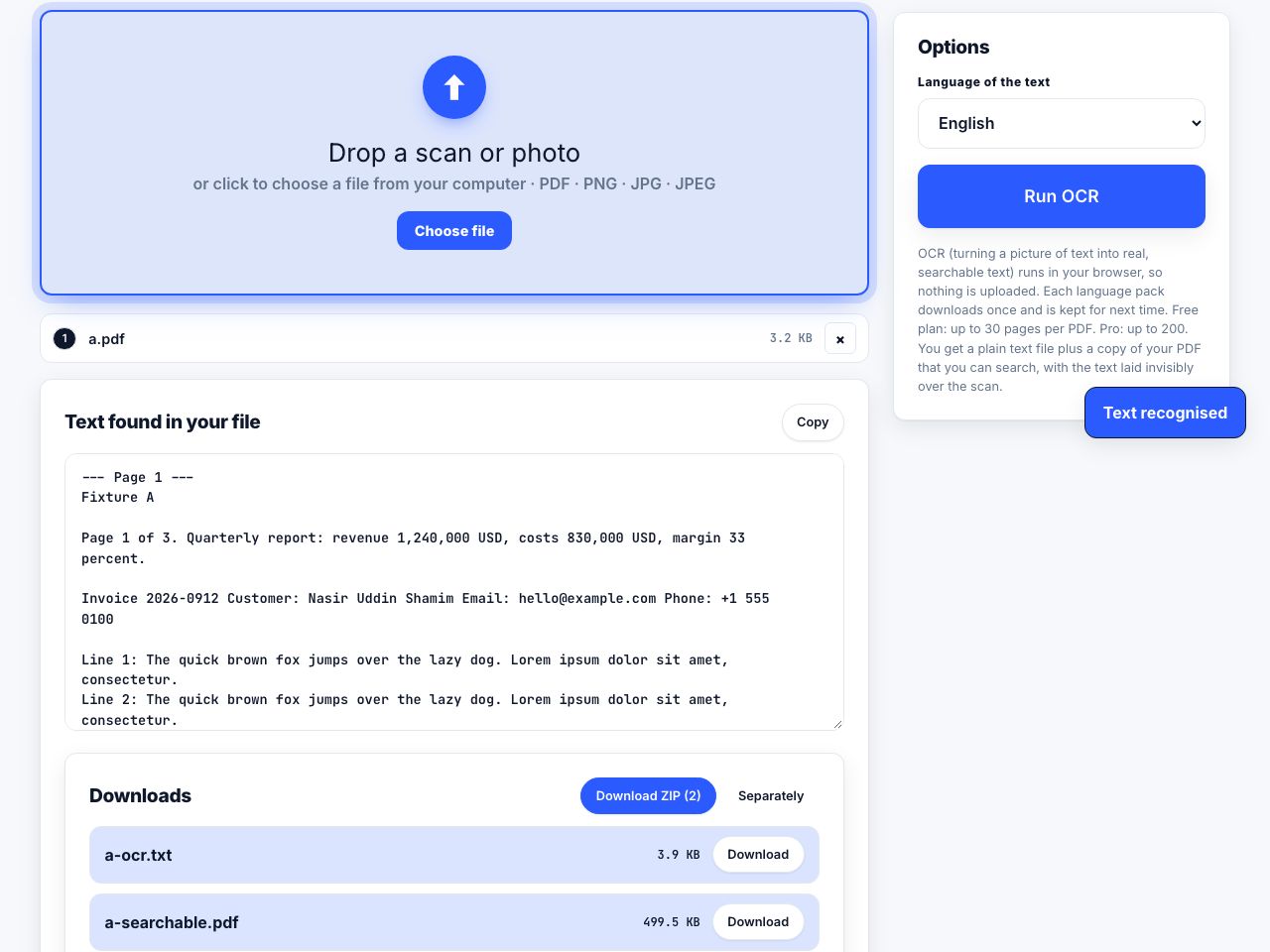
OCR settings get most of the attention and deserve almost none of it. The difference between a 300 DPI straight scan and a 150 DPI crooked photocopy is the difference between 99 percent and 80 percent accuracy, and no engine option closes that gap. Fix the picture and the recognition looks after itself. The steps for the recognition pass itself are in how to OCR a scanned PDF.
Resolution: 300 DPI, and why
Recognition engines want a capital letter to be roughly 30 pixels tall. For 10 or 12 point body type, that lands almost exactly at 300 DPI. Below that, characters start sharing pixels with their neighbours and the classifier confuses rn with m, cl with d, and 8 with B.
| Resolution | Result | Use it for |
|---|---|---|
| 150 DPI | Noticeably worse. Small type fails. | Nothing you care about |
| 200 DPI | Acceptable for large clean type | Bulk scanning where speed matters most |
| 300 DPI | The sweet spot for 10-12 pt text | Almost everything |
| 400 DPI | Better for small type and Indic or CJK scripts | Footnotes, dictionaries, dense type |
| 600 DPI | Marginal gain, four times the file size | Very small print, degraded originals |
| 1200 DPI | No benefit, often slower and worse | Not for OCR |
Never upscale a low-resolution scan to hit 300 DPI. Interpolation smears the character edges, which is precisely the information the recogniser needs. A 150 DPI scan enlarged to 300 performs worse than the 150 DPI original. Rescan instead, see what resolution you need.
Straighten the page
Line detection assumes text runs horizontally. A skew of two or three degrees, which is what you get from a page dropped casually into a feeder, causes lines to be merged or split and drags accuracy down sharply. Aim for under half a degree.
Most OCR pipelines can do this for you: OCRmyPDF has --deskew, Acrobat straightens during its recognition pass, and dedicated tools like ScanTailor handle whole books. Also correct page orientation, a scan rotated 90 or 180 degrees produces complete nonsense, which --rotate-pages detects and fixes.
Contrast and binarisation
Engines convert the page to pure black and white before recognising anything, using a threshold. The default global method works well on evenly lit scans and fails on anything with a gradient, which is why phone photos produce a page that is half readable and half solid black.
- Convert to greyscaleColour adds nothing for text recognition and can confuse the threshold. Greyscale first.
- Set the white pointUse Levels in any image editor and drag the white input slider left until the paper is genuinely white, not light grey. This removes paper texture and scanner noise in one move.
- Set the black pointDrag the black slider right until the ink is solid. Stop as soon as thin strokes start breaking up, over-thresholding erodes letters and is worse than a slightly grey page.
- Fix uneven lighting first if presentA gradient across the page needs adaptive thresholding, not a global one. ScanTailor and the
--cleanoption in OCRmyPDF both handle this. - Remove specklePhotocopy dust and JPEG noise get classified as punctuation. A light despeckle pass removes stray marks smaller than a full stop.
- Crop to the text areaCut off dark scan borders, the shadow in a book gutter and any visible desk. Every non-text region is somewhere for the layout analyser to go wrong.
Tell the engine what the page looks like
Layout analysis runs before recognition, and it is where multi-column documents fall apart: a newspaper processed as a single block interleaves lines from adjacent columns into unreadable text. Tesseract exposes this as the page segmentation mode.
| Mode | Meaning | Use for |
|---|---|---|
| --psm 1 | Automatic with orientation detection | Mixed batches of unknown scans |
| --psm 3 | Fully automatic, no orientation detection | The default. Ordinary documents. |
| --psm 4 | A single column of variable-size text | Receipts, invoices, price lists |
| --psm 6 | One uniform block of text | A cropped column, a paragraph, a table cell |
| --psm 7 | A single line of text | Labels, headings, meter readings |
| --psm 11 | Sparse text, find as much as possible | Diagrams, screenshots, scattered labels |
For a stubborn multi-column page, the most reliable approach is not a setting at all: crop each column into its own image and recognise them separately with --psm 6, then join the results. It is manual and it always works.
# Straighten, clean and recognise, keeping any existing text layers
ocrmypdf -l eng --deskew --rotate-pages --clean --skip-text messy.pdf clean.pdf

# One cropped column, treated as a single block of text
tesseract column-1.png out --psm 6 -l eng

# Check the confidence the engine had, word by word
tesseract page.png - --psm 3 -l eng tsv | head -30
Language selection
Pick exactly the languages present, and no more. Each additional language expands the candidate character set, so a plain English page processed as eng+rus+ara will start returning characters that were never on the paper. If a document is genuinely bilingual, two languages is right; three is almost always a mistake.
Non-Latin scripts have their own requirements. Arabic and Persian are cursive and connected, so accuracy is structurally lower. Indic scripts such as Bengali, Devanagari and Tamil have complex conjunct forms and benefit from 400 DPI. Chinese and Japanese have large character sets and need the vertical model when the text runs vertically.
Where handwriting stops
Tesseract is trained on printed type. Neat block capitals sometimes come through at 60 to 80 percent, which is enough to search for a name and not enough to read. Ordinary cursive returns essentially nothing usable, and no amount of preprocessing changes that, because the engine has no model for connected script.
Handwritten text recognition is a separate field with separate models. If you have a handwritten archive, use a service built for it rather than tuning a print engine. For forms that mix printed labels with handwritten answers, expect the labels to recognise cleanly and the answers not to, which is still useful, because it lets you find the right form quickly.
A checklist before you run OCR
- Scan or photograph at 300 DPI, 400 for small or non-Latin type.
- Check the orientation is upright, not rotated 90 or 180 degrees.
- Deskew to under half a degree.
- Convert to greyscale and set the black and white points.
- Crop out borders, gutters and anything that is not the page.
- Despeckle lightly.
- Select only the languages actually in the document.
- Choose a segmentation mode that matches the layout, or split columns manually.
- Recognise one page, read the output, then run the rest.
Once the input is clean, run OCR in your browser and get a searchable file back.
OCR PDF →Always test on one representative page before processing two hundred. Thirty seconds of checking catches a wrong language or an upside-down batch before it costs you an hour, and lets you confirm the file is genuinely searchable afterwards.
Frequently asked questions
What DPI is best for OCR?
300 DPI for ordinary 10 to 12 point text, which puts a capital letter at roughly 30 pixels tall. Go to 400 DPI for very small type or for Indic and CJK scripts. Above 600 DPI there is no benefit and processing slows down.
Why is my OCR output full of random characters?
Usually too many languages selected, a rotated or skewed page, or over-thresholding that broke the letter strokes. Check orientation first, then reduce to a single language, then ease off the contrast.
How do I OCR a document with two columns?
Try page segmentation mode 1 or 3 first. If lines from adjacent columns interleave, crop each column into its own image and recognise them separately with mode 6, then join the results in order.
Can I improve OCR by upscaling a low-resolution scan?
No. Interpolation smears character edges, which is exactly the detail the recogniser depends on. An upscaled 150 DPI scan performs worse than the original. Rescan at 300 DPI instead.
Will OCR ever read my handwriting?
General OCR engines are trained on printed type. Neat block capitals may reach 60 to 80 percent; cursive returns almost nothing. Handwritten archives need a dedicated handwriting recognition service rather than a print-oriented engine.