Extract Pages
Pull the pages you need out of a PDF and save them as a new, smaller PDF.
Extract Pages pulls the pages you list, such as 1, 3-4, out of a PDF into a new file and leaves the original untouched. The pages are copied exactly as they are, so nothing loses quality. Free, in your browser, with no upload and no account.
What does extracting PDF pages mean?
How extraction works
Extracting is the mirror image of deleting: the pages you name go into the new file, and everything else is left behind. Each chosen page is copied whole, with its text, fonts and pictures, so it looks exactly the same as it did in the original. Pages come out in the order you type them, so 5, 1 gives page five first and page one second. A page listed twice is included once.
Extract versus split
Both take pages out of a PDF, but they answer different needs. Extract Pages produces a single file containing a chosen set, which can be scattered pages such as 2, 9, 14-15. Split PDF produces several files, one per range or one per page. Use extract when you want one document to send, and split when you want a set of separate documents.
Why extract PDF pages in the browser?
- Send one chapter, not the book. Pull the pages a colleague needs into a small file that opens on the page that matters, instead of pointing them to page 47 of a large attachment.
- Keep the signed page. Lift a signature page or a signed schedule out of a long contract for filing, with no re-scan.
- Hold back what is confidential. Share the summary and leave the appendices out. The pages you do not list are simply absent from the output.
- No quality loss. Pages are copied, not turned into pictures. Text stays selectable and searchable, and scans stay as sharp as they were.
- Private and free. The original never leaves the tab and there is no account or watermark.
How to extract pages from a PDF, step by step
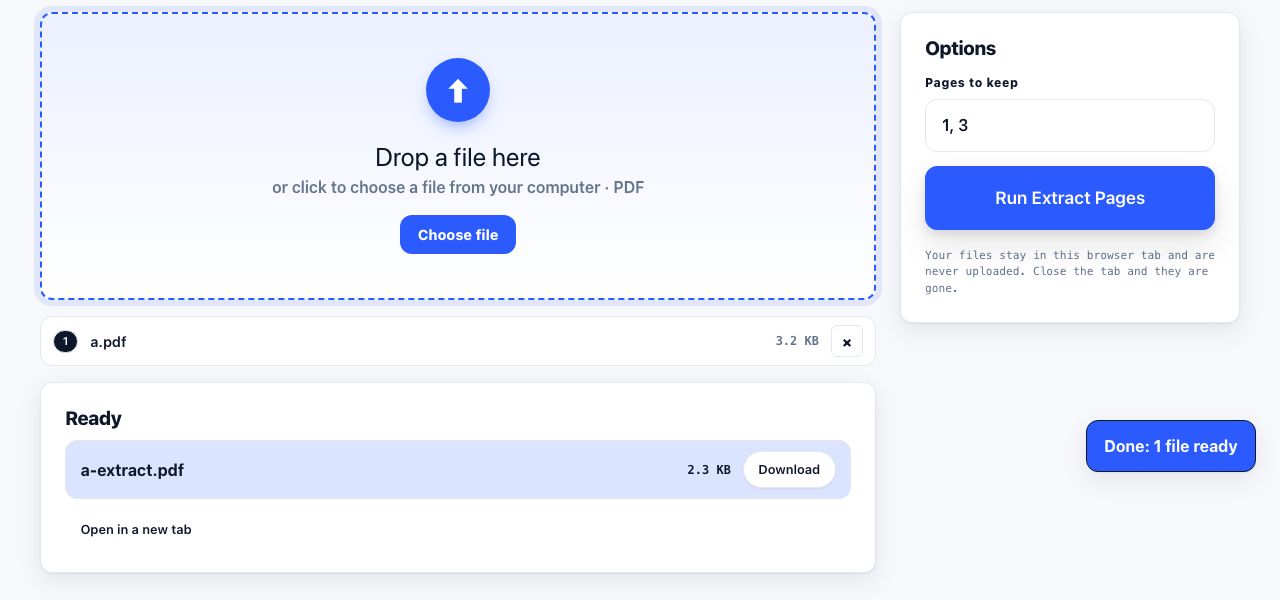
- Open Extract Pages and drop your PDF. Drag one file onto the drop zone or click to browse. The Pages to keep field appears on the right.
- Type the pages to keep. Enter single pages and ranges separated by commas, for example
1, 3-4.7-means page seven to the end. The output follows the order you type, so3, 1puts page three first. - Click Run Extract Pages. The listed pages are copied into a new document in your browser. If the list matches no page you get a message rather than an empty file.
- Download the new PDF. The result downloads as
name-extract.pdfand appears in the Ready list. Want to see the pages before choosing? Organize Pages shows a preview of every page and lets you delete the rest.
Frequently asked questions
Can I extract a single page from a PDF?
Yes. Type its number in Pages to keep, for example 6, and run. The output is a one-page PDF with that page exactly as it appears in the source, including its size, its selectable text and any pictures.
Does extracting pages keep the original quality?
Yes. Each page is copied into the new file with its fonts and pictures, and nothing is redrawn or squeezed. Extracted pages look identical, and text stays selectable. The only things not copied are details that belong to the whole document, such as bookmarks and the hidden details saved inside the file (title, author and dates).
Can I reorder the extracted pages?
Yes. Pages come out in the order you list them, so 4, 2, 1 produces a three-page file in that order. For a visual approach, extract first and then drag pages around in Organize Pages.
Do links and bookmarks survive extraction?
Links drawn on an extracted page are copied with it, but a link that jumps to a page you left out has nowhere to go. Bookmarks belong to the whole document rather than to a page and are not carried across. Page sizes, text and pictures all come through unchanged.
What is the difference between Extract Pages and Split PDF?
Extract Pages gives you one file containing the pages you choose, in any order. Split PDF gives you several files, one for each range or each page. If you need a single document to send, extract; if you need separate documents, split.
Looking for the long version? The guides cover each of these jobs in depth.
How to split a PDF into separate pages or ranges
Split a PDF into single pages, custom ranges like 1-3,5,8- or fixed chunks of every N pages. The range syntax explained, plus how the output files are named.
How to extract specific pages from a PDF
Extract pages from a PDF free: select thumbnails or enter a page range, save the pages you need in a new PDF, and leave the original unchanged.
How to reduce a PDF file size for email
Compare compression, page extraction, splitting or a link for a large PDF. Check the sender and recipient limits before sending.
Gmail and Outlook PDF attachment limits: what to do
Check your mailbox and recipient limits, then choose whether to compress or split a PDF or use an approved sharing link. Limits vary by account and workplace.