How to remove hidden metadata from a PDF before sharing


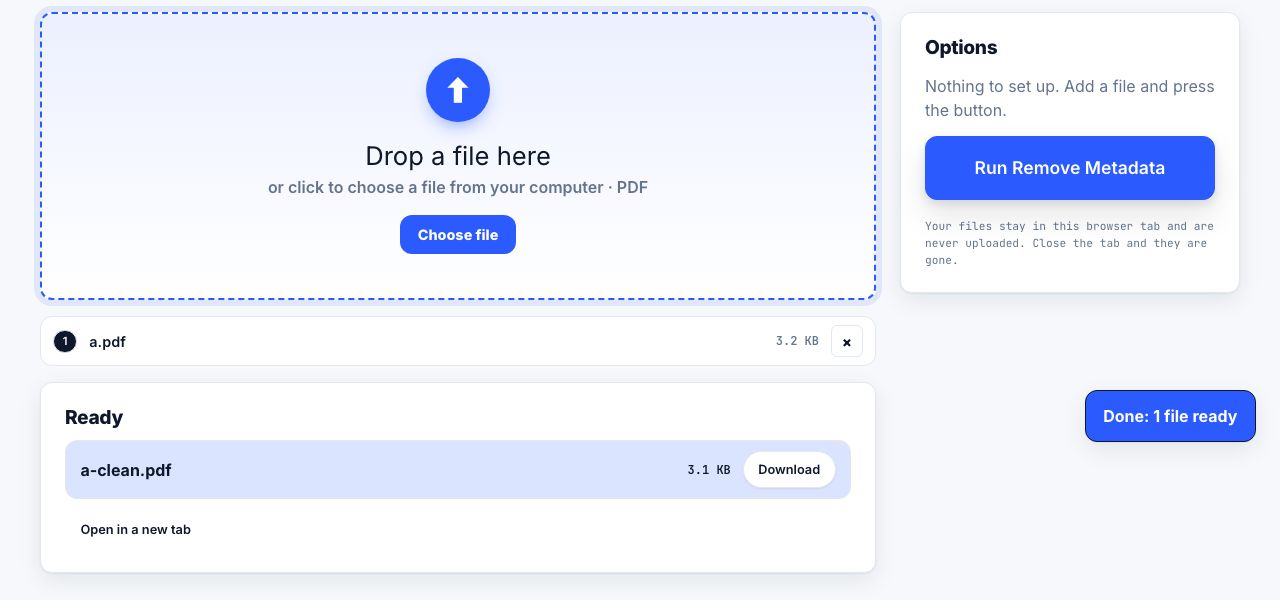
For metadata redaction in a PDF, clear the document properties and document-level XMP, then check embedded photos and other content separately. PrintxPDF's browser tool clears standard title, author, subject, keyword, creator, producer and date fields plus catalog XMP. Photo EXIF, comments and attachments need separate review.
See the tools in action
Open any PDF you did not make yourself and press Ctrl+D (Cmd+D on macOS) in a reader. The document properties panel usually names a person, a company, an application and two timestamps. None of that is on the page. All of it travels with the file.
That is fine for an internal report and a problem for an anonymous submission, a whistleblower document, a CV sent to a company where you already work, or a tender response that should not reveal which of your clients the template came from.
What a PDF actually stores about you
| Field | Typical value | What it gives away |
|---|---|---|
| Author | Nasir Uddin | The account name on the machine that exported the file |
| Title | Invoice template v4 FINAL FINAL | Internal naming, version history, sometimes a client name |
| Creator | Microsoft Word for Microsoft 365 | The application that authored the content |
| Producer | macOS Version 14.5 Quartz PDFContext | The operating system and version that wrote the PDF |
| CreationDate / ModDate | D:20260114T093412+06'00' | When you worked on it, and your time zone offset |
| Keywords / Subject | Q3, internal, do not circulate | Whatever the original author typed, often left in place |
| XMP packet | A separate XML metadata stream | A duplicate of the above, plus editing history in some apps |
| Embedded image EXIF | Camera model, GPS 23.8103, 90.4125 | Where and when a photo in the document was taken |
The last row is the one people miss. Clearing the document properties does not touch data inside the images embedded in the pages. If you dropped a phone photo into a Word document and exported to PDF, the photo may still carry the GPS coordinates of the place you took it.
Remove it in your browser
- Open the metadata toolGo to Remove metadata and drop the PDF in. The file is parsed in the browser tab, which matters here more than anywhere else on the site, you do not want to upload the very file whose provenance you are trying to hide.
- Read what is there firstLook at every field before you clear anything. Sometimes the interesting leak is a Title field naming a client you are not supposed to mention.
- Clear the document information fieldsAuthor, Title, Subject, Keywords, Creator and Producer. Empty is safer than a plausible fake, unless you specifically need a cover story.
- Clear the XMP block as wellXMP is a second set of metadata stored as XML. Remove Metadata clears the document-level XMP stream as well as the standard properties. It does not inspect photo EXIF or metadata embedded in other page content, so handle those separately if they could identify someone.
- Decide about the datesRemove Metadata resets the creation and modification dates to the earliest PDF date value. This is a placeholder, not the real creation date, and it does not remove dates recorded inside photos or other content.
- Handle embedded photosIf the document contains camera photos and the location matters, convert the pages to images and rebuild the PDF, or replace the photos with re-exported copies that were stripped first.
- Save and verifyReopen the saved copy and press Ctrl+D again, then check whether the source contains photos or attachments that carry their own metadata. This tool clears document properties and catalog XMP, not metadata embedded in those items.
Strip author, creator, timestamps and the XMP block from a PDF in your browser.
Remove Metadata →How to check what is left
Do not trust a tool that says "done" without showing you the result. Three ways to audit, from easiest to most thorough:
- Any PDF reader. File → Properties, or Ctrl+D. Shows the document info dictionary, which is what most recipients would ever see.
- macOS Preview. Tools → Show Inspector, then the ⓘ tab. Fast and already installed on every Mac.
- ExifTool on the command line. The thorough option: it reports the document info, the XMP packet and the EXIF inside embedded images, which no consumer viewer does.
# See everything, including data inside embedded images
exiftool -a -G1 -s report.pdf

# Strip document-level metadata in place (keeps a backup)
exiftool -all= report.pdf
PDF files are append-only by design: an edit often writes a new version of an object and leaves the old one further up the file, reachable through the cross-reference table. That is why a "removed" author name sometimes reappears in a hex dump. A tool that fully rewrites the document, or a round trip through a rasterising step, removes those remnants.
Other hidden content worth checking
Metadata is only one of several things carried invisibly in a PDF:
| Hidden item | How it gets there | What to do |
|---|---|---|
| Comment and annotation authors | Review comments carry the reviewer name | Delete the annotations or flatten the file |
| Form field values | A filled form keeps values in the field objects | Flatten the form so values become page content |
| Hidden layers | Design files exported with optional content groups | Flatten, or re-export from the source without the layers |
| File attachments | Spreadsheets embedded inside the PDF | Check the attachments panel in a reader and remove them |
| Bookmarks and named destinations | Carry old chapter and file names | Remove the outline if the names are revealing |
| Cropped-away content | Cropping changes the visible box, not the content | Rasterise the pages if the cropped area is sensitive |
Cropping is the sibling of the black-box mistake. Setting a crop box hides part of a page from view but leaves the content in the file, so anyone can restore it by resetting the crop. If the cropped-off area is sensitive, treat it as a redaction job and follow the proper method.
When to strip and when to set
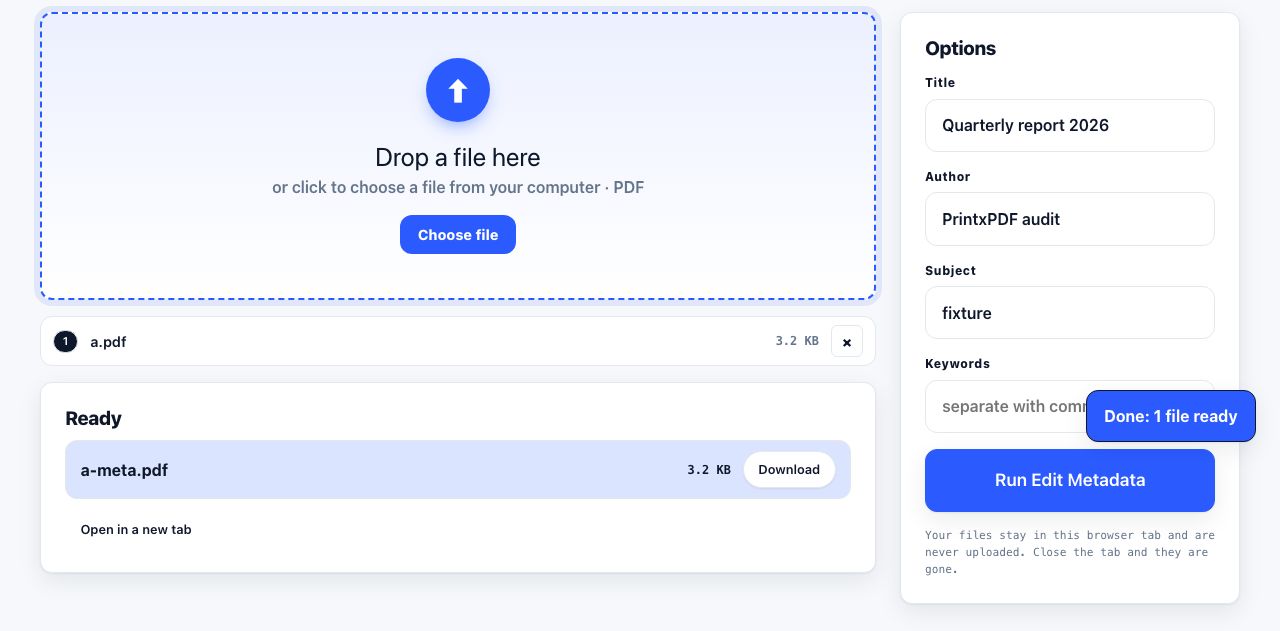
Blanking every field is right for anonymous or externally shared documents. For a published report, deliberately setting the metadata is better: a real Title improves how the file appears in search results and in a browser tab, and a sensible Author is professional rather than leaky. Use edit metadata to write clean values instead of empty ones.
Build it into the routine. Anything leaving your organisation gets the same three steps: strip metadata, confirm redactions, then check the file opens correctly. It takes under a minute and it is the cheapest privacy control available. If you also compress the file for email, do that before the metadata pass, since compression tools often write their own Producer string.
Frequently asked questions
How do I see the metadata in a PDF?
Press Ctrl+D (Cmd+D on macOS) in most PDF readers to open document properties, or use Tools then Show Inspector in macOS Preview. For a complete view including data inside embedded images, run ExifTool on the file from a terminal.
Does removing metadata change how the PDF looks?
No. Clearing standard document properties and the catalog XMP stream does not alter the visible page content. This tool does not change EXIF embedded inside images, comments or attachments.
Can GPS data really be inside a PDF?
Yes, when the PDF contains photos taken on a phone. The EXIF block inside the embedded image can carry coordinates, camera model and capture time, and clearing the document properties does not touch it. Rasterising the pages removes it.
Why does the old author name come back after I remove it?
PDF edits are often appended rather than rewritten, so the previous version of the object can survive in the file. Use a tool that fully rewrites the document, or convert the pages to images and rebuild, then re-check the properties.
Should I always blank the metadata?
Not always. For anonymous or externally shared documents, yes. For a published report, set clean values instead: an accurate Title helps search engines and browser tabs, while a deliberate Author looks professional rather than accidental.