How to redact a PDF so the text is really gone


To redact a PDF, the sensitive content must be deleted from the file, not covered. Cover the areas with solid black, then rasterise every page to an image and rebuild the PDF, which destroys the text layer. Verify by selecting all text and pasting it into a text editor.
See the tools in action
Drawing a black rectangle over text does not remove the text. The characters stay in the page content stream underneath the box. Anyone can select the area, press copy, and paste the hidden words into a text editor. Every reported redaction failure, in court filings, government reports and corporate disclosures, is this mistake.
This is not an obscure edge case. A PDF page is a list of drawing instructions executed in order. "Put the word Hendricks at x=180, y=420" is one instruction. "Fill a black rectangle over that area" is a later instruction. The second one paints over the first on screen. It does not erase it from the list.
Things that look like redaction and are not
| What people do | Does it remove the text? | How it is recovered |
|---|---|---|
| Draw a black rectangle in a viewer or markup tool | No | Select over the box, copy, paste |
| Use the highlighter set to black | No | Same, highlights are transparent annotations |
| Change the text colour to white | No | Select all and paste; it is still there |
| Add a black box in the source document, then export | No | The export still writes the characters underneath |
| Crop the page to hide a margin | No | Reset the crop box and the content returns |
| Blur or pixelate a scanned name | Partly, and unreliably | Short pixelated text can be reconstructed by matching candidates |
| Delete the text and box over the gap | Yes for the text, but check | Undo history and appended objects can survive in the file |
| Cover, then rasterise the page to an image | Yes | There is no text layer left to recover |
Note the blur row. Pixelation of a short, known-format string, a name, a licence number, a postcode, is reversible in principle: an attacker pixelates candidate strings the same way and looks for a match. Never blur. Use solid, opaque black.
The direct route
Metadata redaction is a separate step
Removing visible names from page content does not remove the PDF's document metadata. Author, title, subject, keywords, timestamps, comments, bookmarks, attachments and embedded image data can still disclose information. If you searched for metadata redaction in a PDF, treat it as two checks: redact the page content, then use Remove Metadata to clear document properties and review what else remains. Redaction and metadata cleanup solve different problems, so do not rely on one as a substitute for the other.
The idea behind every real redaction is the same: make the sensitive area invisible, then destroy the text layer underneath so there is nothing left to select, extract or search. Redact PDF does both in one pass. You mark the areas, it removes the text and returns a file where the covered words are genuinely gone. It runs in your browser, so the document you are redacting never leaves your computer, which is the whole point when the reason you are redacting it is that it is sensitive.
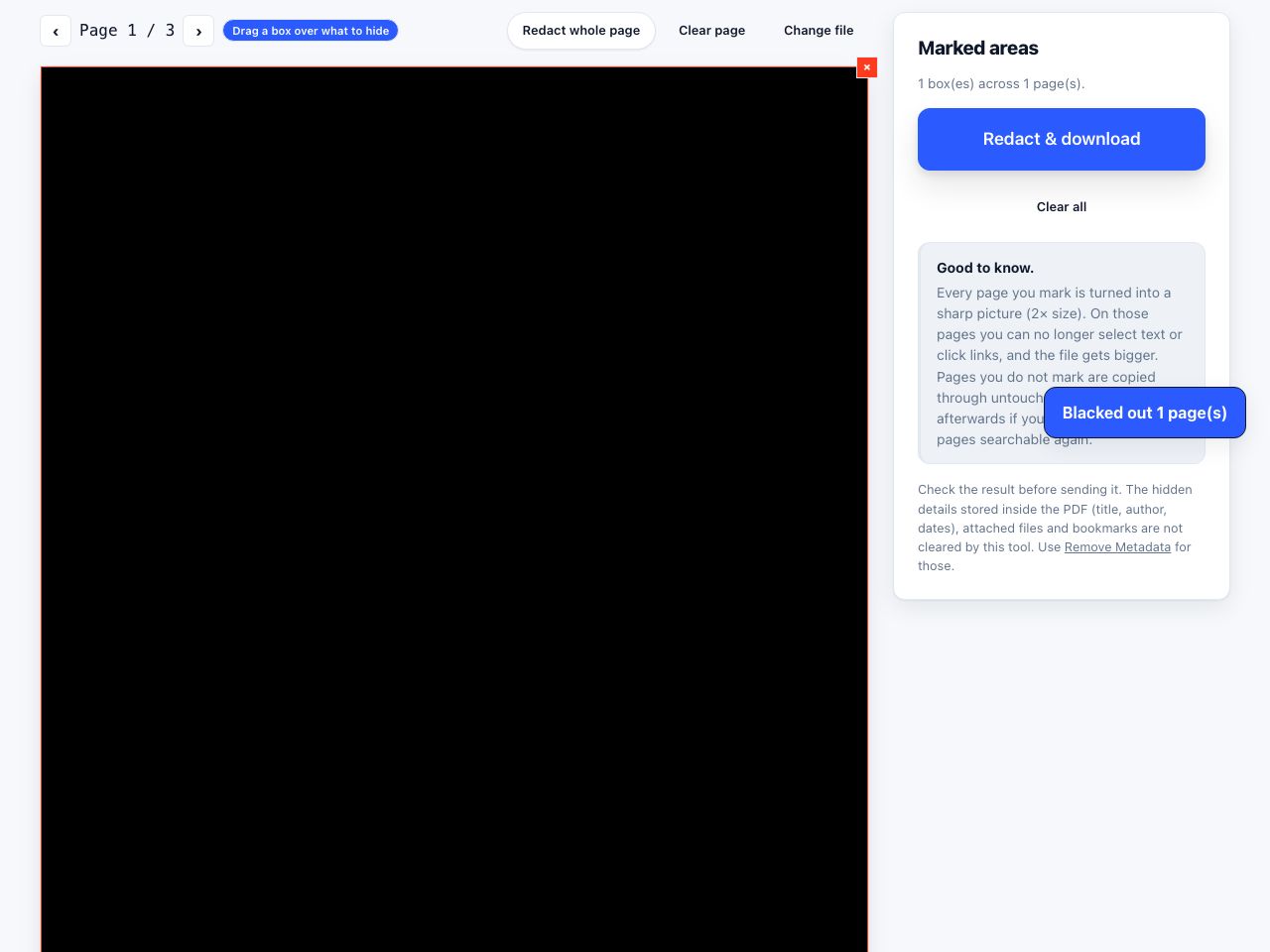
Mark what has to go and have the text removed, not just covered. Nothing is uploaded.
Redact PDF →The manual route below does the same job with general-purpose tools. It is worth reading even if you use the one-click version, because it shows exactly what has to happen for a redaction to be real, and the verification steps at the end apply either way.
The manual method, step by step
Make the sensitive area invisible, then destroy the entire text layer by turning every page into a picture of itself. Once a page is an image, there is nothing to select, extract or search, including the words that were under the box.
- Work on a copyDuplicate the file first, for example
report-REDACTED-WORKING.pdf, and keep the original in a separate folder. Never redact your only copy. - Cover every sensitive area with solid blackUse any editor or annotation tool to draw filled, fully opaque rectangles. Overlap generously: extend past the ends of the words and cover descenders. A sliver of a letter left visible is enough to narrow a name.
- Check every page, not just the obvious onesNames recur in headers, footers, contents pages, bookmarks and appendices. Search the whole document for each term before you move on.
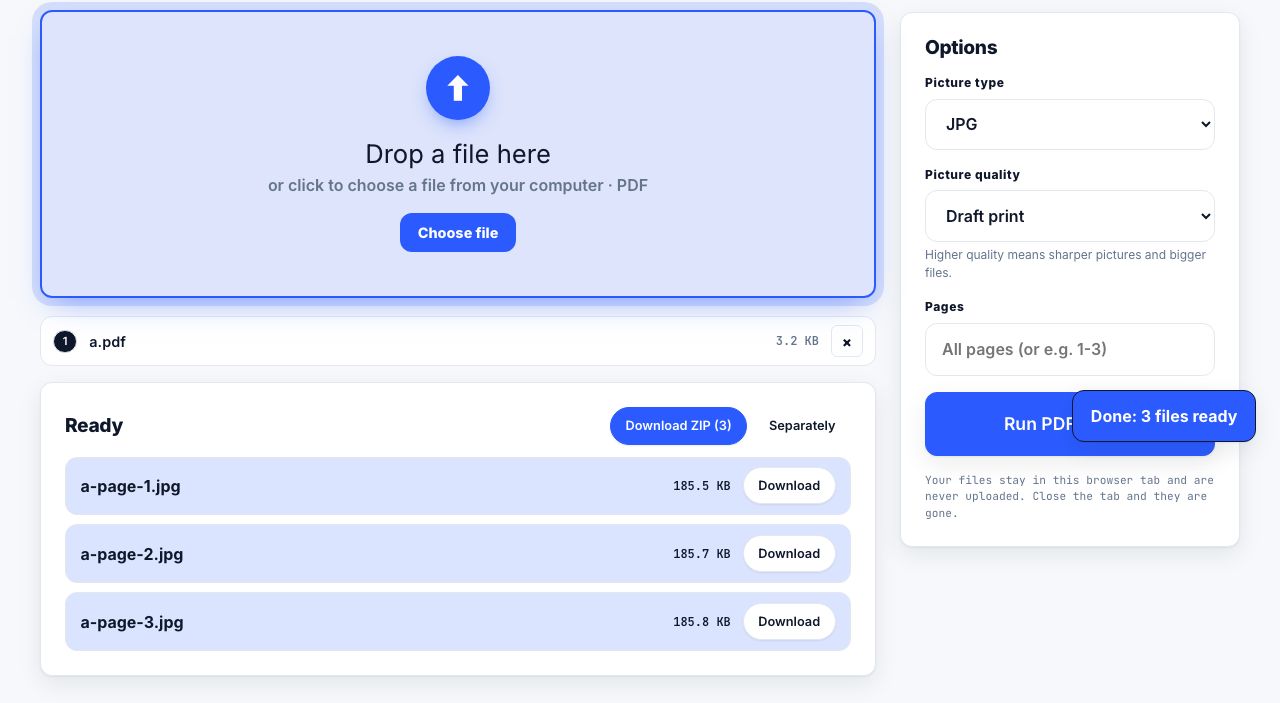
- Rasterise the pagesConvert the marked-up file to images with PDF to JPG at 200 to 300 DPI. Below 200 DPI the printed result looks soft; above 300 the file grows fast with little visible gain.
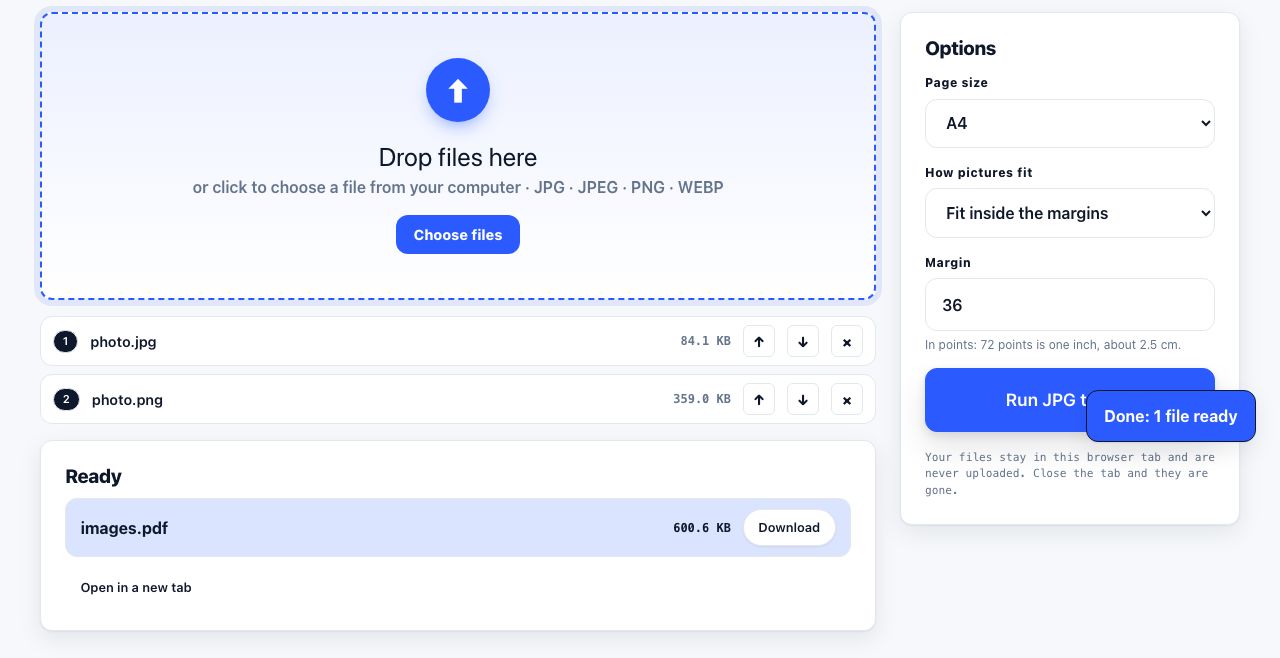
- Rebuild the PDF from the imagesUse JPG to PDF to reassemble the pages in order. The new file has no text objects at all, so the covered words are genuinely gone.
- Strip the metadataRun the new file through remove metadata. Titles and keywords frequently contain the same names you just redacted.
- Verify before it leaves your machineDo the checks in the next section, every single time. A redaction you have not verified is not a redaction.
Rasterise pages to images, the step that actually destroys the hidden text layer.
PDF to JPG →Verifying that it worked
Four checks, one minute, on the final file you are about to send. Run all four.
- Select all and paste. Open the redacted file, press Ctrl+A then Ctrl+C, and paste into a plain text editor. On a correctly rasterised file, nothing is selectable and nothing pastes. If you get a wall of text, the text layer survived, stop and start again.
- Search for a redacted term. Press Ctrl+F and type one of the names you removed. Zero results is the expected answer. A hit means the word is still in the file even though you cannot see it.
- Extract the text on the command line. Run
pdftotext redacted.pdf -and read the output, or pipe it to grep for the removed terms. This bypasses the viewer entirely and is the check that catches everything. - Check the file size. A rasterised document is usually larger than the text original. A file identical in size to the original means the rasterising step never ran.
# The definitive check: extract raw text and search it
pdftotext redacted.pdf - | grep -i -e "hendricks" -e "07700 900" -e "@example.com"

# Expect no output. Any line here is a leak.
Do not skip verification because the tool said "redaction applied". Tools that claim to redact sometimes only draw. The only evidence that matters is that the text cannot be extracted from the finished file.
The desktop alternative
Adobe Acrobat Pro has a true redaction feature and it is the right tool for volume work. It is a two-stage operation and people get caught by stage two: Redact → Mark for Redaction only marks the areas, and the content is not removed until you press Apply. A file saved between those two steps still contains everything. After applying, run Sanitize Document as well, which removes metadata, hidden layers, attachments and scripts in one pass.
What redaction still does not cover
- Metadata. Title, Author and Keywords are separate from the page content and survive rasterising in some pipelines. Always run a metadata pass afterwards.
- Inference. Redacting a name but leaving a job title, a date and a department can identify a person as surely as the name did. Redact the identifying combination, not just the obvious field.
- Consistency across a set. If the same person is redacted on page 4 and left visible on page 30, the redaction on page 4 achieved nothing. Search the whole set for every term.
- Attachments and embedded files. A spreadsheet attached inside the PDF is not part of any page and is not rasterised. Check the attachments panel and remove them.
Delete the intermediate marked-up file when you are done: it holds both the boxes and the text. If you later run OCR to restore searchability, the engine reads only what is visible, so black areas produce nothing.
Covering is not removing, and the only proof of removal is failing to extract the text. A watermark or stamp solves a different problem entirely.
Frequently asked questions
Why is a black box not a real redaction?
The rectangle is drawn on top of the page, while the text remains in the content stream underneath. Selecting over the box and copying, or running a text extraction tool, returns the hidden words in full. Nothing has been removed.
How do I permanently remove text from a PDF for free?
Cover the sensitive areas with solid opaque black, convert every page to an image at 200 to 300 DPI, and rebuild the PDF from those images. This destroys the text layer entirely, so there is nothing left to extract.
How do I check that a PDF redaction worked?
Open the finished file, press Ctrl+A then Ctrl+C, and paste into a text editor: nothing should paste. Then search for a redacted term with Ctrl+F, and run pdftotext on the file and grep the output. All three must come back empty.
Is blurring or pixelating a name enough?
No. Pixelation of short, predictable strings such as names or reference numbers can be reversed by pixelating candidate strings and matching the result. Always use solid, fully opaque black, then remove the underlying content.
Does redaction remove the metadata too?
Not necessarily. Title, Author, Subject and Keywords live outside the page content and can survive the process. Run a metadata removal pass on the final file and check the document properties before sharing it.