PDF privacy: metadata, passwords and redaction that works
 By Nasir Uddin Shamim5 guides
Before sharing a PDF, strip the document metadata, redact any sensitive content properly by removing it rather than covering it, and use encryption only when you genuinely need to control who can open the file. Always verify redaction by trying to select and copy the text afterwards.
Every PDF carries more than the words on the page: the author name from the account that made it, the application that produced it, edit timestamps, and sometimes GPS coordinates inside embedded photos. On top of that sit two widely misunderstood controls, password protection, which does less than people assume, and redaction, which most people do wrong. These guides cover what leaks, what protects, and how to check that it worked.
Every guide in this topic
How to remove hidden metadata from a PDF before sharing
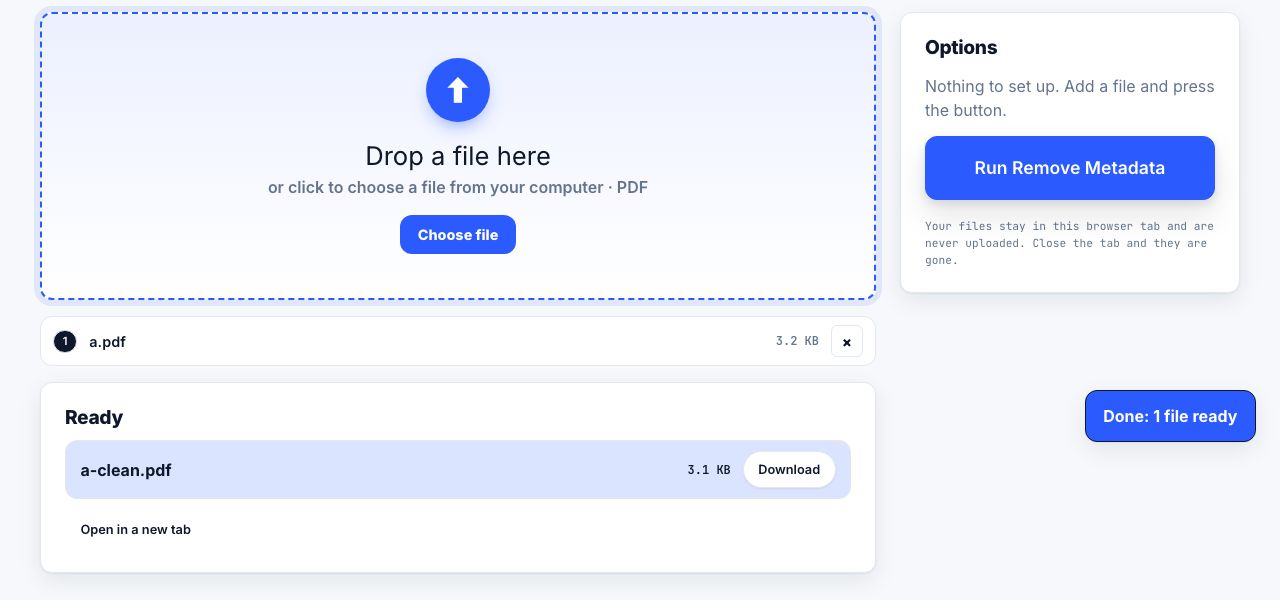
For metadata redaction in a PDF, clear the document properties and document-level XMP, then check embedded photos and other content separately. PrintxPDF's browser tool clears standard title, author, subject, keyword, creator, producer and date fields plus catalog XMP. Photo EXIF, comments and attachments need separate review.
How to password protect a PDF, and what it actually protects
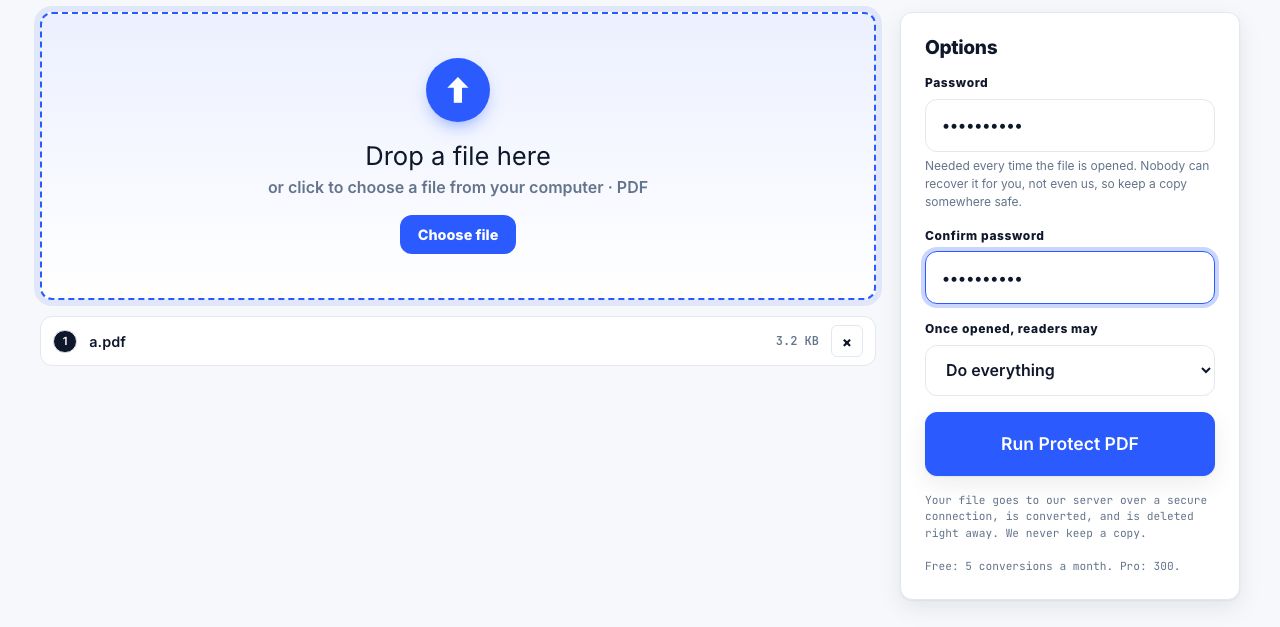
A PDF supports two passwords: a user password that is required to open the file and genuinely encrypts it, and an owner password that only sets permissions such as printing. Only the user password protects the content. Permissions are advisory and any determined tool can ignore them.

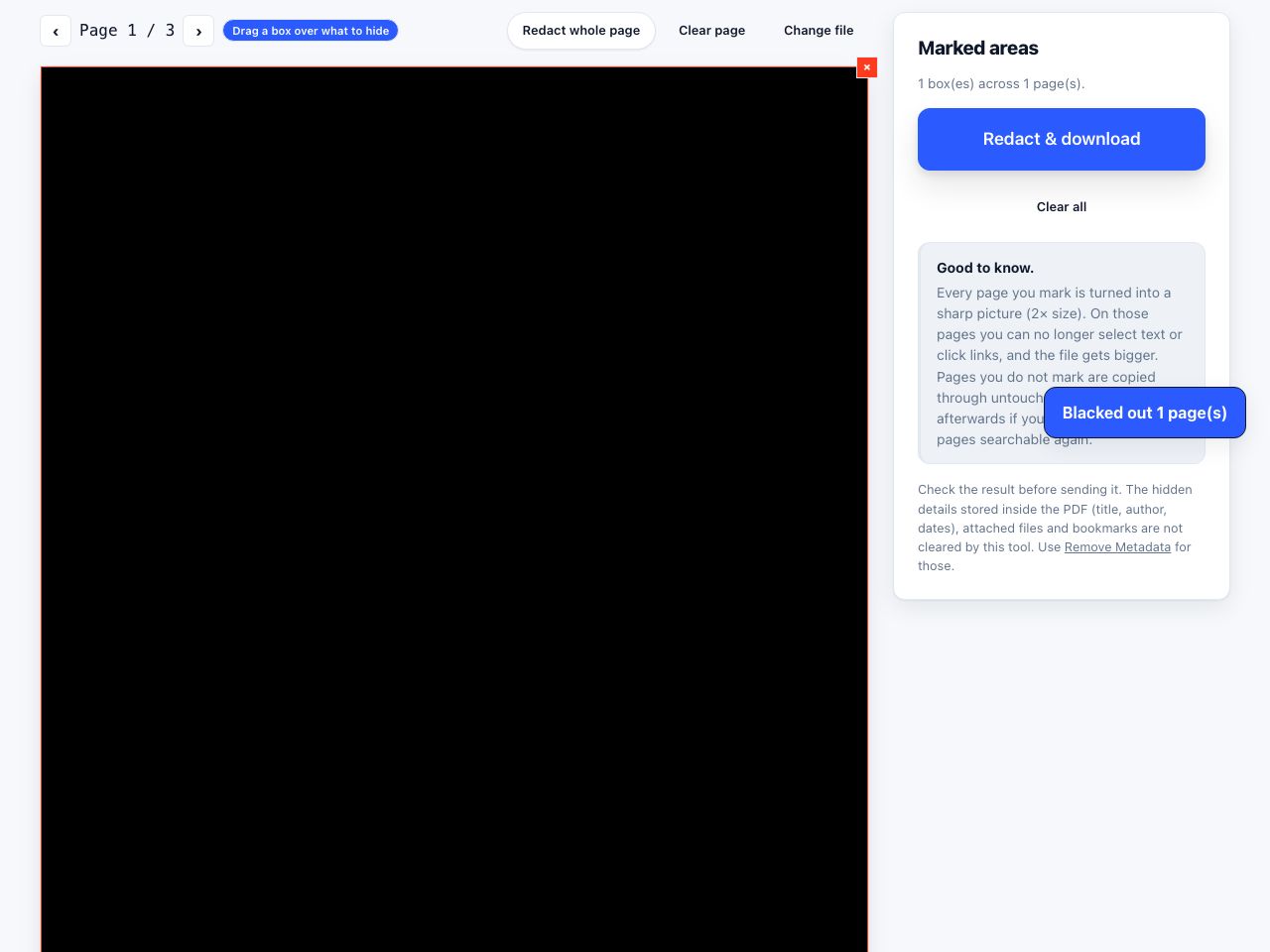
How to redact a PDF so the text is really gone
To redact a PDF, the sensitive content must be deleted from the file, not covered. Cover the areas with solid black, then rasterise every page to an image and rebuild the PDF, which destroys the text layer. Verify by selecting all text and pasting it into a text editor.

Are online PDF tools safe? What happens to your file
It depends entirely on whether the tool uploads your file or processes it in your browser. Upload-based sites send the document to a server that could store or read it. Browser-based tools never transmit the file at all. You can tell which is which in thirty seconds using the network tab.
How to remove a password from a PDF you own
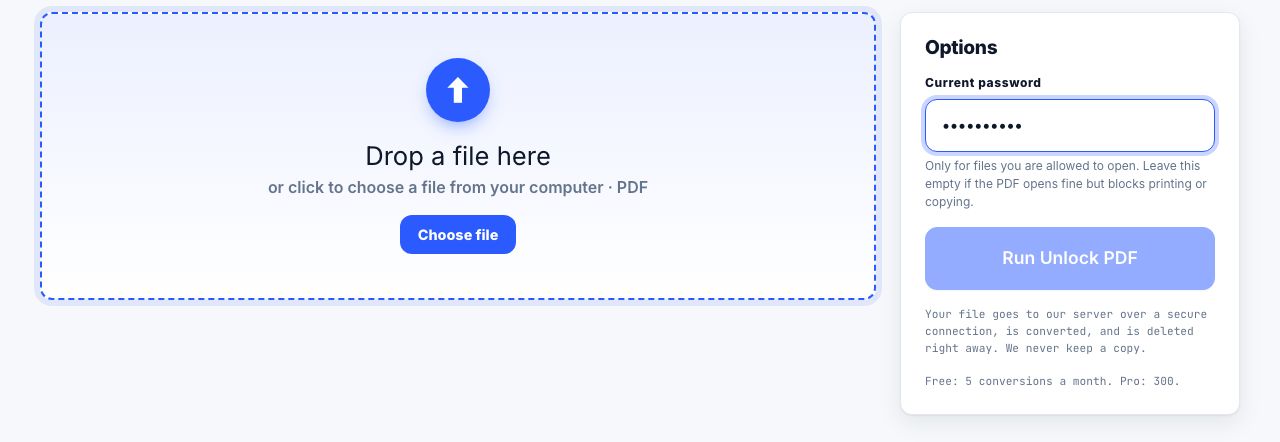
If you own the PDF or have permission and know its password, open it with the password and use a PDF tool that supports unlocking to save an unprotected copy. An open password is different from restrictions on printing or editing. Do not try to bypass protection on files you are not authorized to access, and store the unlocked copy carefully.
Tools for this job
Redact PDF
Black out text for good
Protect PDF
Add a password
Unlock PDF
Remove a password
Remove Metadata
Clear PDF properties and document XMP
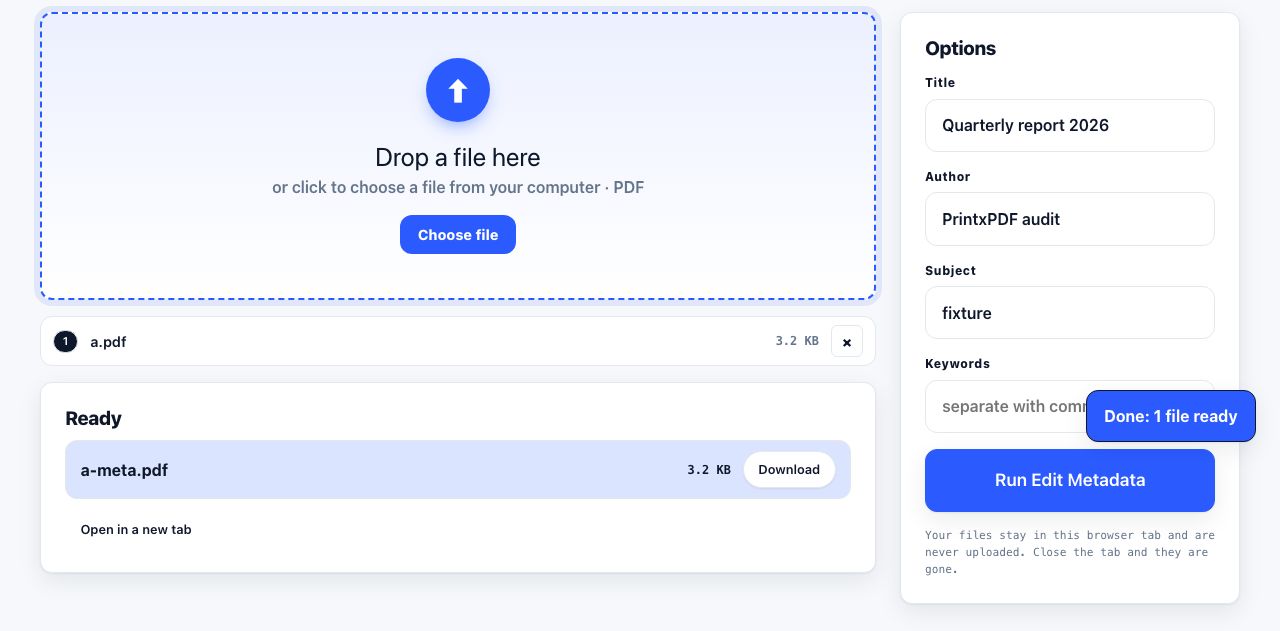
Edit Metadata
Change title, author, keywords
Flatten PDF
Lock form answers in place
See the recommended tools in action
Other topics
Printing web pages
Print any web page without ads, sidebars or menus. Reader mode, print preview, browser settings and a free tool that cleans the page in your browser.
Saving web pages as PDF
Save any web page as a PDF in Chrome, Safari, Firefox, Edge, iPhone or Android. Print-to-PDF, full-page screenshots, and archiving that survives link rot.
Merging PDF files
Combine PDFs into one file for free. Drag to set the page order, mix in JPG and PNG images, keep bookmarks, and merge without Adobe Acrobat on Windows or Mac.
Splitting and extracting PDF pages
Split a PDF into single pages or custom ranges, extract only the pages you need, delete the rest, and cut a big file down to fit an email attachment limit.
Compressing PDF files
Compare three PDF compression presets, keep text searchable when needed, and learn when to split a large file or use a sharing link.
Converting PDF to other formats
How to get a PDF back into an editable format: Word, Excel, plain text and slides, what each conversion really preserves, and when the answer is to retype.