How to split a PDF and extract exactly the pages you need
 By Nasir Uddin Shamim4 guides
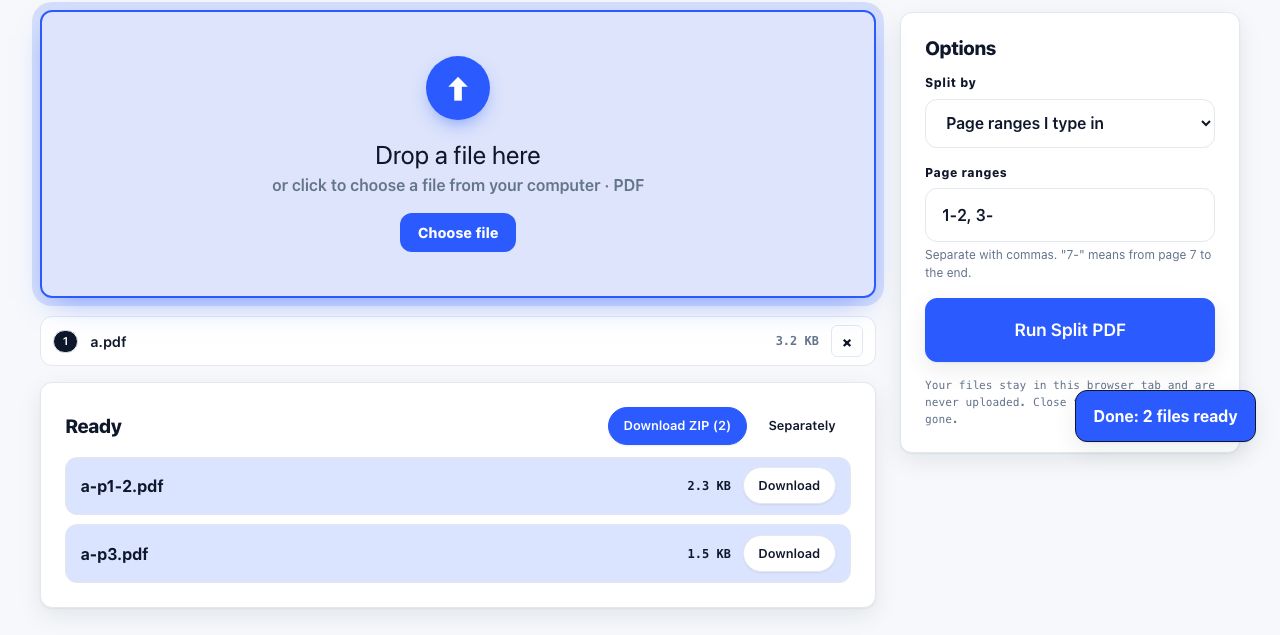
Open the PDF in a split tool and choose a mode: single pages, custom ranges such as 1-3,5,8-, or every N pages. Extracting keeps the chosen pages in one new file; splitting produces several files. The original on your disk is never modified by any of them.
Splitting, extracting and deleting are three names for the same underlying edit: deciding which pages end up in which file. The difference is what you keep. Splitting produces several files, extracting produces one file holding a subset, and deleting produces the original minus a few pages. These guides cover the range syntax every tool uses, the every-N-pages mode, and the specific case that sends most people looking in the first place, a PDF too large to email.
Every guide in this topic

How to split a PDF into separate pages or ranges
Open the PDF in a split tool, choose a mode, and download the results. Three modes cover almost everything: split into single pages, split by custom ranges such as 1-3,5,8-, or split every N pages into equal chunks. Output arrives as separate PDFs or one ZIP archive.
How to extract specific pages from a PDF
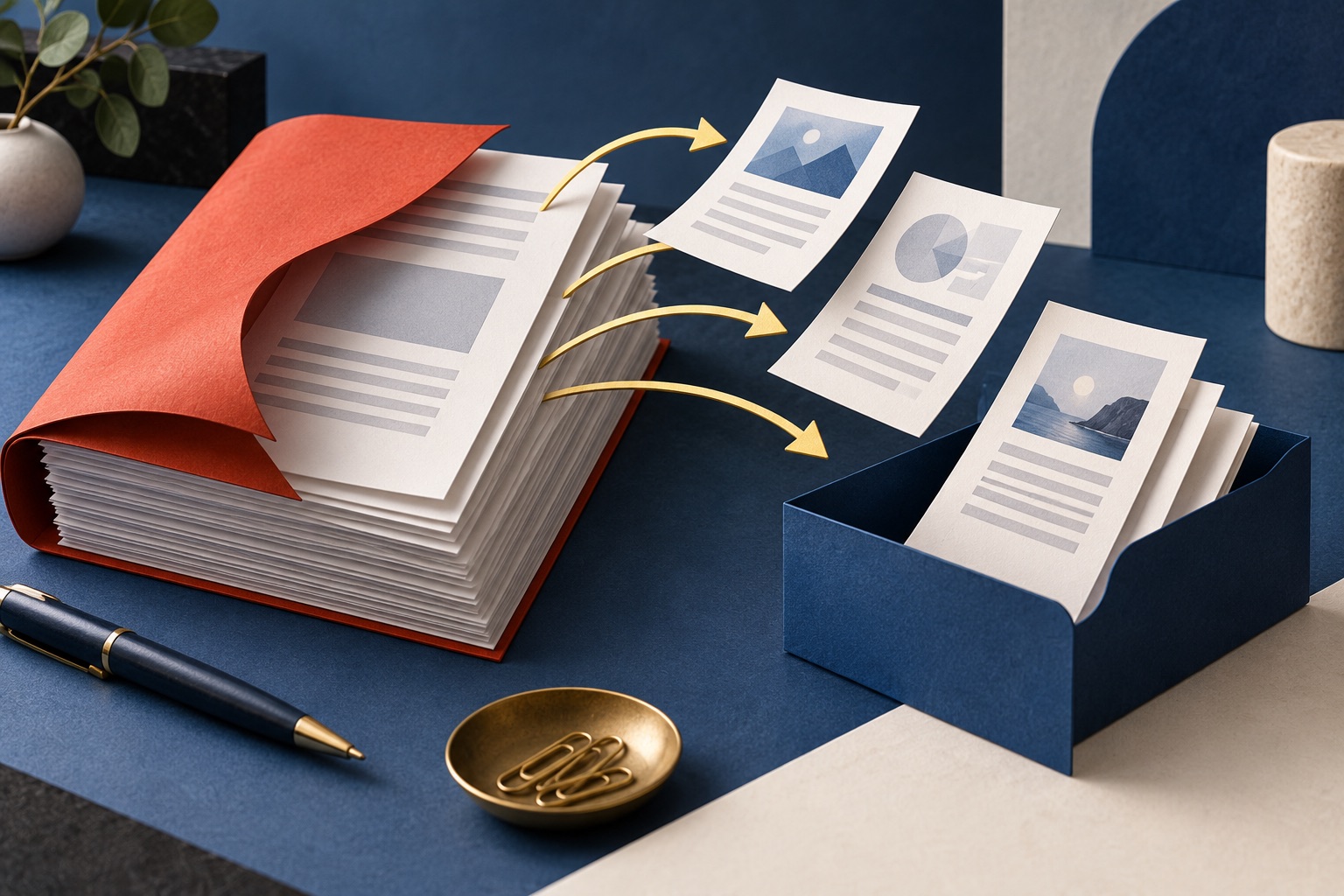
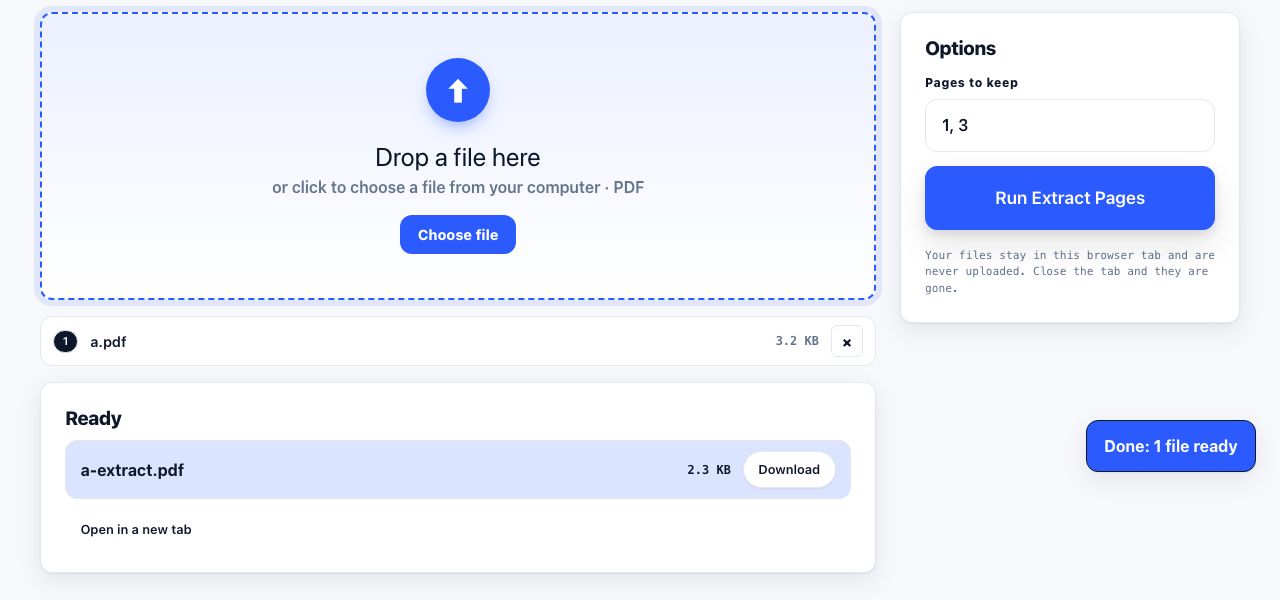
Extract pages from a PDF free in your browser: select the thumbnails you want or enter a range such as 4-9, then download a new PDF containing only those pages. The source file is unchanged. Extraction keeps your chosen subset in one file, unlike splitting, which creates multiple files.
How to delete pages from a PDF
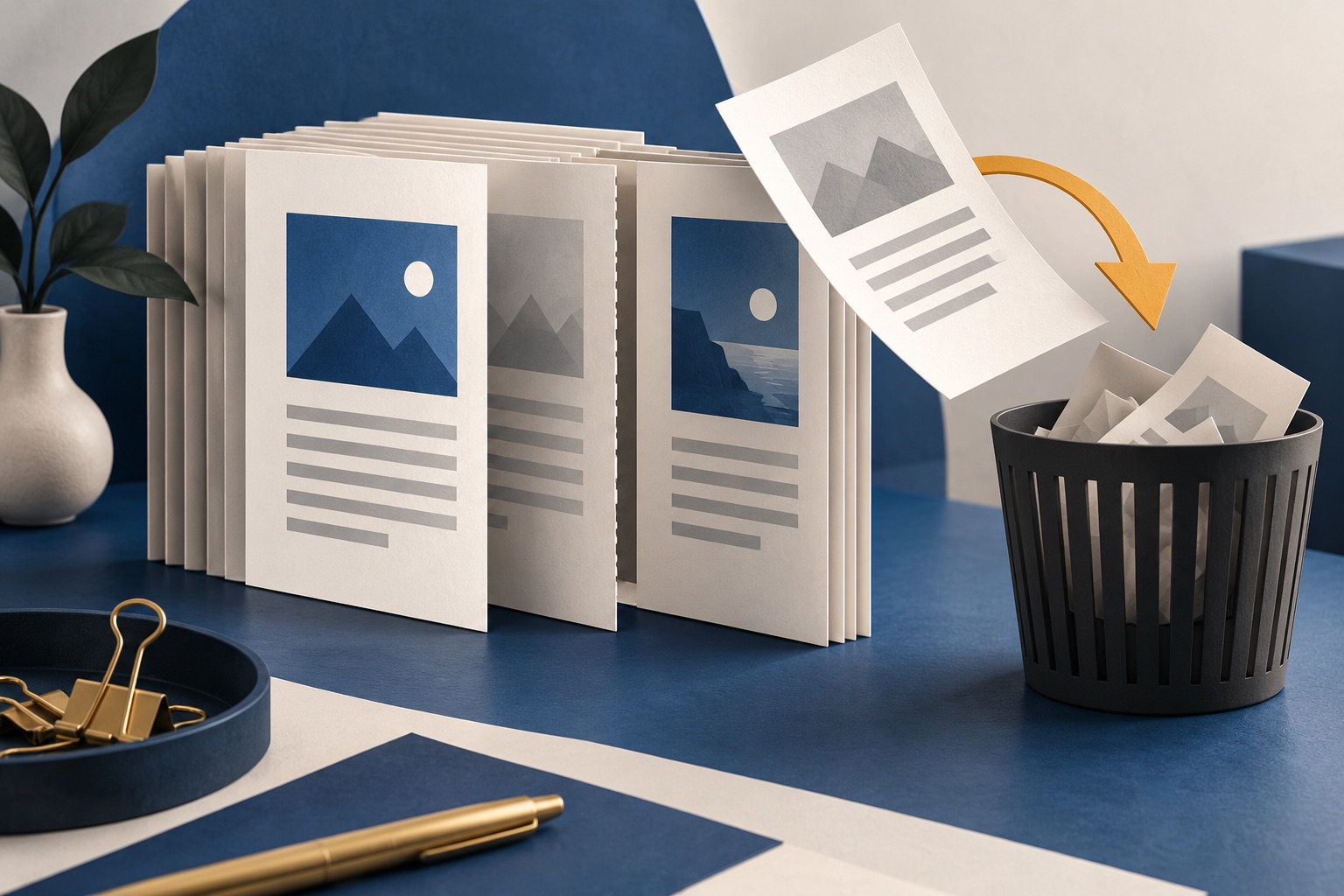
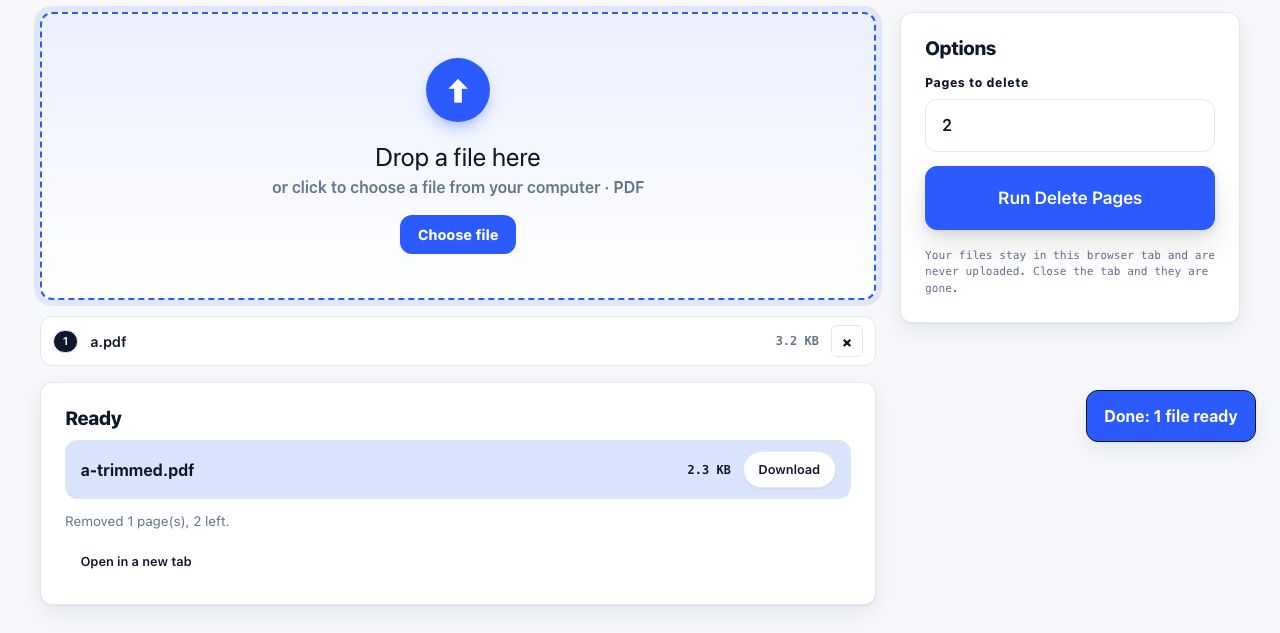
Open the PDF in a page editor, select the thumbnails of the pages you want gone or type a range such as 2,5,11-13, then delete and download. Deleting pages from a copy is safe: the original file on your disk is unchanged until you replace it yourself.
How to split a large PDF to get under an email size limit
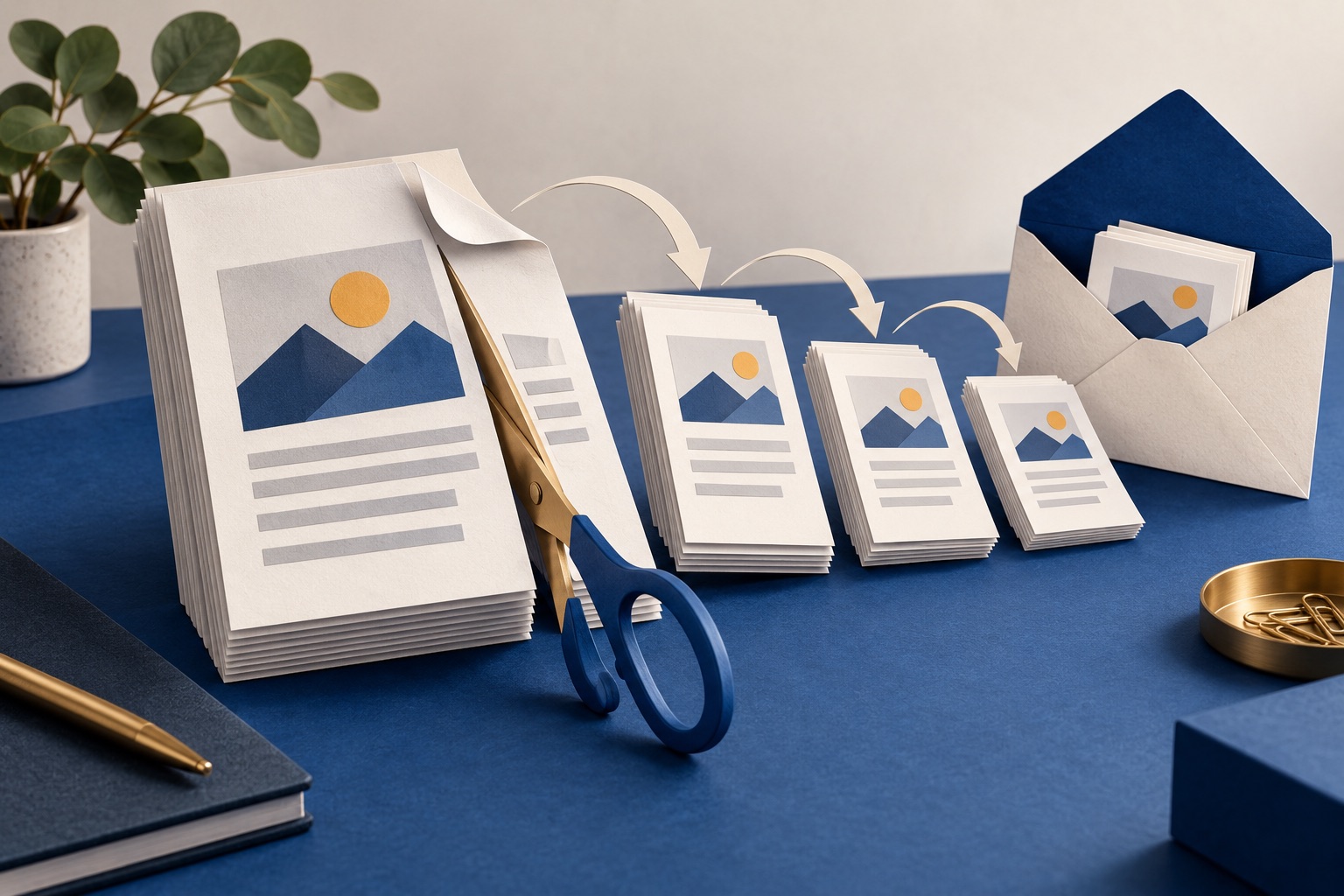
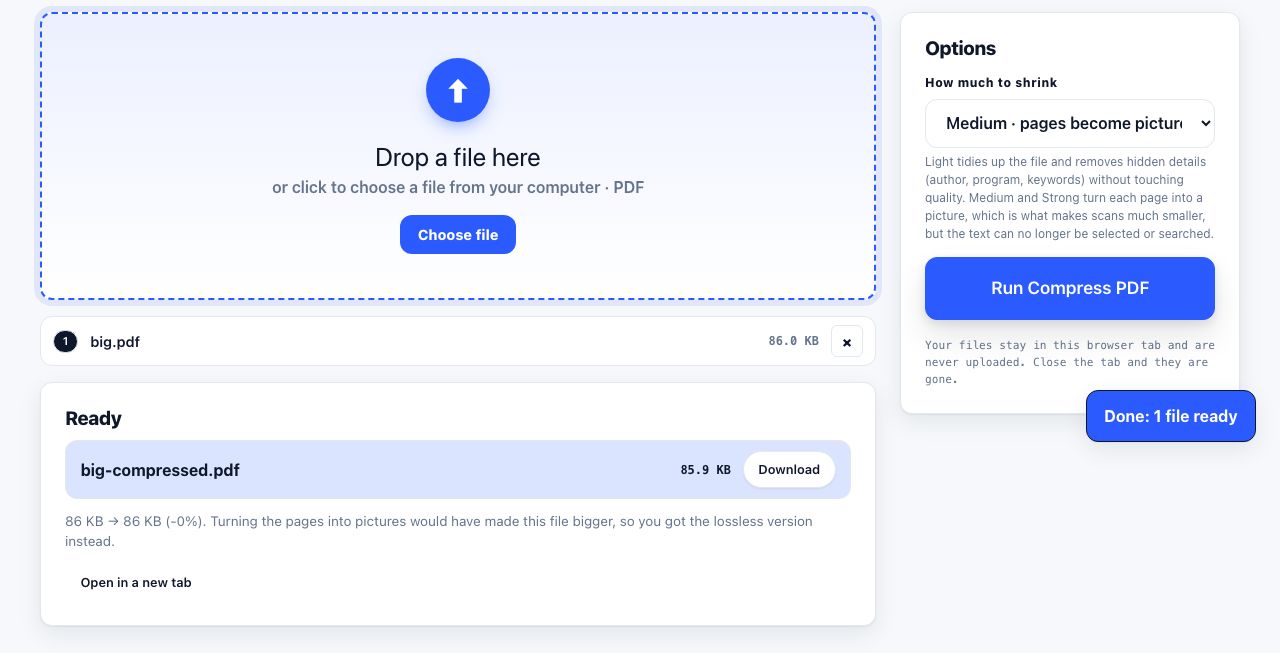
Check the current sending limit for your account and the recipient's limit. Try Light compression to keep text selectable; Medium and Strong turn pages into images. If the file remains too large, split it into numbered parts or use an approved sharing link.
Tools for this job
Split PDF
Break one PDF into several
Extract Pages
Keep only the pages you need
Delete Pages
Remove pages by number
Compress PDF
Shrink the file size
See the recommended tools in action
Other topics
Printing web pages
Print any web page without ads, sidebars or menus. Reader mode, print preview, browser settings and a free tool that cleans the page in your browser.
Saving web pages as PDF
Save any web page as a PDF in Chrome, Safari, Firefox, Edge, iPhone or Android. Print-to-PDF, full-page screenshots, and archiving that survives link rot.
Merging PDF files
Combine PDFs into one file for free. Drag to set the page order, mix in JPG and PNG images, keep bookmarks, and merge without Adobe Acrobat on Windows or Mac.
Compressing PDF files
Compare three PDF compression presets, keep text searchable when needed, and learn when to split a large file or use a sharing link.
Converting PDF to other formats
How to get a PDF back into an editable format: Word, Excel, plain text and slides, what each conversion really preserves, and when the answer is to retype.
Converting files to PDF
Turn documents, spreadsheets, web pages and photos into PDFs that look right. Font embedding, print areas, page-break CSS and the DPI that matters in print.