How to delete pages from a PDF

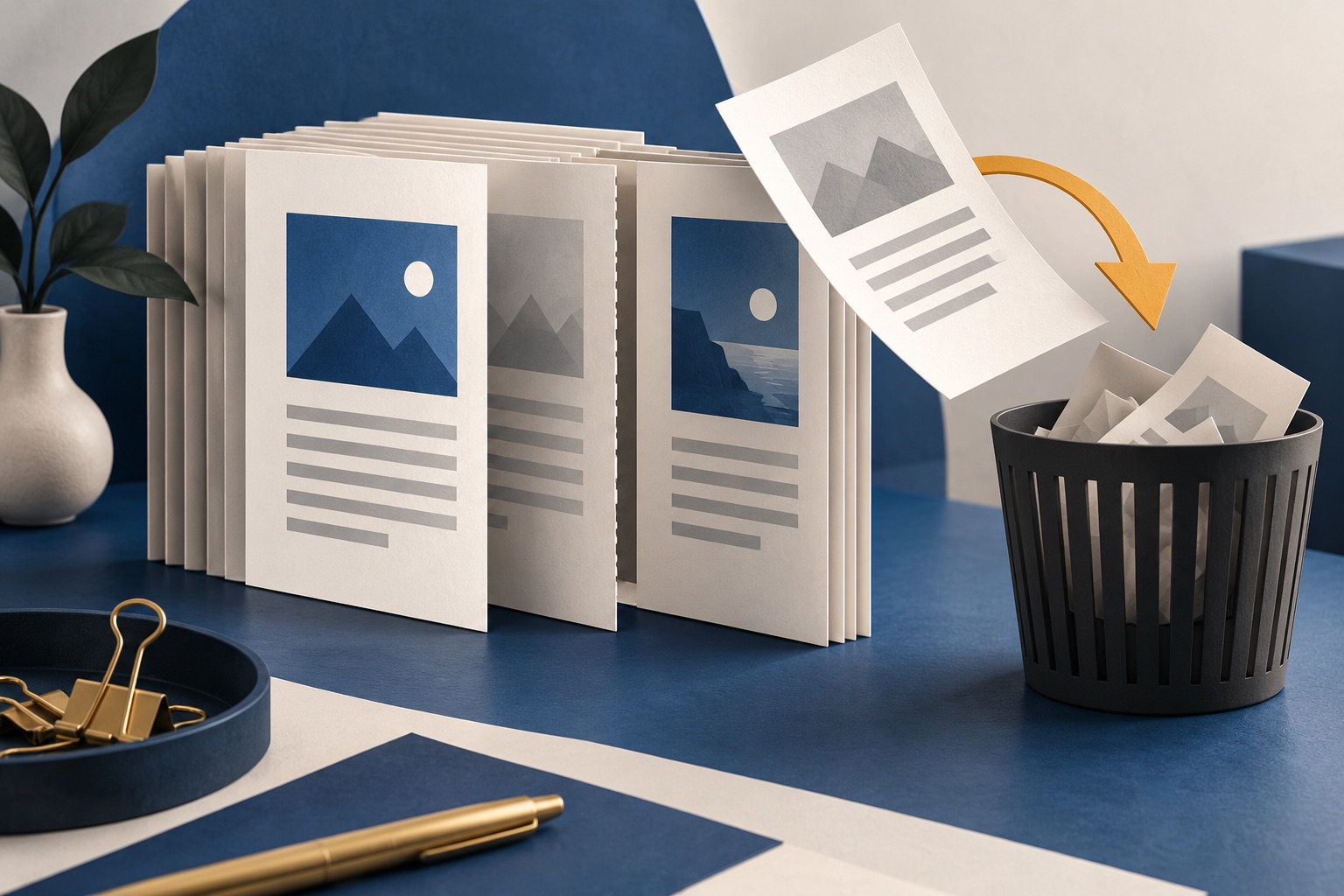
Open the PDF in a page editor, select the thumbnails of the pages you want gone or type a range such as 2,5,11-13, then delete and download. Deleting pages from a copy is safe: the original file on your disk is unchanged until you replace it yourself.
See the tools in action
Most PDFs arrive with pages nobody wants. A fax cover sheet, a blank verso from a duplex scan, two pages of advertising bound into a magazine article, a 30-page terms appendix on a 4-page invoice. Removing them makes the file smaller, cheaper to print and quicker to read.
| Unwanted pages | Where they come from | How to spot them |
|---|---|---|
| Blank backs | Duplex scanning a single-sided document | Every even page, and they are the smallest pages in the file |
| Cover and fax sheets | Corporate mail systems and scanners | Page 1, and sometimes the last page |
| Advertising inserts | Magazine and journal PDFs | Full-bleed colour pages between article pages |
| Terms and conditions | Invoices, contracts, quotations | A long uniform block at the end |
| Duplicate pages | A double feed in the scanner | Two adjacent thumbnails that look identical |
| Draft or internal notes | A report shared before review | Watermarked or headed differently |
Deleting pages
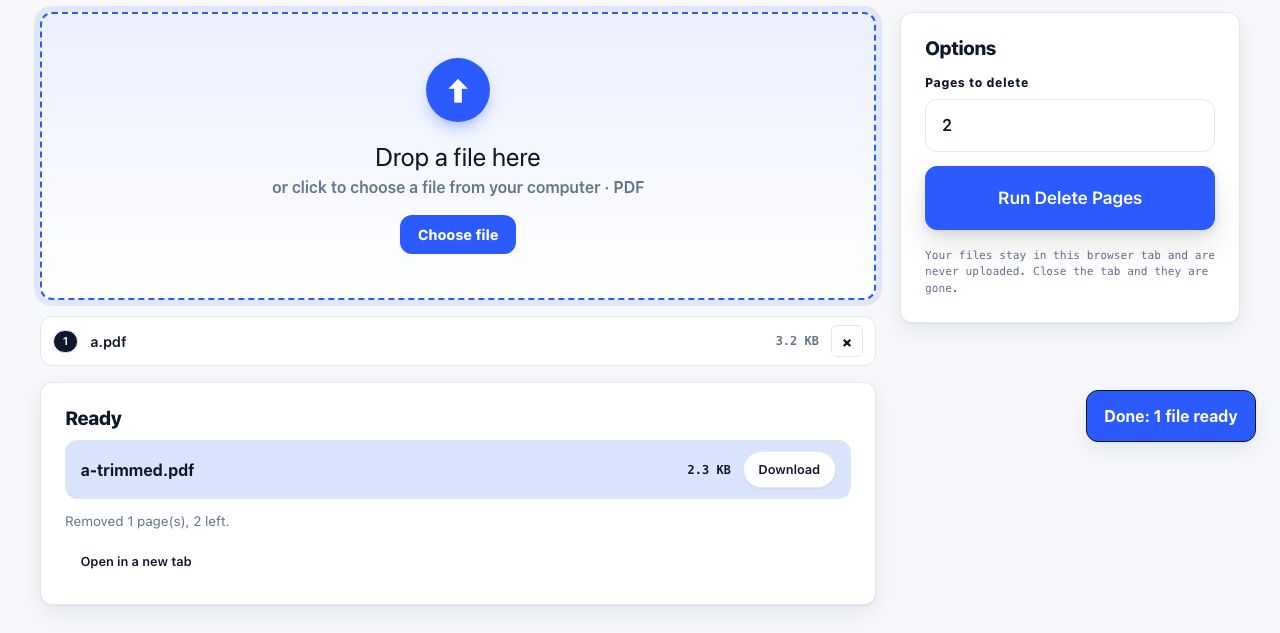
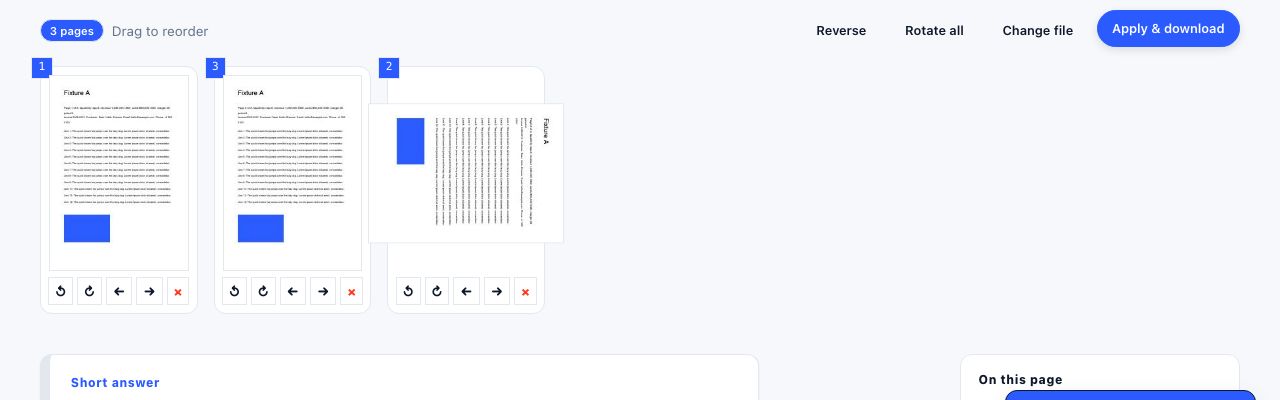
- Open the fileGo to delete pages and drop the PDF in. Thumbnails appear with their page numbers.
- Select what goesClick the pages to mark them for removal, or type a range such as
2,5,11-13. Shift-click selects a run; Ctrl-click (⌘-click on macOS) adds scattered pages. - Look at the preview countThe tool should show the resulting page count. Removing 6 pages from a 48-page file must leave 42. If it does not, your selection is not what you think it is.
- Apply and downloadA new file is written. Your original is untouched on disk.
- Spot-check the seamsOpen the result and look at the pages either side of each deletion. That is where a mis-selected page shows up immediately.
Remove pages from a PDF in your browser, with no upload and no account.
Delete Pages →Finding the blank pages
Scanned blank pages are almost never blank. Dust on the platen, show-through from the printed side, and paper texture all leave marks, so an automatic "remove blank pages" filter that tests for pure white will skip most of them. Two better approaches:
- Sort by page weight. A scanned page with text on it might be 180 KB; an empty one is nearer 15 KB. Any tool that shows per-page size makes the blanks obvious.
- Use the pattern. A single-sided original scanned in duplex produces blanks at every even page. Select 2, 4, 6, 8 with a range like
2-48and a step, or simply Ctrl-click the even thumbnails; the regularity makes this quick.
Before deleting anything from a scan, confirm the blanks really are blank. A faint handwritten note or a rubber stamp on the reverse of one page is exactly the thing an automatic filter throws away.
Other ways to do it
| Platform | Method | Notes |
|---|---|---|
| macOS | Preview → ⌥⌘2 for thumbnails → select → Delete key | Then File → Export as PDF for a clean copy |
| Windows | No built-in option | Edge can view and annotate but not delete pages |
| Any browser | A page editor that runs locally | Works identically on Windows, Linux and ChromeOS |
| Adobe Acrobat | Organize Pages → select → Delete | Also has a Delete Blank Pages action |
| Command line | qpdf in.pdf --pages . 1-4,7-z -- out.pdf | Note the inversion: you list what to keep |
The qpdf idiom is worth internalising because it is the same idea as extracting: rather than naming the pages to remove, you name everything else. 1-4,7-z keeps pages 1 through 4 and 7 through the end, which deletes pages 5 and 6. The letter z means the last page.
What breaks when a page disappears
- Bookmarks pointing at deleted pages become dead entries that jump nowhere, or vanish, depending on the tool.
- Internal links from a table of contents behave the same way.
- Printed page numbers do not renumber. The number is drawn into the page content. After deleting page 12, page 13 still says 13. Strip and re-apply them with page numbers if it matters.
- Digital signatures are invalidated, because the signed byte range no longer exists.
- Total page counts in the text go stale. "Page 3 of 48" printed in a footer is just text.
Deleting a page is not redacting it
This one matters. PDF supports incremental updates: an editor can append changes to the end of a file rather than rewriting it, which is fast and preserves the ability to undo. The consequence is that a "deleted" page can still exist as an orphaned object inside the file, invisible in every viewer but recoverable with a text editor or a forensic tool.
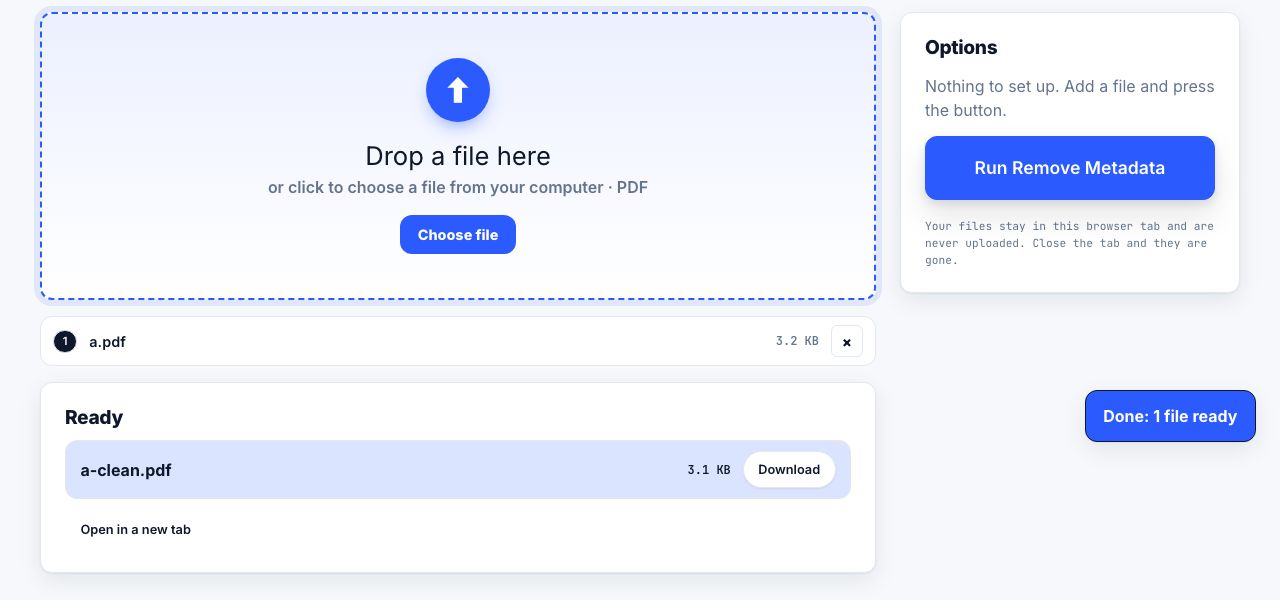
If the pages you removed were confidential, that is not good enough. Use a tool that fully rewrites the document rather than appending an update, then flatten it and remove the metadata, which can otherwise retain the original page count and modification history.
The same applies to content you covered with a black rectangle. Drawing a box over text hides it visually and leaves the text underneath fully selectable. Deleting the page removes it properly; covering it does not.
Strip author names, timestamps and edit history before you send a trimmed document.
Remove Metadata →Delete, or keep what you want?
If you are removing more than about half the document, extracting the pages you want is faster and less error-prone: fewer numbers to type means fewer numbers to get wrong. And if the reason you are deleting pages is file size, deleting rarely helps as much as compression, because the weight is usually in the images on the pages you are keeping.
Frequently asked questions
How do I delete a page from a PDF for free?
Open the file in a browser-based page editor, click the thumbnail of the page you want removed, and download the result. On a Mac you can also use Preview: show thumbnails with Option+Command+2, select the page and press Delete.
Can I delete PDF pages in Windows without installing anything?
Not with a built-in Windows feature. Edge displays and annotates PDFs but cannot remove pages, and there is no page editor in File Explorer. A browser-based tool is the closest equivalent.
How do I remove all the blank pages from a scan?
Blank scanned pages usually carry speckles, so filters looking for pure white miss them. Sort by page size, since an empty page is a fraction of the weight of one with text, or select every even page if the blanks came from duplex-scanning a single-sided original.
Does deleting a page make the PDF smaller?
Only if the page contained something substantial. Removing a text page from a 30 MB scanned document changes almost nothing; removing a full-page photograph can save several megabytes. Compression usually achieves far more.
Is a deleted page really gone from the file?
Not always. PDFs can be saved as incremental updates that append changes rather than rewriting the file, leaving orphaned objects behind. For confidential pages, use a tool that fully rewrites the document, then flatten it and strip the metadata.