How to compress a PDF file for free

Open the browser-based compressor and choose Light to keep text selectable, or test Medium or Strong on a copy if image-only pages are acceptable. Size reduction depends on the PDF. PrintxPDF does not offer custom DPI or grayscale settings.
See the tools in action
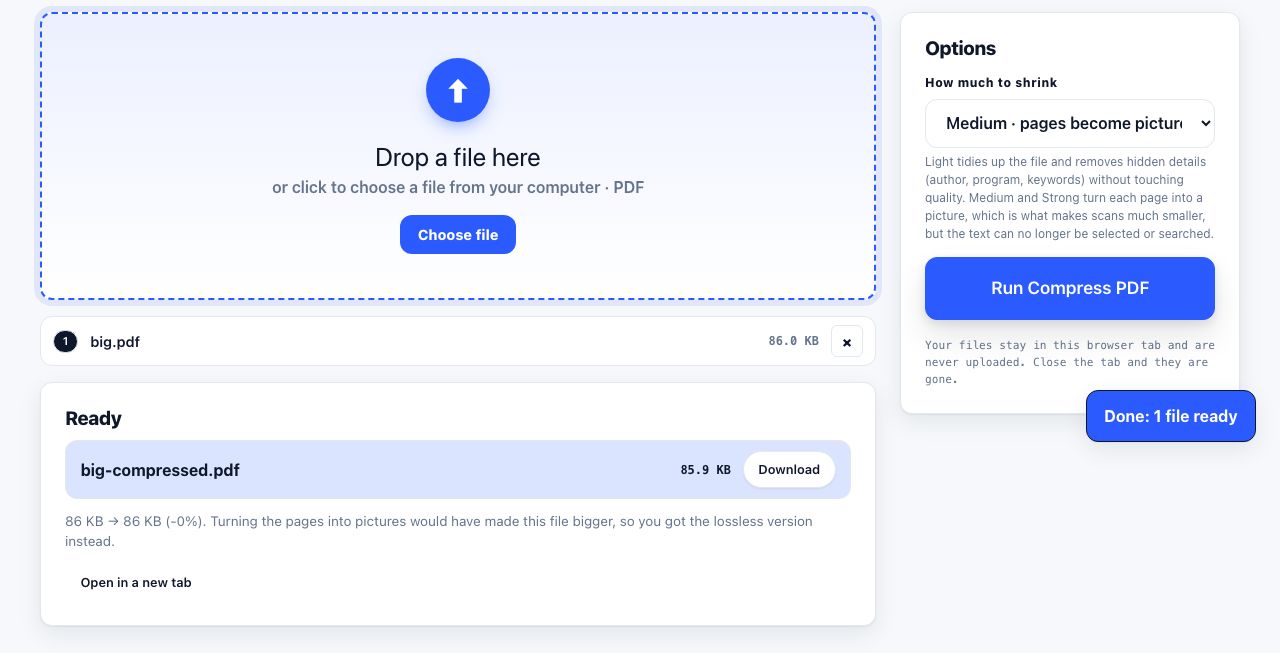
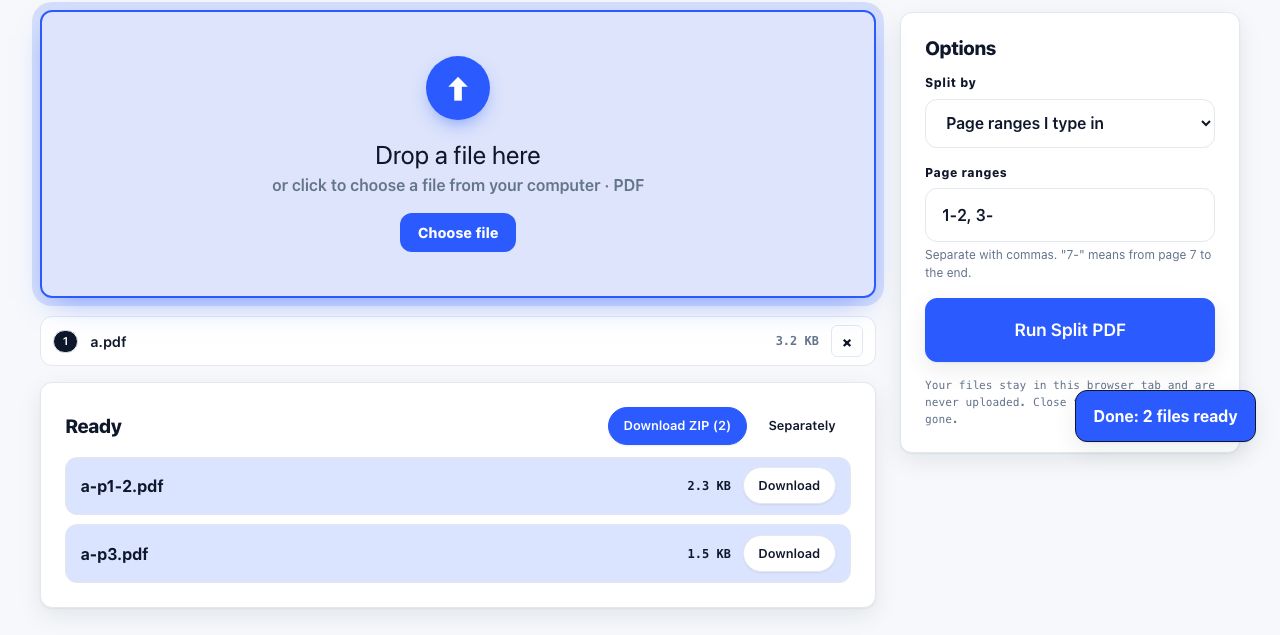
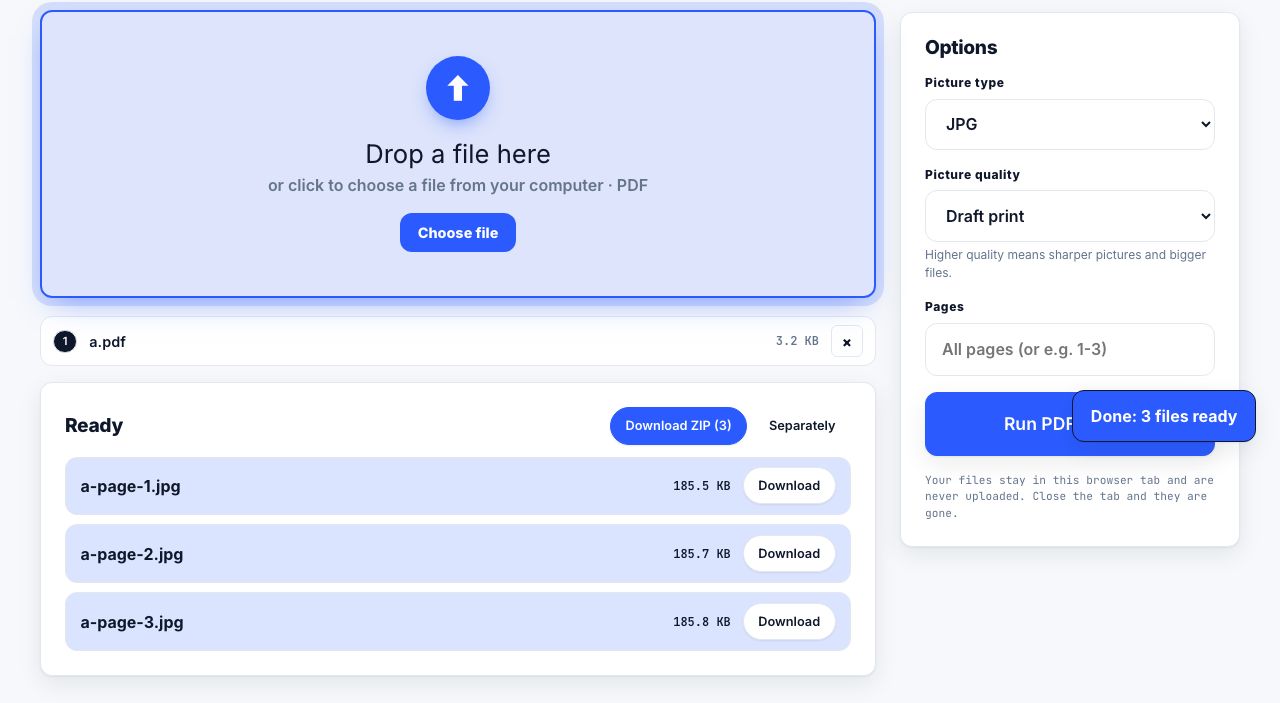
Compression can rewrite document structure, change image data, or do both. The right option depends on what is inside the PDF and what you need to preserve. PrintxPDF's browser tool presents three presets rather than separate technical controls.
The two kinds of PDF compression
Structural compression changes how PDF data is stored without rasterizing page content. A structural pass may reduce overhead, but its operations and savings depend on the tool and source file. PrintxPDF's Light preset writes object streams and updates standard document metadata; it does not promise custom image downsampling or a fixed percentage reduction.
Image-based compression renders pages as pictures. It can reduce some scans, but searchable text becomes pixels and fine detail can be lost. PrintxPDF's Medium and Strong presets use this approach; they do not expose a DPI or JPEG-quality selector.
| Method | What it changes | What to expect | Reversible |
|---|---|---|---|
| Font subsetting | Stores only the glyphs used | Depends on fonts and the tool | Yes, visually identical |
| Object streams + xref streams | Packs metadata objects together | Varies with the file | Yes |
| Removing orphaned objects | Deletes unreferenced data left by edits | Varies with the file | Yes |
| Image downsampling | Reduces pixel dimensions to a target DPI | Can reduce size, but removes searchable text | No |
| JPEG re-encoding | Lowers image quality to 60-80 | Depends on the source and quality setting | No |
| Flattening layers and forms | Merges annotations into the page | Depends on the document | No |
Compress a PDF in your browser
- Open the compressorOpen Compress PDF and choose a file. This tool runs in your browser, so the file is not uploaded to our server. Keep an original copy before changing anything.
- Choose Light when text mattersSelect Light if you need to search, select or copy text. The size change varies; a clean or already-compressed PDF may shrink very little.
- Check whether images are the problemIf Light barely changes the size, the file may be dominated by images or already-compressed data. Consider whether converting pages into pictures is acceptable before using a stronger preset.
- Pick a levelChoose Light to keep text selectable. Medium and Strong render each page as an image, so text is no longer searchable or selectable and fine detail may change. The tool does not expose a DPI setting; compare a copy before using a stronger preset.
- Compare before you commitOpen the compressed file and zoom to 200 percent on the smallest text on the page. Compression artefacts show up around letter edges before they show anywhere else.
- Keep the originalSave the compressed copy under a new name. You cannot un-downsample an image, so the original is your only fallback.
Compare Light, Medium and Strong in your browser. Keep the original and inspect the result before sharing.
Compress PDF →Choosing a resolution
| Target DPI | Pixel size (A4) | Approx. size per page | Use for |
|---|---|---|---|
| 600 | 4960 × 7016 | 3-8 MB | Archival masters, fine artwork, OCR of tiny print |
| 300 | 2480 × 3508 | 800 KB - 2 MB | Anything that will be printed |
| 200 | 1654 × 2339 | 400-900 KB | Good compromise for scanned contracts |
| 150 | 1240 × 1754 | 200-500 KB | Screen reading, email, most business documents |
| 96 | 794 × 1123 | 90-200 KB | Web preview, thumbnails |
| 72 | 595 × 842 | 60-150 KB | On-screen only, never print this |
These DPI figures are a reference for preparing scans, not controls in PrintxPDF's compressor. To change scan resolution, use scanner or image software before making the PDF. Choose based on the smallest text, expected print size and any OCR needs.
What lossless compression actually removes
- Unused font glyphs. A full CJK or large OpenType font can be 5-20 MB. If your document uses 40 characters of it, subsetting stores 40 glyphs.
- Orphaned objects. Editing tools frequently write new objects and leave the old ones behind. Nothing references them, but they still occupy bytes.
- Old revisions. PDF supports incremental saving, where each save appends to the end of the file instead of rewriting it. A file saved thirty times can carry twenty-nine dead copies of its earlier self.
- Duplicate resources. The same logo embedded once per page becomes one shared object.
- Uncompressed streams. Some generators write page content streams with no Flate compression at all. Simply zipping them can halve a file.
- Bloated metadata. XMP packets, thumbnails and structure trees left behind by design tools.
When compression does almost nothing
A clean, text-only PDF may already be compact, so compression can make little difference. A much smaller output may have been rasterized, which can remove searchable text. Check the result by selecting text or using Ctrl+F to find a visible word.
Rewriting a signed or certified PDF can invalidate its digital signature. Preserve the signed original. If a smaller unsigned copy is acceptable, make a separate copy and check the recipient's requirements first.
Compressing on the desktop
If you prefer local tools, three work well:
- macOS Preview, File → Export, then set Quartz Filter to "Reduce File Size". It is aggressive and slightly crude, but it is already installed.
- Ghostscript, free, scriptable and the engine behind many online compressors.
# 150 DPI, good for email and screen reading
gs -sDEVICE=pdfwrite -dCompatibilityLevel=1.7 \
   -dPDFSETTINGS=/ebook -dNOPAUSE -dQUIET -dBATCH \
   -sOutputFile=small.pdf big.pdf

# /screen = 72 dpi, /ebook = 150 dpi, /printer and /prepress = 300 dpi
If it is still too big
Compression has limits. If a scan is still too large, split it into parts or use an approved sharing link. See reducing a PDF for email for current provider guidance, and why your PDF is so large to diagnose the source.
Too big even after compressing? Split it into chapters or page ranges instead.
Split PDF →Frequently asked questions
Does compressing a PDF reduce quality?
Light does not rasterize pages, so text remains selectable. Medium and Strong convert pages into images and can reduce fine detail. Keep the original and compare the output before sharing.
How much can a PDF be compressed?
There is no reliable percentage for every PDF. A text document, a scan and a photo-heavy file respond differently, and already-compressed PDFs may barely shrink. Compare output size and readability.
Is it safe to compress a PDF online?
Compress PDF processes the file in your browser and does not upload it to our server. This statement applies to this tool; other services may use a different processing method.
Why did compressing my PDF make it bigger?
A PDF can contain data that does not compress further, or an image-based result may not be smaller for that source. PrintxPDF returns the Light result instead when Medium or Strong would produce a larger file.
Can I compress a PDF without losing the text layer?
Yes. Choose Light in PrintxPDF to keep the text layer. Medium and Strong render pages as images. Test the result with text selection or search, and keep the original.