How to convert PNG images to a PDF

To convert PNG images to PDF, add the images to an image-to-PDF tool, put them in the intended page order, select a page size or fit option, then export and inspect the PDF. PNG works well for screenshots and diagrams because it preserves crisp edges. Transparent areas may become a page background, so check the result before sending it.
See the tools in action
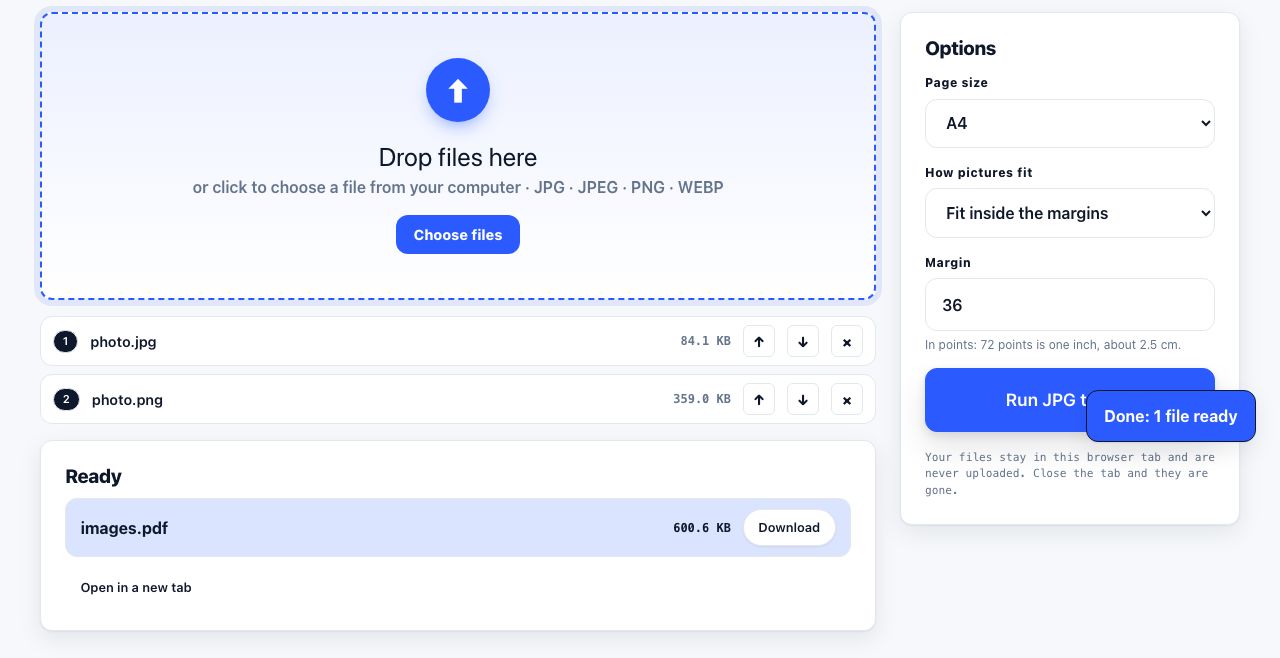
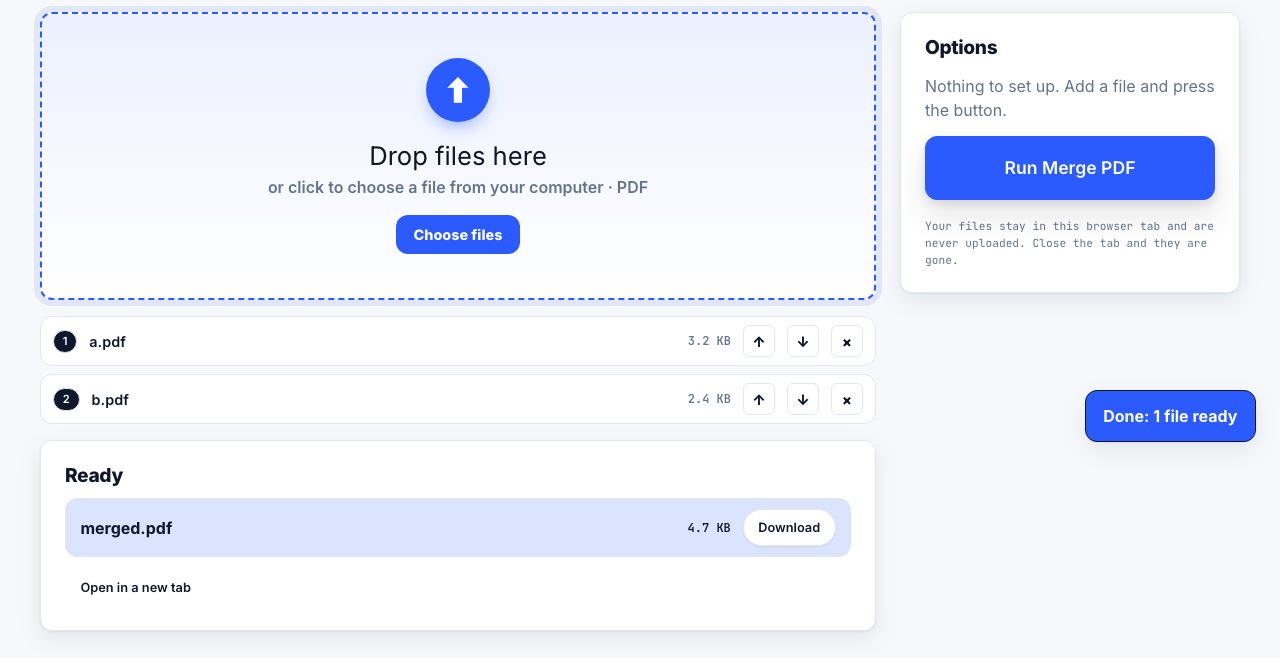
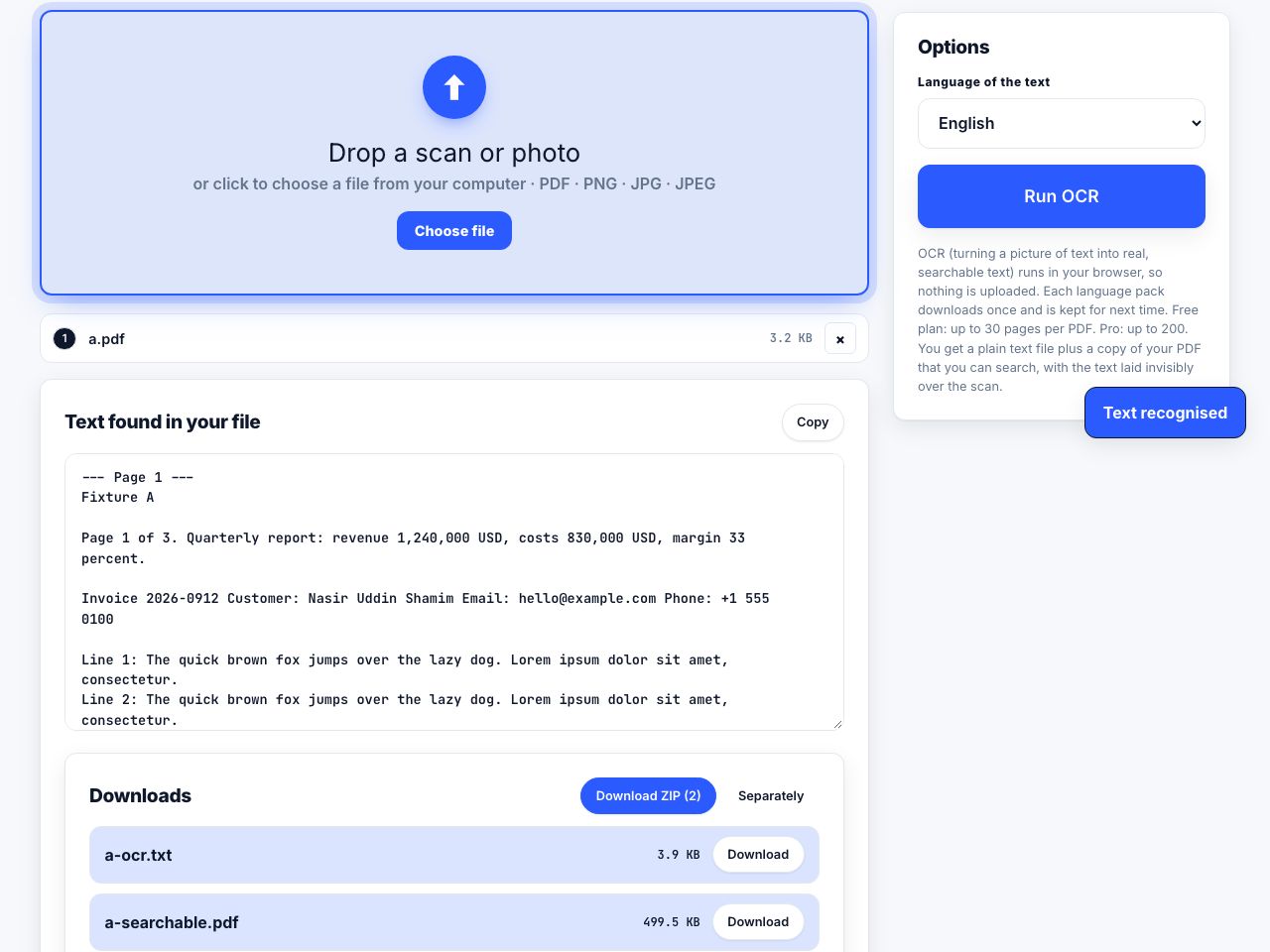
PNG is a lossless image format often used for screenshots, diagrams and graphics with transparent areas. A PDF can bundle those images into pages that are easier to print, email or submit. The main choices are page order, paper size, margins and how the image fits each page.
Make a PDF from PNG files
- Open the image-to-PDF toolUse JPG to PDF, which also accepts PNG images, and add the files you want in the document.
- Set the page orderArrange the files in the order they should appear. File names do not always sort in the numeric order you expect, so check the preview.
- Choose page fit and sizeUse A4 or US Letter for a normal document. Fit the whole image inside the page when you do not want cropping; choose a larger page when preserving the image dimensions is more important.
- Export and inspectDownload the PDF, open it in a reader and check the first, middle and last page. Confirm that small text is legible and no edges were clipped.
Combine PNG and JPG images into a PDF in your browser.
JPG to PDF →Transparency and white backgrounds
PNG can contain transparent pixels. A PDF page still has a page background, and the converter must decide how transparent areas appear. If a logo or screenshot looks different after export, inspect the PDF over both white and coloured backgrounds before you share it. For a predictable printout, use an image with an explicit background colour.
Keep screenshot text readable
An image placed on a PDF page remains an image; its words do not become selectable text automatically. Avoid shrinking a large screenshot to fit a whole page if labels become unreadable. Split a wide diagram across pages, use a landscape page, or keep the original image alongside the PDF. If the PDF needs searchable text, OCR is a separate step and may make recognition errors.
| Image type | Good default | Watch for |
|---|---|---|
| Screenshot or diagram | Keep PNG; fit to page without cropping | Tiny labels after scaling down |
| Photograph | JPG is often smaller at comparable visual quality | Repeated lossy re-encoding |
| Transparent logo | Use a page background that suits the logo | Transparent pixels may render as white |
| Scanned paper | Choose a page size matching the paper | Rotation, skew and oversized margins |
For photos from an iPhone, convert HEIC if the current workflow does not accept that format. For a mixed bundle, add the image PDFs and existing documents with Merge PDF after conversion.
A screenshot is measured in pixels, not paper inches. When a small screenshot is stretched to fill a large sheet, its text can look soft even though the PNG itself was converted correctly. Prefer landscape orientation for wide charts, and use a page size close to the intended print dimensions. If you are combining screenshots from different devices, their pixel dimensions and aspect ratios may differ, so inspect each page rather than assuming they will all fit the same way. Preserve the original PNGs when you may need to crop, annotate or export a different paper size later.
Frequently asked questions
Can I convert multiple PNG images into one PDF?
Yes. Add all images, arrange them in the required order, choose page sizing and export one PDF. Check the preview because filenames such as image10 and image2 can sort unexpectedly.
Will text in a PNG become searchable in the PDF?
No. Converting an image to PDF places the image on a page. To make the words searchable, run OCR after conversion and verify the recognized text.
Why does my transparent PNG have a white background in the PDF?
PDF pages have a background and some conversion workflows flatten transparency against white. Put the intended background into the image before conversion when the colour matters.
Should I use PNG or JPG in a PDF?
PNG is usually better for screenshots, diagrams, text and transparency. JPG is usually more compact for photographs. Match the format to the content and check quality at the final printed size.