How to print a web page without ads

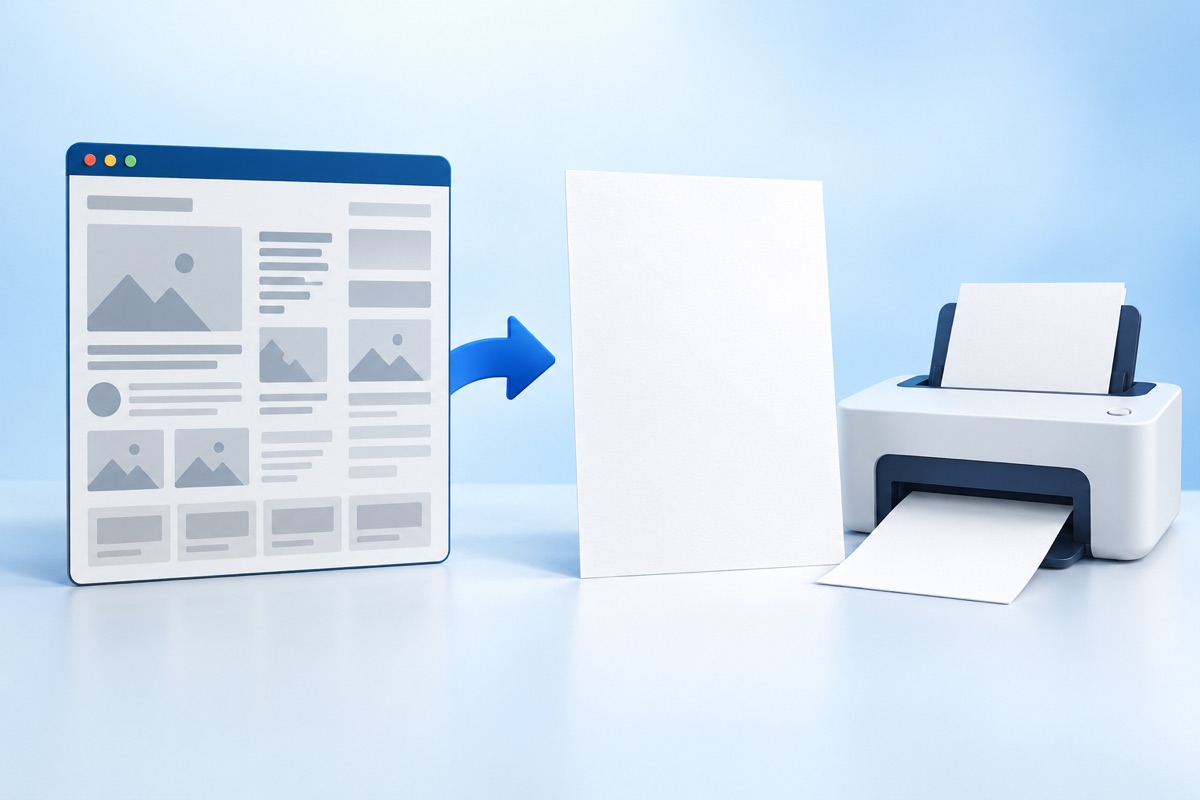
Paste the page URL into a printer-friendly tool, or turn on your browser Reader mode, then press Ctrl+P. Both strip ads, menus and sidebars before the page reaches your printer, usually reducing a long article from eight or nine sheets to two or three.
See the tools in action
You found a recipe, a receipt or a long article and you want it on paper. You press Ctrl+P (or Cmd+P on a Mac) and the preview shows nine pages: a giant header image, a navigation bar, two ad slots, a "related stories" grid and, somewhere in the middle, the 600 words you actually wanted.
The problem is that web pages are laid out for a scrolling screen. Unless the publisher wrote a dedicated print stylesheet, and most did not, your printer receives the whole layout. Here are five ways to fix that, from fastest to most technical.
Method 1: Use a printer-friendly tool (fastest)
A printer-friendly tool fetches the page, runs a content-extraction algorithm over it, and shows you just the article. You then delete anything else you do not want and print the result.
- Copy the page addressClick the address bar and copy the full URL, starting with https://.
- Open the cleanerGo to the web page printer and paste the URL into the box.
- Delete what is leftDelete mode is on by default. Hover any paragraph, image or table and click to remove it. Click and drag to sweep several blocks at once. Ctrl+Z undoes anything.
- Set the text and image sizeOpen the Style menu to choose a text size, shrink images to half-page, or remove images entirely to save ink.
- Print or savePress Print for a crisp, text-based printout, or Download PDF to keep a copy.
Prefer to work with a file you already have? Open it in the free browser PDF reader.
PDF Reader →Method 2: Turn on Reader mode first
Most browsers ship a reader mode that strips a page down to text and images. Turn it on, then print from inside it. Chrome is the awkward one: it has a Reading mode side panel, but printing still sends the cluttered page underneath to your printer.
| Browser | How to open Reader | Notes |
|---|---|---|
| Safari (macOS/iOS) | Click the ☰ icon at the left of the address bar, or press ⌃⌘R | Best of the built-in readers. Lets you pick a font and background before printing. |
| Firefox | Click the page icon in the address bar, or press F9 | Reader View has a built-in print button. |
| Microsoft Edge | Click "Immersive Reader" in the address bar, or press F9 | Also offers Read Aloud and picture dictionary. |
| Google Chrome | Reading mode in the side panel | Reformats for reading but not for printing, Ctrl+P still prints the full page. Use a printer-friendly tool instead. |
Reader mode fails on pages that are not articles: dashboards, order confirmations, forum threads, search results and anything behind a heavy JavaScript app. For those, use Method 1 or Method 3.
Method 3: Fix it in the print dialog
The print dialog itself has settings that remove a surprising amount of junk. Press Ctrl+P and look for More settings.
- Background graphics, leave this off. It is off by default and keeps you from printing solid colour blocks and hero images.
- Headers and footers, turn off to remove the page title, URL, date and page number your browser adds.
- Scale, drop to 80 or 90 percent to fit more text per sheet without making it unreadable.
- Pages, do not print the whole document. Look at the preview, find the two pages that hold your content, and enter a range like
2-3. - Print using system dialog, on Chrome this opens your operating system dialog, which exposes two-sided printing and draft quality.
Selecting the text you want before pressing Ctrl+P, then choosing Selection only in the print dialog, is the single fastest trick in this article. It works in Chrome, Firefox and Edge.
Method 4: A browser extension or bookmarklet
If you print pages often, a one-click button beats copying URLs. A bookmarklet is a bookmark whose address is a small piece of JavaScript; click it on any page and it opens that page in the cleaner. There is a ready-made one on the extensions page that you can drag to your bookmarks bar. No install, no permissions, works in every browser.
Method 5: Hide elements yourself with DevTools
For a page that resists everything else, you can delete elements by hand. Right-click the ad or sidebar, choose Inspect, then press Delete on the highlighted node in the Elements panel. Repeat for each unwanted block, then print. Changes disappear on reload, so nothing is permanent.
// Or paste this in the DevTools Console to hide common clutter:
document.querySelectorAll('nav, aside, footer, iframe, [class*="ad"], [class*="promo"]')
  .forEach(el => el.remove());
Which method should you use?
| If you want to… | Use |
|---|---|
| Print one article quickly, with control over what stays | A printer-friendly tool (Method 1) |
| Print several articles from the same site | Reader mode (Method 2) |
| Print two pages out of a twelve-page document | Print dialog page range (Method 3) |
| Print pages every day | Extension or bookmarklet (Method 4) |
| Print a dashboard, invoice or web app screen | DevTools (Method 5) or a full-page screenshot |
Once the page is clean, you might also want to save it as a PDF instead of printing, or cut the ink cost further.
Frequently asked questions
How do I print only the article and not the whole web page?
Select the article text with your mouse, press Ctrl+P, and choose "Selection only" in the print dialog. If the site does not support that, paste the URL into a printer-friendly tool, which extracts the article automatically.
Why does my printout have big blank areas?
Blank areas usually come from images or ad slots that failed to load, or from CSS floats that leave gaps on paper. Removing images in the print settings, or using a printer-friendly view, closes those gaps.
Can I print a web page without images?
Yes. In a printer-friendly tool, set images to "None" in the Style menu. In your browser, turning off "Background graphics" removes decorative images but not inline article photos, so a cleaner is more thorough.
Is there a printer-friendly version of every website?
No. Some publishers ship a dedicated print stylesheet, but most do not, which is why the same article can print as three tidy pages on one site and nine messy ones on another. A cleaner gives every site the same treatment.
Does printing a web page cost anything?
The browser method is free. Browser-based cleaning tools like this one are also free and run entirely on your computer, so there is no upload, no account and no per-page charge.