How to extract the original images from a PDF

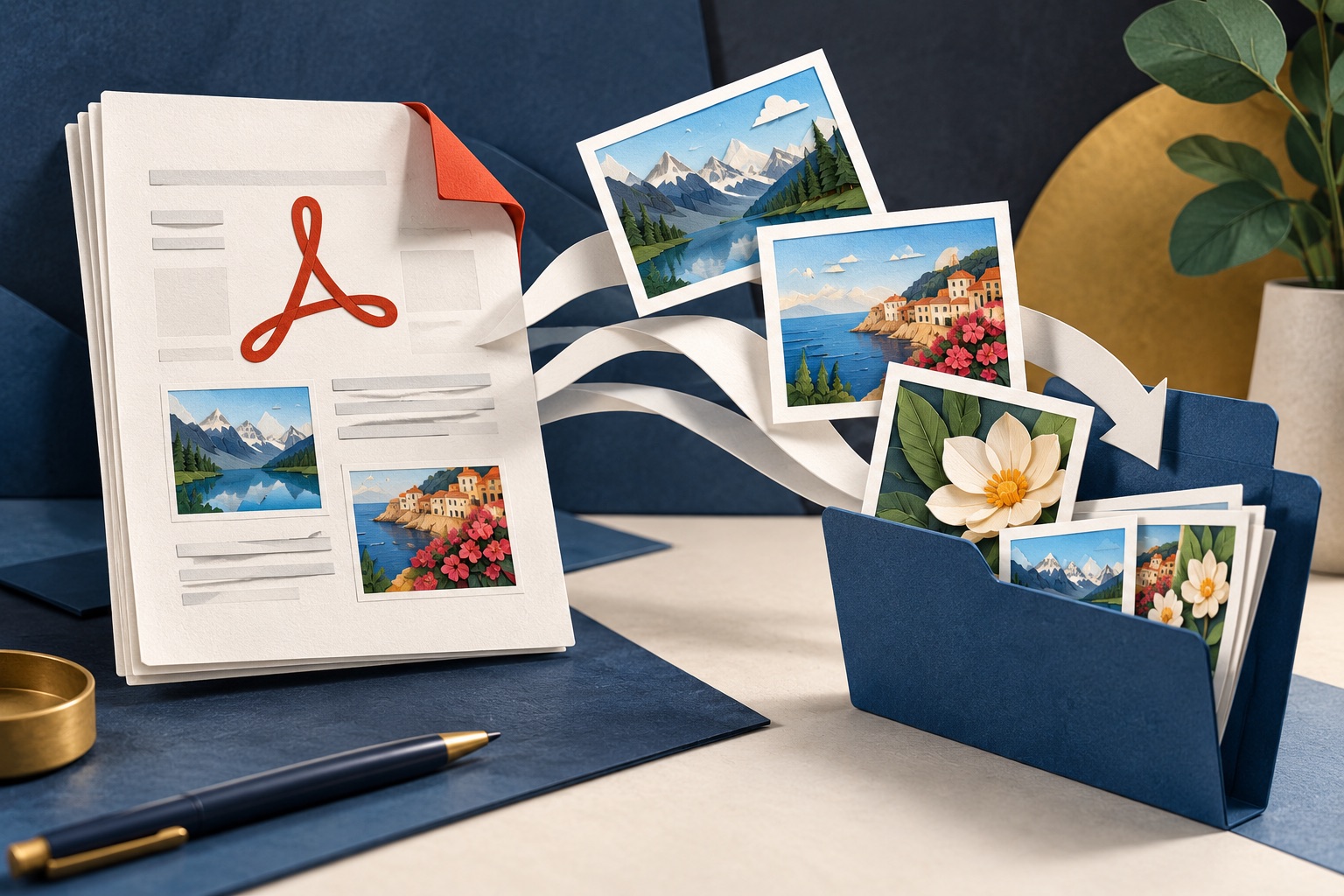
Extraction pulls the embedded image object out of the PDF byte for byte, so a photo saved as a JPEG inside the file comes back as the same JPEG at its original pixel size. Rendering instead repaints the whole page at a resolution you choose, which resamples the photo and adds the surrounding text and margins.
See the tools in action
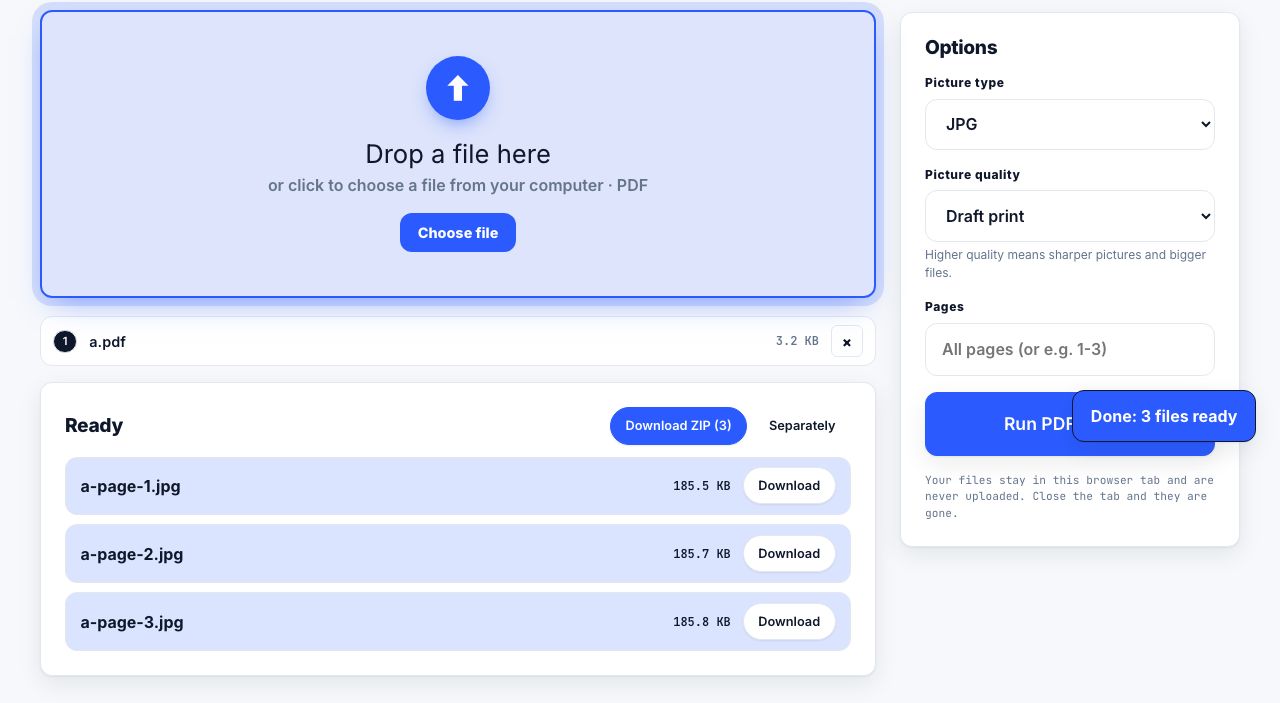
People ask for the same thing in two very different ways. "Get me the picture from page 4" can mean *give me a snapshot of page 4*, or it can mean *give me the actual photograph that the designer placed on page 4*. The first is rendering. The second is extraction. Only extraction returns the original pixels.
Rendering versus extracting
| Render the page | Extract the image | |
|---|---|---|
| What you get | A picture of the whole page | Just the photo, cropped exactly as it was embedded |
| Pixel dimensions | Whatever DPI you chose | The original dimensions, whatever they are |
| Quality | Resampled once more | Byte-for-byte identical to what was embedded |
| Background and text | Included | Excluded |
| Works on vector charts | Yes | No, there is no image object to extract |
| Typical use | Previews, slides, printing a page | Recovering a photo, reusing a logo, archiving a scan |
What is actually stored inside a PDF
Every picture in a PDF is an object with a compression filter attached, and that filter tells you what you can get back:
- DCTDecode, the object holds JPEG data verbatim. Extraction is a straight copy: the JPEG that comes out is the JPEG that went in, with zero additional loss.
- FlateDecode, raw pixels compressed losslessly. These come out best as PNG, and they are exactly as sharp as the day they were placed.
- JPXDecode, JPEG 2000, common in scanned archives and some Mac-created PDFs. Fewer editors open it, so converting to PNG or TIFF on the way out is usually sensible.
- CCITTFaxDecode and JBIG2Decode, one-bit black-and-white scans, the classic output of a fax machine or a document scanner in text mode. Tiny files, no greys.
- Inline images, small graphics written directly into the page content stream rather than stored as separate objects. Some extractors skip these entirely.
Extract images in your browser
- Open the fileDrop the PDF onto the PDF to JPG tool and switch it to image extraction rather than page rendering.
- Let it scan the objectsThe tool walks every page and lists the image objects it finds, with the pixel size and format of each. A page can hold one image or fifty.
- Check the dimensions before you take anythingA logo listed as 180 × 60 px is a small logo, no matter how big it looks on the page. That number tells you immediately whether the image is worth extracting.
- Select what you wantTick individual images, or take everything on a page. Decorative rules, gradient strips and repeated header logos are usually noise you can skip.
- DownloadSingle images download directly; a selection downloads as a ZIP, named by page and object so you can tell them apart.
Extract embedded images or render whole pages, both in the browser and both free.
PDF to JPG →The command-line way
Poppler ships pdfimages, which is the reference implementation for this job and is worth knowing if you handle PDFs in bulk. Start by listing what is in the file before extracting anything.
# List every image: page, dimensions, colour space, filter, DPI as placed
pdfimages -list brochure.pdf

# Extract everything in its native format (JPEG stays JPEG, rest becomes PNG/TIFF)
pdfimages -all brochure.pdf out/img

# Only pages 2 to 4
pdfimages -all -f 2 -l 4 brochure.pdf out/img
The -list output includes an x-ppi and y-ppi column, which tells you the effective resolution of each image *as it appears on the page*. An image listed at 72 ppi has been stretched and will print softly no matter what you do to it afterwards.
Why an extracted image is sometimes disappointing
Extraction returns the original bytes, but "original" means whatever was stored at the moment the PDF was created, not whatever the photographer shot. Four things commonly happen before that point:
- The authoring app downsampled it. Microsoft Word compresses inserted pictures by default, and Acrobat presets such as "Reduce File Size" resample images down to around 150 ppi. That decision is baked in and cannot be undone.
- The image is scaled up on the page. A 600 × 400 photo stretched across a full A4 width is being displayed at roughly 70 ppi. It looks fine on screen and falls apart on paper.
- It was split into tiles. Some export pipelines slice one photograph into horizontal strips. You get six images that must be reassembled in order.
- The transparency lives in a separate object. A cut-out image is stored as the picture plus an SMask, a greyscale alpha channel. Extract only the picture and you get a rectangle with the background back.
If an extracted photo comes back as a colour negative or with wildly wrong colours, it was stored in CMYK or with a Decode array applied. Open it in an editor and convert to RGB, or render that page instead, which applies the colour conversion for you.
When extraction cannot help
Charts, logos and diagrams built in Illustrator or exported from a spreadsheet are usually vector art: paths and fills, not pixels. There is no image object to extract, so pdfimages finds nothing on a page that visibly contains a chart. Render that page at 300 or 600 DPI instead, or crop it afterwards. Conversely, a scanned document is the opposite case: the entire page is one giant image, so extracting it gives you the full sheet including the margins.
Before you reuse anything
Extracted images frequently carry their original EXIF block, including camera model, timestamps and sometimes GPS coordinates. That is useful when you are recovering your own archive and a problem when you are republishing someone else’s file. Strip it first, see removing metadata from a PDF for the same idea applied to the document itself.
Being able to pull an image out of a document does not grant you a licence to use it. Stock photos, press images and figures from journals are routinely embedded in PDFs under terms that cover that one publication only.
Once you have the images you want, you can rebuild them into a clean PDF, or read up on the resolution you need for printing before committing them to paper.
Frequently asked questions
What is the difference between extracting and converting a PDF to images?
Converting renders each page into a new picture at a resolution you choose. Extracting copies out the image objects that were already inside the file, at their original pixel dimensions and with no additional compression.
Why did extraction find no images in my PDF?
The page is probably vector art or live text rather than a photograph. Charts, logos and typeset text are drawn as paths and glyphs, so there is no image object to pull out. Render the page instead.
Can I get a higher-resolution image than the one in the PDF?
No. The embedded image is the highest resolution that exists in the file. Rendering the page at 600 DPI enlarges the same pixels; it does not recover detail that was discarded when the PDF was made.
Why does one photo come out as several image files?
Some export pipelines tile large images into strips, and cut-out images store their transparency as a separate mask object. Reassemble the strips in order, and recombine the mask as an alpha channel in an editor.
Is extracting images from a PDF legal?
Technically it is just reading the file, but copyright still applies to what you find. Images embedded in reports, journals and brochures are usually licensed for that publication only, so check before republishing.