PDFs and images: convert, extract and print at the right resolution
 By Nasir Uddin Shamim5 guides
To turn a PDF page into an image, render it at a chosen resolution: 144 DPI for screens, 300 DPI for printing. To recover a photo that was placed in the PDF, extract the embedded image instead, which returns the original pixels without re-rendering or quality loss.
A PDF page is not a picture. It is a set of drawing instructions: place this font here, stroke this curve, paint this photo into that rectangle. That means there are two completely different ways to get an image out of a PDF, and they produce different results. You can render the page at a resolution you choose, or you can extract the original photo that was embedded when the file was made. These guides cover both, plus the resolution and format numbers that decide whether the result prints cleanly.
Every guide in this topic
How to convert PDF pages to JPG or PNG images
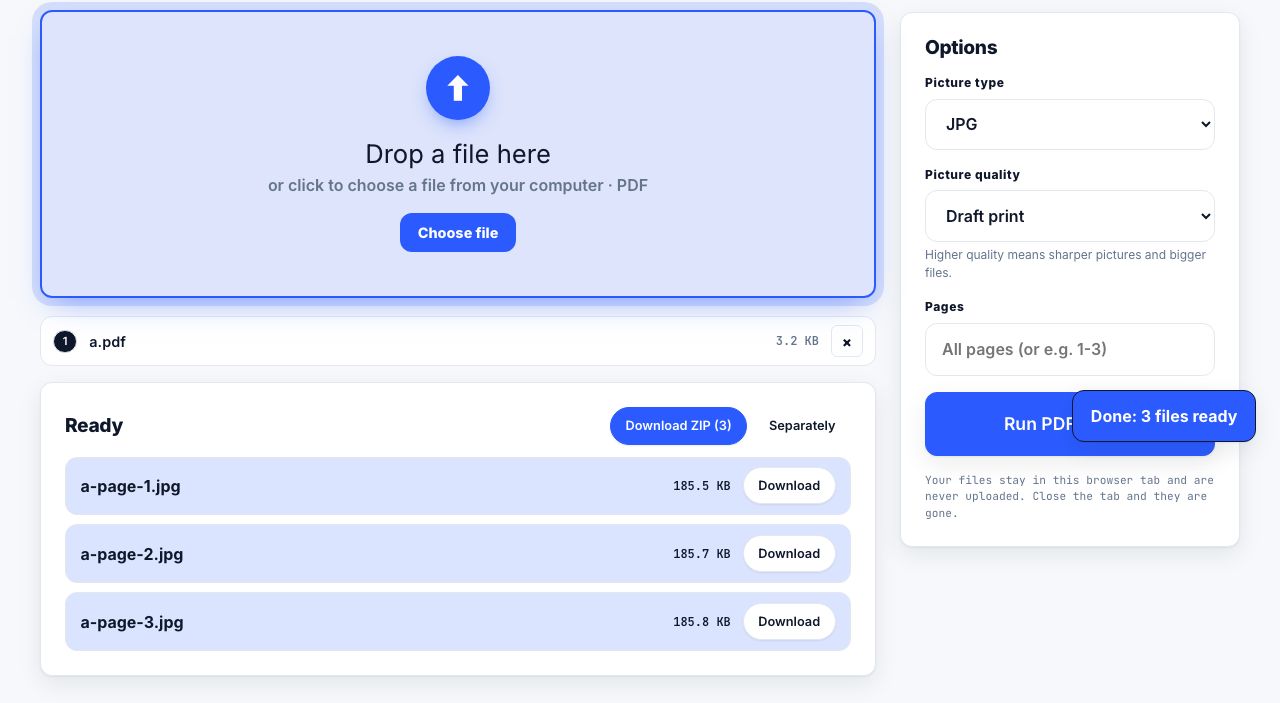
Open the PDF in a converter, choose a resolution, and export. Use 144 DPI for screens and email, 300 DPI for printing. Choose PNG for pages that are mostly text, tables or diagrams, and JPG for pages dominated by photographs, where it is roughly three times smaller.
How to extract the original images from a PDF
Extraction pulls the embedded image object out of the PDF byte for byte, so a photo saved as a JPEG inside the file comes back as the same JPEG at its original pixel size. Rendering instead repaints the whole page at a resolution you choose, which resamples the photo and adds the surrounding text and margins.
PNG vs JPG for PDF pages: which should you pick?
Choose PNG when the page contains text, tables, line art or screenshots, or when you need a transparent background: it is lossless and keeps letter edges perfectly sharp. Choose JPG when the page is dominated by photographs, where it produces a file roughly three times smaller with no visible difference.
What resolution and format do you need for printing?
For anything held in the hand, supply 300 pixels per inch of final print size: 2480 × 3508 px for A4, 2550 × 3300 px for US Letter, 1200 × 1800 px for a 4 × 6 photo. Posters viewed from a metre away are fine at 150 DPI. Upscaling invents pixels and does not add real detail.
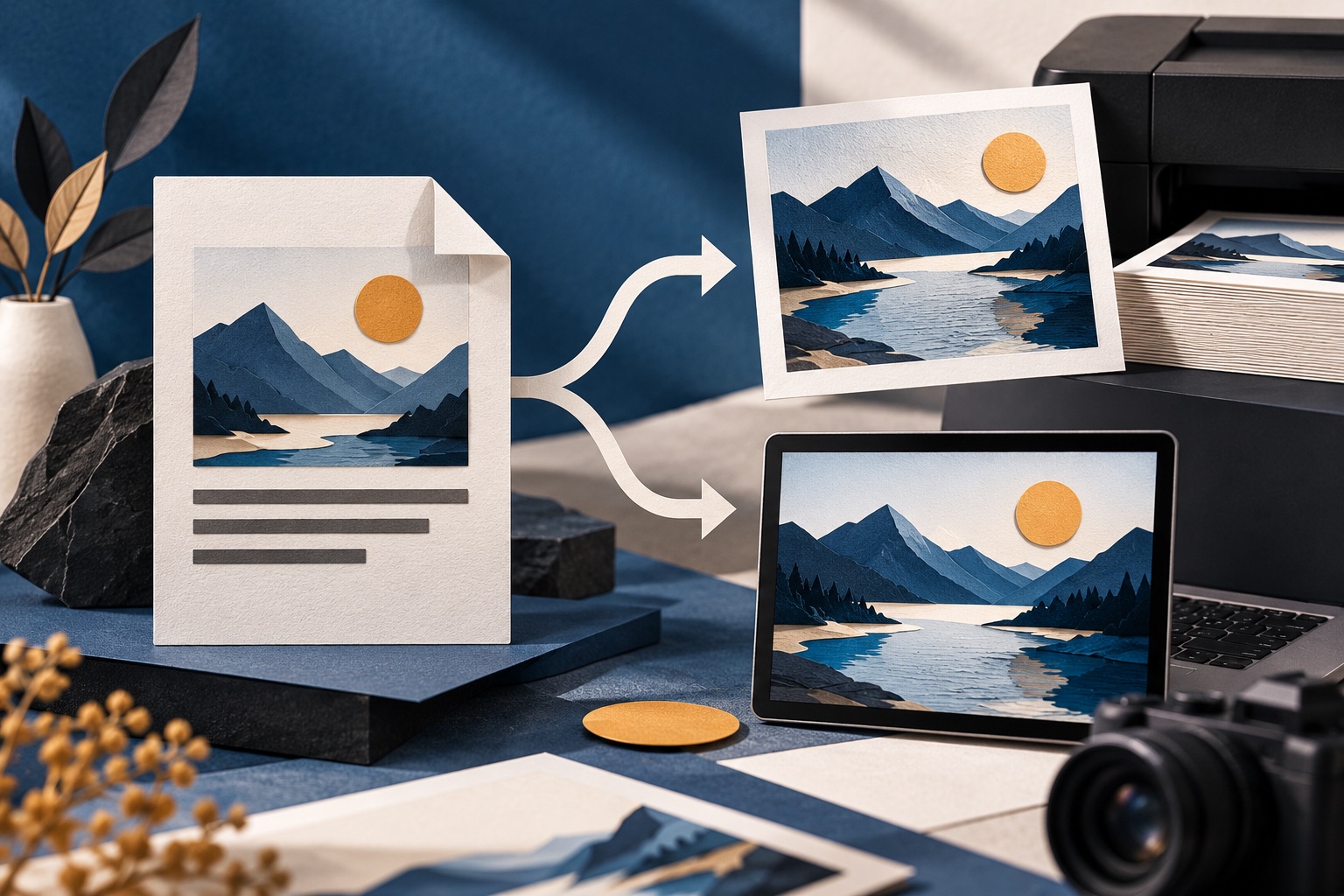
PDF to JPG or PNG for print and web: choose format and resolution
To turn a PDF page into an image, choose the pages, export them as JPG for photographs and smaller files or PNG for sharp text and graphics, then check the pixel dimensions at the intended display size. Keep the PDF as the source because an image is a flattened page and loses selectable text and vector detail.
Tools for this job
PDF to JPG
Save pages as pictures
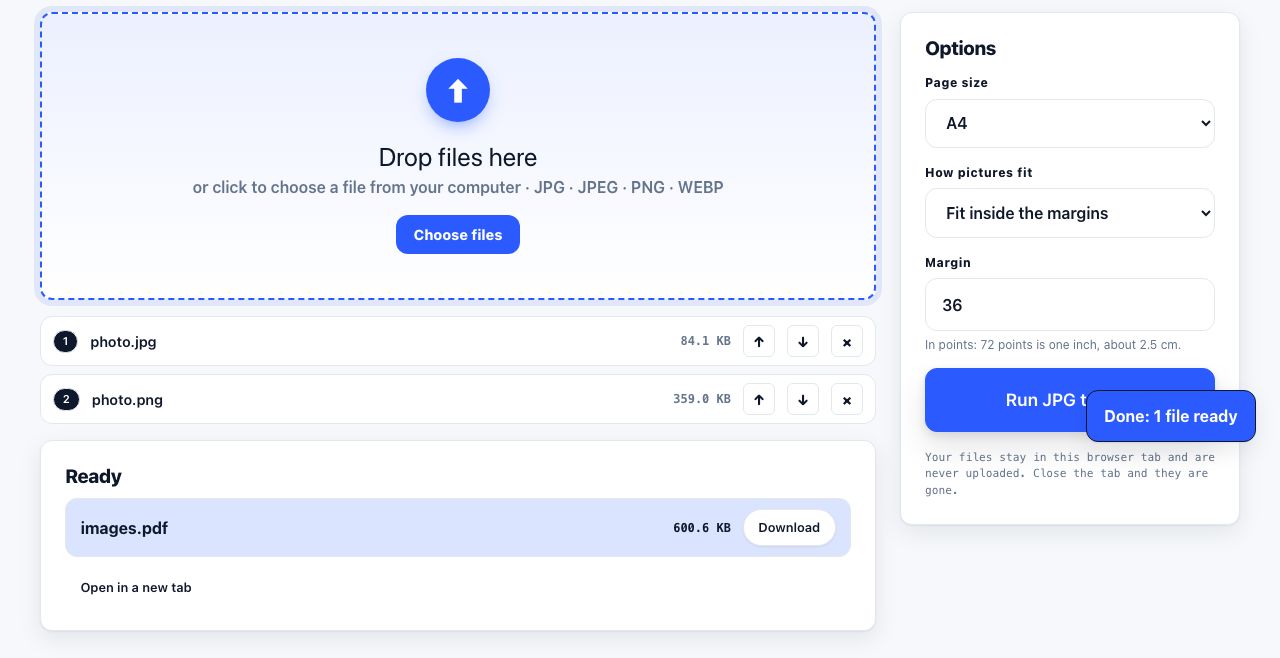
JPG to PDF
Turn pictures into one PDF
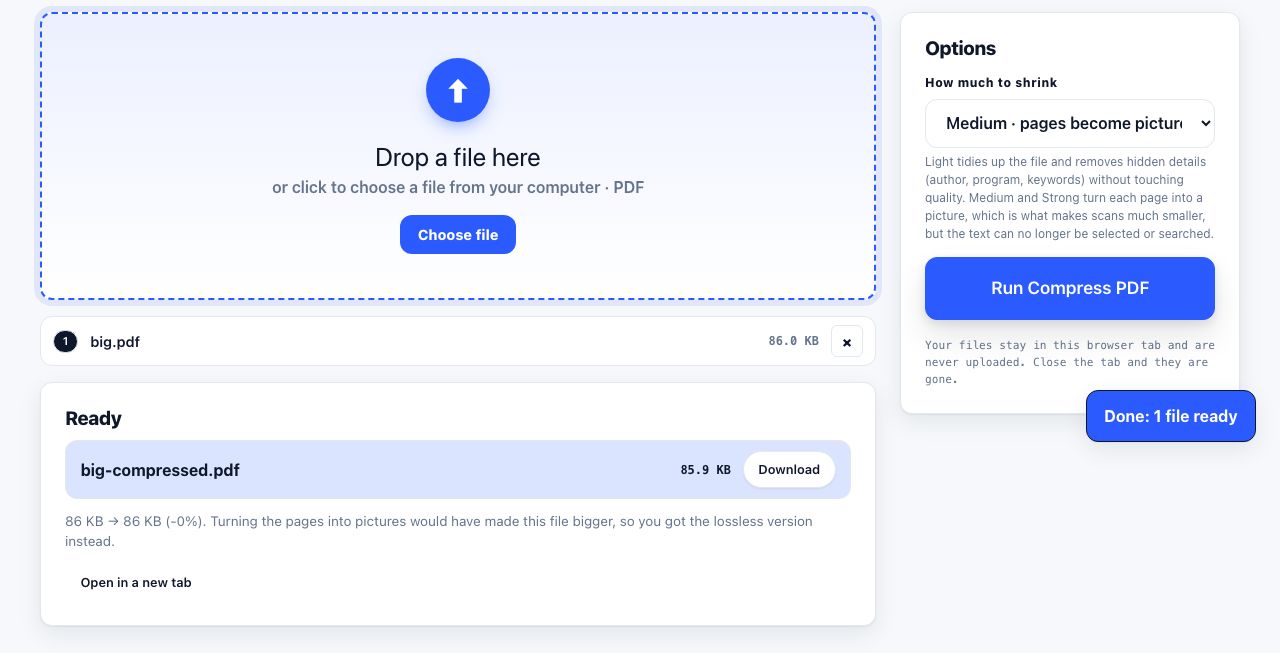
Compress PDF
Shrink the file size
PDF Reader
Open and read a PDF online
See the recommended tools in action
Other topics
Printing web pages
Print any web page without ads, sidebars or menus. Reader mode, print preview, browser settings and a free tool that cleans the page in your browser.
Saving web pages as PDF
Save any web page as a PDF in Chrome, Safari, Firefox, Edge, iPhone or Android. Print-to-PDF, full-page screenshots, and archiving that survives link rot.
Merging PDF files
Combine PDFs into one file for free. Drag to set the page order, mix in JPG and PNG images, keep bookmarks, and merge without Adobe Acrobat on Windows or Mac.
Splitting and extracting PDF pages
Split a PDF into single pages or custom ranges, extract only the pages you need, delete the rest, and cut a big file down to fit an email attachment limit.
Compressing PDF files
Compare three PDF compression presets, keep text searchable when needed, and learn when to split a large file or use a sharing link.
Converting PDF to other formats
How to get a PDF back into an editable format: Word, Excel, plain text and slides, what each conversion really preserves, and when the answer is to retype.