How to convert PDF pages to JPG or PNG images

Open the PDF in a converter, choose a resolution, and export. Use 144 DPI for screens and email, 300 DPI for printing. Choose PNG for pages that are mostly text, tables or diagrams, and JPG for pages dominated by photographs, where it is roughly three times smaller.
See the tools in action
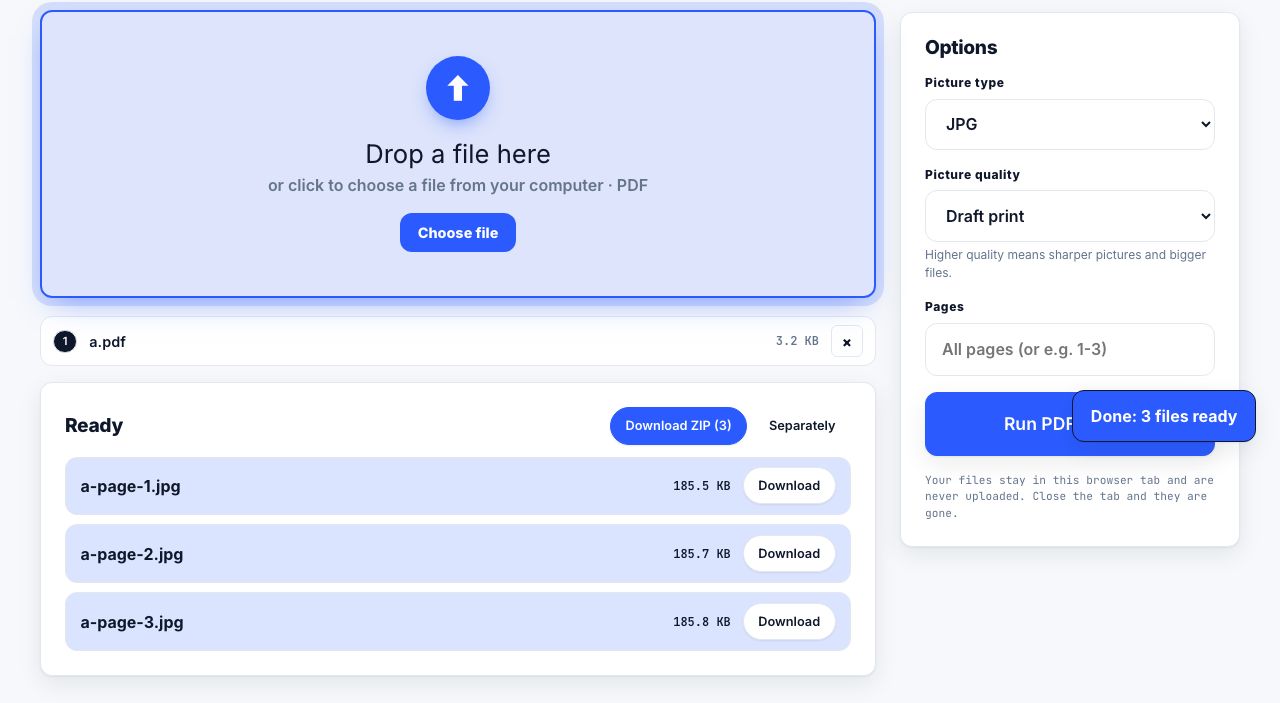
Converting a PDF page to an image is called rendering. The converter reads the drawing instructions in the page, paints them onto a blank canvas of whatever size you asked for, and hands you the pixels. Nothing about the PDF changes, and you can render the same page a hundred times at a hundred different sizes.
That makes the resolution your most important decision. Get it wrong low and the text turns to mush; get it wrong high and you have a 40 MB PNG that will not attach to an email. Here is how to pick.
Step 1: Pick the resolution
Inside a PDF, one unit equals 1/72 of an inch. That is why a converter that offers a scale of 1×, 2× or 3× is really offering you 72, 144 and 216 DPI. Tools that ask for DPI directly are doing the same arithmetic for you.
| Scale | DPI | US Letter page | A4 page | Good for |
|---|---|---|---|---|
| 1× | 72 | 612 × 792 px | 595 × 842 px | Thumbnails, contact sheets, quick previews |
| 2× | 144 | 1224 × 1584 px | 1191 × 1684 px | Screens, slides, web pages, email attachments |
| 3× | 216 | 1836 × 2376 px | 1786 × 2526 px | Zooming in on small type, detailed diagrams |
| 4.17× | 300 | 2550 × 3300 px | 2480 × 3508 px | Printing the page at its real size |
| 8.33× | 600 | 5100 × 6600 px | 4960 × 7016 px | OCR of very small type, archival capture |
The default in most converters is 144 DPI, and for most jobs that is right. Only step up to 300 if the image is going on paper. See what resolution you need for printing for the full reasoning behind the 300 DPI number.
Step 2: Convert the file
- Open the converterGo to the PDF to JPG tool and drop your file onto the page. The file is processed in your browser, so nothing is uploaded to a server.
- Choose the formatPick PNG for text, tables, screenshots, line art and logos. Pick JPG for pages that are mostly photographs.
- Set the resolutionChoose 144 DPI for anything that will be viewed on a screen, or 300 DPI if the result is going to a printer. Watch the estimated file size as you change it.
- Pick the pagesExport every page, or type a range such as
1,4-6or2,7,9to get only the pages you need. Each page becomes a separate image file. - DownloadA single page downloads as one image. Several pages download as a ZIP, with files named after the page number so the order survives.
Convert a PDF to JPG or PNG in your browser. No upload, no account, no watermark.
PDF to JPG →JPG or PNG? The short version
PNG is lossless: every pixel comes back exactly as it was rendered, so the black edge of a letter stays a hard black edge. JPG throws away detail in 8 × 8 pixel blocks to save space, which is invisible on a photograph and very visible around text, where it produces a faint grey halo known as ringing.
| Format | File size | Text edges | Transparency |
|---|---|---|---|
| PNG | 380 KB | Perfectly crisp | Supported |
| JPG, quality 90 | 160 KB | Faint halo around black text | Not supported |
| JPG, quality 60 | 55 KB | Visible blocking around letters | Not supported |
| WebP, quality 90 | 95 KB | Crisp | Supported |
For a page that is one large photograph, those numbers invert: the PNG balloons to several megabytes while the JPG stays small and looks identical. PNG versus JPG for PDF pages walks through the edge cases.
Rendering a page is not the same as extracting a photo
If your goal is to recover a photograph that somebody placed into the PDF, rendering the page is the wrong tool. Rendering gives you a picture of the whole page at the size you chose, including the surrounding text and margins, and the photo inside it has been resampled. Extraction pulls the original file back out untouched. See extracting the original images from a PDF.
Other ways to do it
| Method | Resolution control | Notes |
|---|---|---|
| Browser tool | Yes, exact DPI | Nothing leaves your computer. Handles batches. |
| Adobe Acrobat Pro | Yes, File → Export To → Image | Offers a colour-space and anti-aliasing setting. Paid. |
| Preview on macOS | Yes, File → Export, set Resolution | One page at a time unless you select thumbnails first. |
| pdftoppm (Poppler) | Yes, -r flag | Fastest option for hundreds of files. Command line. |
| Screenshot | No, always your screen resolution | Avoid. You get 96 DPI at best, plus whatever the viewer was zoomed to. |
# Poppler: pages 3 to 5 as 300 DPI JPEGs named page-03.jpg and so on
pdftoppm -jpeg -r 300 -f 3 -l 5 report.pdf page

# ImageMagick: every page as a 150 DPI PNG
magick -density 150 report.pdf page-%02d.png
Do not screenshot a PDF page when you need a usable image. A screenshot captures your display, so you inherit the viewer zoom level, any scroll bars, and roughly 96 DPI. Printing that gives you soft, fuzzy text that no amount of sharpening recovers.
Keeping the file size under control
A 300 DPI PNG of a Letter page is 2550 × 3300 pixels, about 8.4 million pixels, which commonly lands between 1 MB and 4 MB. Three practical ways to shrink it: drop to 144 DPI if the image is only going on screen; switch to JPG at quality 85 if the page has photos; or crop the page to just the region you need before exporting.
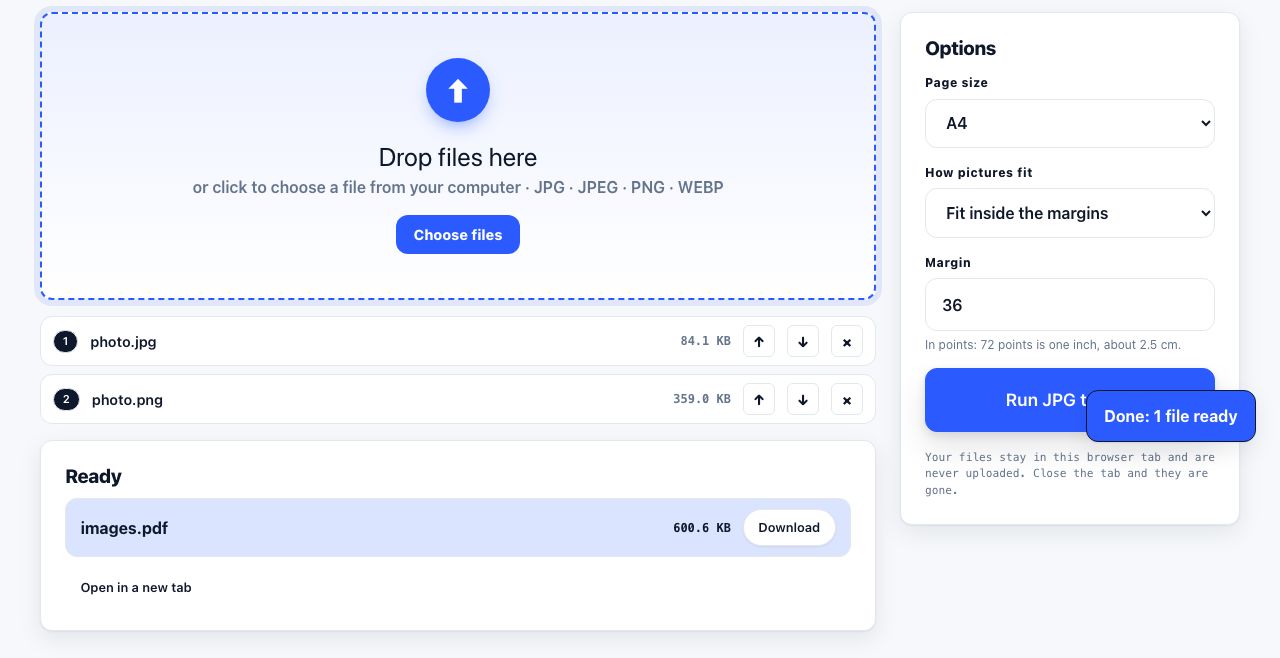
Going the other way is just as easy. If you have a folder of photos or scans and you want one document, combine them into a single PDF instead of emailing twelve attachments.
After the conversion
Images are bigger than text, so a PDF rebuilt from page images grows fast. If you convert a document to images and then back to a PDF, expect the result to be several times larger than the original and no longer searchable, you will need to OCR it to get the text back. When size becomes a problem, compress the file before you send it anywhere.
Frequently asked questions
What DPI should I use to convert a PDF to JPG?
Use 144 DPI for anything viewed on a screen and 300 DPI for anything printed. 72 DPI is only useful for thumbnails, and going above 300 mostly produces very large files without visible improvement, except for OCR of tiny type.
Does converting a PDF to JPG reduce the quality?
Rendering itself is lossless, but the JPG encoder is not. At quality 90 the loss is invisible on photographs and slightly visible around text. Choose PNG if the page is mostly text and you want a pixel-exact result.
How do I convert only one page of a PDF to an image?
Enter that page number in the page range box before exporting. Most converters accept single numbers, ranges such as 4-6, and comma-separated lists such as 2,7,9.
Can I convert a PDF to images without uploading it?
Yes. Browser-based converters render the file with JavaScript on your own machine, so the PDF never leaves your computer. That matters for contracts, medical records and anything else confidential.
Why is my exported image blurry?
Almost always because the export resolution was too low for the final use, or because the page contained a low-resolution photo to begin with. Rendering at 600 DPI cannot add detail that was never in the source image.