How to convert PDF pages to images for print and web

To turn a PDF page into an image, choose the pages, export them as JPG for photographs and smaller files or PNG for sharp text and graphics, then check the pixel dimensions at the intended display size. Keep the PDF as the source because an image is a flattened page and loses selectable text and vector detail.
See the tools in action


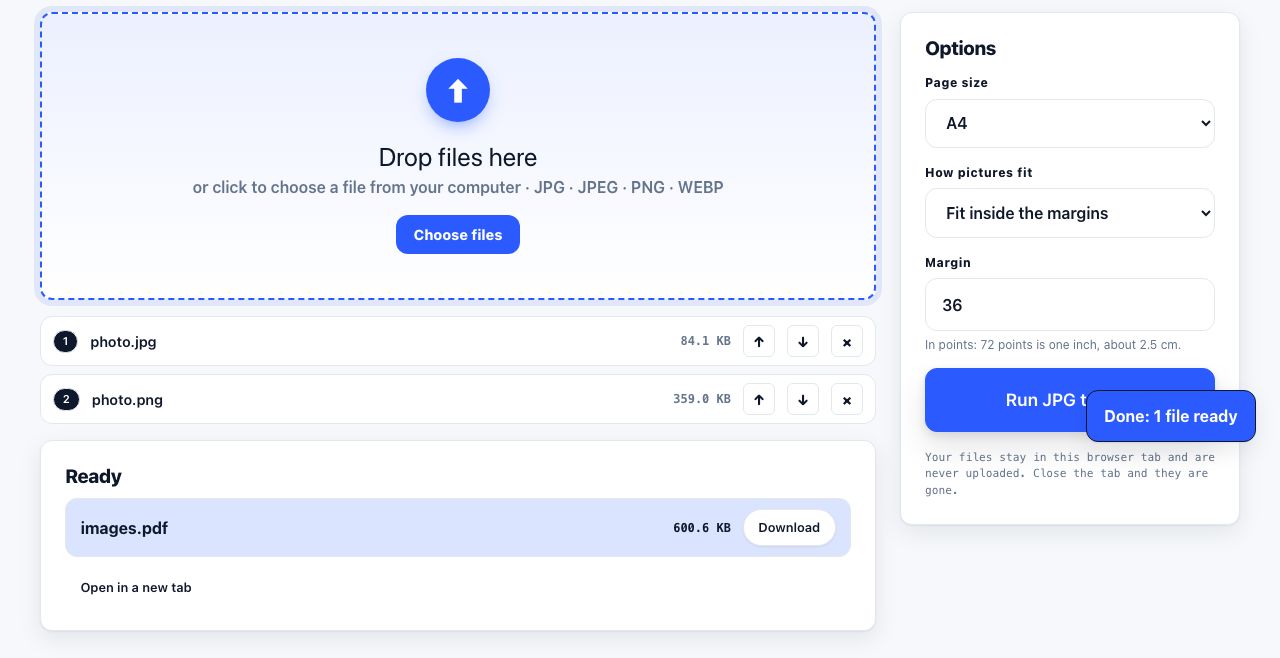
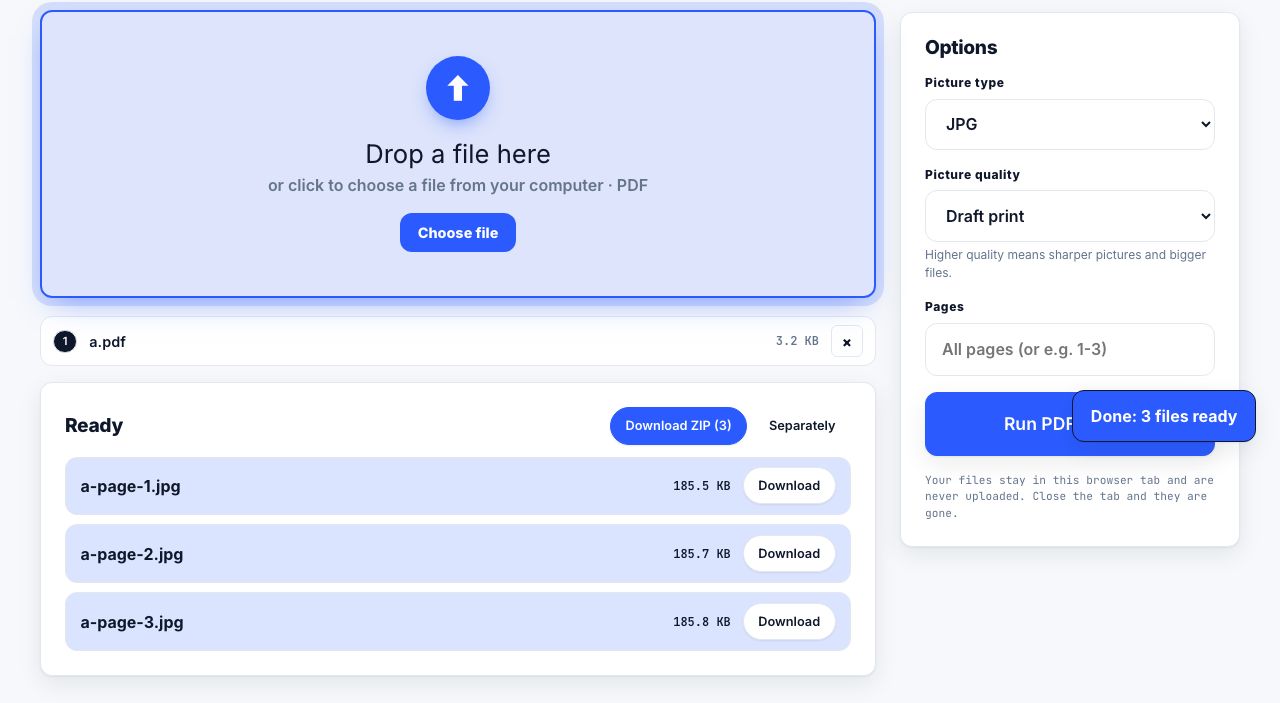
A PDF is a page document; JPG and PNG are images made from pixels. Converting between them is useful for slides, previews, forms that accept images, and social posts. It is also a trade-off: a raster image is easy to place almost anywhere, but it no longer has the same searchable text, vector lines or page structure as the source PDF.
Choose the format for the content
| Output | Good for | Watch for |
|---|---|---|
| JPG | Photographs and smaller files | Repeated saves reduce quality; no transparency. |
| PNG | Text, charts, diagrams and sharp edges | Large files, especially at high resolution. |
| Keep PDF | Printing, search, selectable text and scalable vector art | Some apps or forms do not accept PDF uploads. |
Convert only the pages you need
- Choose a working copyKeep the original PDF unchanged. If it contains confidential pages, select only the pages you are allowed to export and share.
- Open the converterUse PDF to JPG for common image output, or PDF to PNG when sharp edges or transparency matter.
- Select pages and qualityExport the whole document only when you need every page. Choose a resolution suitable for the use: on-screen previews need fewer pixels than a large print.
- Check readabilityOpen the image at its intended size and zoom into small text, thin rules and diagrams. A page can look fine in a thumbnail but blur when enlarged.
- Keep filenames in orderUse page numbers in filenames and confirm the image count. If you need the images inside a new document, combine them with JPG to PDF.
Render PDF pages to images in your browser and choose the pages you need.
PDF to JPG →Resolution is not the same as image quality
Resolution determines how many pixels represent a printed page. More pixels can preserve small details but increase file size and memory use. It cannot restore detail missing from a low-resolution scan or make a blurry source crisp. For text-heavy documents, PNG often preserves edges better than JPG at a similar pixel count. For a photo-heavy PDF, JPG can be much smaller at a quality setting that still looks acceptable.
After export, use an image converter only if the destination requires another format. For example, PNG to JPG may be suitable for a photograph with no transparent background; it is a poor choice for tiny text or line art. Compress Image can reduce image size, but always inspect its result because compression can soften fine detail.
When an image is the wrong output
If you need someone to search, copy or cite the words, keep the PDF or export text instead. A picture of a page is not accessible text. For a scan, run OCR to add a text layer; for existing text, extract it. If your goal is a transparent logo or a single illustration embedded in the PDF, use an image extraction method rather than rendering the entire page.
Page images may contain the full visible content of the page, including names or account details. Check every exported page and remove sensitive pages before sharing. Image conversion does not redact or anonymize the underlying information.
For related workflows, see PDF to JPG pages, extract images from a PDF, and transparent PNG output. Keep the source, use the smallest image format that stays readable, and verify the actual file you plan to upload.
Frequently asked questions
Is JPG or PNG better for PDF pages?
PNG usually keeps small text and sharp graphics cleaner, while JPG is often smaller for photographs. Compare output at the size where it will be viewed or printed.
Can I convert only one page of a PDF?
Yes. Select the page or range in the converter instead of exporting the whole file, then check that the resulting image has the correct page number.
Will the image keep selectable text?
No. A rendered page image is pixels, so text is not selectable. Keep the original PDF or use OCR when a scan needs a searchable layer.