How to convert PDF pages to JPG images

To convert PDF pages to JPG, open the PDF-to-image tool, select the pages, choose a suitable image resolution, then export and inspect the JPG files. This renders each page as pixels, so text and vector graphics are no longer editable or searchable. Use PNG instead when crisp text or transparency matters more than file size.
See the tools in action
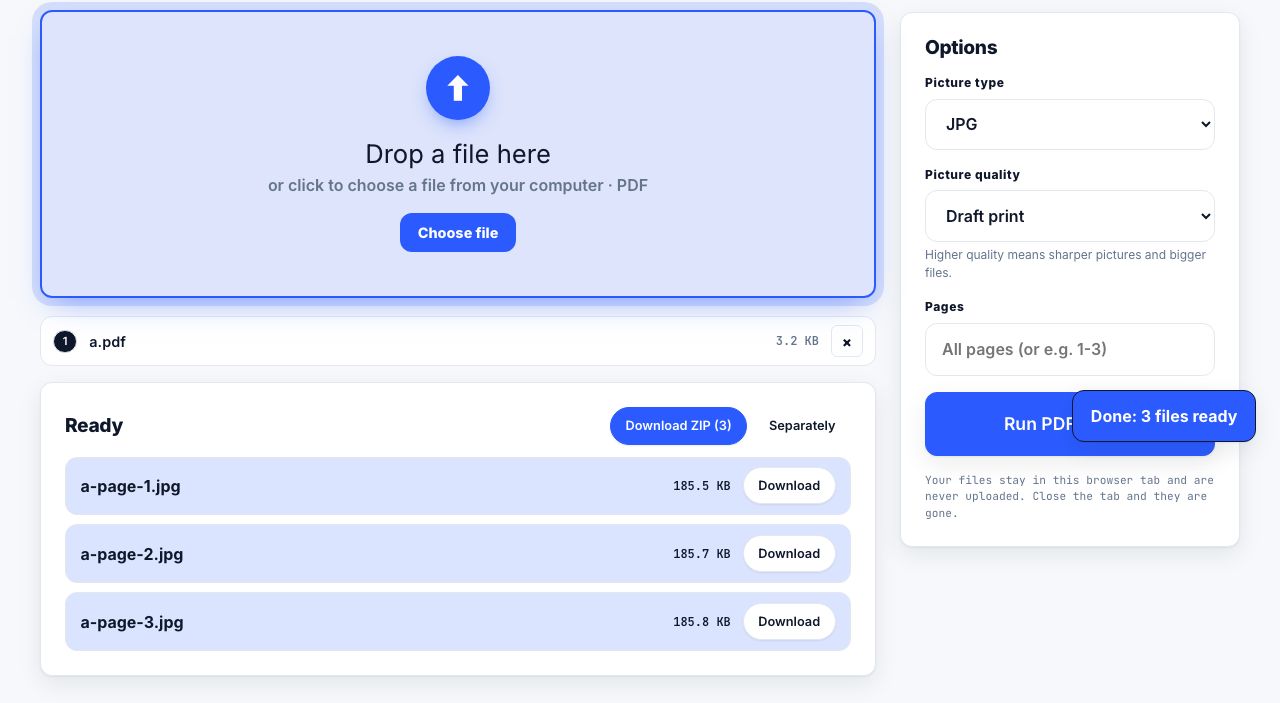
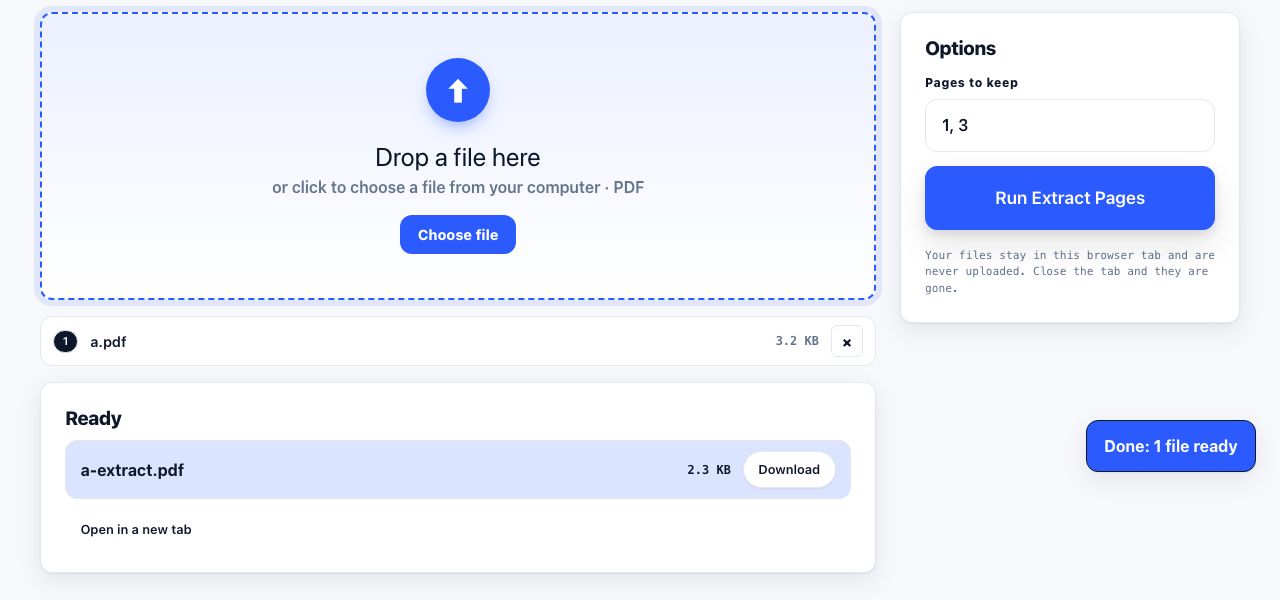
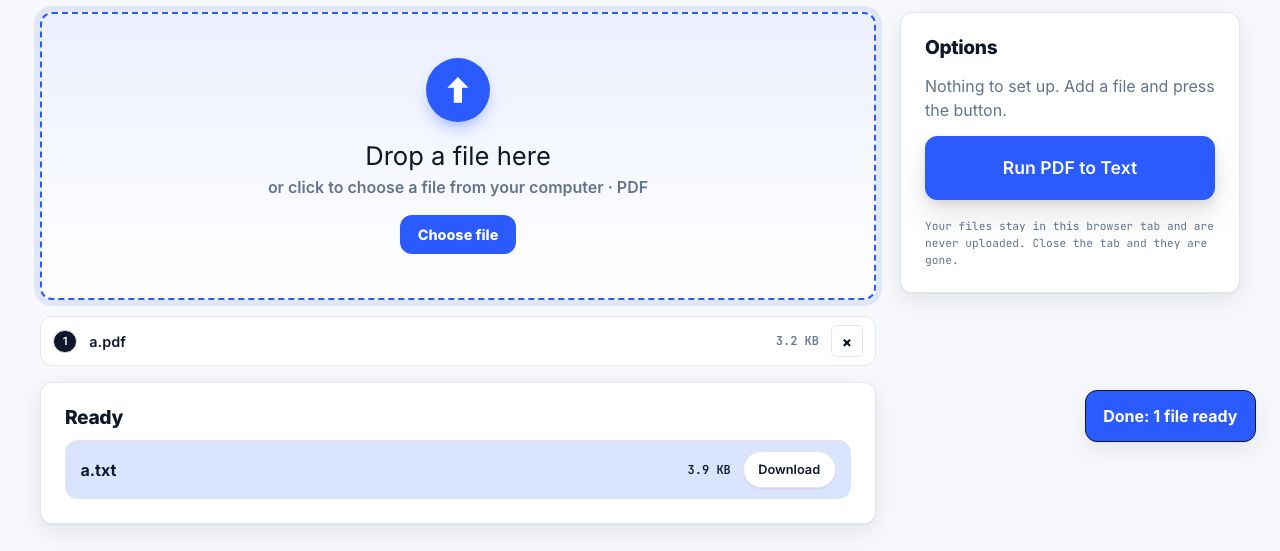
A PDF page can contain selectable text, vector drawings, photographs or a mixture. Exporting it as JPG renders the page into one raster image. That is convenient for image-only upload forms and previews, but it trades away selectable text, links, vector sharpness and document structure.
Export pages as JPG
- Open the converterGo to PDF to JPG and choose the PDF. The browser processes this tool locally.
- Select pagesExport only the pages the recipient needs. A long PDF can produce many image files and use substantial memory.
- Set resolutionUse a moderate resolution for email or screen sharing. For print, estimate the required pixels from the physical page size and target DPI, then check that the chosen resolution is available.
- Review the imagesOpen a page at actual size. Look for small text that became hard to read, cropped margins and image artifacts. Use PNG if sharp line art or labels look poor as JPG.
Render PDF pages as JPG images in your browser.
PDF to JPG →Choosing JPG, PNG or PDF
| Use this output | When it fits | Main tradeoff |
|---|---|---|
| JPG | Photos, previews and upload forms that request JPEG | Lossy compression; text edges can blur |
| PNG | Screenshots, diagrams and sharp text | Often much larger for photographs |
| Documents with multiple pages, selectable text or links | Not an image format and may not fit image-only forms |
Resolution and image quality
Resolution is the pixel grid used to represent a page. More pixels can retain more small detail but create larger files and consume more memory. A screen preview does not guarantee print quality. If you are converting a full page for print, calculate the pixel dimensions from the page size and target output resolution, and compare the result with the source at 100 percent.
When not to rasterize
Do not convert to JPG when the recipient needs to search, copy or edit text, preserve links, or zoom into vector diagrams. Keep the original PDF for those jobs. For selected page extraction without changing page content, use Extract PDF Pages. For scanned pages that need searchable text, use OCR rather than JPG export.
A JPG export is a visual copy, not a secure redaction method. It can flatten overlays into pixels, but verify sensitive content is genuinely absent before sharing; do not rely on conversion as the only security control.
A multi-page export can create many separate image files, so decide whether the recipient needs every page before converting. If the output is for an online form, read its accepted dimensions and maximum size first. A form may reject a perfectly valid JPG simply because it is too large, too small or the wrong orientation. For photographs inside a PDF, JPG can keep the output manageable; for diagrams, tables and pages dominated by small text, compare PNG because sharp edges may survive better. Keep the source PDF as the searchable and printable master.
Frequently asked questions
How do I convert just one PDF page to JPG?
Open a PDF-to-image tool, select the page you need rather than exporting the entire document, choose a resolution and download the image. Check that the text is readable at the size the recipient will view or print it.
Is PDF to JPG conversion lossless?
No. It rasterizes the page and JPG applies lossy compression. The result cannot preserve selectable text, vector graphics, links or the original document structure.
What resolution should I use for PDF to JPG?
It depends on viewing and print size. Screen previews need fewer pixels than full-page printing. Work from the final physical size and target DPI, and avoid choosing a resolution higher than needed because it increases file size and memory use.
Should I convert a PDF to JPG or PNG?
Use JPG for photographic pages and smaller previews. Use PNG for diagrams, screenshots, charts and text-heavy pages when crisp edges matter. Keep PDF when page structure, links or selectable text matter.