Printing better from Safari on Mac and iPhone

On a Mac, press Control-Command-R for Safari Reader then Command-P to print the clean layout, or use File then Print Selected Text for one passage. On iPhone, tap Share, then Options at the top of the sheet, and choose Reader PDF to save the article without ads.
See the tools in action
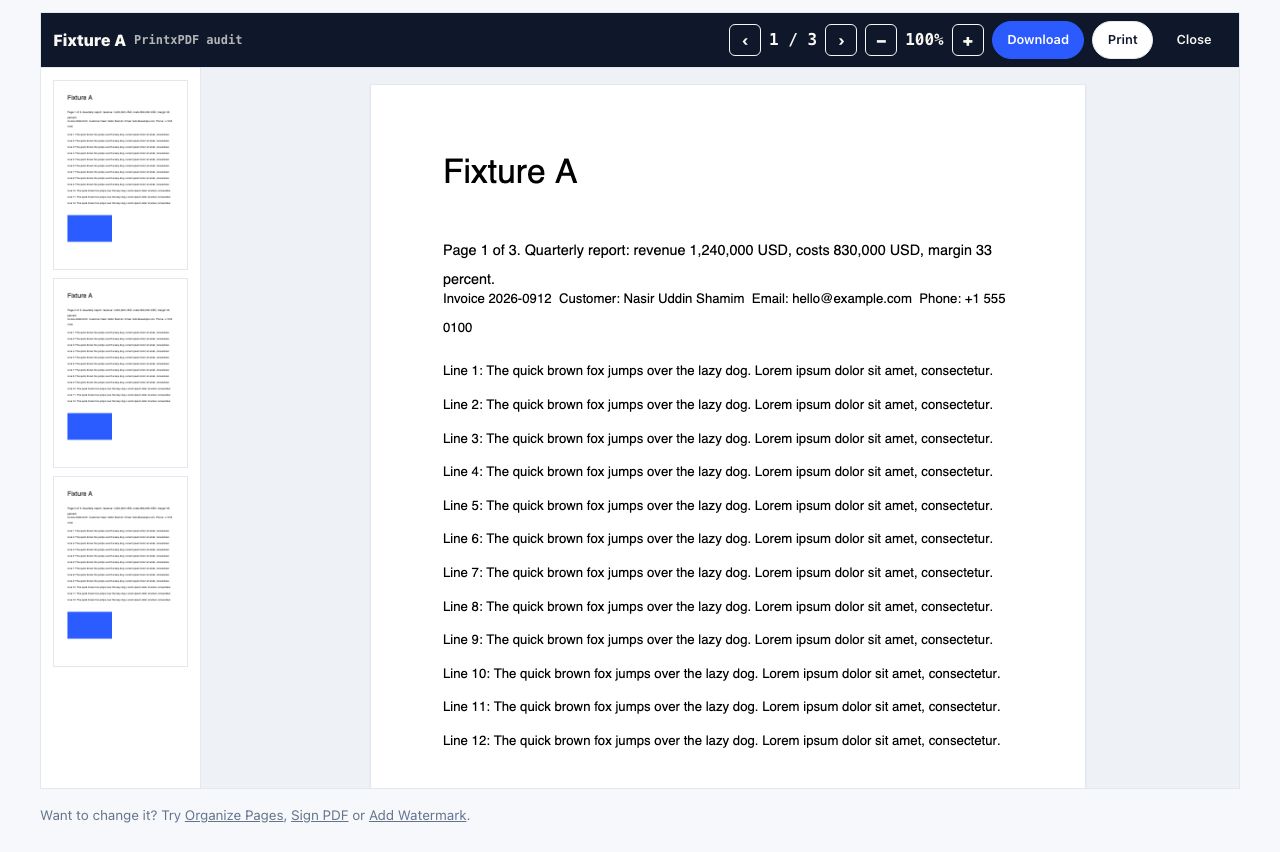
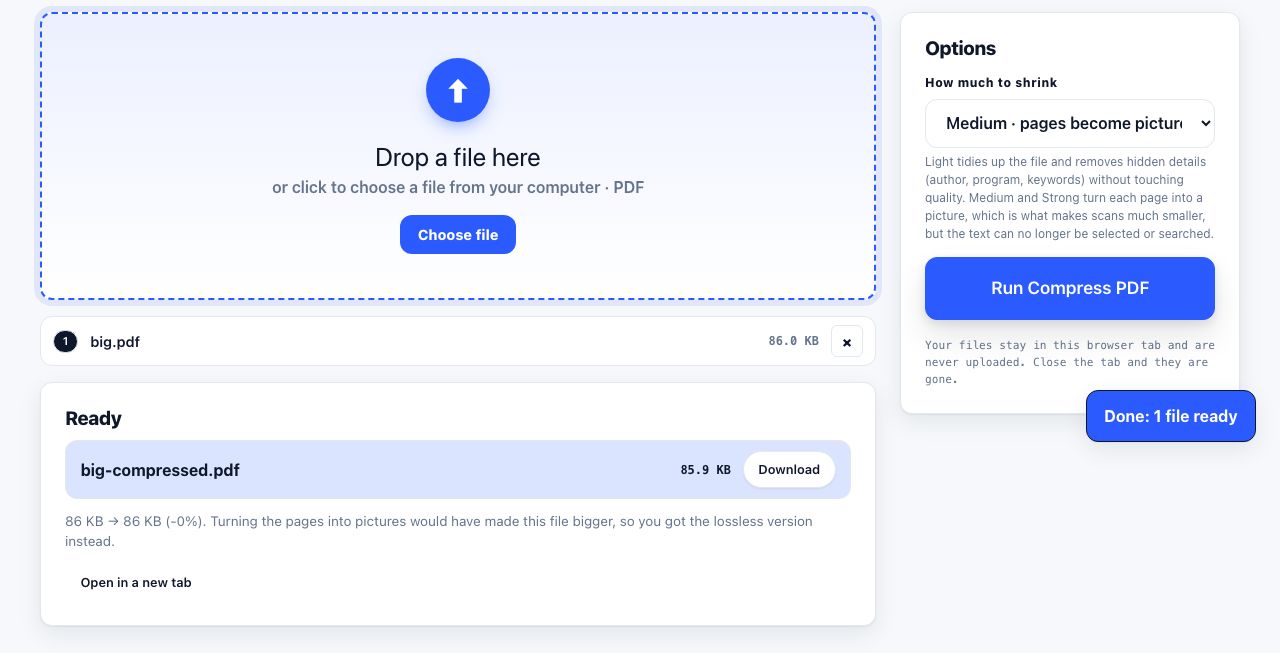
Safari has the best reader mode of any browser and the best hidden PDF option of any mobile browser. Neither is signposted, so most people never find either.
On a Mac
| What you want | How | Notes |
|---|---|---|
| Clean article view | Press ⌃⌘R, or click the ☰ icon at the left of the address bar | Only offered on article pages. Choose the font, size and background before printing. |
| Print just one passage | Select the text, then File → Print Selected Text | Safari has no Selection radio button in the print sheet; this menu item is the equivalent. |
| Save as a PDF | Press ⌘P, then open the PDF menu at the bottom left and choose Save as PDF | Text stays selectable and links stay clickable. |
| Check it before printing | Same PDF menu, choose Open in Preview | Preview shows exact pagination so you do not waste a sheet. |
| Always use Reader on a site | Right-click the address bar, Settings for This Website, tick "Use Reader when available" | Per-site and permanent. Ideal for a news site you read daily. |
Safari Reader carries your font and background choices straight into the print output, so a serif face at a slightly larger size gives you a genuinely readable printout rather than a screenshot of a web page.
On iPhone and iPad
The share sheet hides a Reader PDF option that produces exactly what you want: the article, no navigation, no ads, as a real PDF with selectable text.
- Open the article in SafariLet it load fully so images below the fold are fetched.
- Tap the page settings buttonIn the address bar, then choose Show Reader if you want to check the clean version first.
- Tap ShareThe square with the arrow. At the top of the sheet, under the page title, there is a small Options row.
- Tap OptionsChange "Send as" from Automatic to Reader PDF. This is the whole trick and it is one tap deep.
- Choose where it goesSave to Files, save to Books, or send it straight to someone. Files plus iCloud Drive keeps it on your Mac too.
- Or print itFrom the same share sheet choose Print, pick an AirPrint printer, and the Reader layout is what gets sent.
If Reader PDF is greyed out, Safari did not detect an article. Plain PDF in the same menu saves the full page instead. For receipts and confirmations that is usually what you want anyway.
Markup before you send it
From the share sheet, choose Markup to draw, highlight or add text on the PDF before saving. It is the fastest way to circle a paragraph on a phone, and the annotations are saved into the PDF itself rather than flattened into an image. Tap Done, then Save File To.
A note on Safari extensions
Safari extensions are distributed only through the App Store, wrapped inside a Mac or iOS app. That makes the review process stricter than the Chrome Web Store, and it makes the permission model clearer: when an extension first needs a site, Safari asks and offers Allow for One Day or Allow Always, per site.
- Prefer Allow for One Day the first few times. If you never notice its absence, you did not need it.
- Review what is installed under Safari → Settings → Extensions on Mac, or Settings → Apps → Safari → Extensions on iPhone.
- Deleting the wrapper app removes the extension. There is no separate uninstall.
- Extensions do not sync from Mac to iPhone. You install them separately on each device.
There is no PrintxPDF extension in the App Store. What works in Safari today is the bookmarklet on the extension page, which is a link you drag to your bookmarks bar and works in any browser, or pasting a URL into the web page printer.
Bookmarklets on iOS, which is fiddly but works
iOS Safari cannot drag a bookmarklet to a bar, but it can still run one. Bookmark any page, then edit that bookmark and replace its address with the bookmarklet code. Open the Bookmarks list on any page and tap it to run. Because bookmarks sync through iCloud, a bookmarklet you set up on your Mac appears on the iPhone by itself, which is by far the easier route. The step-by-step is in bookmarklet versus extension.
Open the PDF you just saved and check the pagination before sending it to a printer.
PDF Reader →When none of it works
Reader is unavailable on dashboards, order pages, forum threads and heavy JavaScript apps. For those, take a full-page screenshot or paste the URL into a cleaner and delete the blocks you do not want. The broader browser-by-browser comparison is in printing a web page without ads.
Frequently asked questions
How do I turn on Reader in Safari?
On a Mac, press Control-Command-R or click the ☰ icon at the left of the address bar. On iPhone, tap the page settings button in the address bar and choose Show Reader. The option only appears on pages Safari recognises as articles.
How do I save a web page as a clean PDF on iPhone?
Tap Share, then tap Options at the top of the share sheet, and change "Send as" to Reader PDF. Save it to Files or Books. This gives you the article with selectable text and no ads or navigation.
Can I print only selected text in Safari?
Yes, but not from the print sheet. Select the text, then use File then Print Selected Text from the menu bar. If that item is greyed out, click once inside the page body first so Safari knows which frame holds the selection.
Are Safari extensions safer than Chrome extensions?
Generally yes, because they ship through the App Store review process and Safari asks for per-site permission with an Allow for One Day option. That is not a guarantee, so still check the developer and prefer day-limited access.
Is there a PrintxPDF extension for Safari?
No, and none is planned. Use the bookmarklet from the extension page instead: it works on Mac and syncs to iPhone through iCloud bookmarks. Pasting the URL into the web page printer works everywhere too.