How to compare two PDFs and find what changed

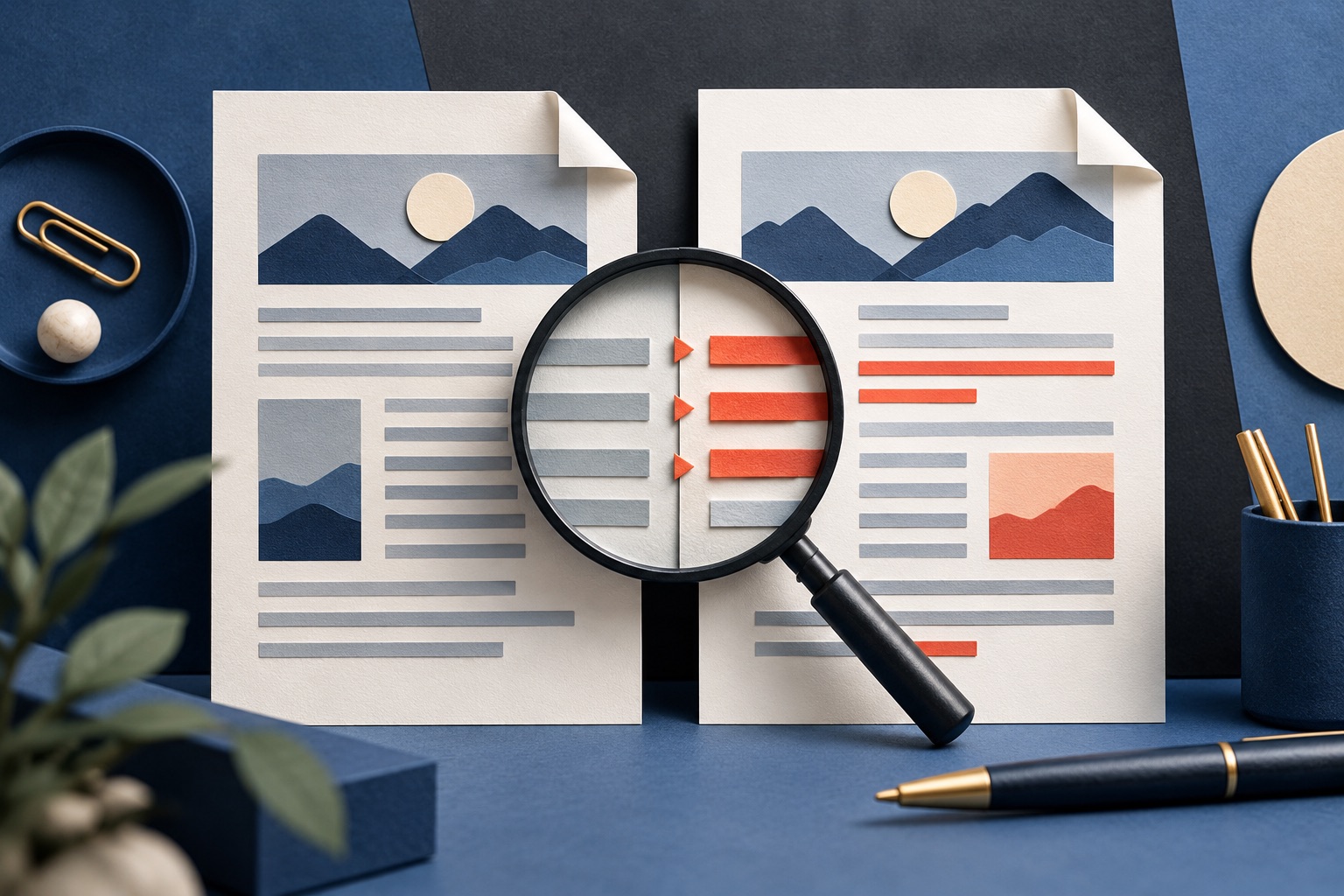
Load both files into a comparison tool, older on the left and newer on the right, and step through the pages it flags. A visual comparison shows where the pixels differ, so it catches moved or restyled content. A text comparison diffs the words, so it survives text shifting between pages. Use both if the change matters.
See the tools in action

There are two entirely different ways to compare PDFs and they answer different questions. A visual comparison renders both files to images and highlights where the pixels differ, which is how you catch a moved logo, a changed colour or a redrawn chart. A text comparison pulls the words out of both files and diffs them word by word, which is how you catch shall becoming may. Neither on its own tells you everything that changed.
What each method catches
| Change | Visual page comparison | Text comparison |
|---|---|---|
| A word changed inside a clause | Yes, if the page did not shift | Yes, and it names the word |
| A figure changed in a table | Yes | Yes |
| A paragraph inserted, pushing text down | Flags every page after it | Yes, shown cleanly as an insertion |
| A logo or an image moved 3 mm | Yes | No |
| A font, a size or a colour changed | Yes | No |
| A chart redrawn from different data | Yes | Only if the labels changed |
| A page removed | Yes, as a cascade of differences | Yes |
| A comment or annotation added | Usually not | No |
| Metadata: author, dates, producer | No | No |
Comparing two files, step by step
- Name the files before you start
Contract_v3_ours.pdfandContract_v4_theirs.pdfbeatscontract.pdfandcontract (1).pdf. Half the mistakes in this job come from comparing in the wrong direction. - Load both into the toolOpen compare PDF, put the older file on the left and the newer on the right. Both stay in your browser: nothing is uploaded and no quota is used.
- Check the page counts firstIf they differ, a page was added or removed, and every page after that point will look changed even where the words are identical. Deal with that before reading anything else.
- Step through the flagged pagesLook at what is highlighted rather than at how much is highlighted. A page that is 90 percent red usually means the text shifted, not that 90 percent of it was rewritten.
- Read each changed passage in the document itselfA diff shows you where to look. It does not tell you what the change means, and a two-word change can invert a clause.
- Write the differences down as a listFive specific numbered changes are something you can send back to the other side. A screenshot of a highlighted page is not.
Compare two versions page by page in your browser, with neither file leaving your computer.
Compare PDFs →The page-shift problem
This is the failure everyone hits first. Add two sentences to the second paragraph of a 40-page contract and everything below moves down. If that pushes one line over onto the next page, then page 3 of the new file holds the content that was on page 2 of the old one, and so on to the end. A page-by-page visual comparison dutifully reports 38 changed pages for one real change, and it is not wrong: those pages genuinely do differ from their counterparts.
The way out is a text comparison, which treats each document as one continuous stream of words and does not care which page they landed on. As a rule: use text mode for anything wordy, a contract, a policy, a report, and visual mode for anything designed, a brochure, a form layout, a slide deck, a drawing.
A quick check when only visual mode is available: compare the last page of both files first. If the last pages match, nothing shifted anywhere, and a page-by-page comparison is trustworthy across the whole document.
What a comparison will not tell you
- Comments and annotations sit in a layer above the page and many tools render the page without them, so a reviewer note added or deleted goes unreported.
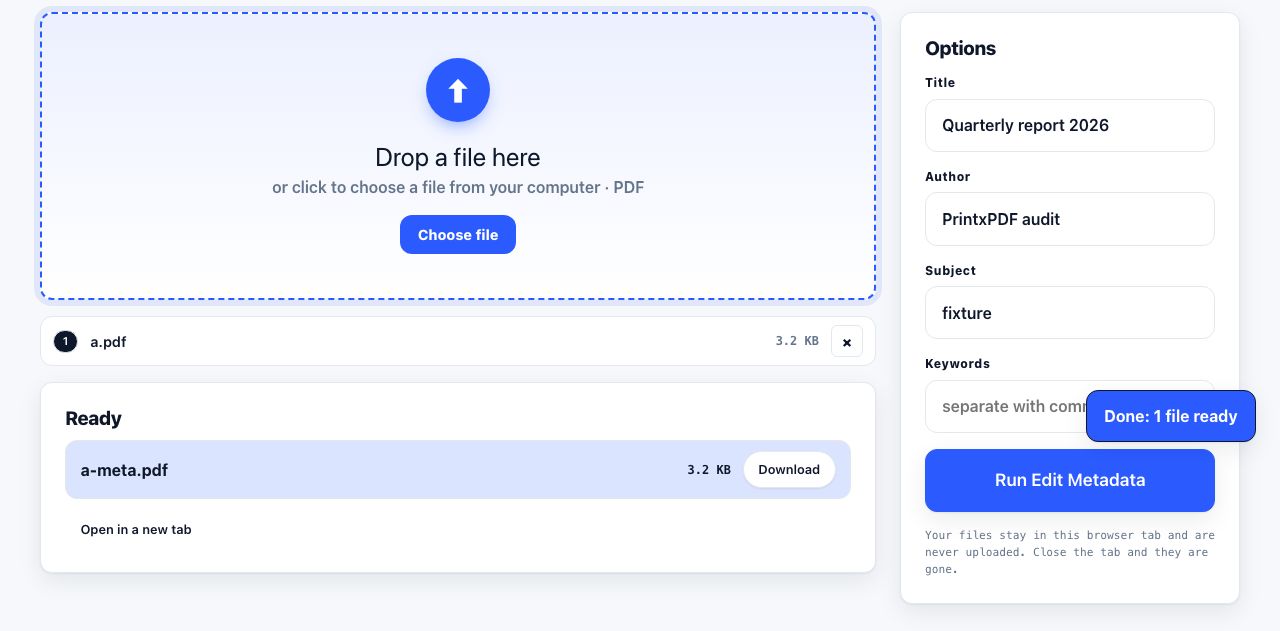
- Metadata is invisible on the page: author name, creation and modification dates, and the software that produced the file. Check it with edit metadata, and see removing metadata for what it can reveal.
- Hidden layers and cropped content are not drawn, so they are not diffed. A change made outside the crop box is invisible to a visual comparison.
- Form field values may or may not be included, depending on whether the tool flattens each page before rendering it.
- Embedded attachments inside the PDF are never compared.
- Signature validity is a fact about the file, not about the page, and no page comparison reports it.
- Which version is authoritative. Only the people involved know that, and a diff cannot help you.
Scanned documents compare badly
Two scans of the same physical page are never the same image. The feed rollers pull the paper a fraction differently, the lamp ages, the sheet sits at 0.3 degrees to the glass. A pixel comparison lights up the entire page and tells you nothing. If both files are scans, run OCR on each and compare the recognised text instead. That is imperfect, because OCR misreads characters and will invent differences of its own, but a list of forty suspicious words beats a page that is uniformly red.
Never rely on a comparison to prove that nothing changed in a legal or regulatory document. A tool reports what it can detect. The absence of a reported difference is not evidence of an identical document, particularly where annotations, metadata, attachments or content outside the crop box are involved.
If you still have the source documents
Compare those instead, every time. Microsoft Word has Review then Compare, which produces a proper tracked-changes document with each change attributed. Google Docs keeps File then Version history, which shows exactly who changed what and when. LibreOffice has Edit then Track Changes then Compare Document. All three beat comparing exported PDFs, because they work on the text the author actually edited rather than on a picture of it.
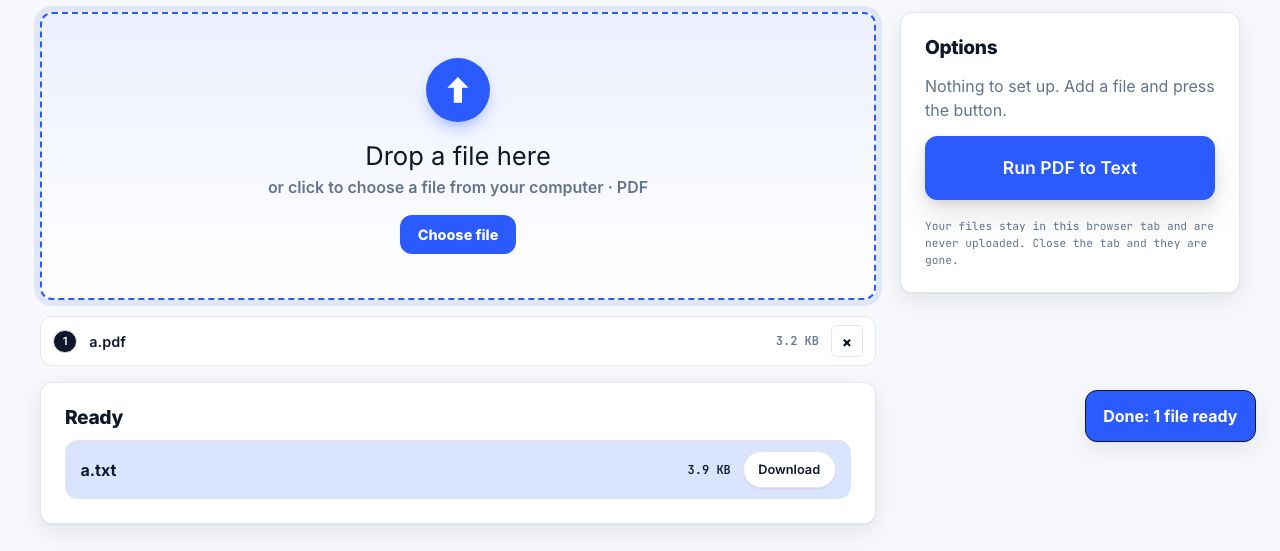
If you only have the PDFs but you want the words rather than the layout, extract the text from both and diff it with tools you may already have. PDF to text will do the extraction in your browser, or on a Mac or Linux machine:
# Extract plain text from both files, keeping the layout
pdftotext -layout old.pdf old.txt
pdftotext -layout new.pdf new.txt

# Line-by-line differences
diff -u old.txt new.txt

# Word-by-word, which reads much better for prose
git diff --no-index --word-diff old.txt new.txt
Before you reply to the other side
Do one last pass with the tool switched off. Open both files side by side and check the three things a diff is worst at: the signature block, the numbers in any schedule or annex, and the dates. Those are short, easy to alter, and exactly the places where a highlighted difference on a busy page is easy to scroll past. Then send your numbered list, quoting the old wording and the new wording for each item, so nobody has to run the comparison again to understand what you found.
Frequently asked questions
How do I find the differences between two PDF files?
Load both into a comparison tool with the older version on the left. It renders both and highlights where they differ. Check the page counts first: if they are different, text has shifted and every page after the change will be flagged even where the words are identical.
Why does the comparison show every page as changed?
Almost always because content was inserted or removed and everything below it moved. Each page now holds different text from the page it is being compared against. Switch to a text comparison, which compares words rather than pages and is unaffected by the shift.
Can I compare two scanned PDFs?
Not visually, in any useful way. Two scans of the same page differ pixel by pixel because of feed and alignment variation, so the whole page is flagged. Run OCR on both and compare the recognised text, accepting that OCR errors will produce some false differences.
Does comparing PDFs find changed metadata or comments?
No. Comparison works on what is drawn on the page. Author names, timestamps, producing software, embedded attachments and, in most tools, annotations are all invisible to it. Check metadata separately if it matters.
Is it better to compare the PDFs or the original documents?
The originals, whenever you have them. Word, Google Docs and LibreOffice all compare documents at the level of the text the author edited and attribute each change. Comparing PDFs is what you do when the source files are not available.