How to edit, crop, fill in and compare a PDF
 By Nasir Uddin Shamim5 guides
Editing a PDF means changing the file you already have, not the document it came from. You can correct text, add lines, crop pages, fill form fields and compare two versions. You cannot reflow a paragraph, because a PDF stores text as positioned runs rather than as flowing prose.
These four guides cover the awkward case: you have a PDF, you need it different, and you do not have the Word or InDesign file it was exported from. That case has real limits. A PDF stores each page as a list of drawing instructions, so a tool can restyle a word, cover a block, shrink the visible area of a page or fill a named field, but nothing can make a paragraph rewrap the way a word processor does. Knowing which edits are cheap and which are impossible saves you an hour of fighting the file.
Every guide in this topic
How to edit a PDF, and what editing a PDF cannot do
Open the PDF in an editor, click the text you want to change, and type over it. A PDF stores text as positioned runs rather than as paragraphs, so you can correct a word, add a line or cover a block, but you cannot reflow a paragraph. For bigger changes, edit the source document and export a fresh PDF.
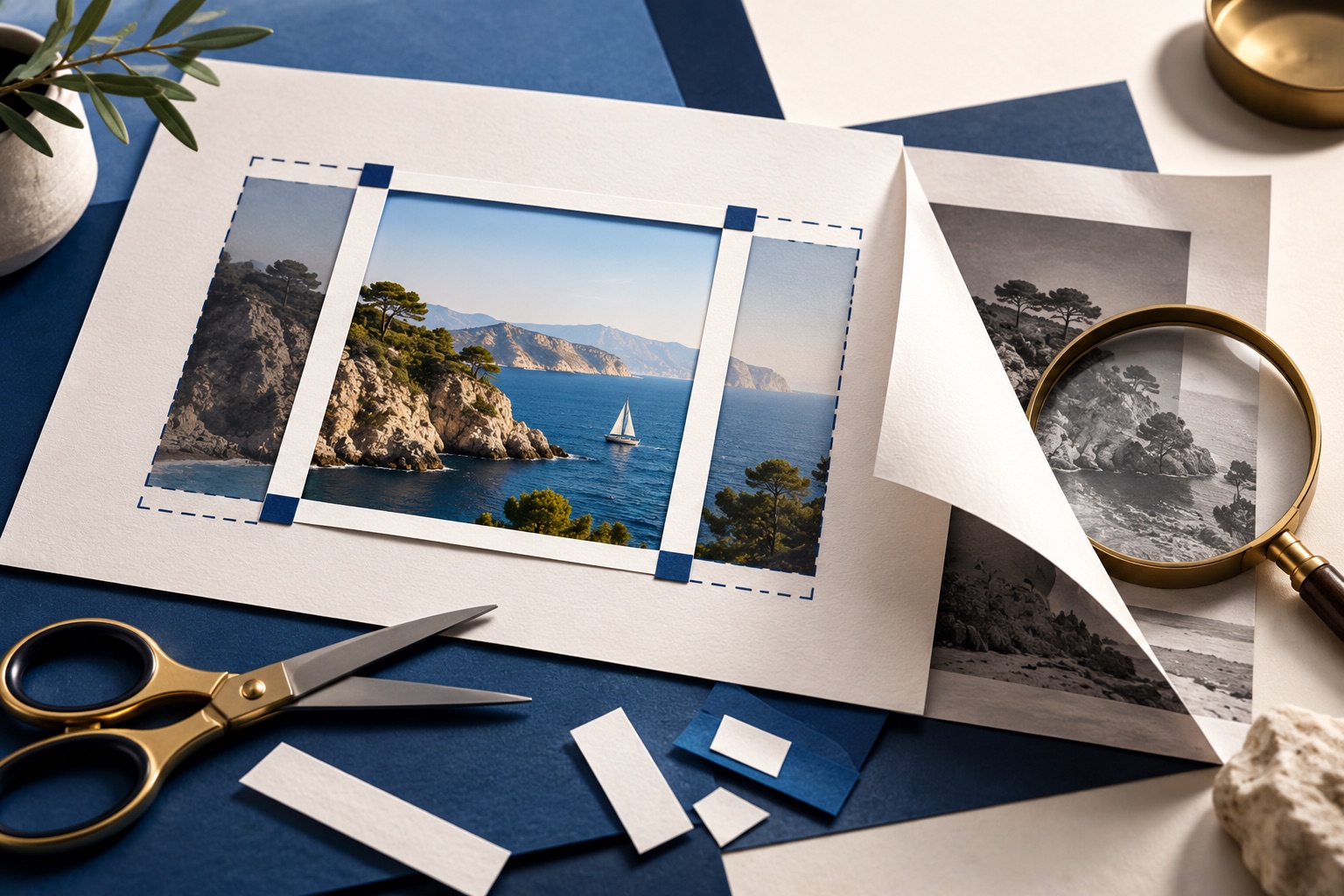
How to crop a PDF, and why cropping hides nothing
Open the PDF in a crop tool, drag the frame to the area you want to keep, choose whether it applies to one page or all of them, and download. Cropping sets a smaller CropBox, the rectangle a viewer draws. Everything outside it stays in the file, so cropping never hides sensitive content.
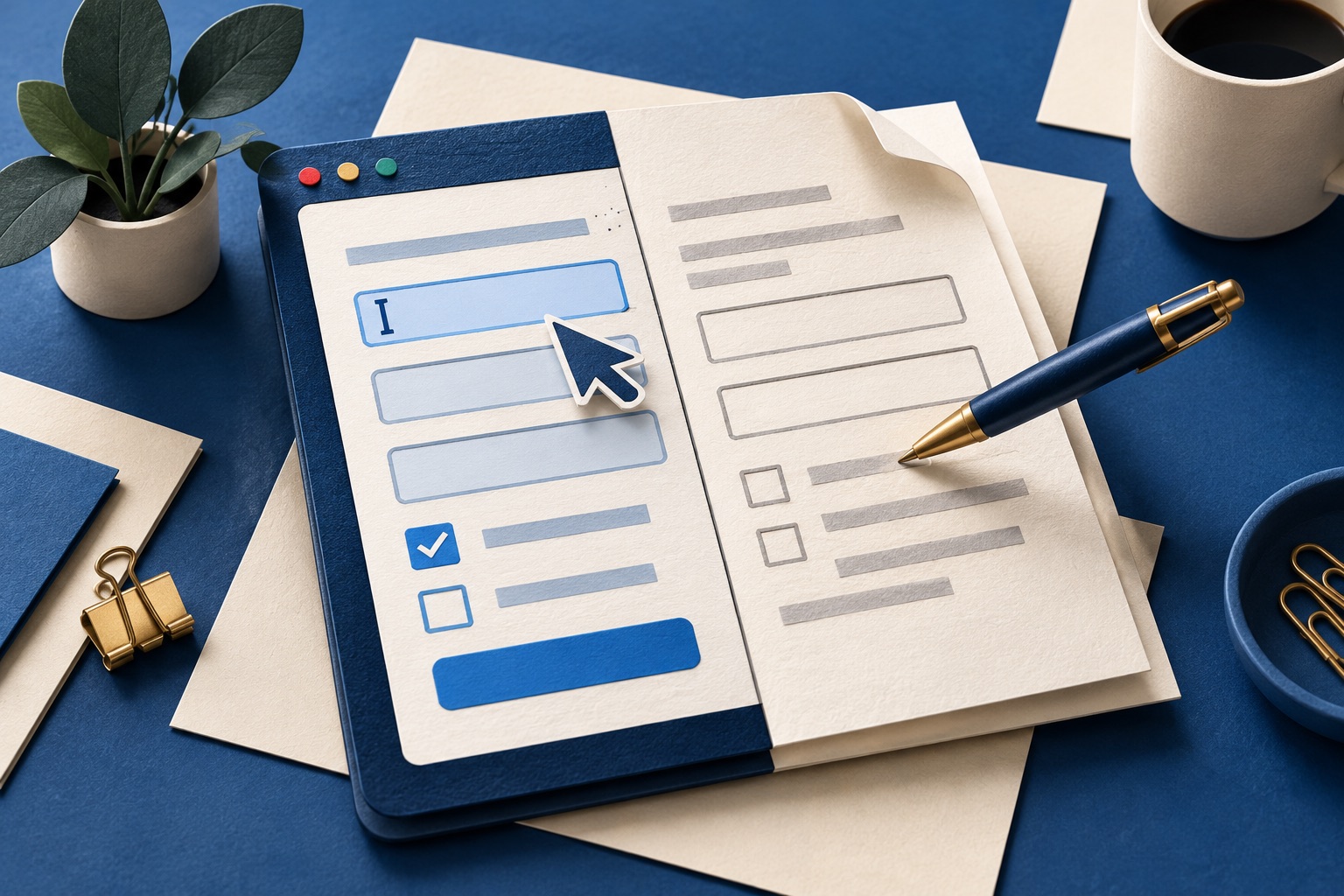
How to fill in a PDF form, fillable or flat
Click where an answer belongs. If a cursor appears and Tab jumps to the next box, the file has real form fields: type into them and save. If nothing responds, the page is a flat picture of a form, so add your own text boxes on top. Flatten the result before sending it, or your answers may arrive blank.
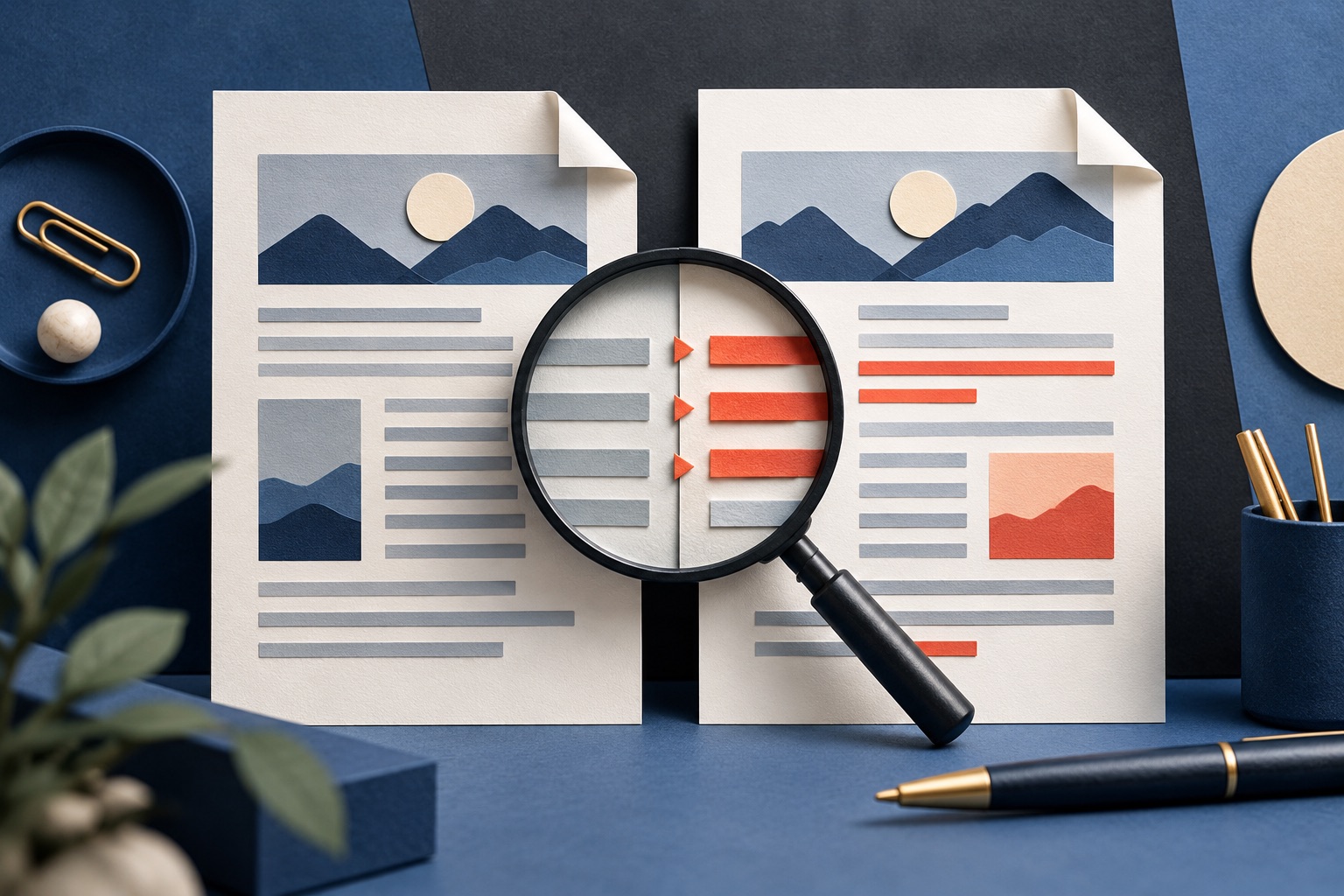
How to compare two PDFs and find what changed
Load both files into a comparison tool, older on the left and newer on the right, and step through the pages it flags. A visual comparison shows where the pixels differ, so it catches moved or restyled content. A text comparison diffs the words, so it survives text shifting between pages. Use both if the change matters.
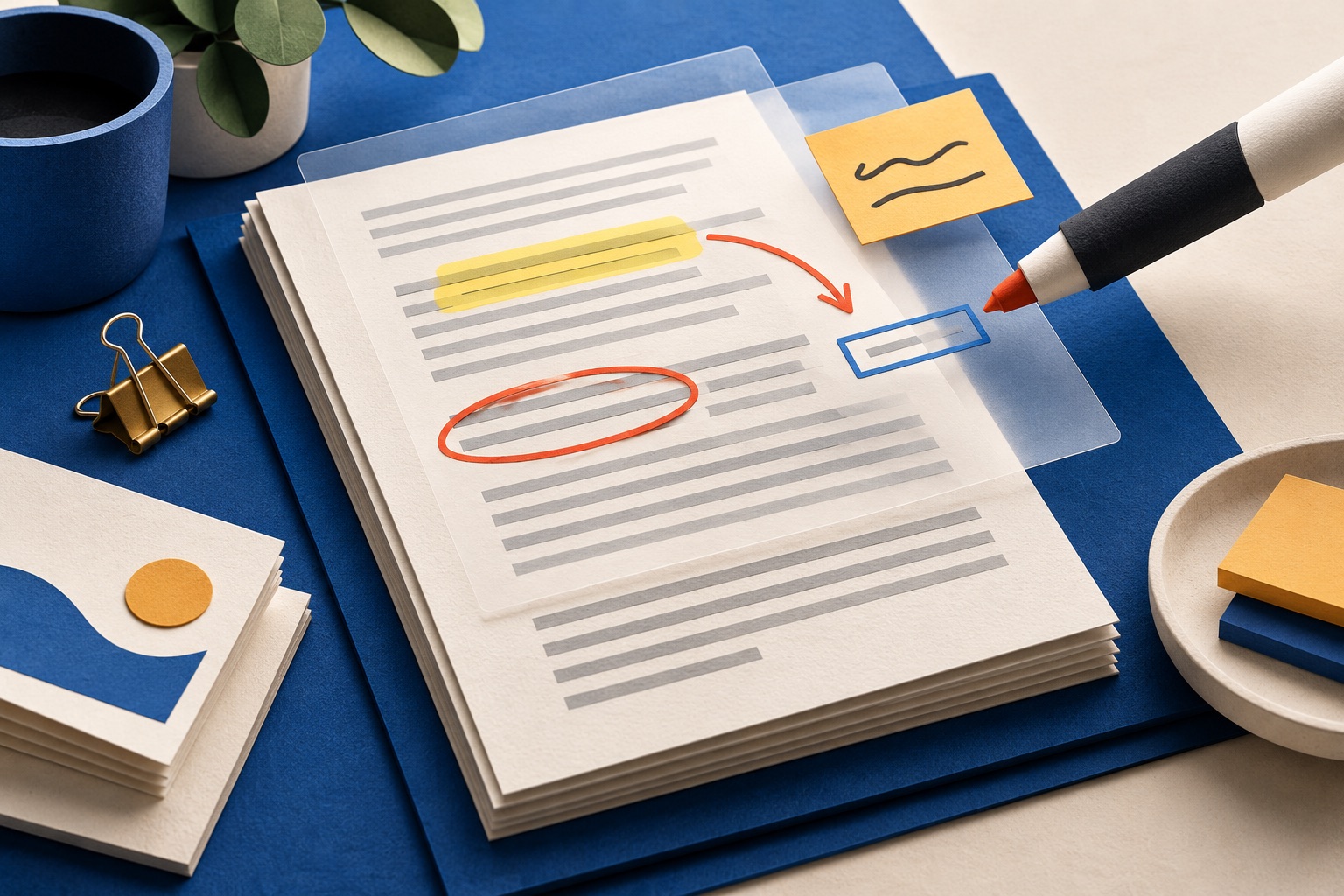
How to annotate a PDF without changing its original text
To annotate without rewriting a PDF's original text, open it in an overlay editor and add text, highlights, drawings, shapes or a signature on top of the page. The source text stays underneath. Use true redaction when information must be removed, and flatten a review copy only when you want annotations to become fixed page content.
Tools for this job
Edit PDF
Add text, pictures, shapes
Crop PDF
Trim the margins
Fill PDF Forms
Find and fill in form boxes
Compare PDFs
See what changed
See the recommended tools in action


Other topics
Printing web pages
Print any web page without ads, sidebars or menus. Reader mode, print preview, browser settings and a free tool that cleans the page in your browser.
Saving web pages as PDF
Save any web page as a PDF in Chrome, Safari, Firefox, Edge, iPhone or Android. Print-to-PDF, full-page screenshots, and archiving that survives link rot.
Merging PDF files
Combine PDFs into one file for free. Drag to set the page order, mix in JPG and PNG images, keep bookmarks, and merge without Adobe Acrobat on Windows or Mac.
Splitting and extracting PDF pages
Split a PDF into single pages or custom ranges, extract only the pages you need, delete the rest, and cut a big file down to fit an email attachment limit.
Compressing PDF files
Compare three PDF compression presets, keep text searchable when needed, and learn when to split a large file or use a sharing link.
Converting PDF to other formats
How to get a PDF back into an editable format: Word, Excel, plain text and slides, what each conversion really preserves, and when the answer is to retype.