How to fill in a PDF form, fillable or flat


Click where an answer belongs. If a cursor appears and Tab jumps to the next box, the file has real form fields: type into them and save. If nothing responds, the page is a flat picture of a form, so add your own text boxes on top. Flatten the result before sending it, or your answers may arrive blank.
See the tools in action

Two files can look identical on screen and be completely different documents. One has form fields: named boxes that the PDF itself defines, each with a type, a value and somewhere to store what you type. The other is a picture of a form, with the lines and boxes drawn as artwork and nothing at all to click. What you do next depends entirely on which one you have, and there is a test that takes two seconds.
The two-second test
- Click where an answer should go. A real field shows a text cursor and usually tints itself pale blue or grey.
- Press Tab. In a real form, focus jumps to the next field in the order the designer set. In a flat one, nothing moves.
- Try to select the label text with your mouse. If the words
Full namehighlight, the page has real text, though that on its own does not mean it has fields. - Look at the top of the viewer. Most show a coloured bar saying the document contains fillable form fields, or asking you to fill out the form.
Three kinds of form
| Kind | How you recognise it | How you fill it |
|---|---|---|
| AcroForm | Fields highlight, Tab moves between them. The standard form type since 1996 | Type into the fields, then save or download |
| XFA form | A grey page reading "Please wait... if this message is not eventually replaced" | Adobe Acrobat or Reader on a desktop computer. Nothing else can open it |
| Flat form | Nothing responds to a click. Usually a scan, often very slightly crooked | Draw your own text on top of the page image |
XFA deserves a warning of its own. It was an Adobe extension used by a number of government and banking forms in the 2000s, it was removed from the PDF 2.0 standard, and no browser, no phone, no macOS Preview and no third-party viewer renders it. If you see that grey message, the only route is Adobe Acrobat Reader on Windows or macOS. There is no workaround and no online tool that fixes it.
Filling a real fillable form
- Open the formGo to PDF forms and drop the file in. The fields are detected and outlined so you can see how many there are. The file stays in your browser and is never uploaded.
- Work in Tab order, not in reading orderThe designer set a tab sequence. Following it is the reliable way to avoid missing a field tucked into a corner, which is the usual reason a form comes back rejected.
- Watch the field typesA text field takes anything. A checkbox toggles. A radio group allows exactly one of several. A dropdown offers a fixed list, and a value you type that is not on the list is discarded silently by some viewers.
- Respect the field limitsText fields can carry a character limit or a comb format, one character per little box. If your entry truncates at 20 characters, that is the field doing what it was told, not the tool failing.
- Check every required fieldRequired fields are usually outlined in red once you try to submit or print. Look for them before you finish, because some viewers never surface the warning at all.
- Download the filled copyKeep this version. It is the one you can still correct.
- Flatten a second copy for sendingSee the section below. This is the step most people skip and it is the one that causes forms to arrive empty.
Fill in form fields in your browser, with nothing uploaded and no sign-in.
Fill PDF Forms →Filling a flat form or a scan
Here you are not filling fields, because there are none. You are drawing text on top of a picture, using edit PDF or the text tool in any annotator. The mechanics are easy; the difference between a form that looks filled in and one that looks defaced is entirely in the details.
- Zoom to at least 200 percent before placing each entry, so the text sits on the ruled line rather than floating above or straddling it.
- Match the size roughly. On a page scanned at its original dimensions, 10 to 12 point sits about right against printed form labels.
- Use a plain font. A handwriting font on a printed form reads as an attempt to fake handwriting, which is worse than obvious typing.
- Use black, not dark grey. Scanned forms are often photocopied again at the other end, and grey text at 10 point can vanish.
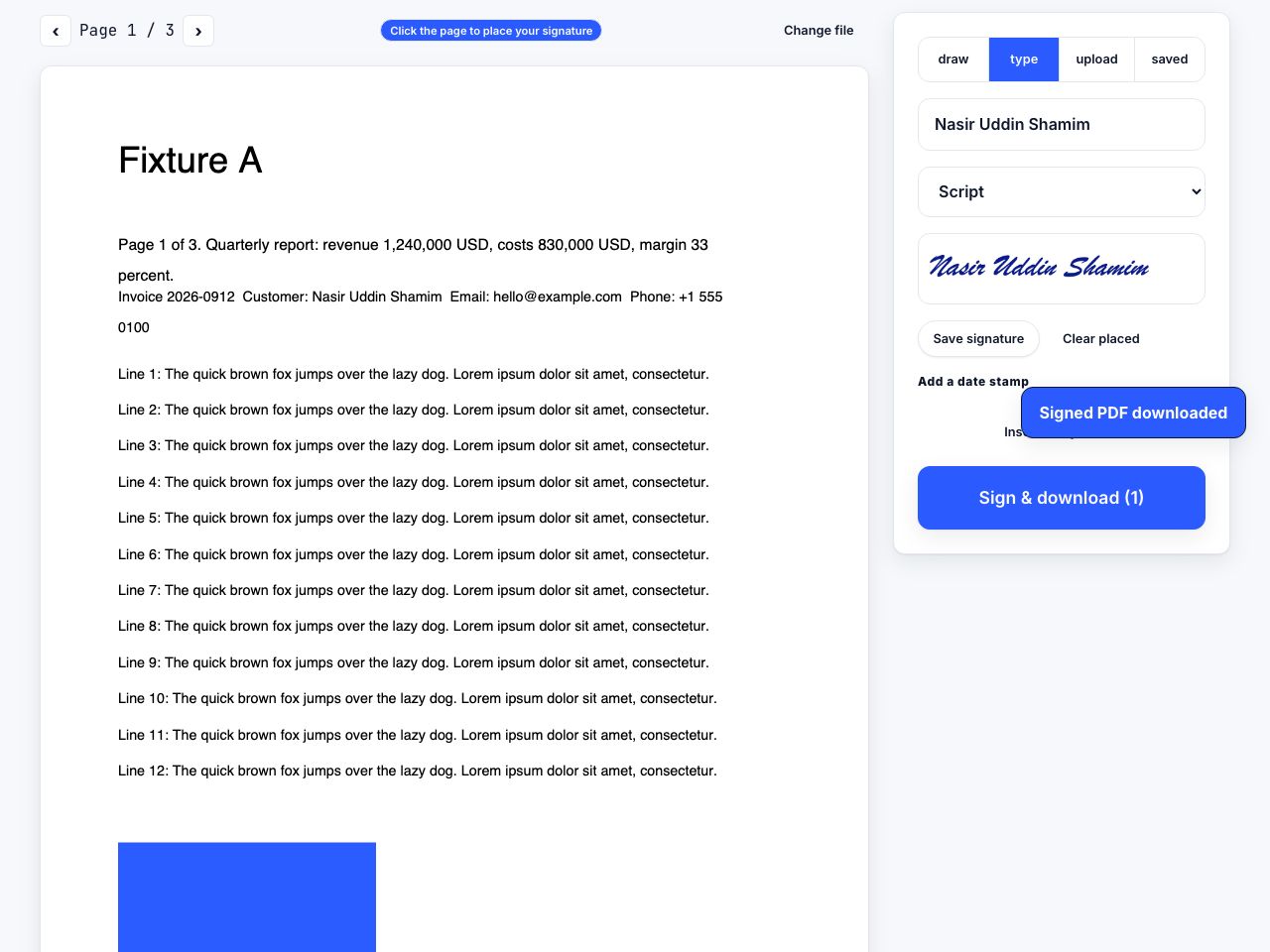
- For a signature, use [sign PDF](/tools/sign-pdf) rather than typing your name in a script font. See how to sign a PDF for what actually counts as a signature.
- Print a test copy if the form is going to be posted. Text that looks fine on screen can land on top of a printed line.
Flatten before you send it
A filled AcroForm keeps your answers as field values, held separately from the page content. That has three consequences, and all three bite people regularly. The recipient can change your answers, because the fields are still editable. A viewer that does not render form fields shows the form blank. And a surprising number of mail apps, phone previews and document management systems are exactly such viewers.
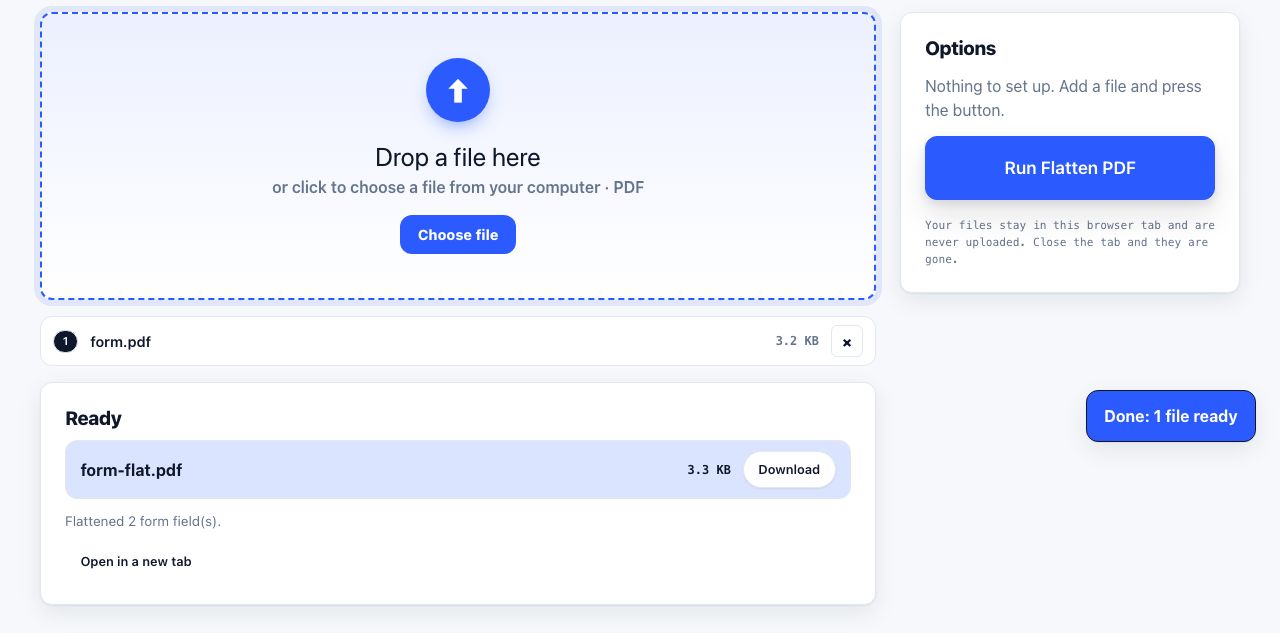
Flattening merges the field values into the page as ordinary drawn content. After that, the answers are part of the page itself, the boxes are no longer editable, and every viewer in existence shows them, because there is nothing special left to render. Run the filled file through flatten PDF and send that copy.
Flattening is one way. You cannot get the fields back afterwards. Keep the unflattened version on your own disk in case you need to correct an answer, and send only the flattened one.
When something goes wrong
| Symptom | Cause | Fix |
|---|---|---|
| The recipient says the form arrived blank | Not flattened, and their viewer ignores form fields | Flatten and resend |
| It prints blank but looks filled on screen | The print setting is not including form fields or annotations | Flatten, or enable "Document and markups" in the print dialog |
| You cannot type into any field | The form is read-only, or the document has editing restrictions | Check for a padlock icon. If it is password-restricted, see unlock PDF |
| Text truncates in the middle of a word | The field has a maximum character count | Abbreviate, or use a continuation sheet if the form allows one |
| A date is rejected as invalid | The field runs a format script expecting a specific pattern | Try dd/mm/yyyy and mm/dd/yyyy. The form rarely tells you which it wants |
| Answers look odd in Acrobat after saving in Preview | macOS Preview writes form data in a non-standard way | Fill in a browser tool or Acrobat instead, and flatten before sending |
If you fill the same form repeatedly, save one completed copy with the unchanging answers already in place and reuse it. That is far quicker than any autofill feature, and it does not store your details anywhere.
What to do with the finished form
Sequence matters. Fill the fields, then sign, then flatten, then send. Signing after flattening is fine; flattening after signing invalidates a digital signature, because flattening rewrites the page content that the signature covered. If you are attaching the form to an email and it is a large scan, compress it last of all, and check that the text you typed is still legible afterwards.
Frequently asked questions
How do I tell if a PDF form is fillable?
Click where an answer should go and press Tab. If a cursor appears and focus jumps to the next box, the file has real form fields. If nothing responds, it is a flat page and you will need to add text on top of it yourself.
Why can I not type into my PDF form?
Three common reasons: the file is a scan with no fields at all, the fields are marked read-only by the designer, or the document has editing restrictions applied with a password. A grey page asking you to wait means it is an XFA form, which only Adobe Acrobat Reader on a desktop can open.
Why did my filled form arrive blank?
Because the answers were stored as form field values rather than as page content, and the recipient opened it in a viewer that ignores form fields. Flatten the file before sending, which merges the answers into the page so every viewer shows them.
Can I fill in a scanned form without printing it?
Yes. Add your own text boxes on top of the page image, zoomed in enough to place each entry on the ruled line. Use a plain black font at about 10 to 12 point, and add a signature image rather than typing your name in a script face.
Should I flatten a PDF form before emailing it?
Yes, in almost every case. Flattening locks the answers into the page so nobody can change them and no viewer can fail to display them. Keep an unflattened copy for yourself, because flattening cannot be undone.